

Enabling Timesheets in Ruddr
The timesheets feature in Ruddr can be enabled or disabled within the Features section (Figure 1) of workspace Settings. As some organizations may not need or desire to use timesheets, Ruddr allows this feature set to be turned off. To enable or disable timesheets, simply click the Timesheets toggle (Figure 2) on the Features section.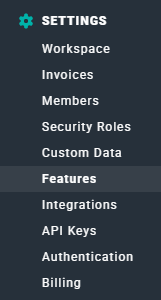
Figure 1 - Access the Timesheets Feature via the Features section of Ruddr Workspace Settings

Figure 2 - Toggle the Timesheets Feature On or Off Based on your Organizational Requirements
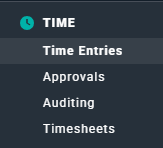
Figure 3 - Accessing Timesheets from the Nav Bar
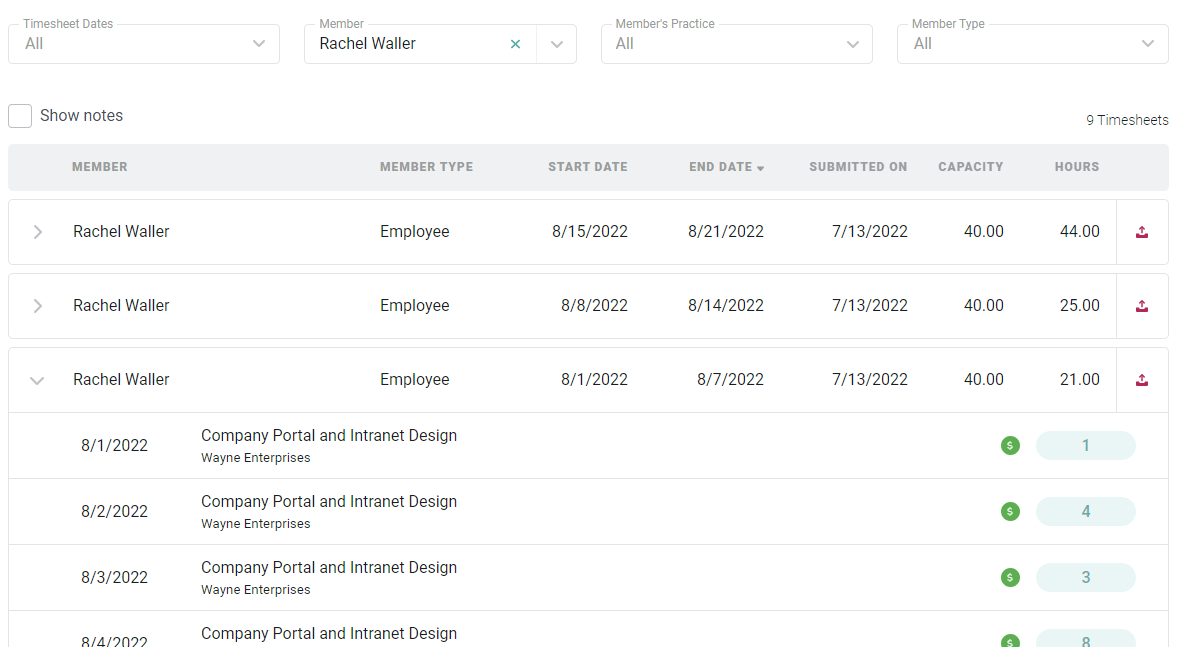
Figure 4 - View Timesheets
Managing Time with Timesheets
The various Time-related functions in Ruddr break down as follows: This article will cover some of the basic implications of Timesheets on these functions. Please refer to the individual articles in the Time section for more detailed, related information.Time Entry with Timesheets
The two significant impacts of timesheets on time entry are:- All time entries are grouped into weekly timesheets. When you view your time entries (Figure 5) via time entry screens, you will see a timesheet status bar that denotes whether or not that particular timesheet has been submitted.
- If a timesheet has been submitted, then the timesheet must be unsubmitted in order to access any of the time entries in that timesheet. For more on the effect timesheets have on time submittal, see the next section below.
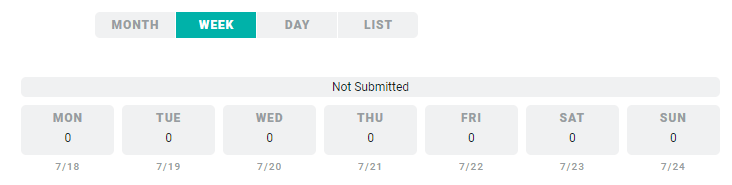
Figure 5 - The Week View of Time Entry Displaying the Not Submitted Timesheet Status
Time Submission with Timesheets
For workspaces with the Timesheet feature disabled, members can submit individual time entries, or choose to submit any outstanding time entries all at once. With timesheets enabled, however, members must submit time entries as part of a single timesheet. As discussed above, time entries are grouped by timesheets, therefore members do not submit individual time entries, nor do they submit groups of time entries across multiple timesheets. To submit a timesheet, a member can click the Submit Timesheet button (Figure 6) on the time entry screen.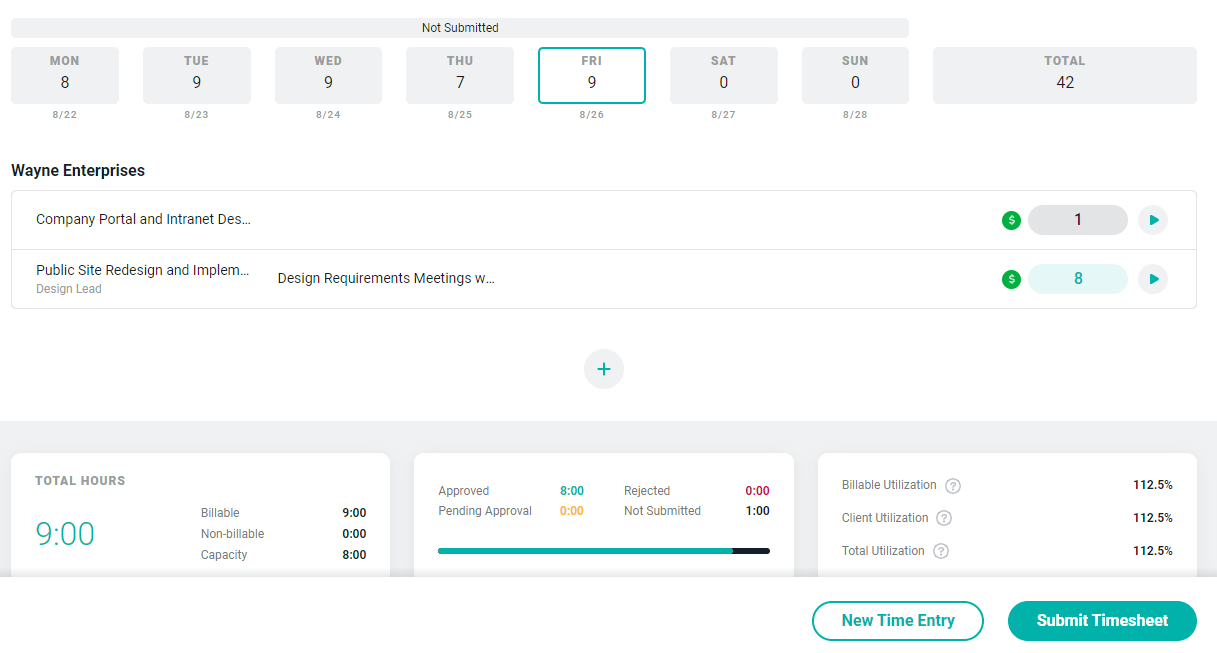
Figure 6 - When Timesheets are Enabled, Members can Submit the Entire Timesheet from the Day View
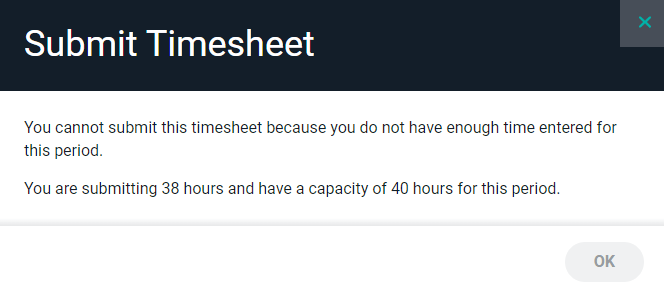
Figure 7 - Some Members may be Required to Meet Capacity Requirements when Submitting a Timesheet

Figure 8 - A Timesheet Cannot be Submitted if Time Entries Violate Time Tracking Rules
When a Member can Unsubmit their Timesheet
Workspace Administrators can restrict timesheet unsubmission based on the following rules / settings (Figure 9) in Ruddr:
Figure 9 - Timesheet Unsubmission Rules
Unsubmitting a Timesheet
Members will see an Unsubmit Timesheet button (Figure 10) on the time entry screen when this option is available. When a timesheet is unsubmitted by a member, any time entries in that timesheet that have been manually approved will remain locked. In that case, a time and expense administrator will need to either edit the time entry on behalf of the member or will need to reject the time entry to send it back to the member for editing. Likewise, if a member has unsubmitted a timesheet that contains invoiced time entries, those time entries will remain locked. Time entries that were automatically approved return to Not Submitted, and their status is set again on resubmission based on the project’s current approval workflow. Finally, when a timesheet is unsubmitted, any time entries that are in the middle of a multi-step approval workflow will have their approval workflow “reset” — when the timesheet is resubmitted, the time entries will need to go back through approvals beginning with Step 1 of their respective approval workflow.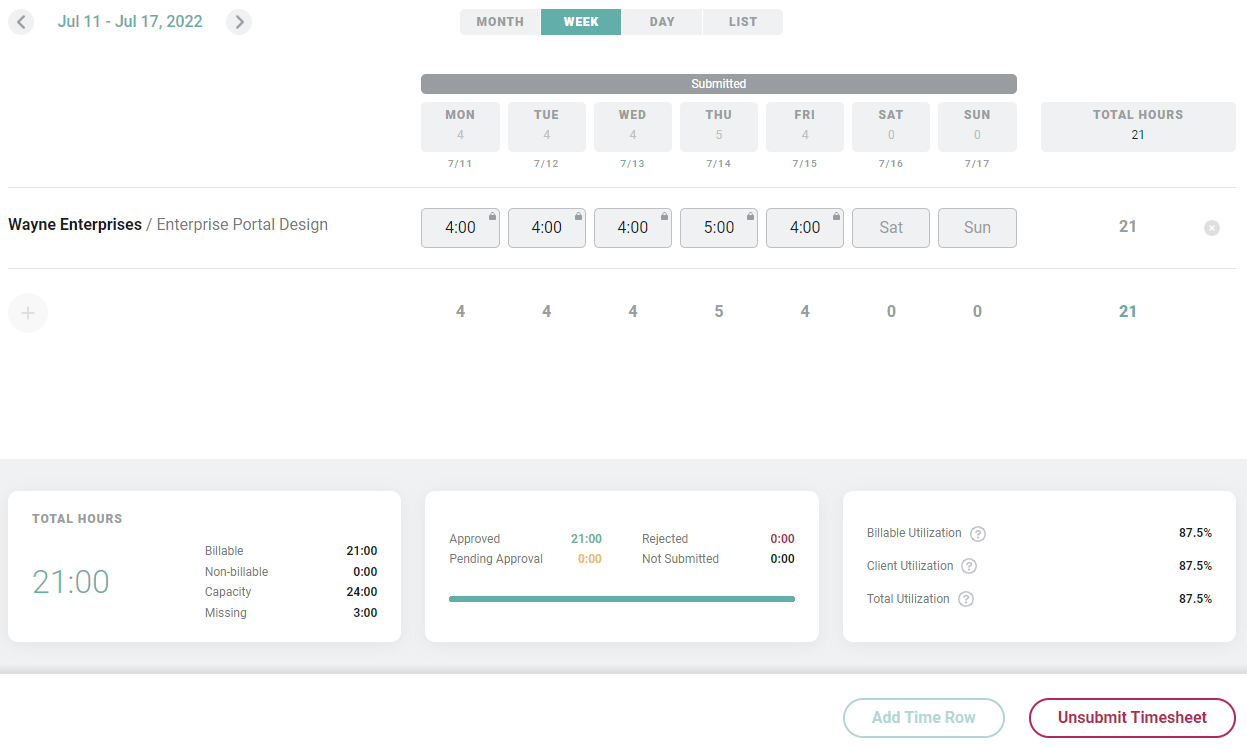
Figure 10 - This Timesheet can be Unsubmitted as the Time Entries have been Automatically Approved and are not Otherwise Locked
Unsubmitting a Partial Timesheet
If the Timesheet falls within a partial week and you need to unsubmit your timesheet, you will be prompted to select which timesheet period you would like to unsubmit (Figure 11).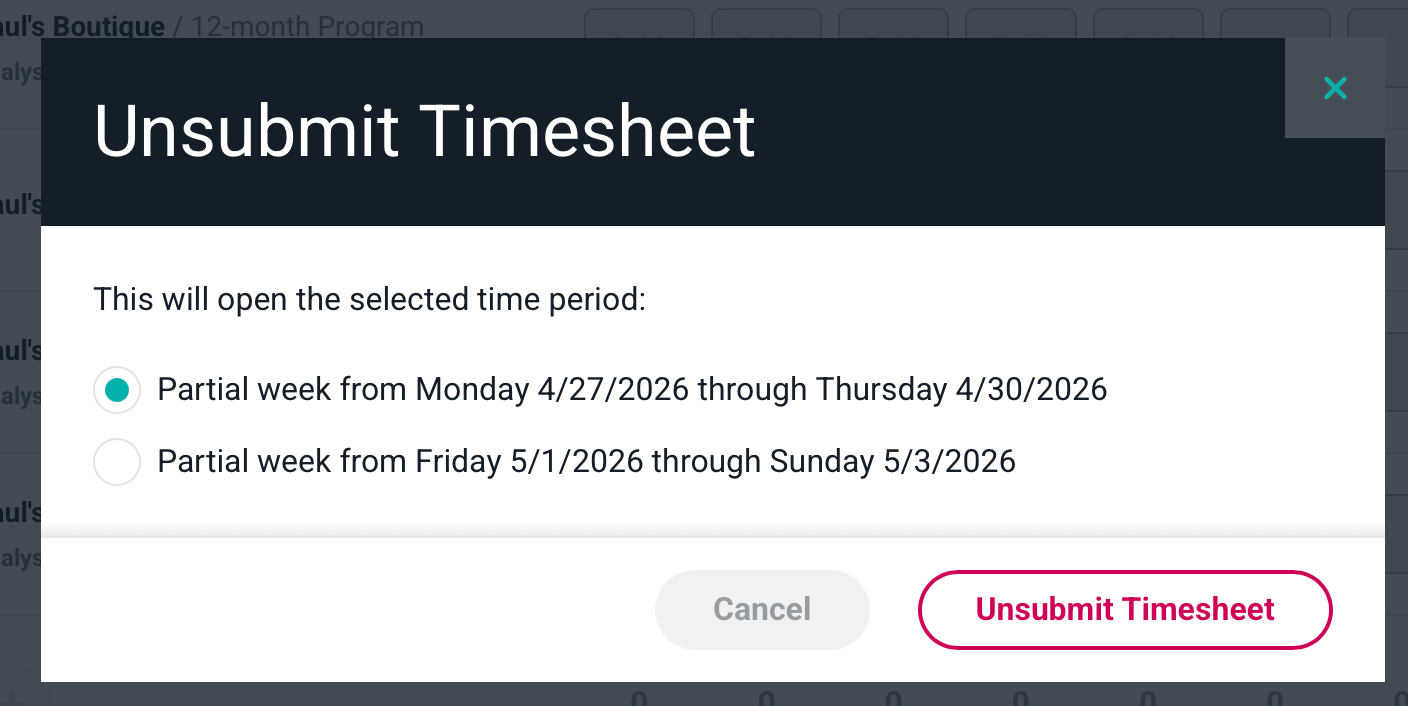
Figure 11 - Ability to pick what timesheet period you want to unsubmit