

- Setting up multiple accounting integrations
- Selecting the accounting integration for the workspace and each business unit
- Aligning business units to projects
- Understanding how invoices are associated with accounting integrations
- Credit notes and payments
Setting up Multiple Accounting Integrations
In order to utilize multiple accounting integrations, you will need to enable the Multiple Accounting Integrations feature under Settings / Features. Once the feature is enabled, you can install any number of QuickBooks or Xero accounting integrations within your workspace. When multiple accounting integrations are configured, you will see a tile for each installed integration (Figure 1) in the Integrations area of workspace settings.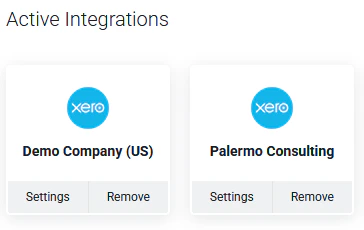
Figure 1 - Multiple Accounting Integrations
Selecting the Accounting Integration for the Workspace and each Business Unit
Once you have connected Ruddr to your various accounting instances, the next step is to set a default accounting integration for the workspace. In the Invoices section of workspace settings, you will find an Accounting Integration setting (Figure 2). Here, you will specify the default accounting integration to use for the workspace.
Figure 2 - Set a Default Workspace Accounting Integration

Figure 3 - Associate an Accounting Integration with a Business Unit
Aligning Business Units to Projects
As detailed in the Create a New Project article, each project has an optional business unit setting. By selecting a business unit, invoices for that project will be created within that business unit’s accounting integration.How Invoices are Associated with Accounting Integrations
When you select a project on the Ready to Bill screen, Ruddr will disable projects within that client that use a different accounting integration (Figure 4). A project’s accounting integration is based on the project’s business unit. If the project does not have a business unit, its invoices will be saved to the workspace’s default accounting integration. If the project has a business unit, its invoices will be saved to the accounting integration associated with that business unit.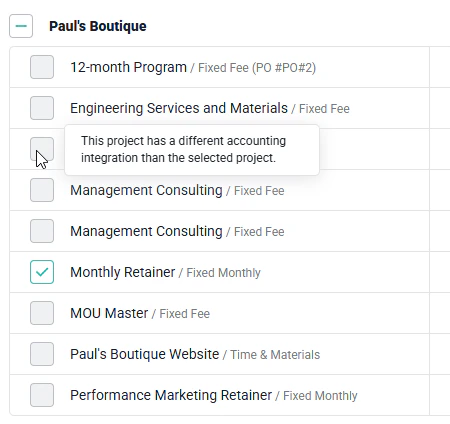
Figure 4 - The Ready to Bill Screen will only Allow Projects with the Same Accounting Integration to be Selected
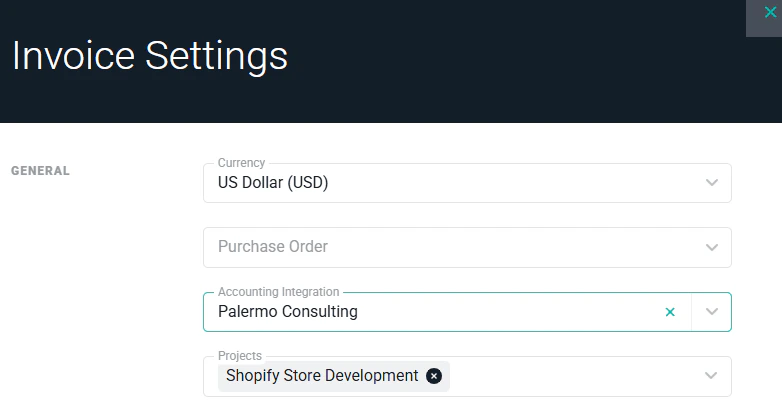
Figure 5 - Changing an Invoice's Accounting Integration Will Disassociate Projects and Transactions
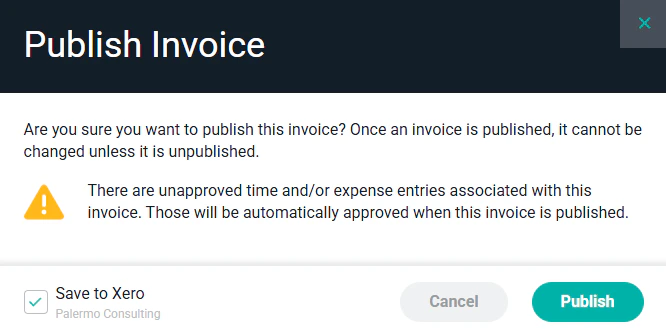
Figure 6 - Publish an Invoice to an Accounting Integration

Figure 7 - Ruddr Displays each Invoice's Accounting Integration