

Figure 1 - Select Ready to Bill to Review the Items Ready to Bill in Your Workspace
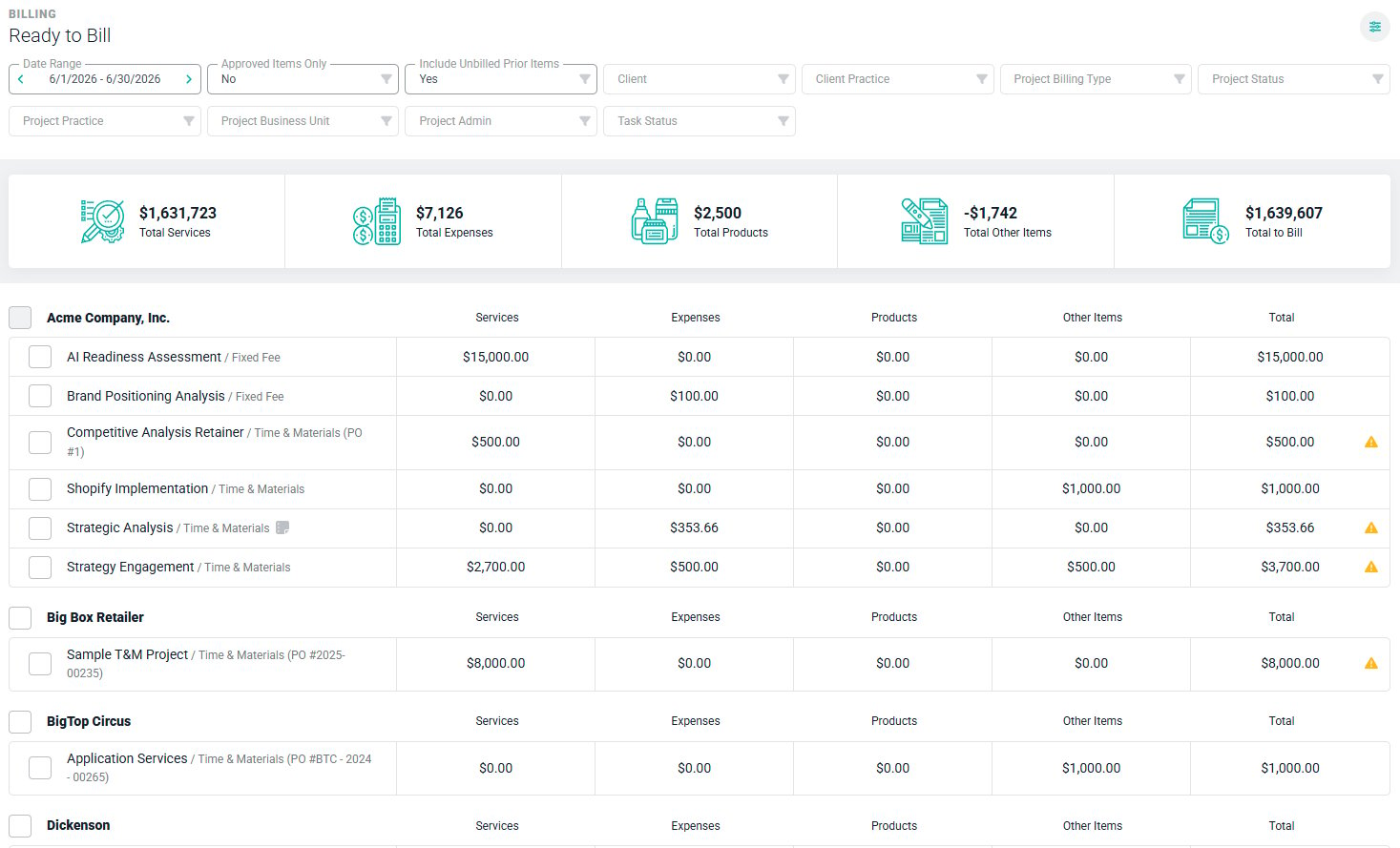
Figure 2 - Ledger of Services, Expenses, and Other Items that can be Invoiced
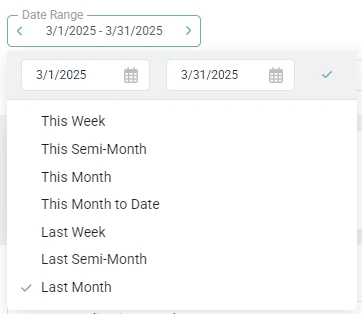
Figure 3 - Use the Date Range Selector to Specify the Time Period for Which you want to View Ready to Bill Items
Figure 4 - Include Unbilled, Billable Items in Ready to Bill
Client
The Client dropdown (Figure 5) enables you to filter the returned items to bill to those for a specific client. Often times, you may want to generate an invoice for one or two clients amongst a large number with items to bill. Select the client for which you wish to view items to bill.
Figure 5 - Filter the Ready to Bill Screen for a Specific Client
Client Practice
The Client Practice dropdown (Figure 6) enables you to filter the returned items to bill to those for a specific list of clients associated with a practice. Often times, you may want to generate invoices for clients within a specific practice only. Select the client practice for which you wish to view items to bill.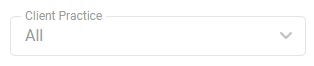
Figure 6 - Filter the Ready to Bill Screen for a Specific Client Practice
Project Practice
The Project Practice dropdown (Figure 7) enables you to filter the returned items to bill to those for a specific list of projects associated with a practice. Often times, you may want to generate invoices for projects within a specific practice only. Select the project practice for which you wish to view items to bill.
Figure 7 - Filter the Ready to Bill Screen for a Specific Project Practice
Project Admin
To view a list of items to bill for projects administered by a specific Project Admin, you can use the Project Admin dropdown (Figure 8) to filter for that specific member.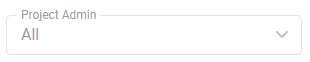
Figure 8 - Filter the Ready to Bill Screen for Projects Managed by a Specific Project Admin
Approved Items Only
As discussed below in the Ready to Bill List section, Ruddr will present all items that can be considered for billing. To limit the list of items to bill to those items that are Approved, select “Yes” from the Approved Items Only dropdown (Figure 9) at the top of the screen.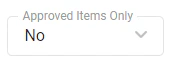
Figure 9 - Filter the Items to Bill List to only Display Approved Items
Project Status
In some cases, you may wish to invoice customers based on project status. For example, perhaps you wish to only generate invoices for “Completed” projects. When needed, specifying a particular set of projects statuses via the Project Status dropdown (Figure 10) will limit the items to bill results to only those ready to bill items on projects with the selected statuses.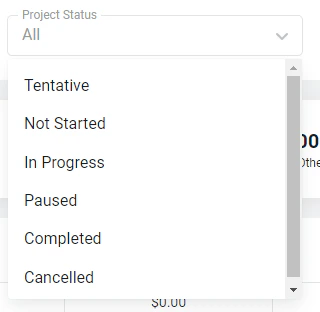
Figure 10 - Filter the Items to Bill List to only Display Items for Projects of a Particular Status
Task Status
In some cases, you may wish to invoice customers based on project task status. For example, perhaps you wish to only generate invoices for “Completed” tasks. When needed, specifying a particular set of task statuses via the Task Status dropdown (Figure 11) will limit the items to bill results to only those ready to bill items on project tasks with the selected statuses.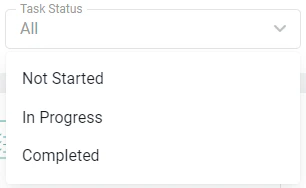
Figure 11 - Filter the Items to Bill List to only Display Items for Project Tasks of a Particular Status
Summary Bar
Immediately below the date range selector is the summary bar (Figure 12) which shows the total dollar amount of services, expenses, products, and other items that can be invoiced for the selected date range. Changing the date range will change the totals in the summary bar. Note that clicking on any of these values will take you to the Uninvoiced Revenue report which provides the full detail.
Figure 12 - Ready to Bill Summary Bar
- Time and materials projects: the services total is the sum of all billable work delivered on the project during the period.
- Fixed fee projects: the services total is the sum of any billing schedule milestones that occur within the period.
Ready to Bill List
Any project that has billable services, expenses, products, or other items for the period will be shown in a list (Figure 13) beneath the summary bar. Each row in this list represents a potential draft invoice. Or, multiple rows for the same client can be combined into a single draft invoice. Note that clicking on any of the values in the list will take you to the Uninvoiced Revenue report listing the items included in the respective total (Services, Expenses, Products, Other Items, or All Items).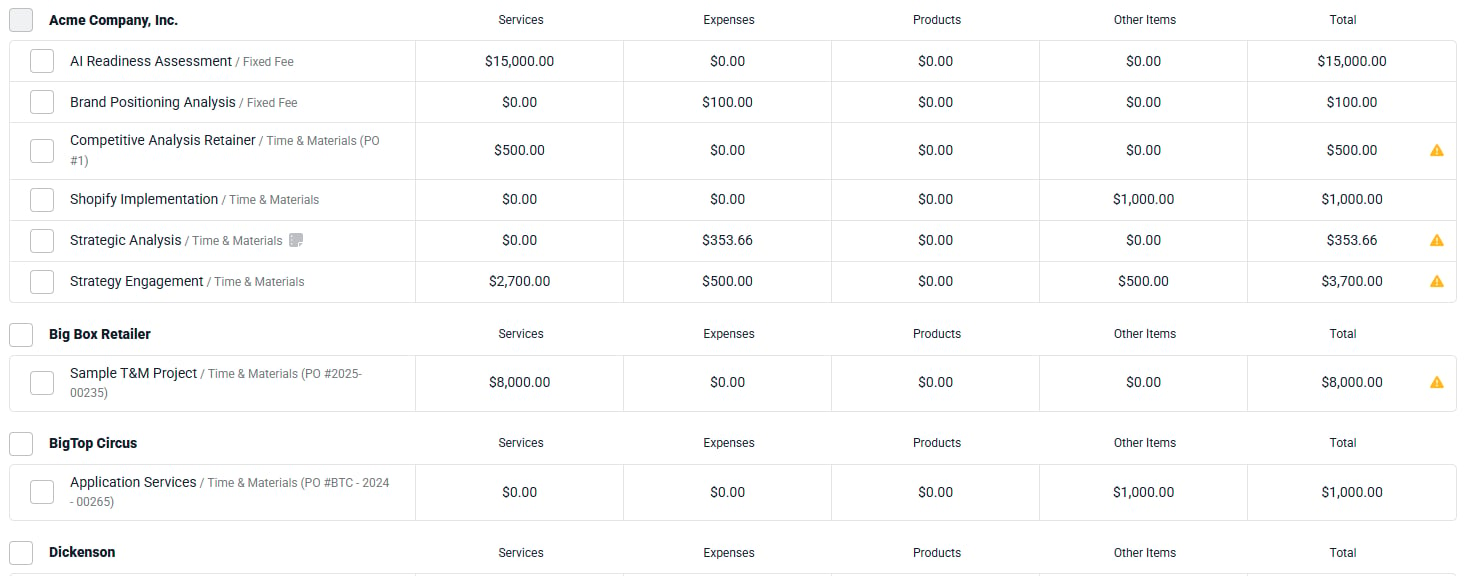
Figure 13 - Ready to Bill List
- Unapproved Items: If some of the time or expense items are not in an approved state, a warning icon will be shown to the right of the row. This includes items that have yet to go through client approvals, where instituted.
- Unsubmitted Timesheets: In workspaces that utilize the Timesheets feature, if there are time entries in Ready to Bill that are part of an unsubmitted timesheet, a warning will be shown.
- Zero-dollar bill rates: If billable time entries that are assigned a bill rate of $0.00 are included in Ready to Bill, a warning will be displayed.

Figure 14 - Hover Over the Warning Icon in Ready to Bill to View Details on the Warning Condition
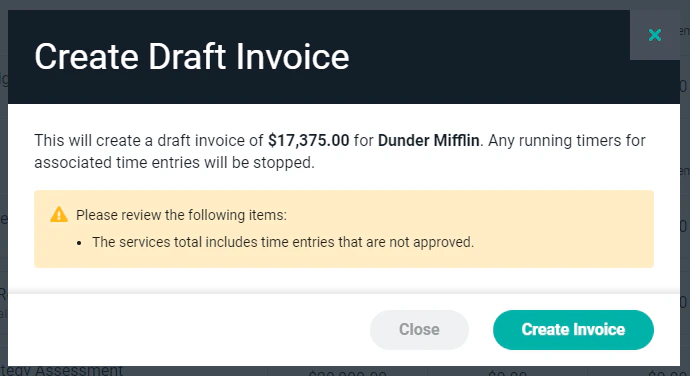
Figure 15 - Confirm Your Action to Create Draft Invoice from Ready to Bill