

- Administer time and expenses for (member permission) - If your security role has this permission, you will be able to view, edit, and delete the time entries of the members it covers (all workspace members, or the members of your practice or business unit).
- With this permission, you will have a Member selector at the top-right of the time screen that will allow you to interact with the time screen as any user in the workspace for which you have permissions.
- Administer and approve time entries and expense items on these projects (project permission) - If your security role has this permission, you will be able to view, edit, and delete all time entries on the projects that you have access to. Depending on your security role, you will either have access to all projects in the workspace, projects assigned to your practice, or just the projects where you are on the project team.
- View time entries and expense items on these projects (project permission) - If your security role has this permission, you will be able to view all time entries on the projects it covers. Depending on your security role, you will either have access to all projects in the workspace, projects assigned to your practice, or just the projects where you are on the project team.
- Projects where this member is the Project Admin, you will be able to view time entries on projects you have access to where you are set as the Project Admin.
Time off Entries
If you have none of the permissions outlined above, it is possible that you may have access to the time off entries of other workspace members. If you have been designated as the time off approver for another workspace member, you will be able to view and approve time off entries for that member. Each member in Ruddr can be set up for either automatic time off approval, approval by the member’s manager, or approval by a specific designated member. This is configured per member by the Workspace Admin within the Settings area (Figure 1) of the Member Profile.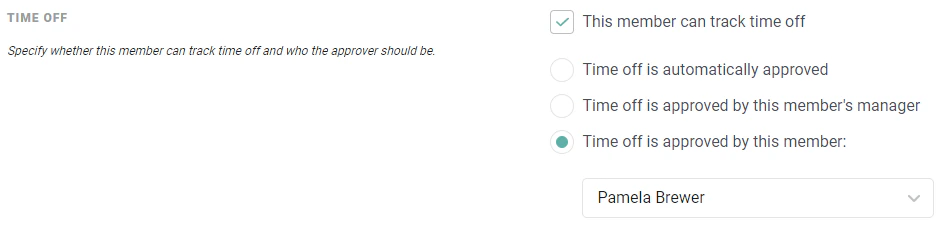
Figure 1 - Specify Time Off Approver for a Specific Member
Time Entry Locking
It is important to note that if a time entry is locked, you cannot edit or delete it. It is possible for a time entry to be locked for one user and unlocked for another user who has greater privileges. But, once a time entry is associated with a published invoice, that time entry will be locked for all members of the workspace. Note that in workspaces with the Timesheet feature enabled, time entries for a submitted timesheet are locked. For more information on unsubmitting a timesheet, please refer to the Timesheet Overview article in Ruddr Help Center. For more information, see the help article on time entry locking.Impersonate Another Member from the Time Screen
If your security role has the Administer time and expenses for member permission, you can interact with the time screen on behalf of any workspace members for which you have those permissions. At the top-right of each view on the time screen, there will be a Member selector (Figure 2) that includes all of the workspace members for which you can administer time.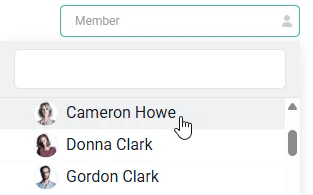
Figure 2 - Leverage the Member Selector to View/Manage Time Entries for other Members in your Workspace
Timesheets
If the Timesheets feature is enabled in your workspace, you will be able to submit and unsubmit timesheets on behalf of other members when impersonating them on the Time screen.Time Auditing
The time auditing area (Figure 4) of the Ruddr Time section allows you to easily view and manage time entries. To access this area, click the Auditing sub-menu option (Figure 3) from the Ruddr nav menu. From this screen, you can always access your own time entries and you may be able to access the time entries of other workspace members, depending on your security role settings.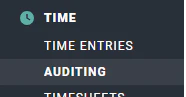
Figure 3 - Select Auditing to Easily View and Manage Time Entries
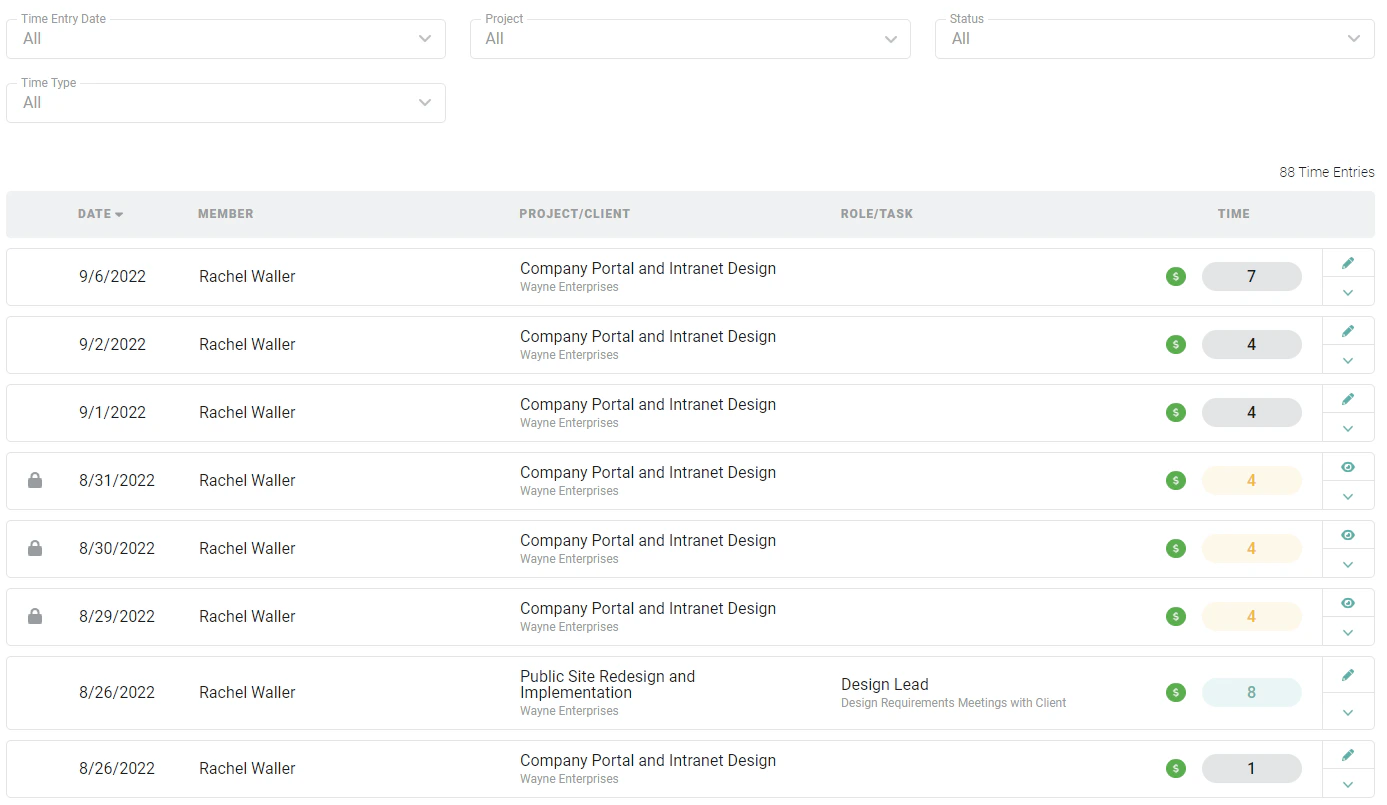
Figure 4 - The Time Auditing Screen
Time Reports
Within the report library in Ruddr, you can run various reports related to time entries. The three primary time reports are Time Summary by Project, Time Summary by Member, and Time Detail (Figure 5). These reports show summarized and detailed views of all of the time entries that you have access to within the workspace. Filters at the top of these reports allow you to narrow down your result set.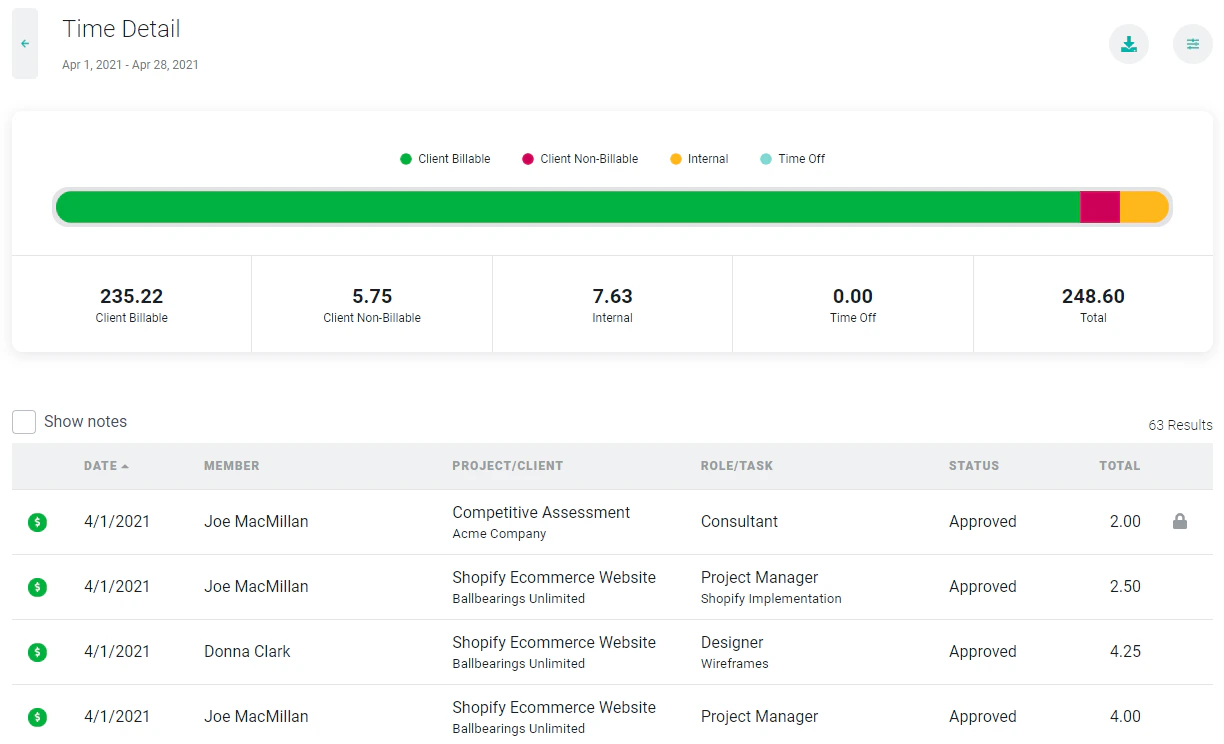
Figure 5 - Time Detail Report
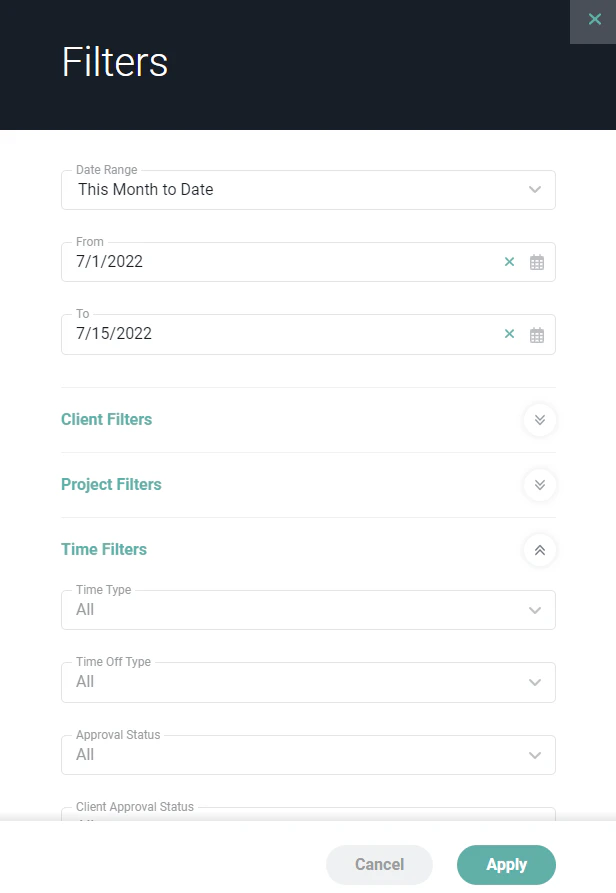
Figure 6 - The Report Filter Drawer Organizes the Available Filters
- Excel
- CSV