

Figure 1 - Select Time Entries to View the Default Day View on the Time Entries Screen

Figure 2 - Leverage the View Selector to Toggle Time Entry Views
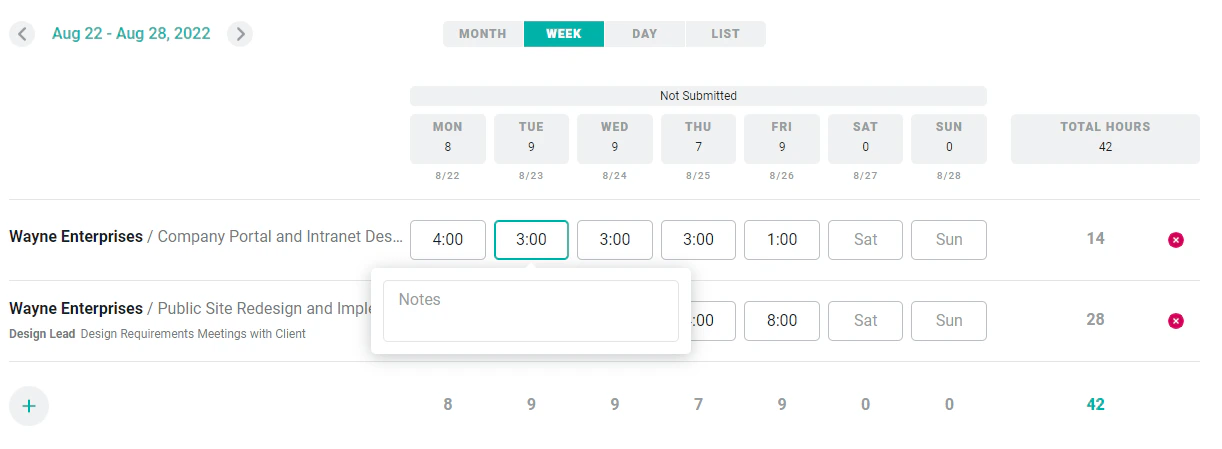
Figure 3 - The Week View of Time Entry
- If there are multiple entries for the same combination of project/role/task (Figure 4), you must edit those time entries from the day view. They will be shown on the week view (Figure 5), but will be disabled and represented in a stacked box. See the Multiple Time Entries section of this article for more information.

Figure 4 - Multiple Time Entries for Client/Project/Task as Seen in Day View
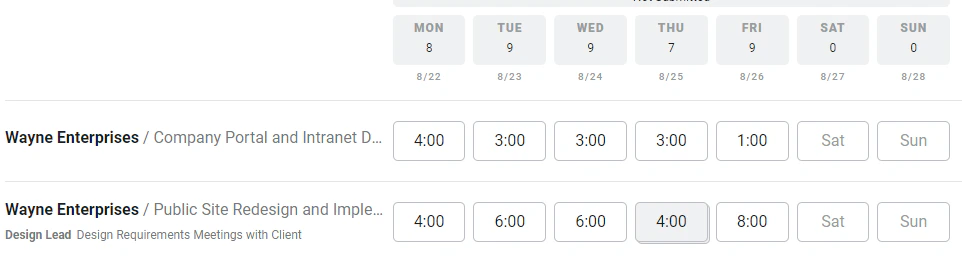
Figure 5 - Multiple Entries as Indicated on the Week View
Add a Time Entry Row
When there are no time entries for a given week, the week view will contain a blank gray area (Figure 6) that provides the member with multiple options for time entry. A new time row can be added, last week’s rows can be copied to the current week, or last week’s time entries can be copied to the current week.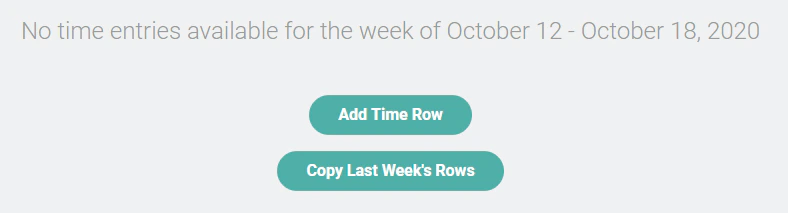
Figure 6 - Start Time Entry for the Current Week being Viewed
Copy Last Week’s Rows
You can add a new time entry row by clicking the Add Time Row button or you can copy over all of the rows from the past week by clicking the Copy Last Week’s Rows button. This will create a row for each unique combination of project, role, and / or task that you entered time against in the prior week. This will not copy over the time entries themselves. If you wish to leverage the prior week’s time entries, you can copy last week’s time entries.Copy Last Week’s Time Entries
In order to leverage this function, workspace administrators must have the Allow time entries to be copied from the previous week setting enabled in the Time and Expense Settings area of workspace settings. If you have time entries from the prior week, and no time entries for the current week, a secondary action will be present on the Copy Last Week’s Rows button. This action - Copy Last Week’s Time Entries (Figure 7) - will copy over all time entries from the prior week, bringing over not only the rows of the prior week, but the hours as well.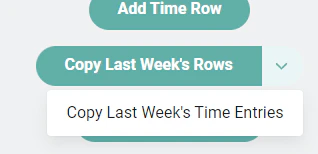
Figure 7 - Copy Time Entries from the Previous Week
- Project has been set to require notes for time entries, but one or more of last week’s time entries for that project do no have notes.
- Project has been set to require that time entries are associated with tasks, but one or more of last week’s time entries are not associated with tasks.
- The workspace requires that time entries be entered within the project start and end dates, and copying last week’s time entries for that project would create time entries beyond the project end date.
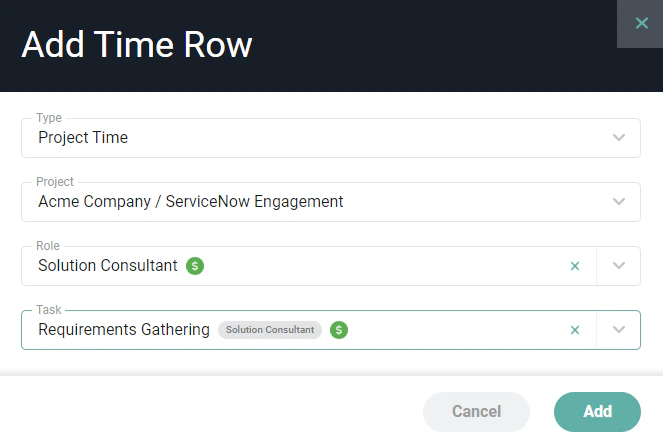
Figure 8 - Time Entry Fields are Based on the Project Requirements
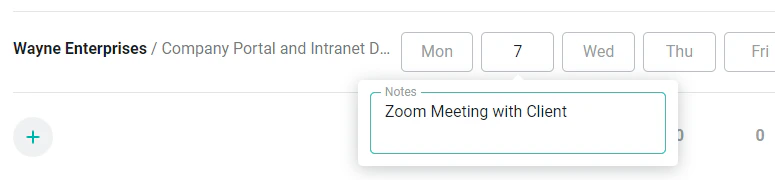
Figure 9 - Entering Time in the Week View
Create Time Entries from Allocations
When enabled via workspace settings, allocations can be visible (Figure 10) on the week view of the time screen. Each project that a member is allocated to will be created as a row on the screen, with the amount of hours (per day) shown in each time entry cell. A member can click the plus (+) icon in the cell to add that many hours for each respective entry.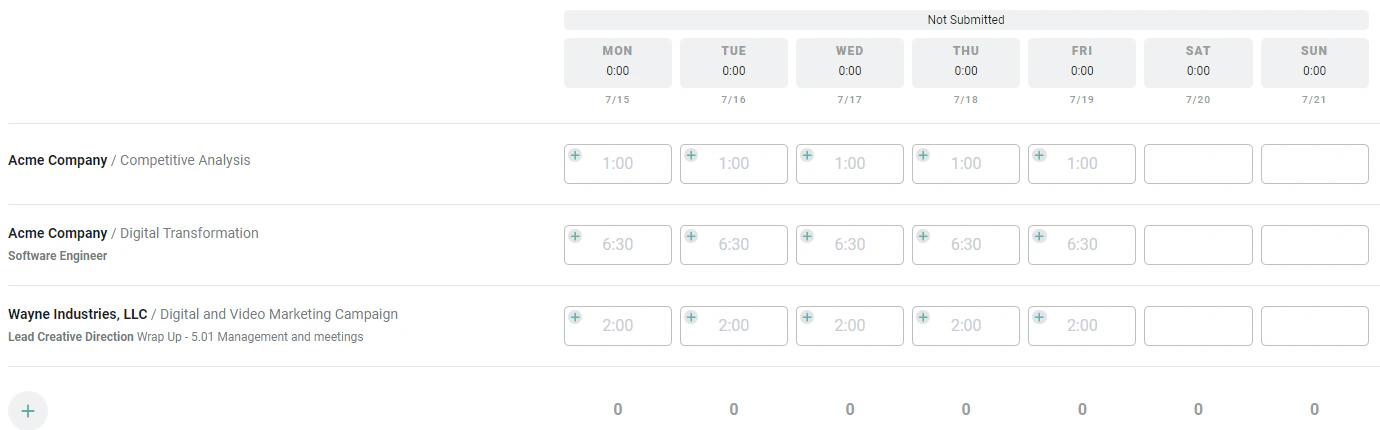
Figure 10 - Create Time Entries from Allocations
Delete a Time Entry Row
You can delete a row from the week view by clicking on the red delete icon (Figure 3) on the right side of each row. If there are existing time entries for that row, you will be presented with a confirmation window (Figure 11).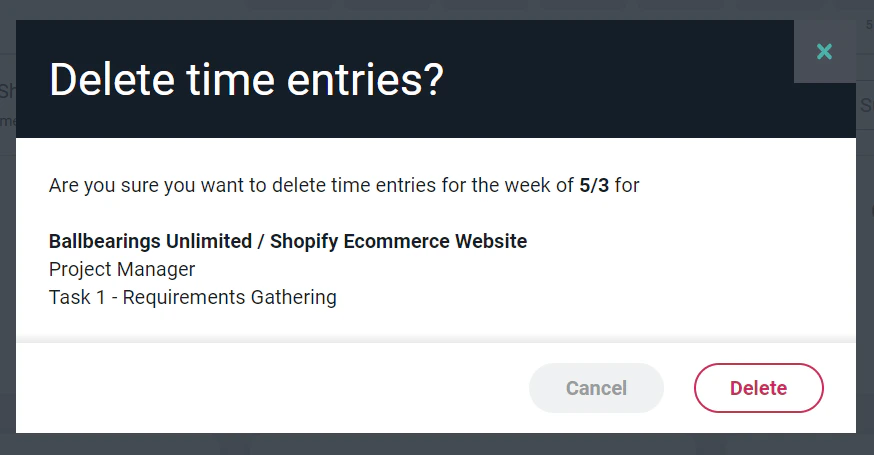
Figure 11 - Confirm Choice to Delete a Time Entry Row in Week View
Multiple Time Entries per Day
When time is entered on the week view, a single time entry is created for that client/project/role/task combination for each day of the week. But, it is possible that multiple time entries exist for the same day if those entries were created on the day view. When a cell on the week view is comprised of more than one time entry, that cell will have a stacked appearance and it will be disabled (Figure 12).
Figure 12 - Stacked and Disabled Time Entry Cell for Multiple Time Entries
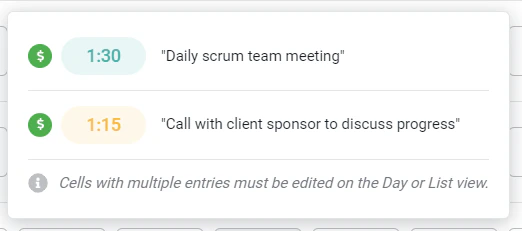
Figure 13 - View Details of Multiple Time Entries
Locked Cell in the Week View
Time entries can become locked under certain circumstances. Locked time entries are shown with a lock icon. When a time entry is locked, it cannot be edited or deleted by the current user. Two important rules to understand about time locking are:- Time entries are not individually locked or unlocked. When time entries are locked, it is because they are locked for the entire project or task or because conditions exist that require Ruddr to lock the time entry for the current workspace member. For example, the time entry might be associated with a published invoice.
- A time entry could be locked for one workspace member but unlocked for another member who has a different security role (with greater privileges).
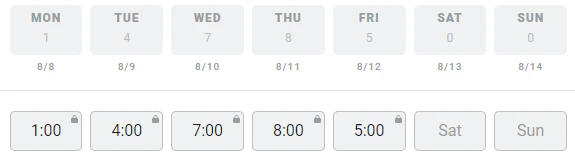
Figure 14 - Multiple Time Entries for this Week are Locked
Submit the Week’s Time for Approval
When all of the time entries for a week have been entered, you can easily submit them for approval with a single button click. The Submit for Approval button (Figure 15) at the bottom of the screen will submit any entries for that week that aren’t already in a Pending Approval or Approved state. The button’s label will include the number of time entries that will be submitted. If there are no time entries that need to be submitted, the button will not be shown. Note that any time entry with a running timer will not be submitted for approval. The timer must be stopped in order for the time entry to be submitted for approval.
Figure 15 - Submitting Multiple Time Entries
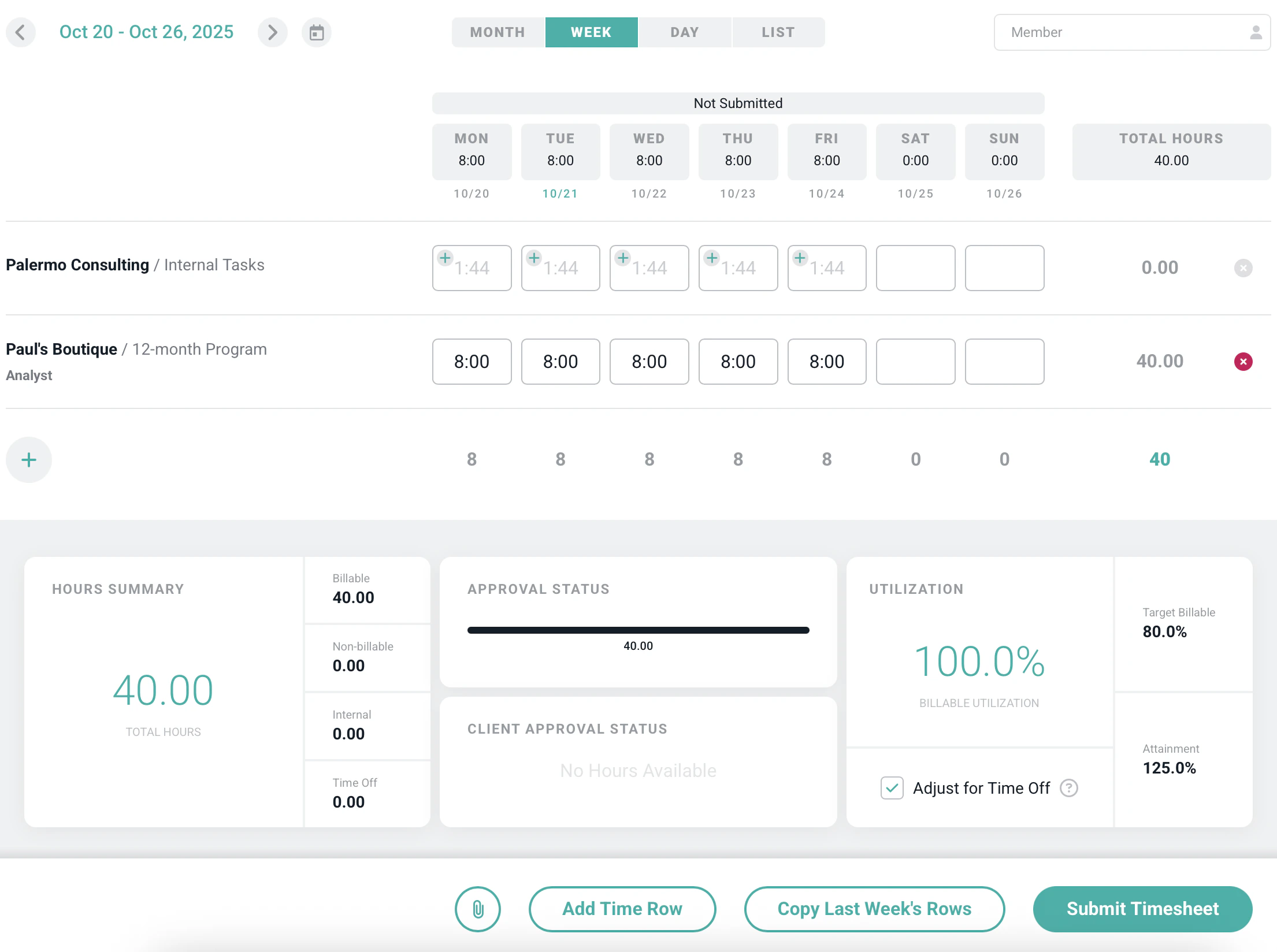
Figure 16 - With Timesheets Enabled you see the Timesheet Status at the top of the Screen and can Submit the Timesheet

Figure 17 - Multiple Timesheets in a Week that Spans the End of a Month and the Beginning of a Second Month
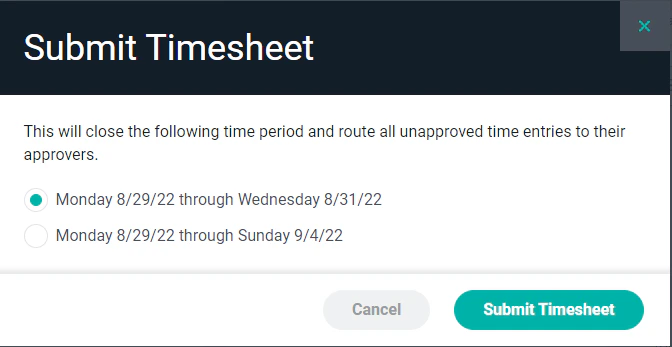
Figure 18 - Specify the Timesheet to Submit When Two Timesheets are Present for a Given Week
Time Attachments
When this feature is enabled, a paperclip icon (Figure 19) is shown on the Week view of the time screen. Clicking this icon allows for one or more files to be uploaded (Figure 20) for that given week.
Figure 19 - Clicking the Paperclip Icon Allows you to Upload Attachments to a Week's Time Entries
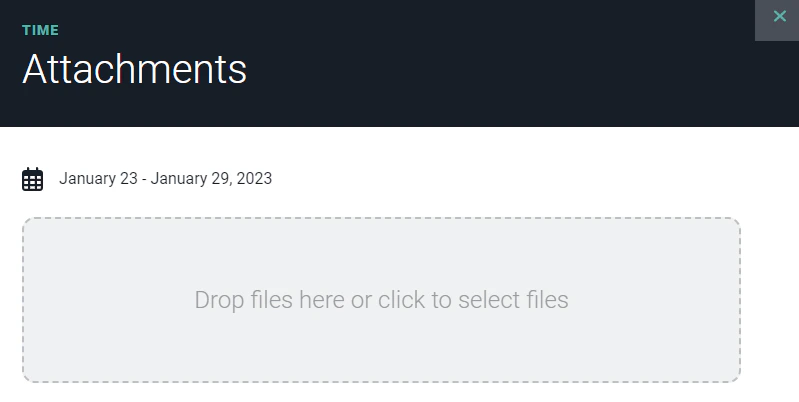
Figure 20 - Attachments can be Added to a Week's Time Entries
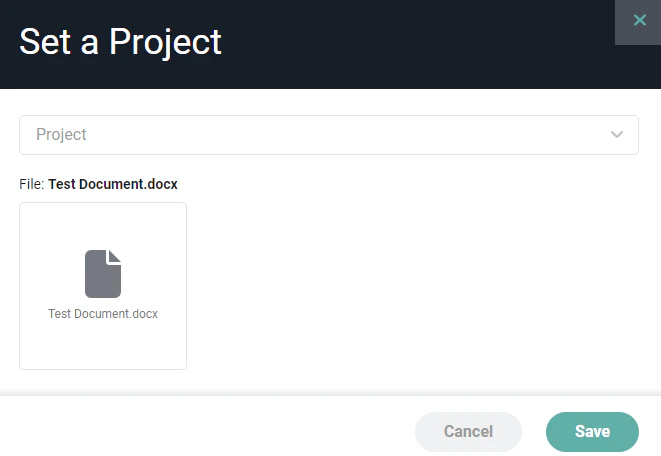
Figure 21 - Associate a Time Attachment to a Project
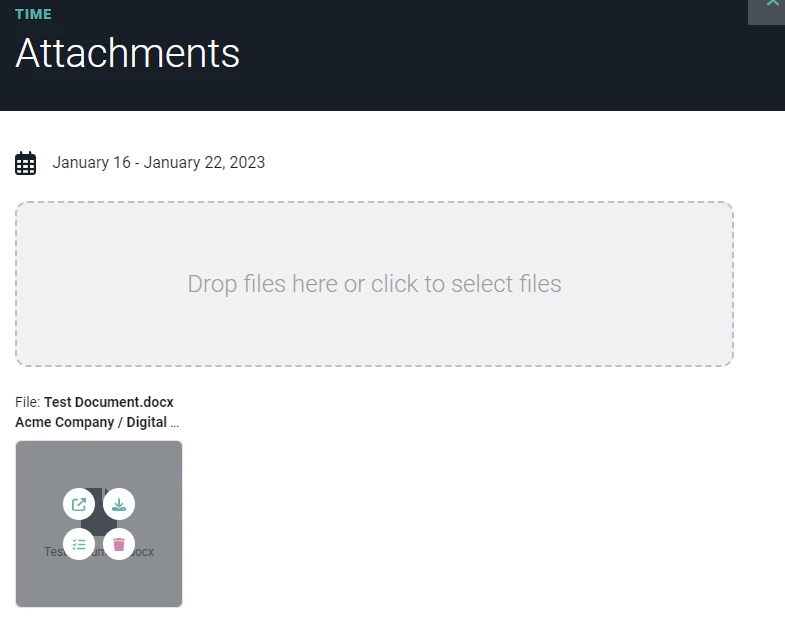
Figure 22 - Manage Time Attachments
Time Statistics
At the bottom of the week view, you will see statistics (Figure 23) that summarize the time entries for that week.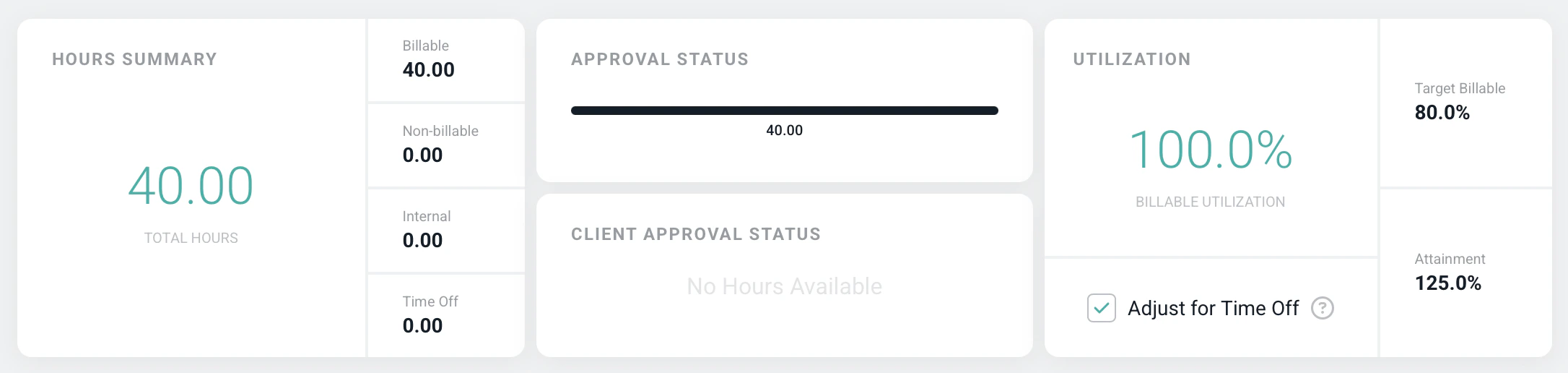
Figure 23 - Time Statistics for the Current View Available on the Time Entry Screens
- Hours Summary - Toward the left of the screen is the total tracked time broken down into billable and non-billable hours. Also, your capacity and any missing hours are shown in this area. Your capacity of hours per day is set by your Workspace Admin. Most full-time employees will have 8 available hours of capacity per day from Monday through Friday.
- Time Summarized by Status - In the middle section of the time statistics, your time is summarized by its current status and represented in a bar. Time entries have one of the following status values: Not Submitted, Pending Approval, Approved, or Rejected. These status settings are color-coded, as mentioned earlier.
- Billable Utilization Figures - On the right side of the statistics area, you will see your billable utilization figures. These show your billable utilization, target billable percentage, and target attainment percentage for the period. You can toggle the setting to Adjust for Time Off. This will adjust the metrics to account for time off and Holidays. These utilization figures are discussed in more detail in the personal dashboard help article.