

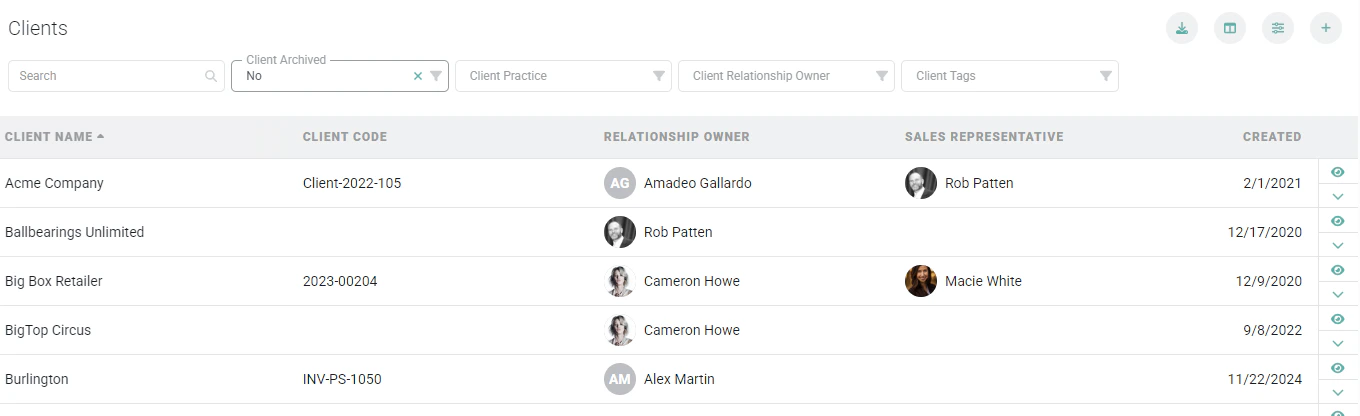
Figure 1 - Client List Screen
- Name - The name of the client. Note that Ruddr will not prevent you from creating two or more clients with the same name. However, Ruddr will provide you with a warning that a client with that name already exists.
- Industry - Select an industry / vertical to associate with the client.
- Practice - The practice that owns the client relationship.
- Business Unit - The business unit that owns the client relationship.
- Relationship Owner - The workspace member who is responsible for the client relationship.
- Client Code - Any internal client identifier that your team may use for the client. This code is searchable from the Header Bar.
- Client Tags - Custom tags that be attributed to the client. These tags are unique to your workspace and can be managed in the Custom Data settings in Ruddr.
- Notes - Any information about the client that would be helpful for the project team.
- Cloud Folder - Assign a shared cloud folder to the client to provide team members with access to view files.
- Client Roles and Rates - The Roles tab (Figure 2) allows you to provide a client-specific “rate card” that can be inherited by all of the projects under this client. For more on this, please see the Client Roles article in the Ruddr Help Center.
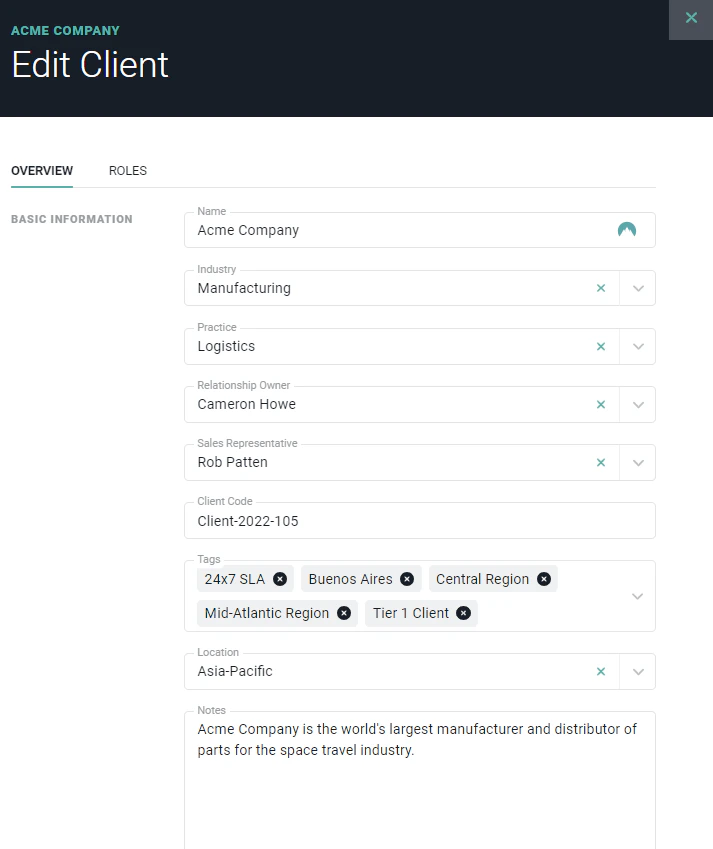
Figure 2 - Provide Client Details in the Edit Client Drawer
Invoice Details
When creating a client, you can set up the default invoice information (Figure 3) for any invoices that get created for the client. The fields that can be set are: The latter four fields are provided as default values in the workspace, which are managed in workspace settings. If you want to differentiate any of the fields on the client, you can uncheck the Use workspace invoice details checkbox (Figure 3) and provide client-specific values that will be leveraged when invoices for this client are created. Note that when creating invoices for an individual project, the project’s invoices settings are used. These settings can be inherited from the client, but can also be customized for that specific project. If an invoice is generated for more than one project for the same client, the client’s invoice settings are used.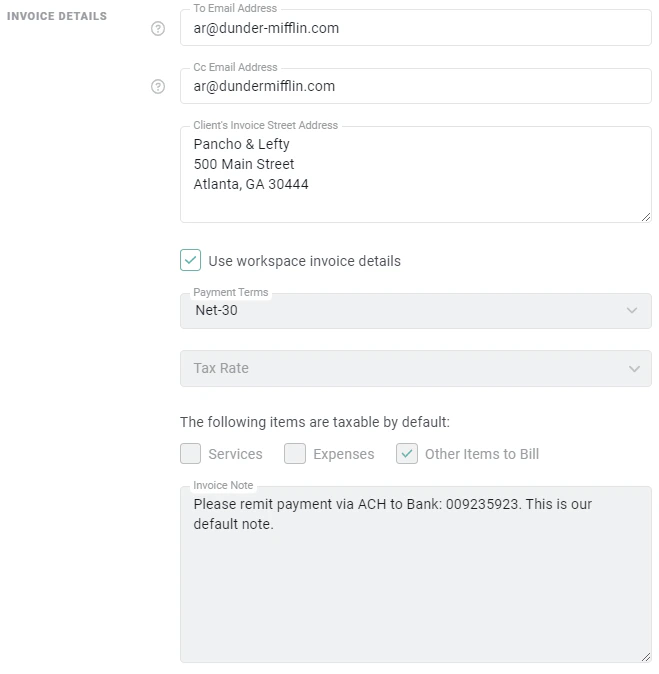
Figure 3 - Provide Invoice Details that will be Leveraged on Invoices Created for this Client
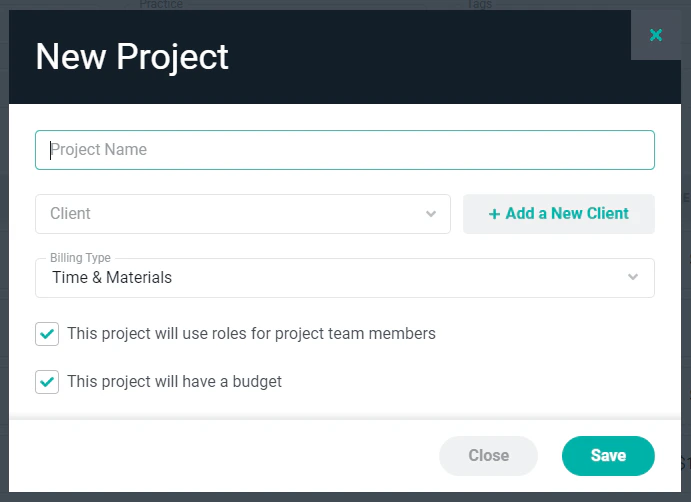
Figure 4 - Create a New Client from the New Project Screen