

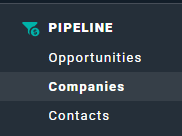
Figure 1 - Select Companies to View the Companies List

Figure 2 - Click this + Button at the Top of the Companies List Screen to Create a New Company
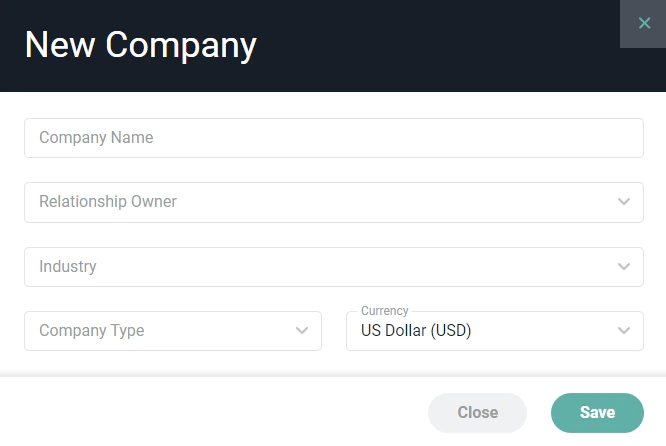
Figure 3 - Complete the Information on this Form to Create a New Company
Company Dashboard
The company dashboard (Figure 4) presents information about the company as well as related pipeline activity. The company dashboard also includes any related opportunities, contacts, or files. You can also create a new client from here.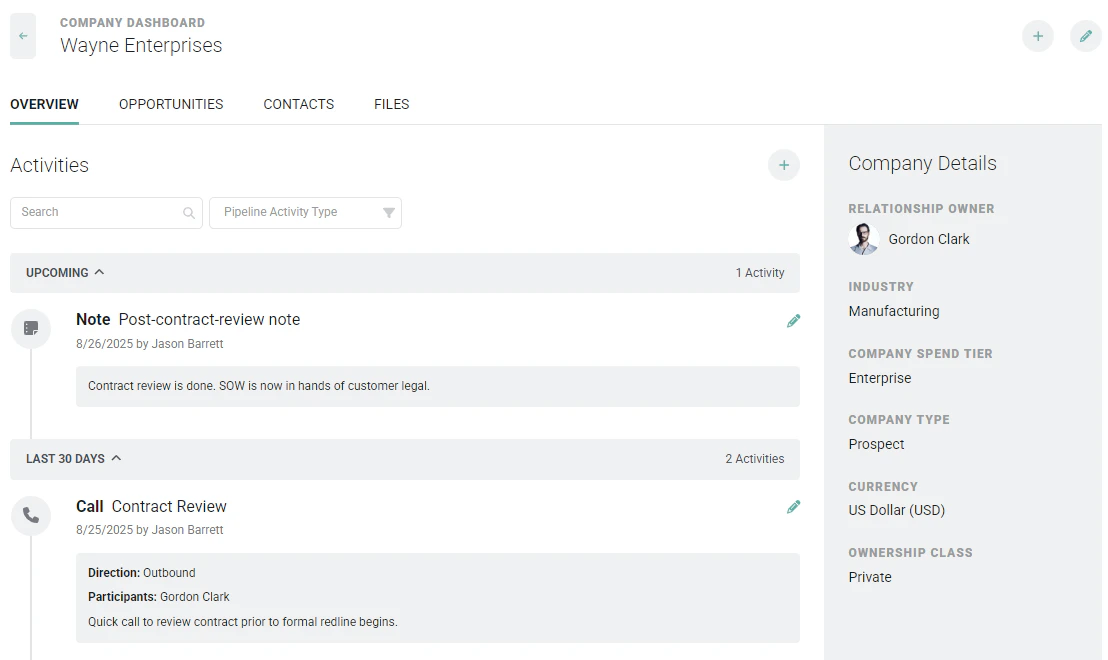
Figure 4 - View Related Activity Information and Company Detail Information on the Company Dashboard
Editing a Company
Once a company has been created, you can edit the company by clicking the edit pencil icon at the top right of the company dashboard (Figure 4). This will open the Edit Company drawer (Figure 5), where you can provide the following information about the company.- Name - The name of the company.
- Client - The associated Ruddr client.
- Relationship Owner - The workspace member who is responsible for the company relationship.
- Practice - The Ruddr Practice to which you want to assign the company. This is available if the Practices feature is enabled in your workspace.
- Business Unit - The Ruddr Business Unit to which you want to assign the company. This is available if the Business Units feature is enabled in your workspace.
- Industry - The company’s industry.
- Company Type - The type of company.
- Company Spend Tier - Spend tiers are used to categorize companies based on their annual spend.
- Description- Any information about the company that would be helpful for those viewing the company in Ruddr.
- Annual Revenue - The annual revenue number associated with company.
- Currency - The primary currency in which the company operates.
- Time Zone - The time zone in which the company is located.
- Ownership Class - Whether the company is Public, Private, Subsidiary, or Other.
- Number of Employees - The size of the company in terms of employees.
- Year Founded - The year the company was established.
- Ticker Symbol - If the company is publicly traded, the stock ticker symbol.
- SIC Code - Standard Industrial Classification (SIC) codes are 4-digit numerical codes that identify the primary business of a company.
- Phone Number - The primary phone number for the company.
- Billing Address - The billing address for the company.
- Shipping Address - This shipping address for the company.
- Facebook URL - The URL of the company’s Facebook profile.
- Twitter URL - The URL of the company’s X / Twitter profile.
- LinkedIn URL - The URL of the company’s LinkedIn profile.
- Website URL - The URL you wish to associate with the contact. This could be a URL to their LinkedIn profile, to their company’s website, etc.
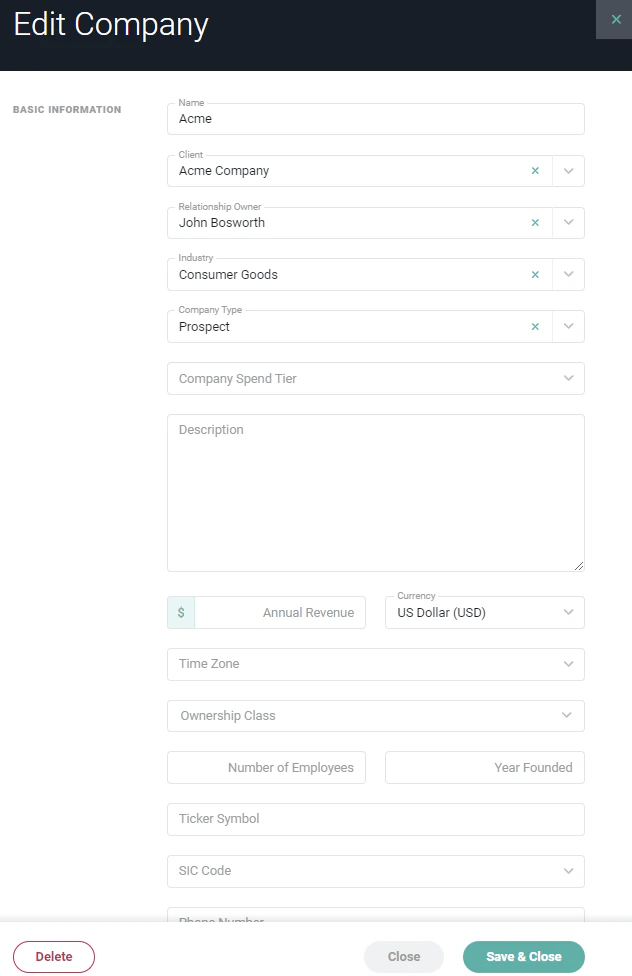
Figure 5 - Edit Company Information via the Edit Company Drawer
Create a New Client from a Company
Companies in the Pipeline area of Ruddr can be connected to Ruddr clients. This can be done by editing a company and associating an existing client (Figure 5). In instances where a client has not been created, you can create a client from the company dashboard (Figure 4), which will automatically associate that new client with the company. To do this, click the Create a Client (+) button at the top-right of the company dashboard (Figure 4). Ruddr will then present a dialog (Figure 6) with a number of fields defaulted to values from the company. Make any edits and click the Save button to save the new client and establish that association with the company.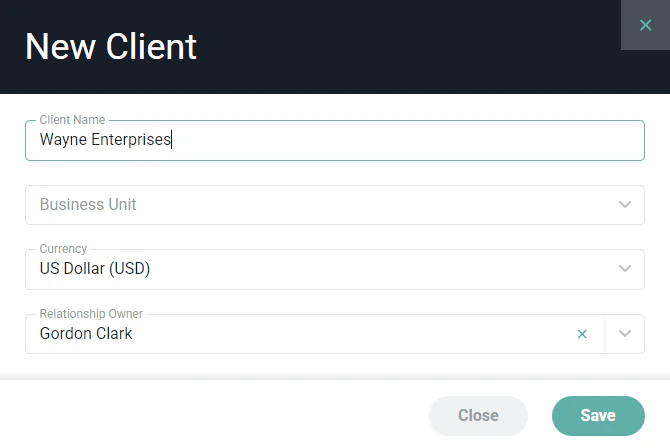
Figure 6 - Create a New Client from the Company Dashboard