

Create an Overall Budget
To turn an overall budget on for your project, simply click the Track overall budget checkbox within the Settings section (Figure 1) of the Overview on the project’s Settings tab.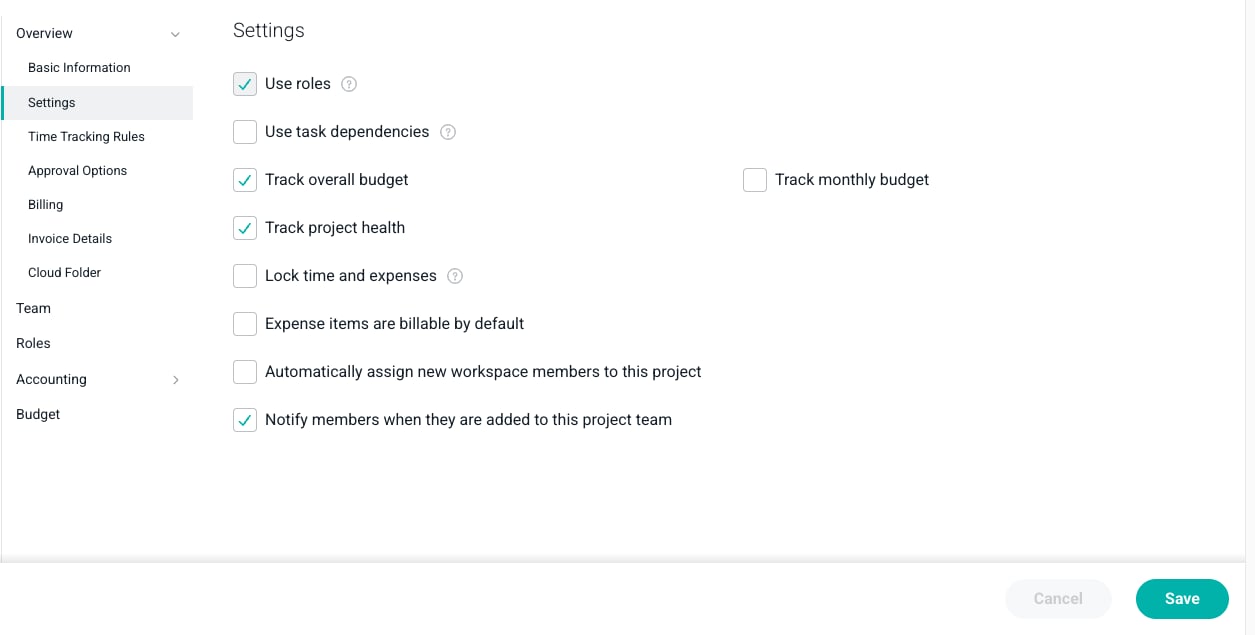
Figure 1 - Turn on an Overall Budget for Your Project in the Settings Section of the Overview
Summary Budget
The quickest and simplest way to create a budget is to use a summary budget (Figure 2). A summary budget allows you to type in planned overall figures for services revenue, billable hours, non-billable hours, billable expenses, non-billable expenses, and other items (such as products).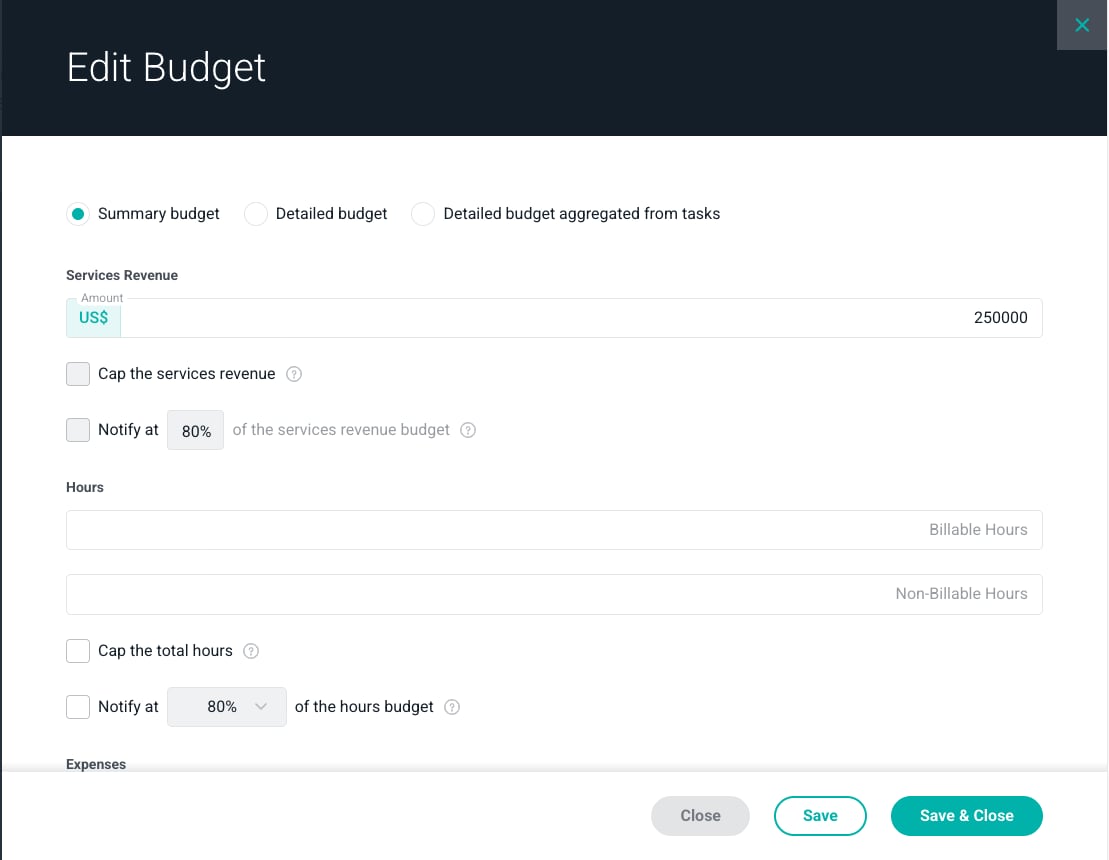
Figure 2 - Provide a Summary Budget for the Project
Detailed Budget
Choosing the standard, detailed budget allows you to provide more granular data than the summary budget option.Hours and Services Revenue
For each role or member on the project team, you specify the number of planned billable hours and non-billable hours (Figure 3). For time and materials projects, the budget revenue is automatically calculated per role/person and included in the summation of hours and services revenue for the project. On a billable project with more than one rate card, a Rate Card selector chooses the rates that price the budget; on Fixed Fee projects, that choice affects the Automated - Percentage of Time & Materials Revenue revenue recognition method.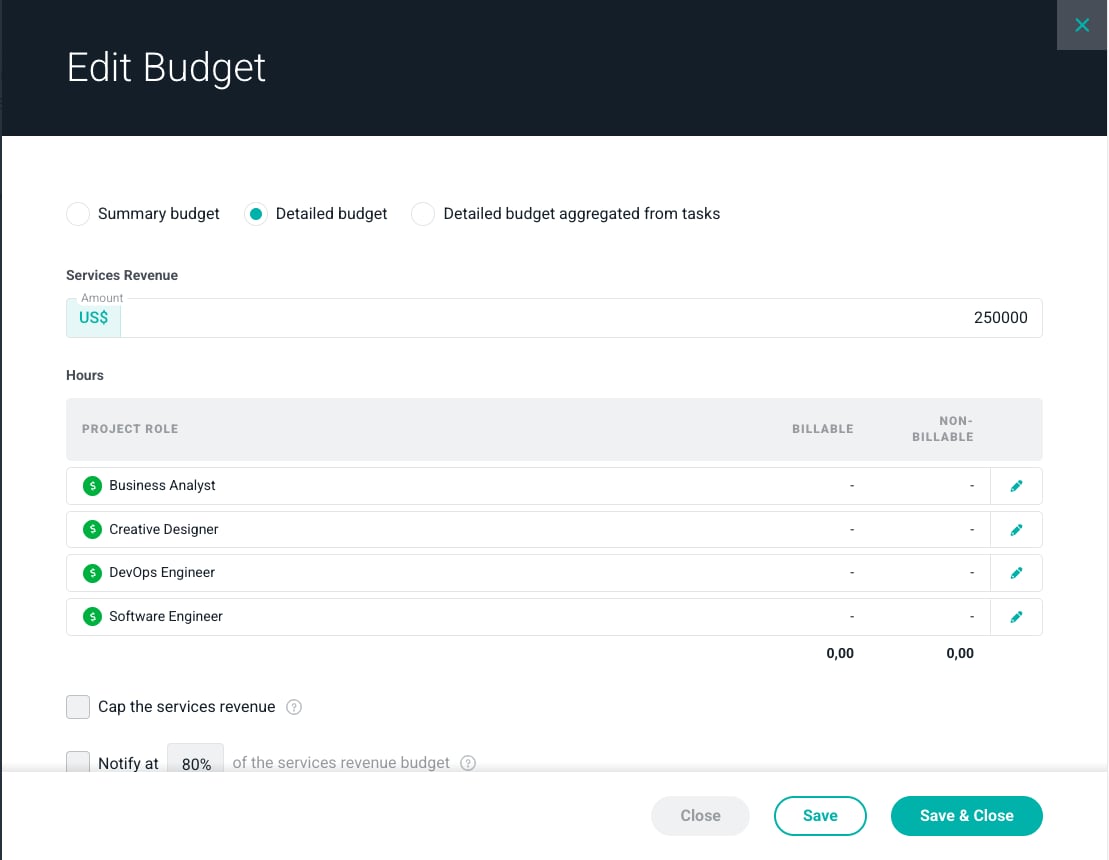
Figure 3 - Create a Hours and Services Budget
Expenses
For the expense budget (Figure 4), you click the + Quick Add button to add a new expense category to the expense budget. For each row in the budget, provide the total planned billable and non-billable expense dollar amounts for the expense category. Workspace Admins have the ability to add, edit, and remove expense categories from the workspace settings area.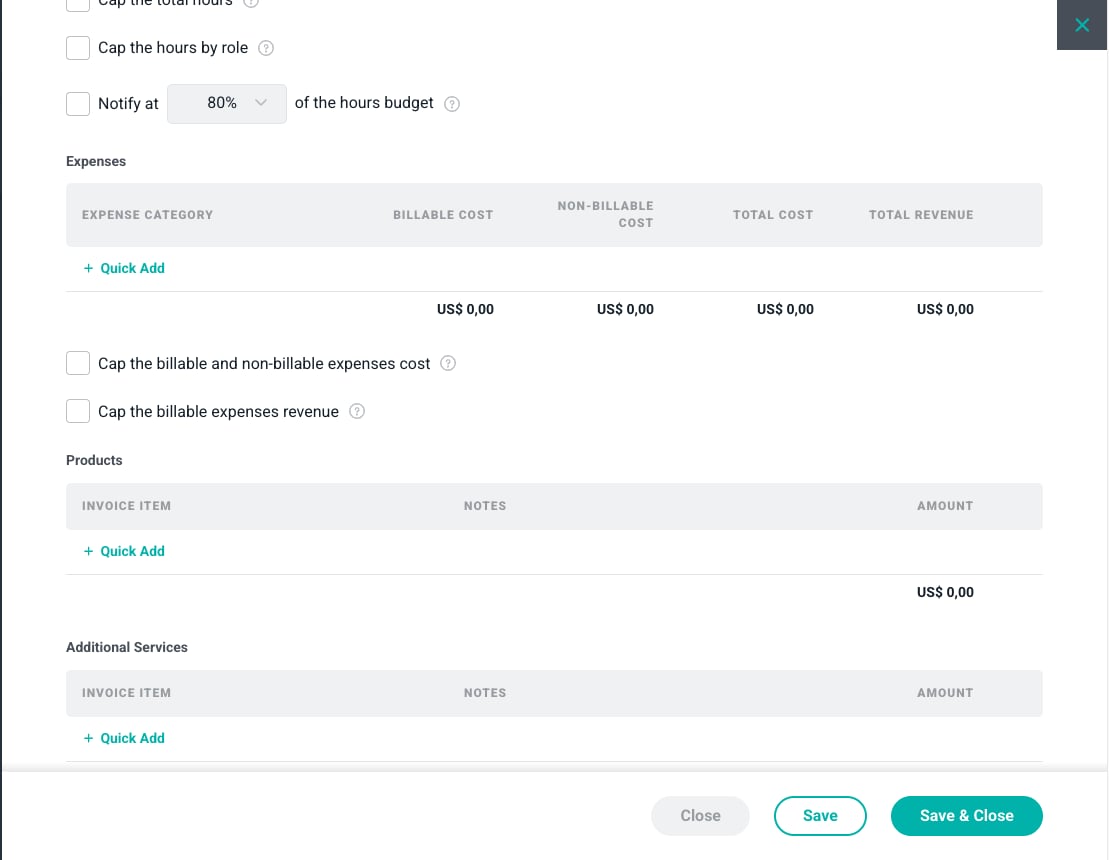
Figure 4 - Create an Expense Budget for the Project
Other Items
In addition to budgeting for hours, revenue, and expenses, you can also budget for Other Items (Figure 5). Other items are often products or materials that you sell to your customers alongside the delivery of your services project. If your company buys products (such as software licenses) wholesale and then resells those products to clients, you would budget for those items in this section.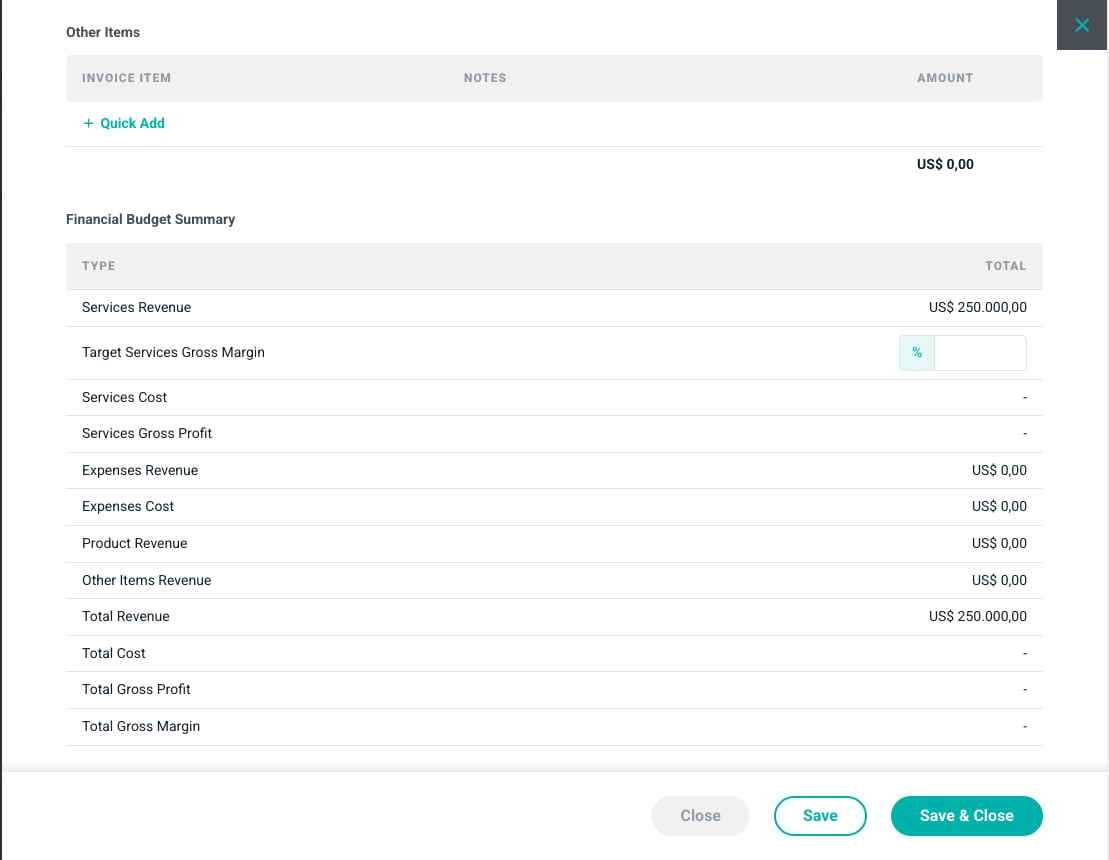
Figure 5 - Create a Budget for Other Items
Detailed Budget from Aggregated Tasks
When a detailed budget is aggregated from the project’s tasks, this means that the billable and non-billable hours per role are automatically calculated from the set of tasks defined on the Tasks tab of the project dashboard. This can be thought of as a “bottoms up” budget in which you define the work at a task level and the budget builds itself. When using the aggregated budget option, it is imperative that all project work be captured within a task. If there is project work not reflected in a task, the aggregated budget figures will be lower than they should be. With an aggregated budget, the expense and other items budget areas in the budget drawer remain and are available just as they are when creating a detailed budget. When a task does not have member / role assignments, the task’s hours budget or services revenue budget is included as part of a “Unassigned” role budget on the project budget. This ensures that all budgets for tasks are represented on the project’s Hours and Services Revenue budget (Figure 6).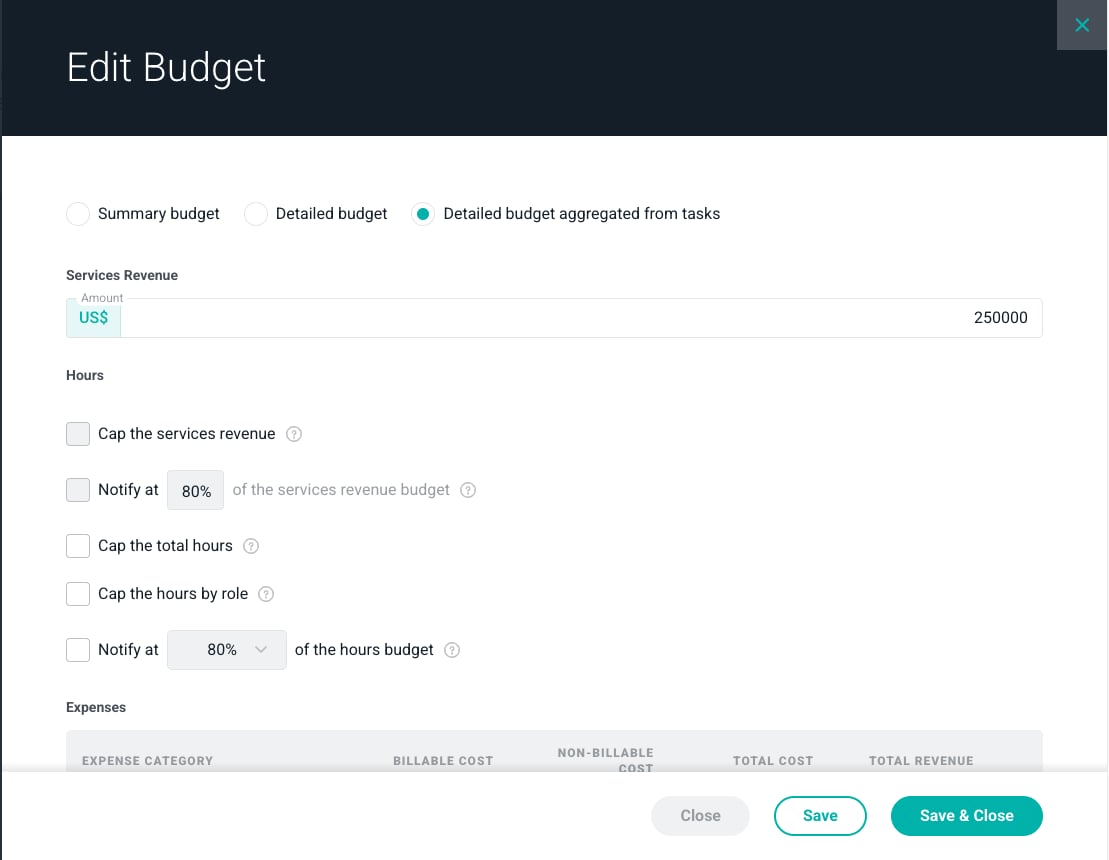
Figure 6 - Task Budgets that Lack Role / Member Assignments are Designated as Unassigned on the Project Budget
Financial Budget Summary
As you build your project budget, the total revenue budget (Figure 7) will be calculated from the services, expenses, and other items totals that you specify, and will be displayed as part of the Financial Budget Summary (Figure 7). For Fixed Fee projects, you will want to ensure that your Fixed Fee Billing Schedule equals the total billable budget represented here.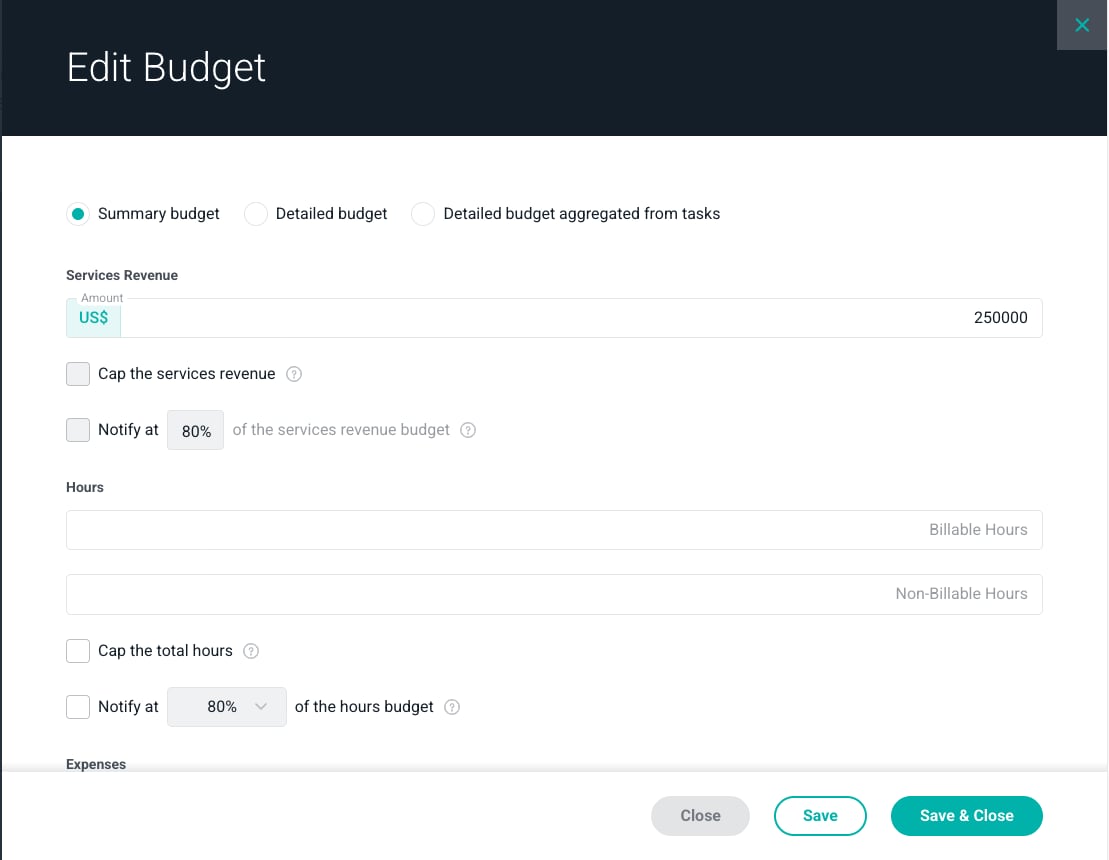
Figure 7 - Total Revenue Budget Table Aggregated from Budget Items on Budget Tab
Target Services Gross Margin
In addition to tracking a total revenue budget, Ruddr will calculate cost, profit, and margin budgets, all of which can be tracked in addition to revenue. In order for Ruddr to calculate and provide these budgets, you will need to provide a Target Services Gross Margin value in the Financial Budget Summary (Figure 8).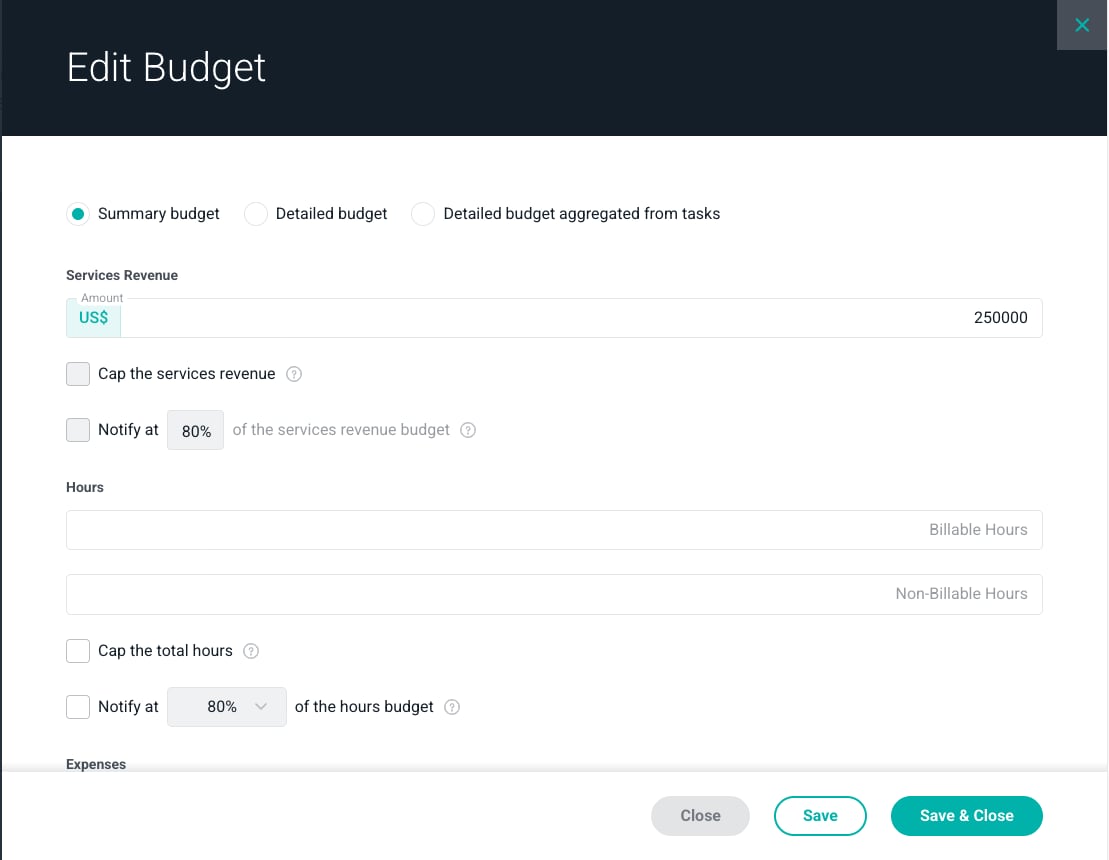
Figure 8 - Provide a Target Services Gross Margin to Track Additional Project Budgets
- Labor Cost
- Services Gross Profit
- Total Cost
- Total Gross Profit
- Total Gross Margin
Monthly Budget
A monthly budget is useful when you need to manage a project to a certain amount of time, expenses, and fees per month. You can use both an overall budget and a monthly budget on the same project. To turn on the monthly budget, check the Track monthly budget checkbox in the Settings section (Figure 9) of the Overview on the project’s Settings tab.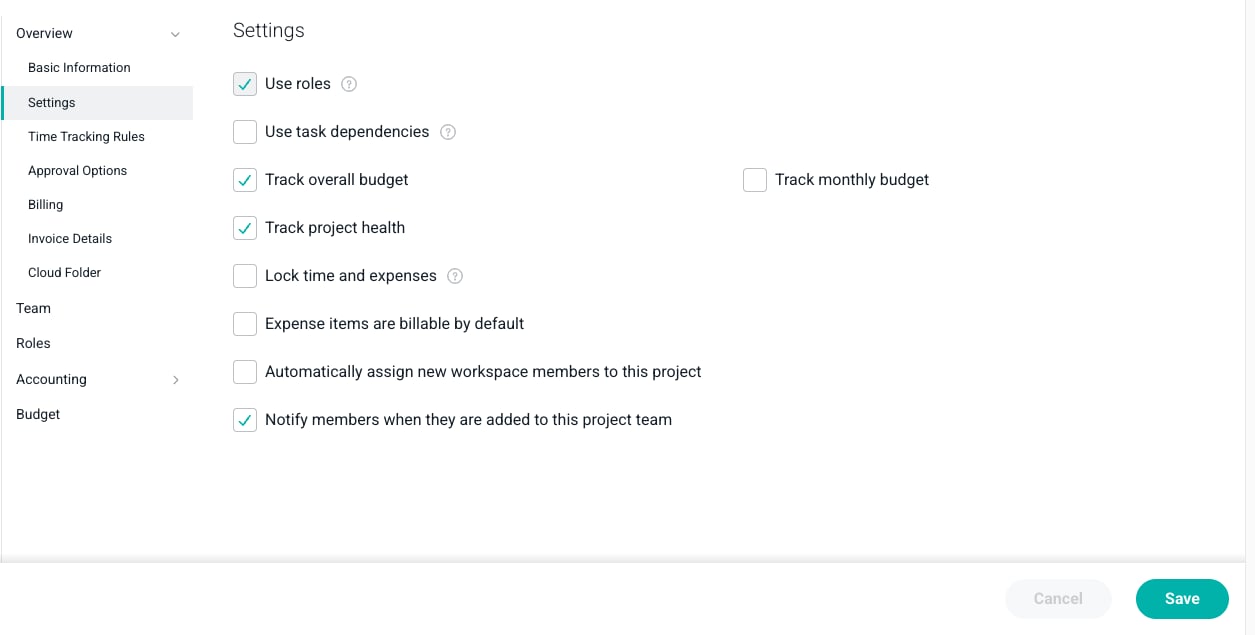
Figure 9 - Specify that a Monthly Budget is to be used on the Project
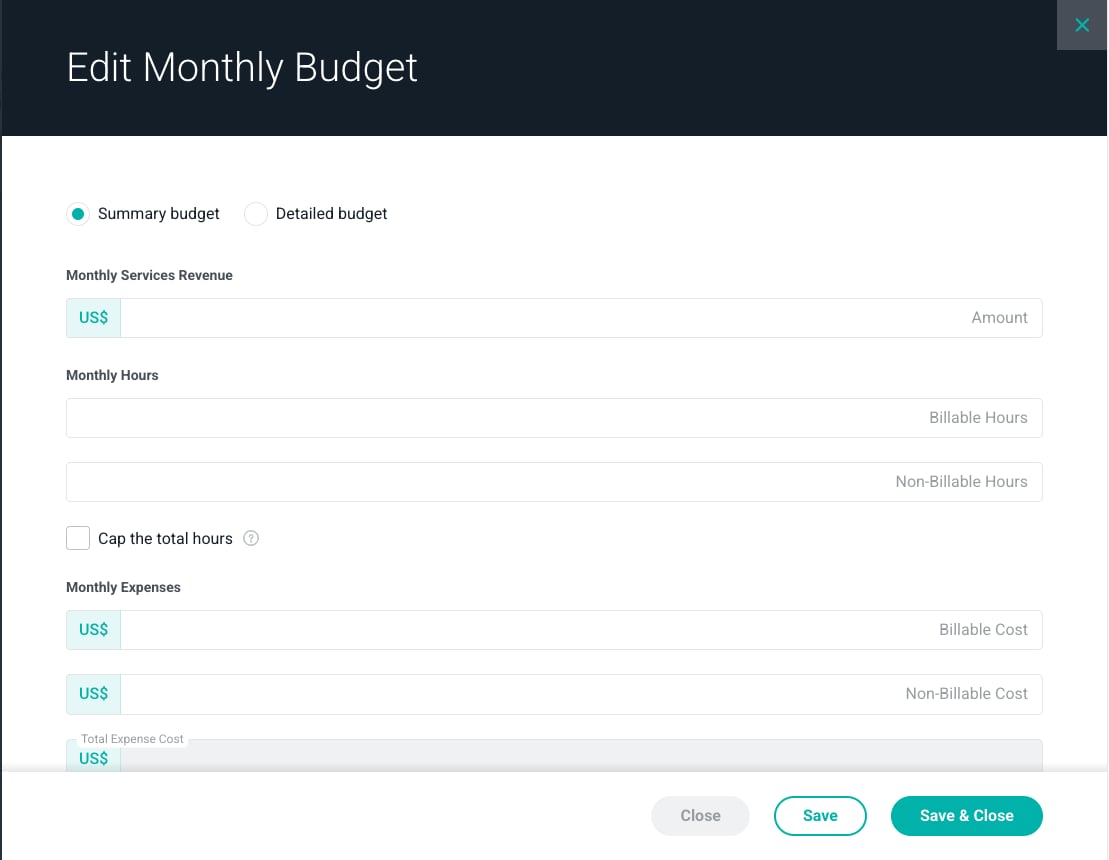
Figure 10 - Set a Monthly Budget via the Edit Monthly Budget Drawer
Project Budget Notifications
When setting the project budget, you can specify whether or not you would like to send out project budget notifications via email. These notifications can be sent for the hours budget, the revenue budget, or both. When the project budget notifications are enabled, the project’s Project Admin and the Client Relationship Manager for the respective client will be notified via email (Figure 12) when the project hits or exceeds the specified budget percentage denoted when the setting is enabled. Additionally, a follow-up notifications will be sent to both parties when the budget hits or exceeds 100%. Each budget option - Summary, Detailed, Detailed Aggregated from Tasks - will have options (Figure 11) for setting up project budget notifications. When enabled, you can also specify the percentage at which you wish for the notifications to be sent.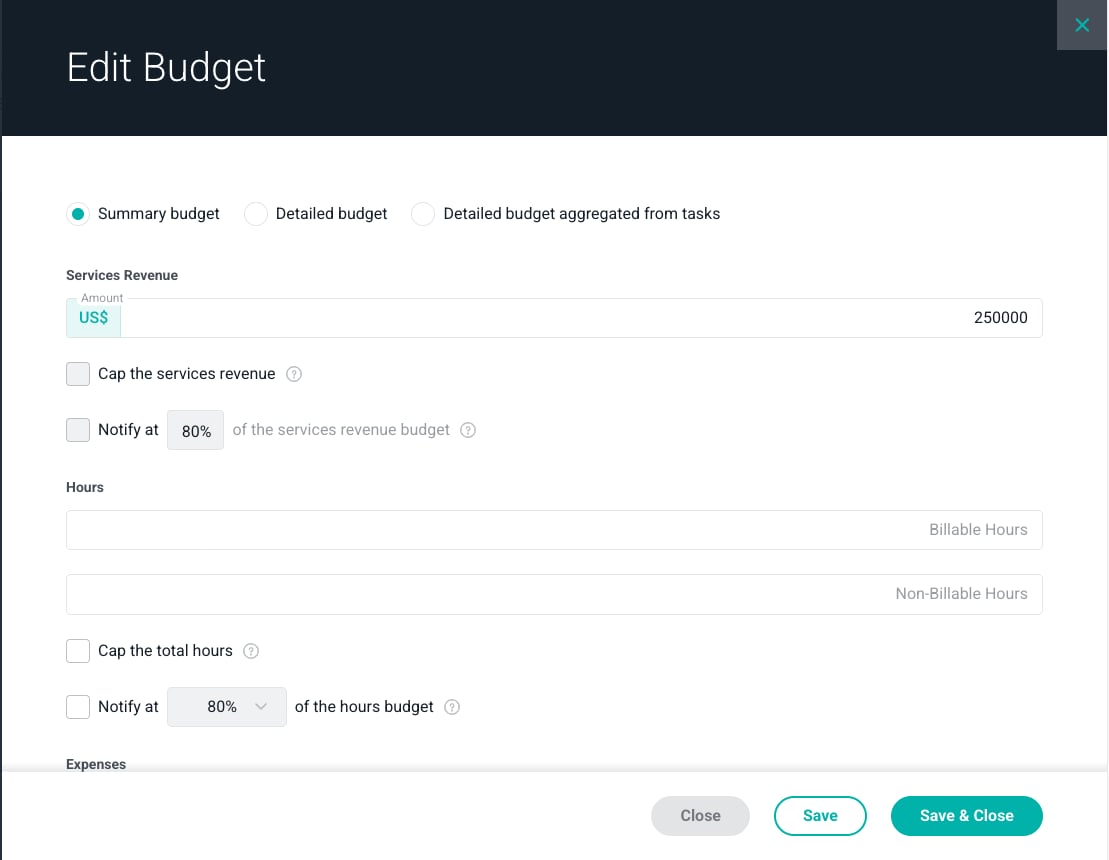
Figure 11 - Elect to Send Budget Notifications to Project Admins and Client Relationship Owners
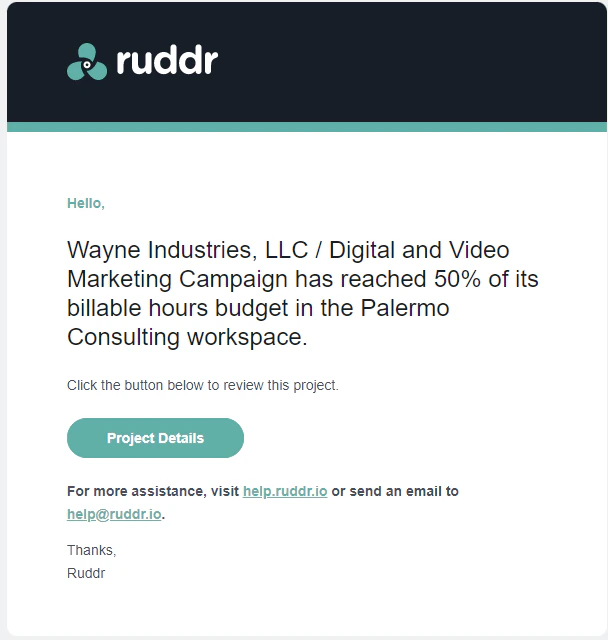
Figure 12 - Project Admins and Client Relationship Owners can Receive an Emailed Budget Notification