

- You have yet to create an account
- You have created an account, but have yet to verify your email address
- You have forgotten your password
You Have Yet to Create an Account
An account with Ruddr can be created one of two ways:- You sign up from the Ruddr.io homepage. For more on this, please refer to the Signing Up for Ruddr article in the Help Center. Please note that as part of this process, you must verify your email address prior to receiving access to Ruddr.
- You create an account as the result of accepting an invitation to a Ruddr workspace. For more on this, please read the Accepting Workspace Invitations article in the Ruddr Help Center.
You Created an Account, but Have Yet to Verify your Email Address
If you create an account with Ruddr by signing up from the homepage (as opposed to creating an account via workspace invitation), you must verify your email address in order to access Ruddr. When you sign up via the homepage, you will receive an email (Figure 1) requesting email verification. Click Verify Your Email Address to complete the verification process.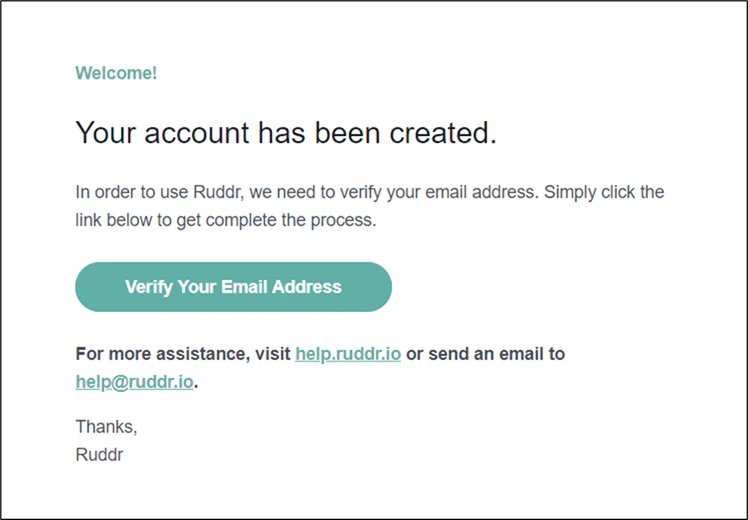
Figure 1 - Email Request for Verification
You Have Forgotten Your Password
In instances where you have forgotten your password, you can simply click the Forgot password? link on the bottom of the Login form to navigate to the Reset Password screen (Figure 2). On this screen, enter your email address and click Reset Password. Ruddr will send you a password reset email (Figure 3). Click Choose a New Password to begin the password reset process (Figure 4).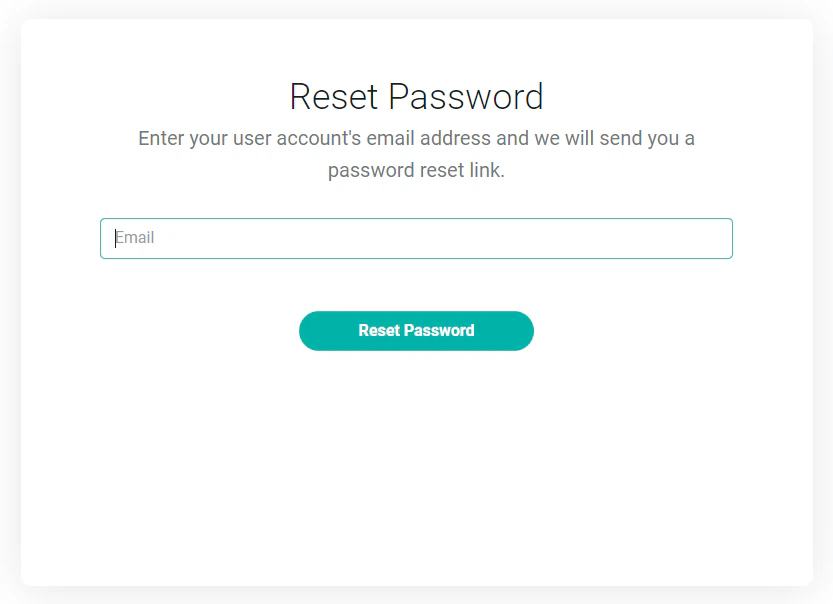
Figure 2 - Reset Password Screen
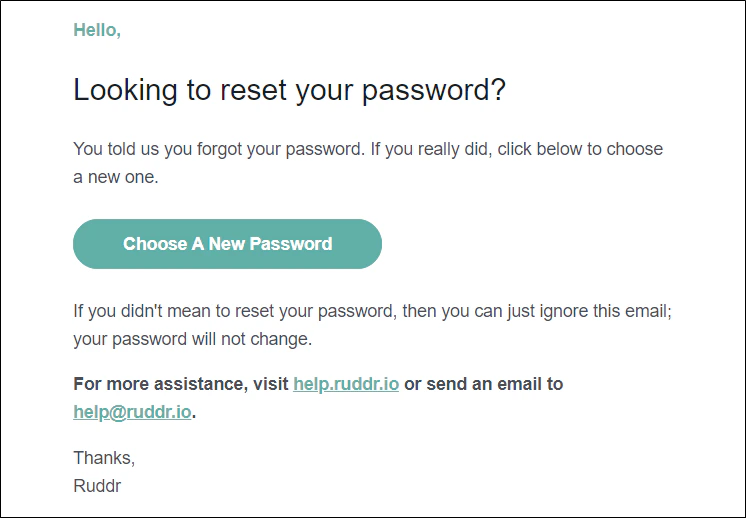
Figure 3 - Password Email Reset Notification
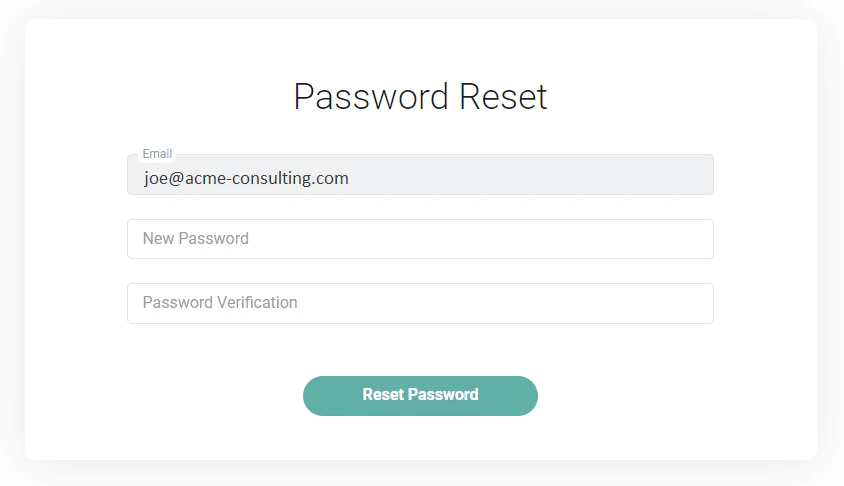
Figure 4 - Password Reset Screen