


Figure 1 - Clicking on Library in the Reports Section of the Main Nav Bar to Access the Reports Library

Figure 2 - Expenses Reports in the Report Library
Expense Items
The most detailed source of Expenses data in Ruddr, the Expense Items report is a listing of individual expense items in Ruddr, including:- Date
- Member
- Client and Project
- Expense Category
- Vendor
- Approval Status
- Reimbursable Status
- Amount
- Billable / Non-billable Expense
- Receipt Indicator (the receipt icon is dark when a receipt has been uploaded and muted when there isn’t one)
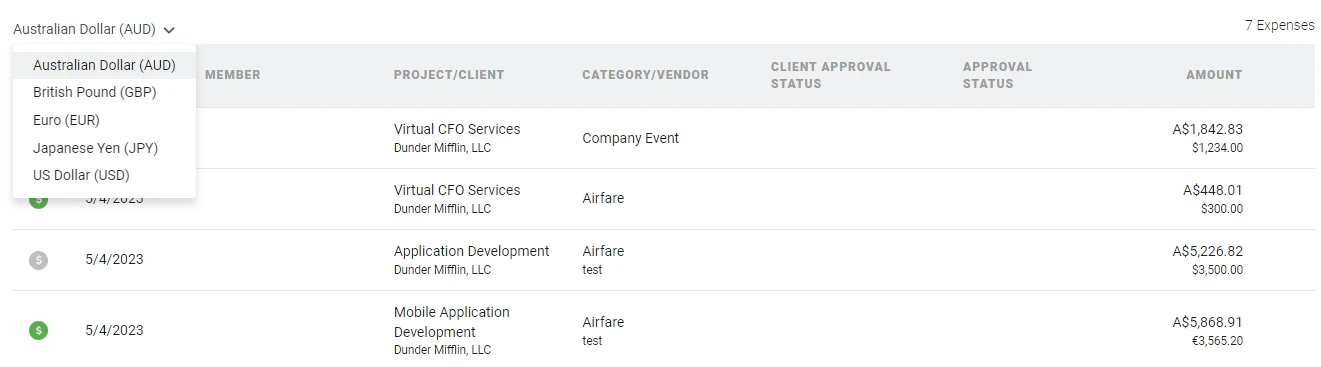
Figure 3 - Currency Selector on the Expense Detail report

Figure 4 - A CSV Export with Conversion from USD to AUD
Expense Summary by Client and Project
A summary of billable and non-billable expense totals grouped by client and project. Included in this report is a summary of the following:- Client
- Project
- Project Type
- Billable Expense Total
- Non-billable Expense Total
- Total Expense
Expense Summary by Expense Category
Expense items in Ruddr are assigned an Expense Category. This report provides a summary of expenses by expense category, as such:- Expense Category
- Billable Expense Total
- Non-billable Expense Total
- Total Expense
Expense Summary by Member
A summary of expense items by member. This includes:- Member
- Billable Expense Total
- Non-billable Expense Total
- Total Expense
Expense Summary by Member Practice
Summary of expense items by member practice, including the following:- Member Practice
- Billable Expense Total
- Non-billable Expense Total
- Total Expense
Expense Summary by Project
Summary of expense items by project, including the following:- Project
- Billable Expense Total
- Non-billable Expense Total
- Total Expense
Expense Summary by Project Type
Project in Ruddr can be assigned a project type. Project types can be managed in the Custom Data section of Workspace Settings. This report provides a summary view of expense items for each project type in your workspace, including:- Project Type
- Billable Expense Total
- Non-billable Expense Total
- Total Expense