

- Time Reports
- Expenses Reports
- Utilization Reports
- Forecast Reports
- Plan Reports
- Variance Reports
- Accounting Reports
- Performance Reports
- Pipeline Reports
- Workspace Reports
Reports Library
The Reports library of Ruddr is accessible by clicking the Library item in the Reports section of the main nav bar (Figure 1) on the left of the screen.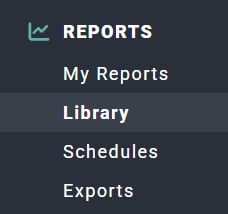
Figure 1 - Clicking on Library in the Reports Section of the Main Nav Bar to Access the Reports Library
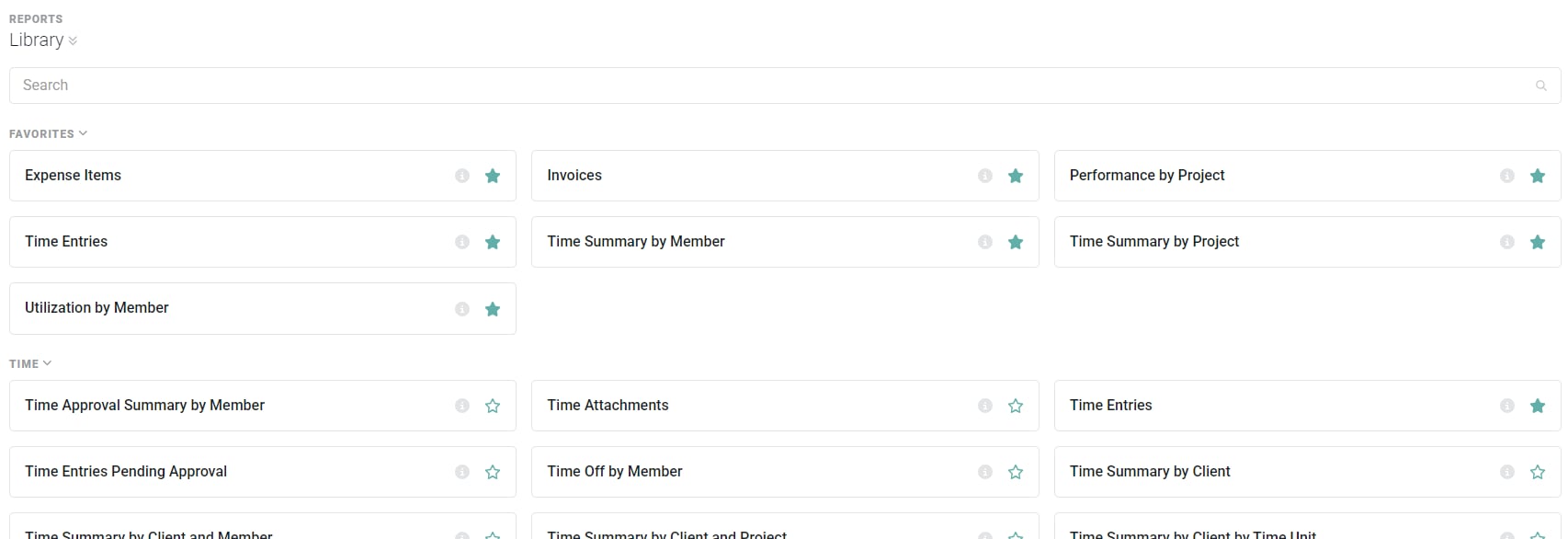
Figure 2 - The Reports Library Contains all Ruddr Reports Grouped by Reporting Category

Figure 3 - Clicking the Expand / Collapse Arrows Next to the Screen Title Expands / Collapses the Report Categories
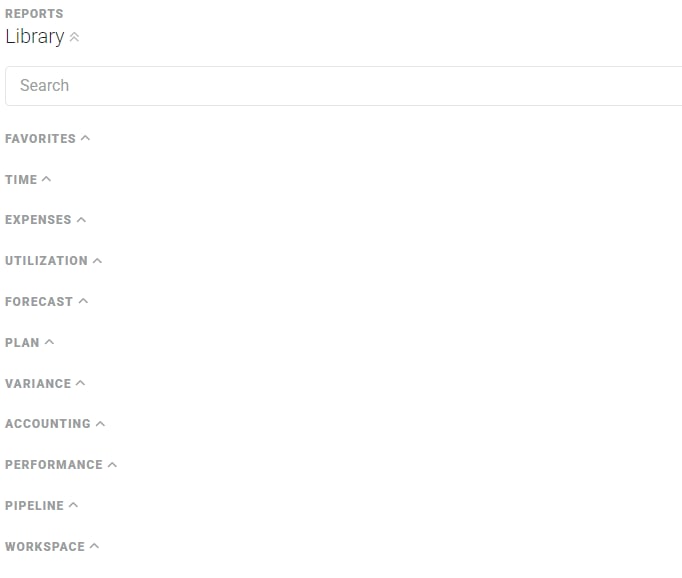
Figure 4 - The Collapsed List of Reporting Categories

Figure 5 - Search for Reports by Title and / or Description
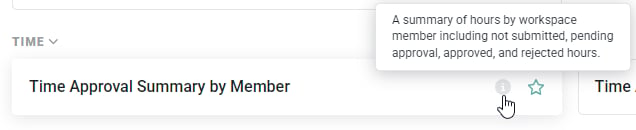
Figure 6 - Each Report's Description can be Accessed by Hovering Over the Tooltip Provided
Favoriting Reports
To build a list of your “favorite” reports - reports that you frequently access - you can click on the “star” icon listed next to any report. This will add the report to your Favorites list, which is the first category of reports listed at the top of the library. Every time you visit the reports library, your favorites (Figure 7) will be listed at the top for quick access. To remove a report from your favorites list, simply click on the star icon and the report will be removed.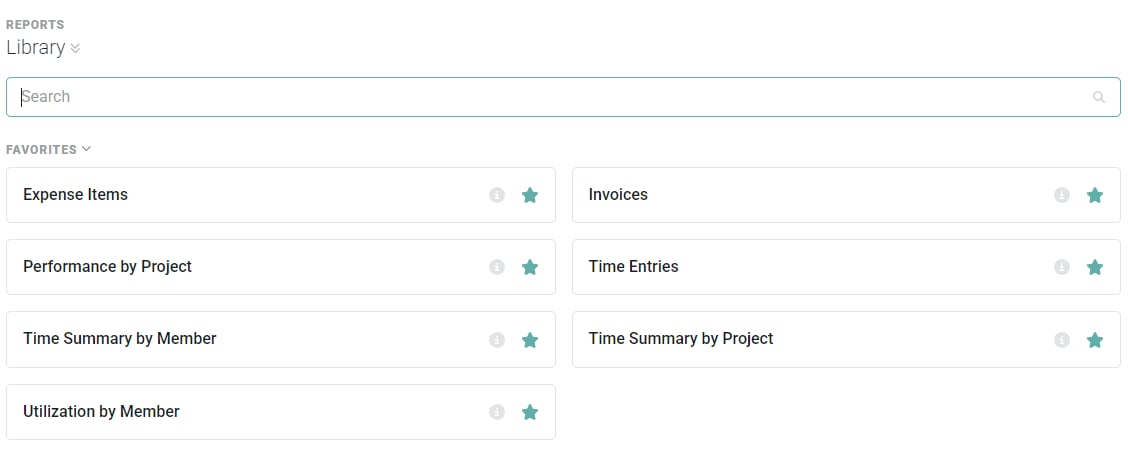
Figure 7 - Your Favorited Reports will Appear at the Top of the Reports Library
Reporting Basics
As an introduction, we will cover the following aspects of reporting in Ruddr. The following applies to all reports:Ruddr Security Roles and Reports
In Ruddr, each member is assigned a Security Role, which is a compilation of security permissions. The security roles dictate what functions within Ruddr that a member has access to. These roles also control the data that a member can see. Take bill rates, for instance - a member can be denied or granted access to see bill rates throughout Ruddr. As such, members may be able to access certain reports but their permissions may restrict the data that is returned as part of the result set. In these cases, a notification (Figure 8) will be presented to the member at the top of the report result set.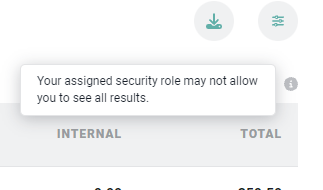
Figure 8 - Notice that the Current Member does not have Access to All Results for Report Query
Report Filters
Each report in Ruddr can be filtered by select data values. Based on the data being presented in the report, filters are provided to help you view the report results that you are interested in. Common filters include:- Date Range
- Client
- Project
- Member

Figure 9 - Clicking the Filters Icon will Present the Report Filters Drawer
- Client
- Project
- Member
- Time
- Expense
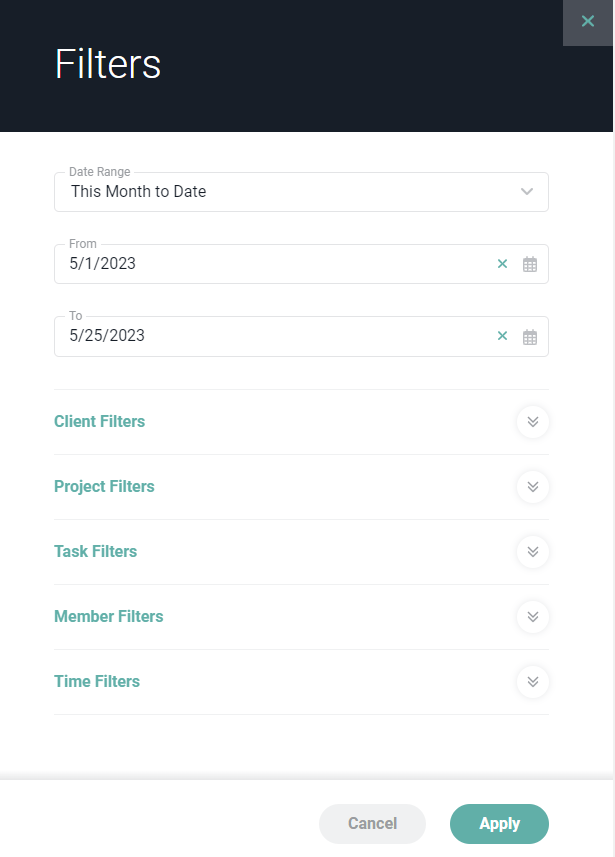
Figure 10 - The Filters Drawer Organizes Report Filters by Category

Figure 11 - The Report Header includes the Report Title and any Applied Filters on the Report
Saving Reports
If you consistently access a report with specific filters applied, you can save that report and access it at any given time from a library of saved reports that you maintain. Each report will have a save button (Figure 12) that will allow you to save the report as currently being viewed.
Figure 12 - Use the Save Button on Each Report to Save That View of the Report to your Saved Reports Library
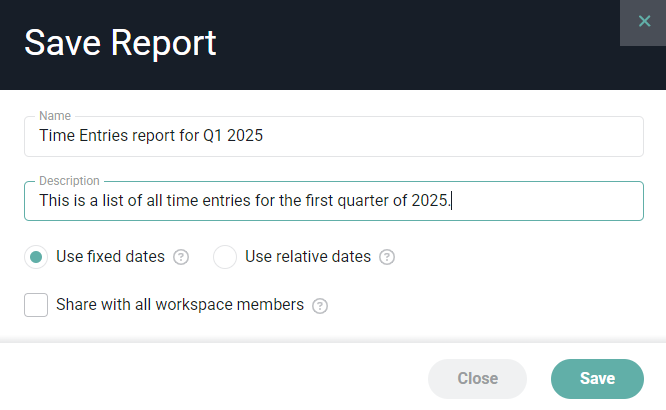
Figure 13 - Specify Various Settings for the Saved Report
- Use fixed dates: any time you view the saved report, it will always used the specified dates as applied to the report.
- Use relative dates: any time you view the saved report, any data filters will resolve to the relative date based on when the report is being viewed. For example, if you were to run the report in March, viewing data for “Last Month” (in this case, February) and then save the report with relative dates, when you then run the saved report in May, you would be viewing data for April.
Accessing Saved Reports
Saved reports can be accessed from the My Reports area of the Reports section in Ruddr (Figure 14).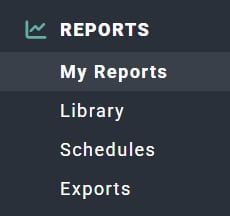
Figure 14 - Access Your Reports
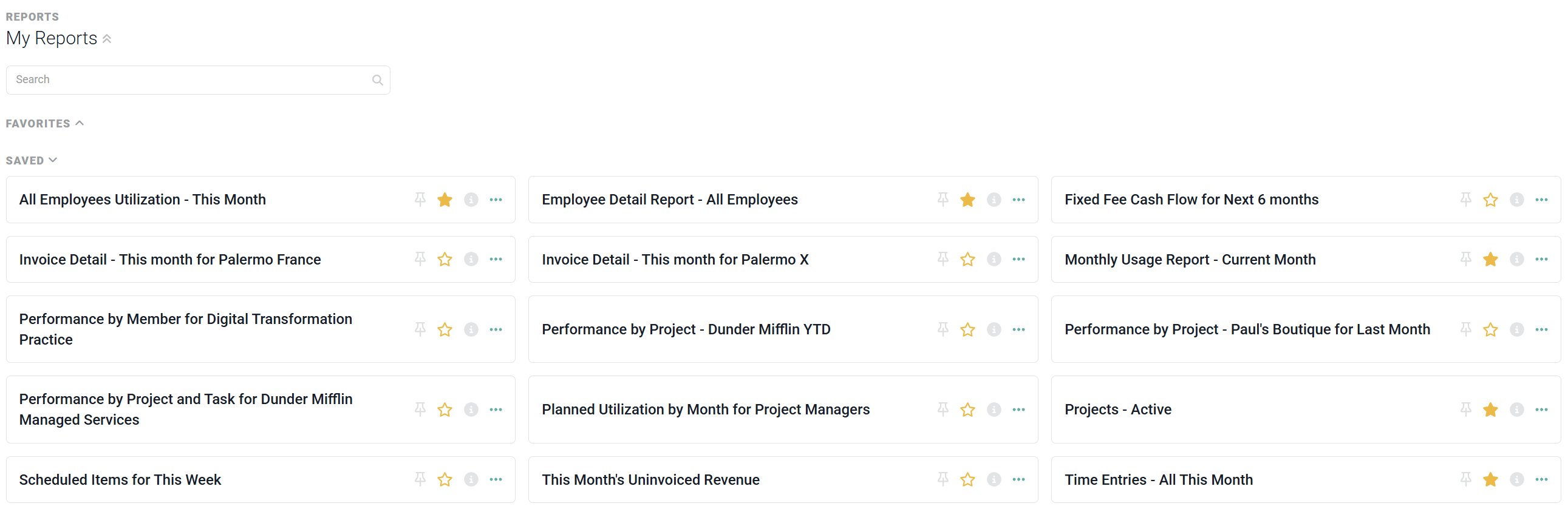
Figure 15 - Saved Reports in My Reports
Administering Saved Reports
You can edit and delete any saved report by accessing the saved report from the saved reports library. Saved reports will have an edit button available (Figure 16), which will allow you to change particular details.
Figure 16 - Edit a Saved Report
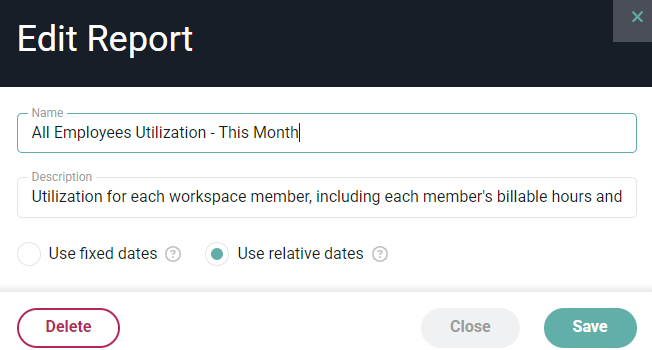
Figure 17 - Edit Saved Report Details
Deleting a Saved Report
You can delete a saved report in three locations. The first is in the Edit Report screen (Figure 17) by clicking the Delete button. Additionally, you can delete a report by selecting the three dots (Figure 18) and selecting Delete from the drop down of options.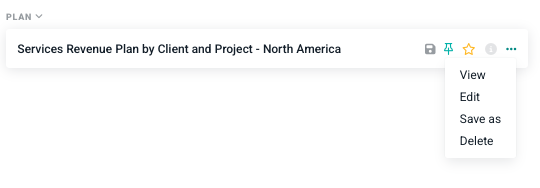
Figure 18 - Deleting a Saved Report

Figure 19 - Deleting a Saved Report in Top Right Settings
Exporting Report Data
Every report in Ruddr has two views: a report view (in the Ruddr application within an web browser) and an export view. Typically, the export view contains more data than what can be viewed within the application, as only so much information can be presented on-screen. The two, common export formats for reports in Ruddr are CSV and Excel. All time reports and the Expense Detail report can be exported to a “client-friendly” PDF format. To export reports in Ruddr, click on the Export button (Figure 20) located at the top-right of the reporting screen. This will present a Download Report modal (Figure 21), through which you can initiate the download of the exported file via your browser. In cases where the file may be somewhat large due to the amount of data being exported, Ruddr will indicate that your file is being generated. Upon completion, you will be presented with a Download button.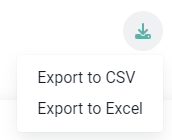
Figure 20 - Click the Report Export Button and Select the Format for the File
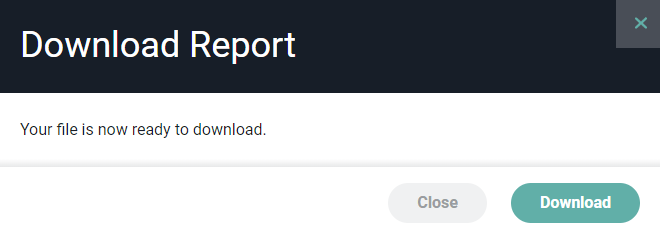
Figure 21 - Once the Report Export File has been Generated you can Download the File