

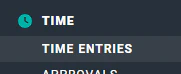
Figure 1 - Select Time Entries to View the Default Day View on the Time Entries Screen
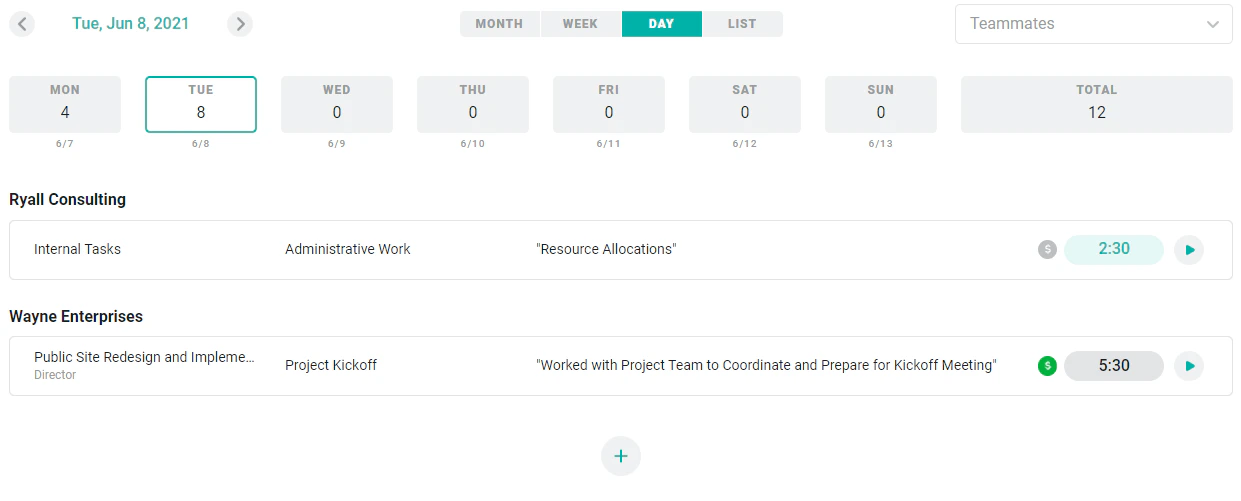
Figure 2 - Day View for Time Entry
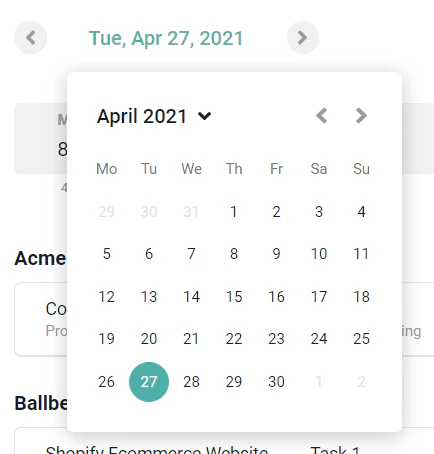
Figure 3 - Use the Date Selector to View / Edit Time Entries for a Specific Day

Figure 4 - Time Entry Details Grouped by Client
- Gray (Not Submitted) - the time entry has been created but has not been submitted for approval.
- Yellow (Pending Approval) - the time entry has been submitted for approval.
- Green (Approved) - the time entry has been approved.
- Red (Rejected) - the time entry has been rejected.
Create a Time Entry
If the day you have selected currently has no time entries, you can create a new time entry by clicking the New Time Entry button (Figure 5) in the middle of the screen.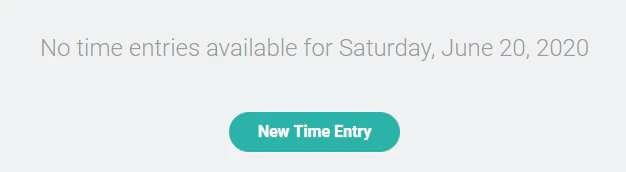
Figure 5 - Click New Time Entry to Create a Time Entry for the Selected Date
- Date - The date will be pre-filled with the date you had selected on the day view when you clicked the New Time Entry button. You can change the date as needed.
- Duration - The amount of time that you worked. You can enter this time in either clock format (1:30) or decimal format (1.5). If you would like to start a timer instead of entering a static amount of time, you can leave this field blank. If you do enter time into this field, the Start Timer button will be replaced with a Save & Close button.
- Type - The two types of time are Project Time and Time Off.
- If the Type is set to Time Off, then you will also be asked to provide:
- Time Off Type - The type of time off (such as vacation or holiday). Your Workspace Admin can configure your team’s time off types.
- If the Type is set to Project Time, then you can provide:
- Client/Project - The client/project combination is a required field. If the work was internal (not for a client), simply choose a project from your workspace’s internal client.
- Role - If the project is set up to use roles, you must select a role. Note that the roles assigned to you will be listed first but the project can be configured to allow you to record time to any role on the project team.
- Task - If tasks are defined for the project, you can select the task that you are working on. If the project requires that all time entries must be associated with a task, you will be required to select a task. If the project does not require time entries to be associated with a task, you are not required to select a task, even if tasks have been defined for the project.
- If the Type is set to Time Off, then you will also be asked to provide:
- Notes - An optional text field that allows you to describe the completed work.
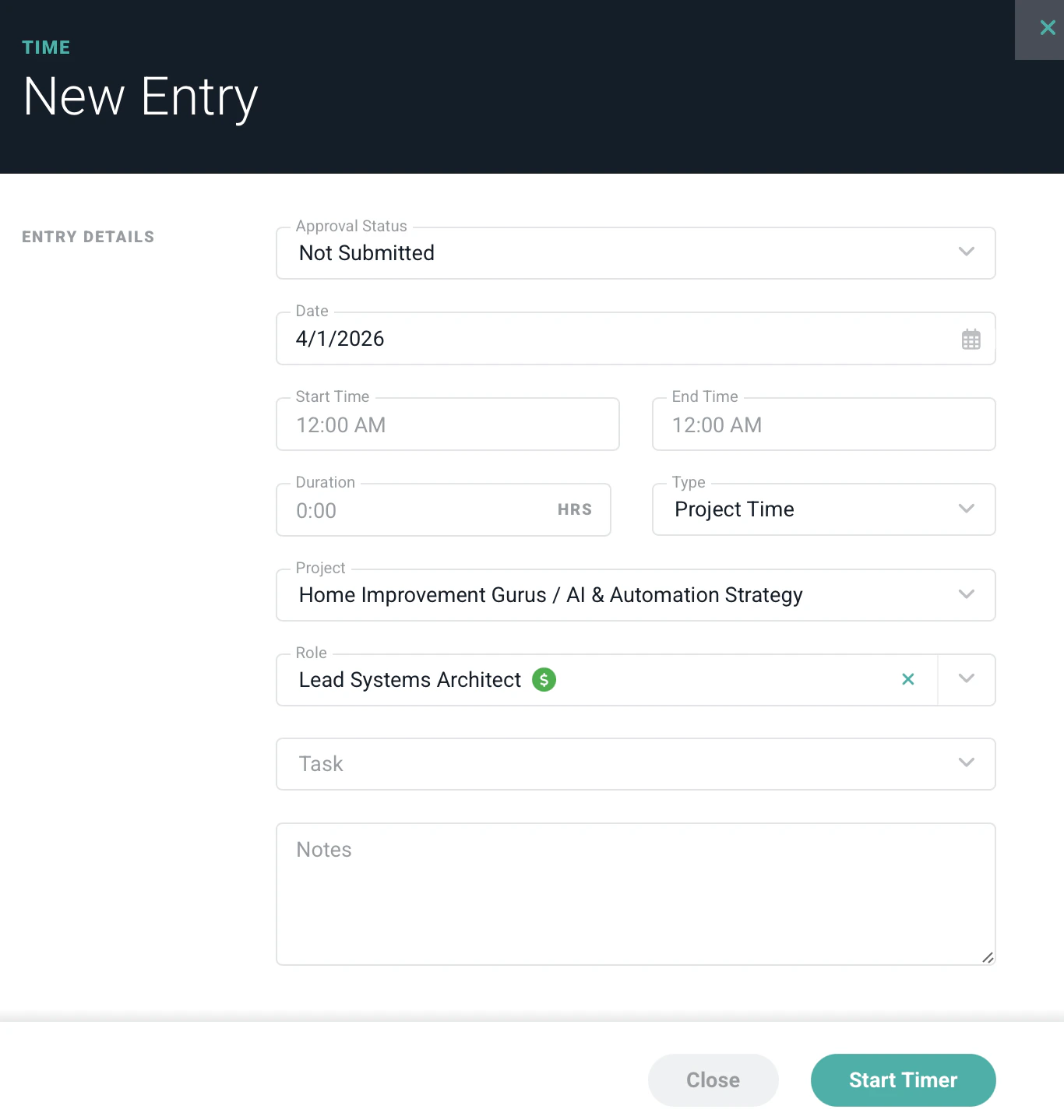
Figure 6 - Create a New Time Entry
Start a Timer
Instead of typing in an amount of time on the time entry drawer, you can also leave the Duration field blank. When the Duration field is blank, the button (Figure 7) at the bottom of the drawer will be labeled Start Timer. Clicking that button will save the information on the drawer, close the drawer, and start a timer.
Figure 7 - Click this Button to Start a Timer in lieu of Manually Entering an Amount of Time
Figure 8 - The Timer is Displayed on the Time Entry Screen and is also Available in the Time Overlay
Delete a Time Entry
If a time entry was created by mistake, you can delete that entry from the edit time entry drawer. To bring up the drawer, simply click on the time entry on the day view. At the bottom-left of the drawer, you will see a Delete button (Figure 9) if you have permission to delete the time entry and the entry is not locked.
Figure 9 - This Delete button will Display in the Edit Time Entry Drawer when a Time Entry can be Deleted
Locked Time Entries
Time entries can become locked under certain circumstances. Locked time entries are shown with a lock icon. When a time entry is locked, it cannot be edited or deleted by the current user. Two important rules to understand about time locking are:- Time entries are not individually locked or unlocked. When time entries are locked, it is because they are locked for the entire project or task or because conditions exist that require Ruddr to lock the time entry for the current workspace member. For example, the time entry might be associated with a published invoice.
- A time entry could be locked for one workspace member but unlocked for another member who has a different security role (with greater privileges).
Submit the Day’s Time for Approval
When all of the time entries for a day have been entered, you can easily submit them for approval with a single button click. The Submit for Approval button (Figure 10) at the bottom of the screen will submit any entries for that day that are not already in a Pending Approval or Approved state. The button’s label will include the number of time entries that will be submitted. If there are no time entries that need to be submitted, the button will not be shown. Note that any time entry with a running timer will not be submitted for approval.
Figure 10 - The Number of Daily Time Entries Available for Submittal are Displayed
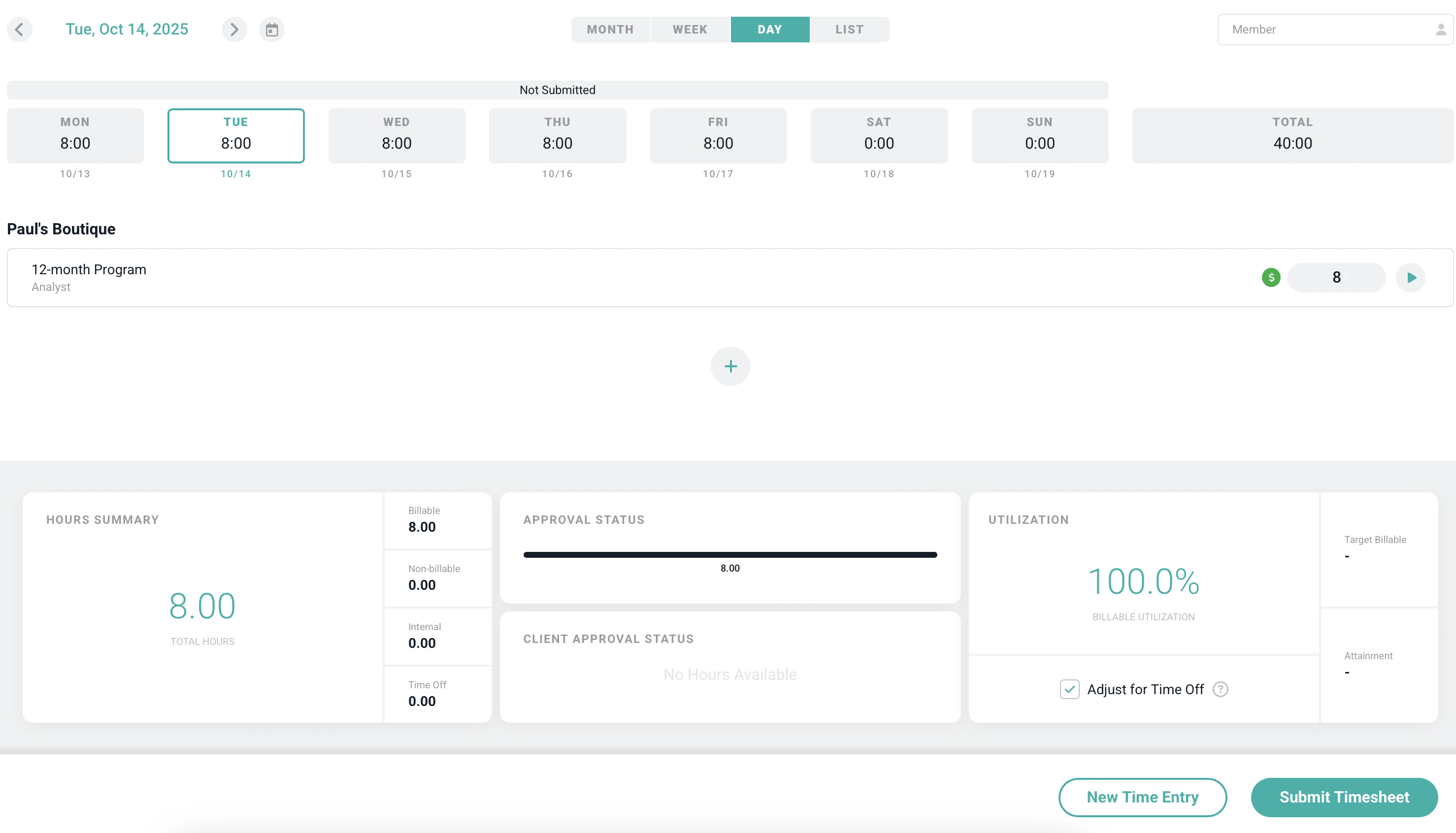
Figure 11 - When Timesheets are Enabled, Members can Submit the Entire Timesheet from the Day View
Time Statistics
At the bottom of the day view, you will see statistics (Figure 12) that summarize the time entries for that day.
Figure 12 - The Time Statistics are Shown on the Time Entries Screen for the Current Period
- Hours Summary - Toward the left of the screen is the total tracked time broken down into billable and non-billable hours. Also, your capacity and any missing hours are shown in this area. Your capacity of hours per day is set by your Workspace Admin. Most full-time employees will have 8 available hours of capacity per day from Monday through Friday.
- Time Summarized by Status - In the middle section of the time statistics, your time is summarized by its current status and represented in a bar. Time entries have one of the following status values: Not Submitted, Pending Approval, Approved, or Rejected. These status settings are color-coded, as mentioned earlier.
- Billable Utilization Figures - On the right side of the statistics area, you will see your billable utilization figures. These show your billable utilization, target billable percentage, and target attainment percentage for the period. These utilization figures are discussed in more detail in the personal dashboard help article.