

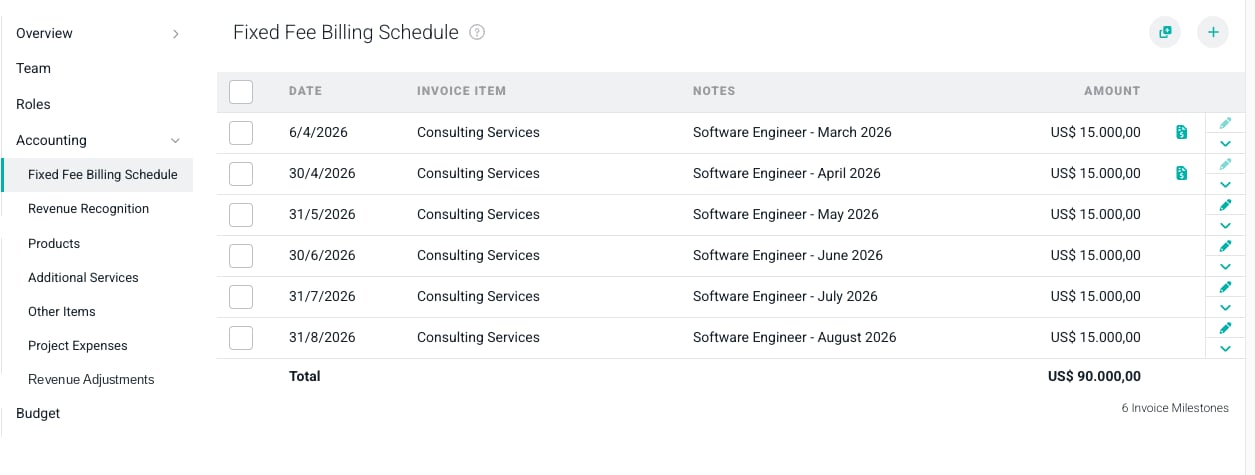
Figure 1 - The Accounting Section of the Project Settings Tab
Creating Adjustments to Earned Revenue
The Earned Revenue Adjustment Ledger is one of the ledgers in the Accounting section of the Settings tab. This ledger allows you to adjust the earned revenue for all types of revenue, including services, expenses, products, and other items. Adjustments to earned revenue can be either positive or negative. Adjustments to earned revenue are not invoiced to clients as they simply impact the calculation for the specified type of earned revenue. Accordingly, they do not change the invoiced revenue amount. Adjustments to earned revenue are reflected on Ruddr dashboards and reports. There are two ways to add adjustments to the Earned Revenue Adjustment Ledger:Add a Single Earned Revenue Adjustment
To add a single earned revenue adjustment, simply click on the + button at the top-right of the Earned Revenue Adjustment Ledger (Figure 2).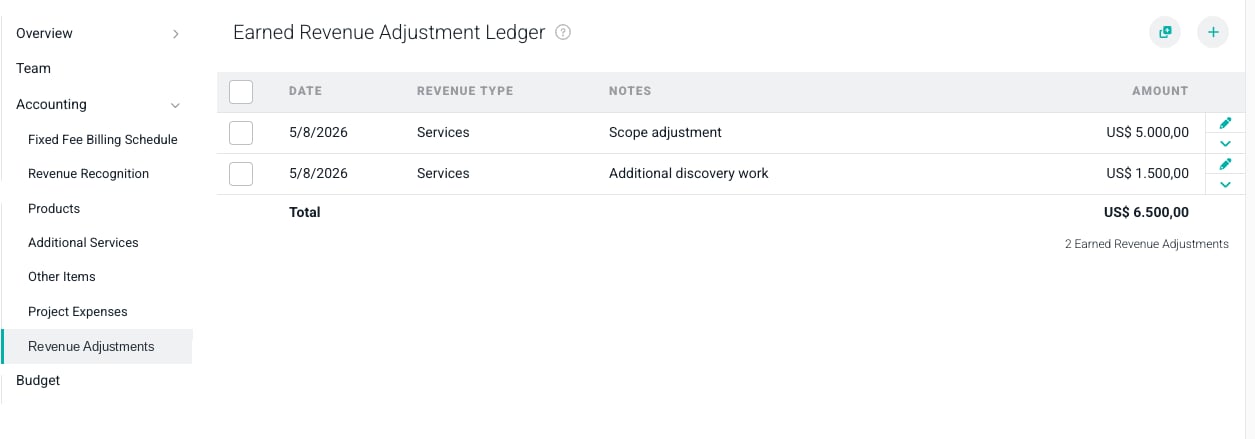
Figure 2 - The Earned Revenue Adjustment Ledger in the Accounting Section
- Date - The date that you want the earned revenue adjustment to impact Ruddr reports and dashboards.
- Revenue Type - The type of revenue that you are adjusting. This could be services, expenses, products, or other items.
- Amount - The amount of the earned revenue adjustment. This could be either positive or negative.
- Notes - The description or reason for the earned revenue adjustment.
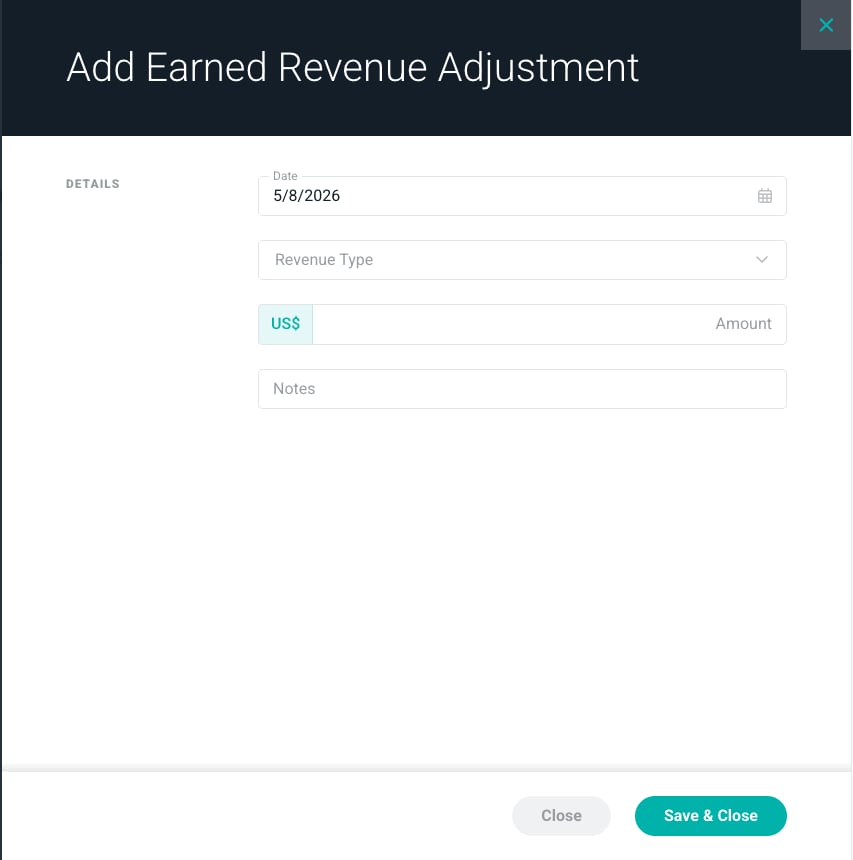
Figure 3 - The Add Adjustment Entry Window
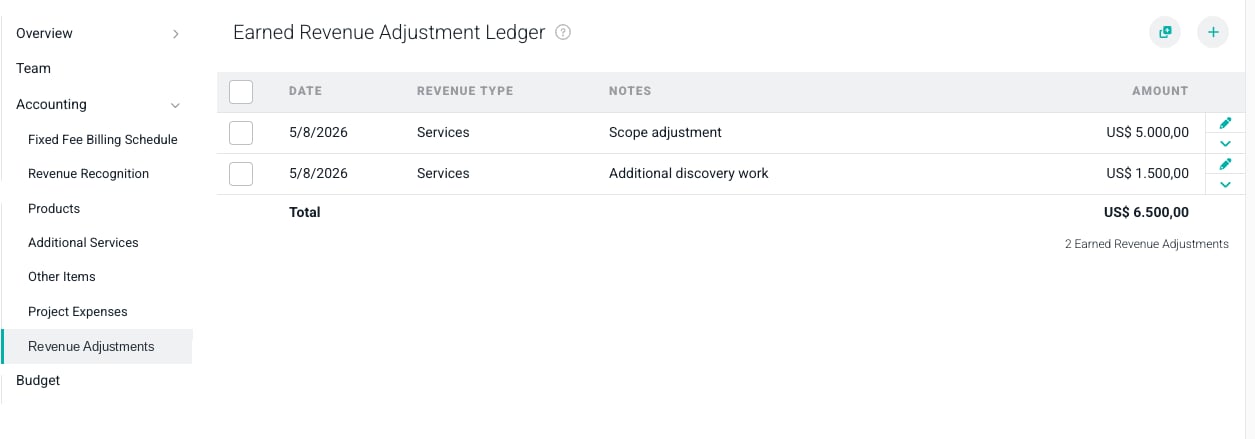
Figure 4 - The Earned Revenue Adjustment Ledger Containing an Adjustment
Add a Recurring Earned Revenue Adjustment
If you need to have a monthly recurring adjustment, you can create these via the Add Multiple button at the top-right of the Earned Revenue Adjustments Ledger (Figure 2). This will open the Add Adjustment Entries window (Figure 5).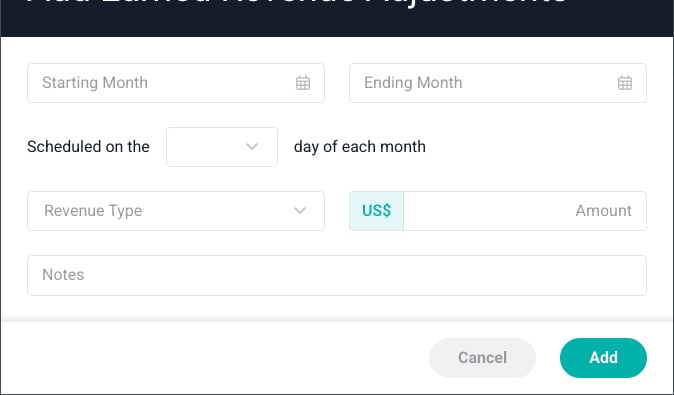
Figure 5 - The Add Adjustment Entries Window
- Starting Month - The first month that you want this adjustment to be applied.
- Ending Month - The final month that you want this adjustment to be applied.
- Scheduled on the X Day of Each Month - The exact day of the month that you want this adjustment to be applied.
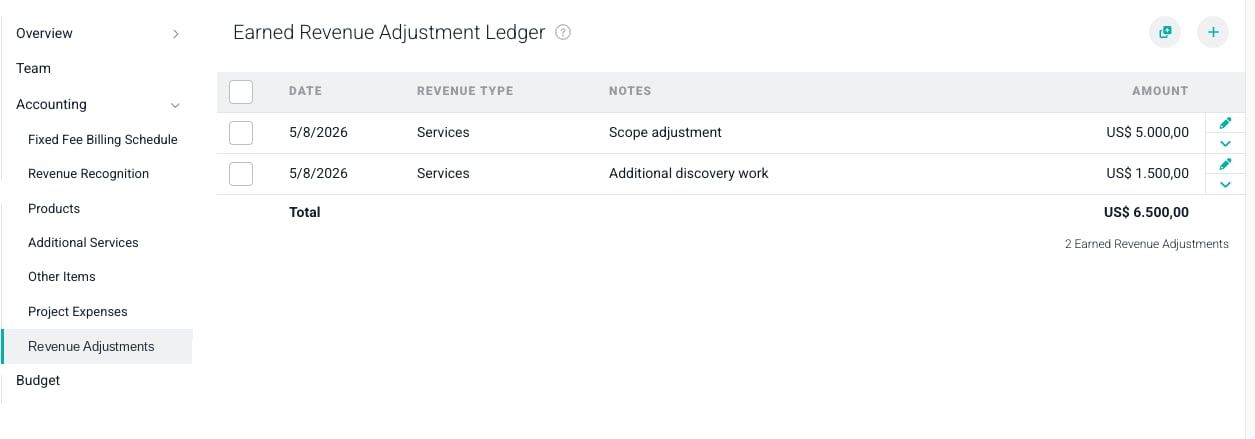
Figure 6 - The Earned Revenue Adjustment Ledger with Recurring Adjustments