

Manual Time Off Allocation Creation
As noted in Create a Resource Allocation, allocations can have an Assignment Type designated, which categorizes the allocation as either Project time or Time Off. Selecting Time Off as the Assignment Type will require you to provide a Time Off Type for categorizing the allocations. These manually-entered allocations are represented on the Schedule (Figure 1), often times as a single allocation spanning multiple periods (by Day / by Week / by Month).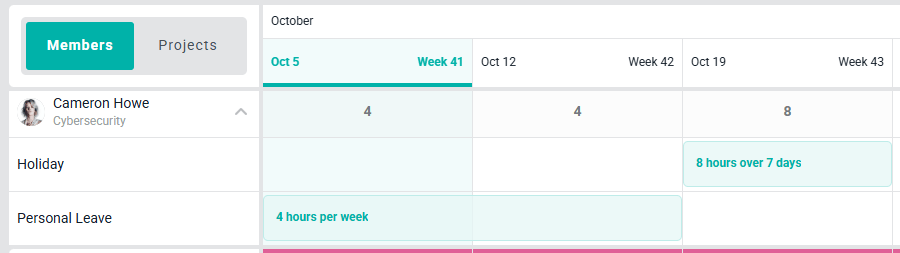
Figure 1 - A Manually-Created Time Off Allocation is Displayed
Automatic Time Off Allocation Creation
Ruddr automatically creates Time Off resource allocations when a member creates Time Off time entries on their time screen. In this case, these entries are displayed (Figure 2) as individual allocations for each day (meaning, a single Time Off allocation is created for each day of time off as entered by the member). Note that Time Off allocations that are automatically created are read-only, as they are managed by the member via their time entries. You cannot edit Time Off allocations that reflect time off entries from the member’s time screen.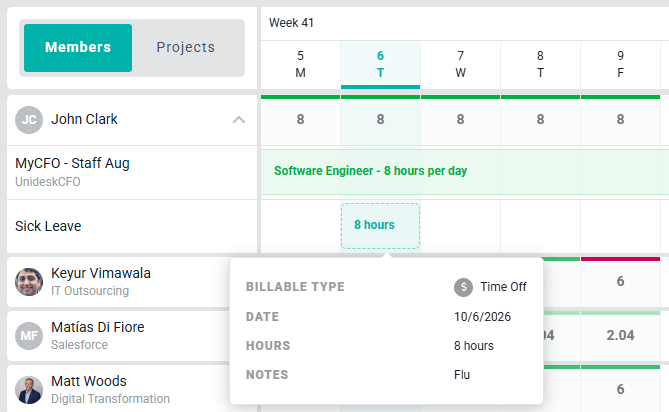
Figure 2 - Individual Time Off Allocations Created from Time Off Time Entries
The Effect of Time Off Allocations on Capacity
When Time Off allocations are added - either manually or automatically - they may or may not have an effect on a member’s capacity for that period. Whether they have an effect on capacity depends on the duration of the time off allocation when compared to the member’s capacity for the period. Note that whether a Time Off Type has been set up as paid time off or unpaid time off will have no bearing on how the allocation affects a member’s capacity for allocation purposes. In the case where an allocation has been created for an unpaid time off type, this will affect a member’s utilization capacity. Time Off for a Full Day When a member has a Time Off allocation for a full day - meaning the Time Off allocation’s hours are equal to or greater than their capacity for that day - Ruddr will no longer evaluate project hour allocations for that day for that member. Ruddr identifies that all of the capacity for that day is being used by the time off. In the below example (Figure 3), the member has Holiday Time Off allocations from November 20 through November 24. As the allocations are 8 hours per day - the member’s daily capacity - this member’s billable utilization shows as 0% for those days, even with a billable project allocation that spans the period.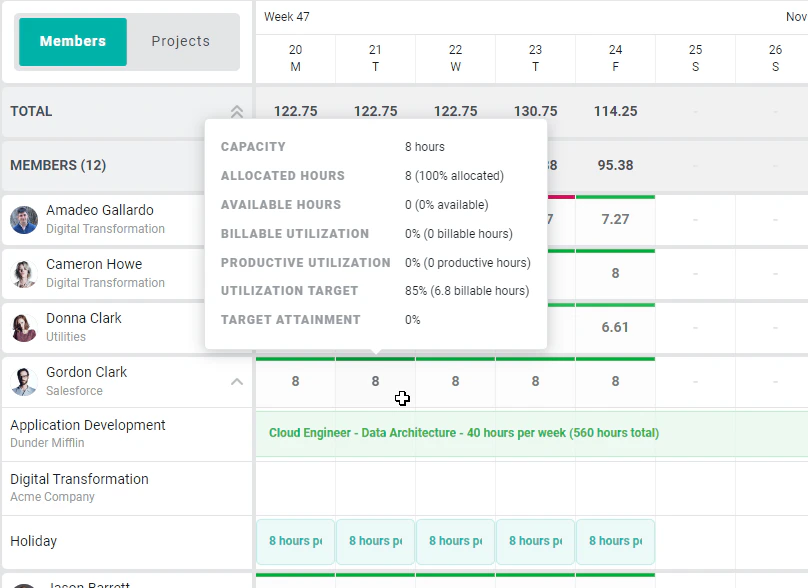
Figure 3 - A Member's Project Allocations do not Factor into Capacity or Utilization when Time Off is for a Full Day
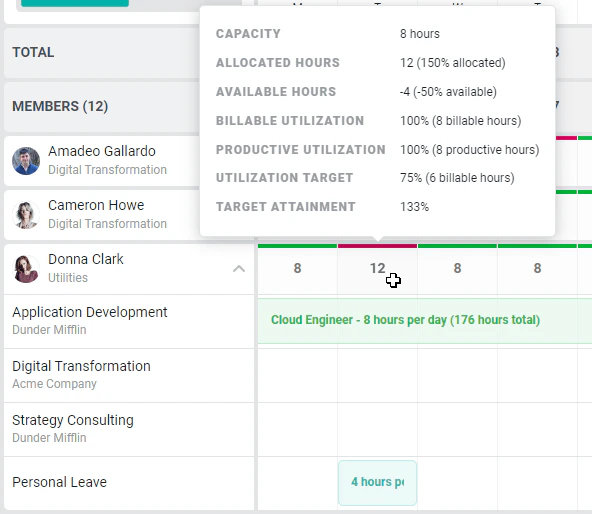
Figure 4 - Partial Time Off Allocation does not Affect Capacity
Unpaid Time Off and Utilization Capacity
Time Off Types are Custom Data elements in Ruddr and can be configured such that they represent unpaid time off. When a Time Off allocation is created for a Time Off Type that represents unpaid time off, those allocated hours do not factor into the calculation of a member’s utilization for that period - any hours allocated to unpaid time off will be subtracted from a member’s capacity, affecting the utilization capacity for that period. This utilization capacity is used as the denominator for any utilization calculations for that member for that period. You will see this utilization capacity metric represented (Figure 5) when viewing a member’s metrics.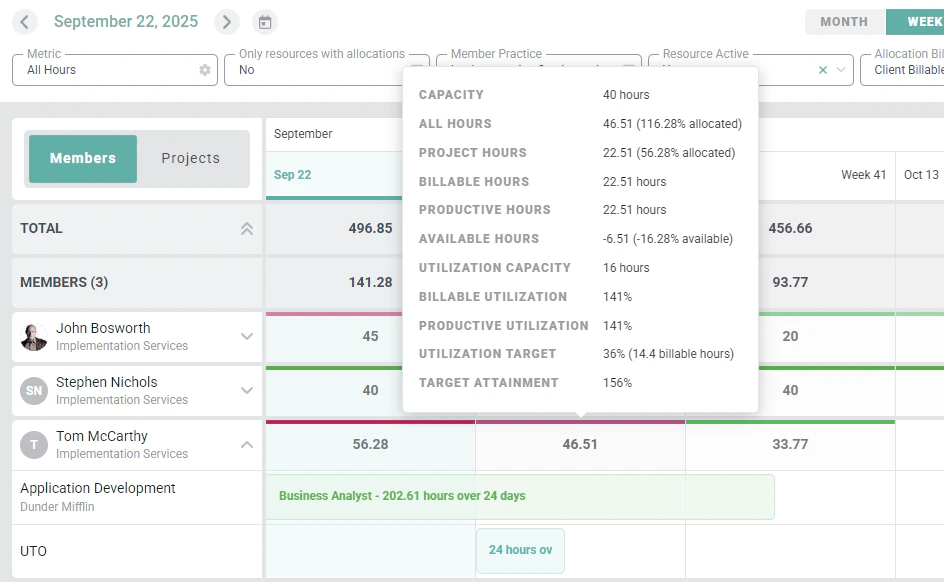
Figure 5 - Members Allocated to Unpaid Time Off Have a Utilization Capacity