

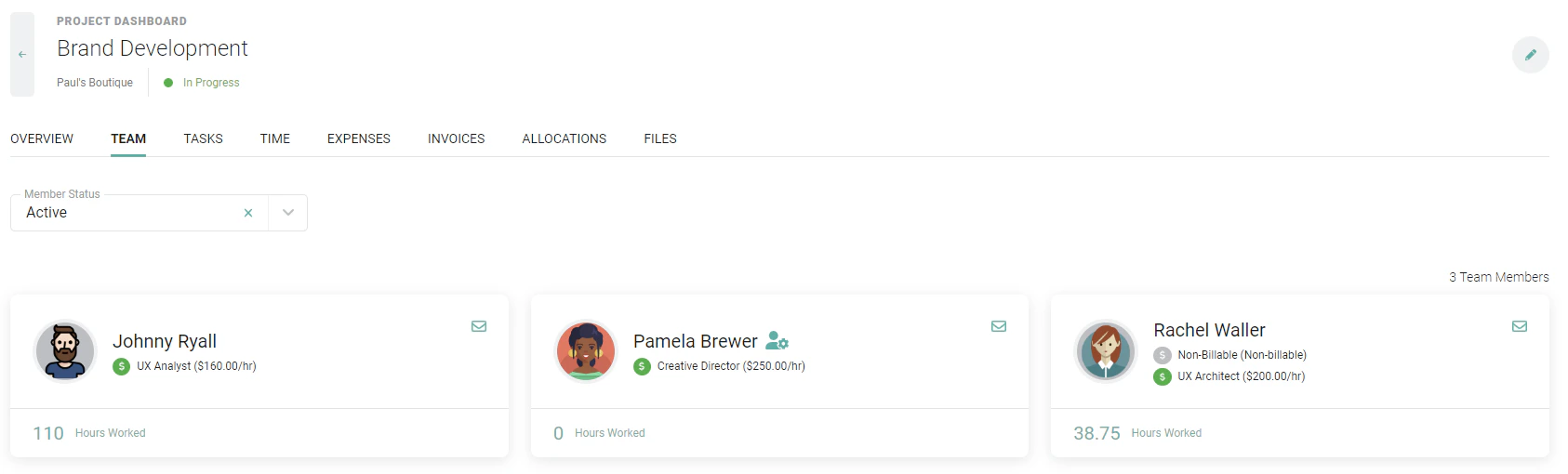
Figure 1 - Team Tab on the Project Dashboard
Edit the Project Team
To edit the project team, go to the Team section (Figure 2) of the project’s Settings tab. In order to see the Settings tab, you must have the Edit project permission. In the Team section, you can add team members, remove or deactivate a team member, set a member as Project Admin, assign a member to project roles, specify whether a team member is billable and has a bill rate, and override a member’s cost rate for the project. The member list shows each team member’s name, job title, practice, and location. On projects that use Project Roles, a Roles column shows each member’s assigned role(s); if a member has more than one role, the column shows the first role plus a +N tag you can hover over to see the rest. On billable projects that do not use roles, the member’s billability and bill rate are also shown. Use the Member Status filter to switch between active and inactive members; inactive members render dimmed. A badge next to the member’s name indicates a Project Admin.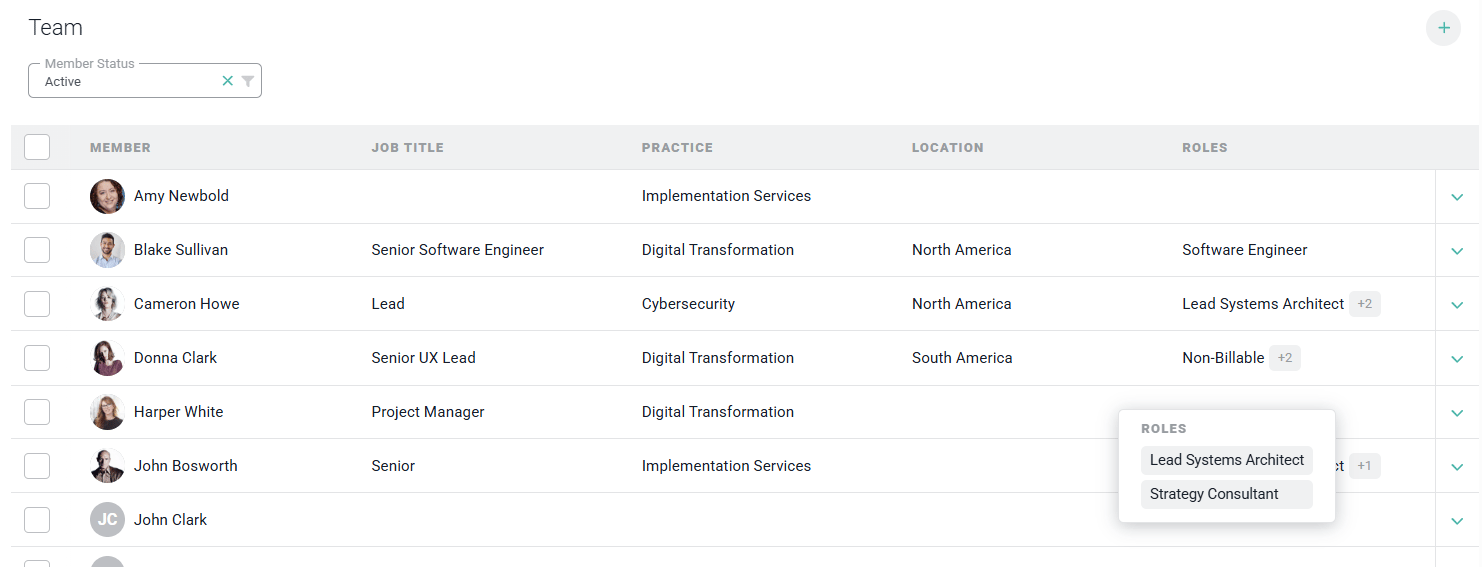
Figure 2 - Team Section of the Project Settings Tab
Add a Project Team Member
To add a team member to the project team, simply click the + button at the top-right of the Team section (Figure 2). This will show the Add Members screen (Figure 3), where you can search and filter for members and select one or more to add to the project team at once. Use the Member Type filter to narrow the list to Employee, Contractor, or Other members, and the Status filter to show active or inactive members. Select the checkbox next to each member you want to add, or use the header checkbox to select all matching members, then click Add Members. Note that the member must already exist in the workspace in order to be added to a project team. If the member does not exist, ask your Workspace Admin to invite the new user into the workspace.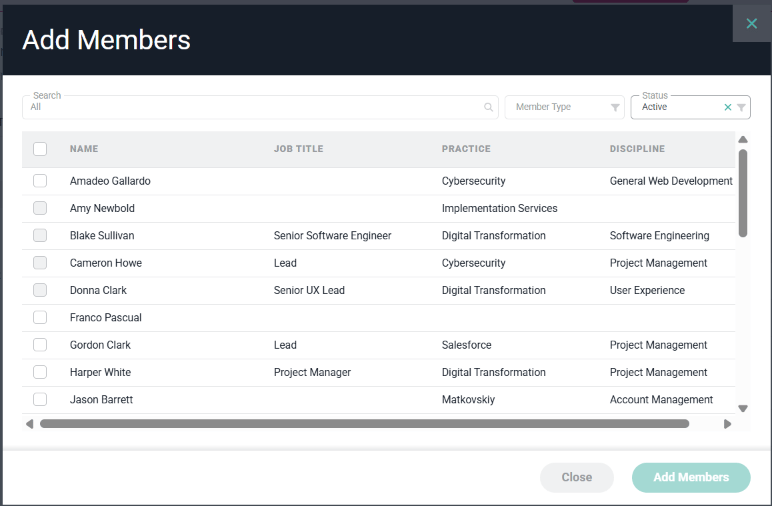
Figure 3 - Add Members to Project
Remove a Project Team Member
To remove a team member from the project team, simply click the action menu at the right of the member row in the Team section (Figure 2). This will show a menu (Figure 4) that will include a Remove from Team option and a Deactivate from Team option. Ruddr will ask you to confirm before removing the member.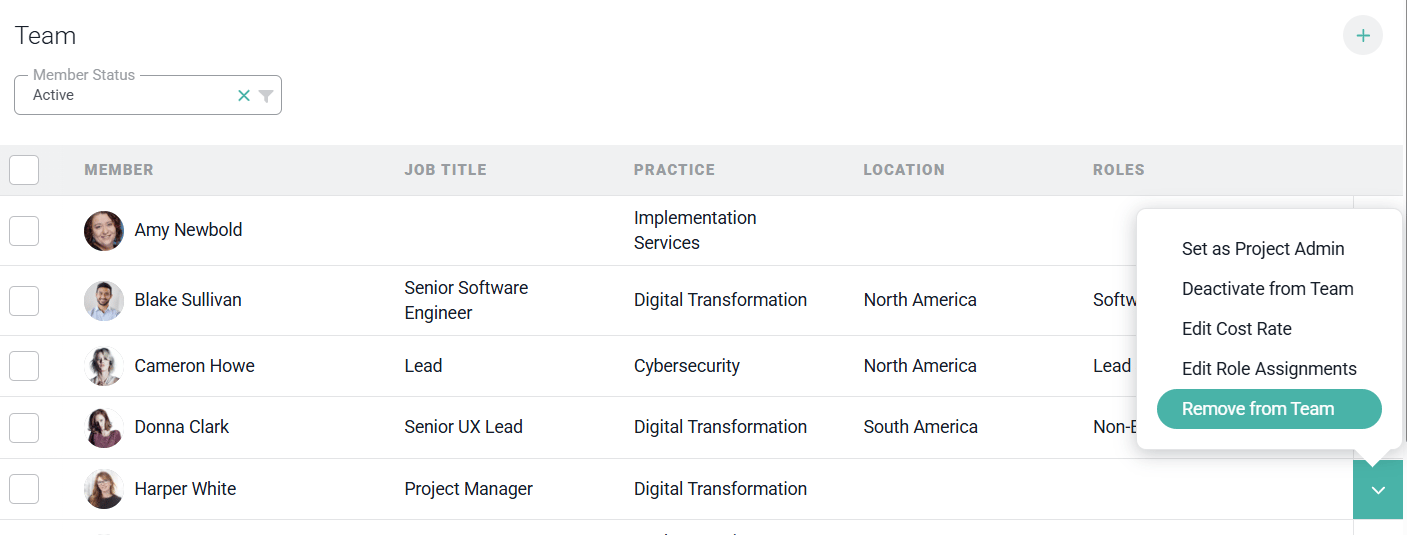
Figure 4 - Access the Action Menu on the Member Row to Remove a Member from the Team
- The member has no time entries associated with the project
- The member has no expense items associated with the project
- The member is not assigned to any project roles
- The member is not assigned to any project tasks
- The member is not the project’s only Project Admin
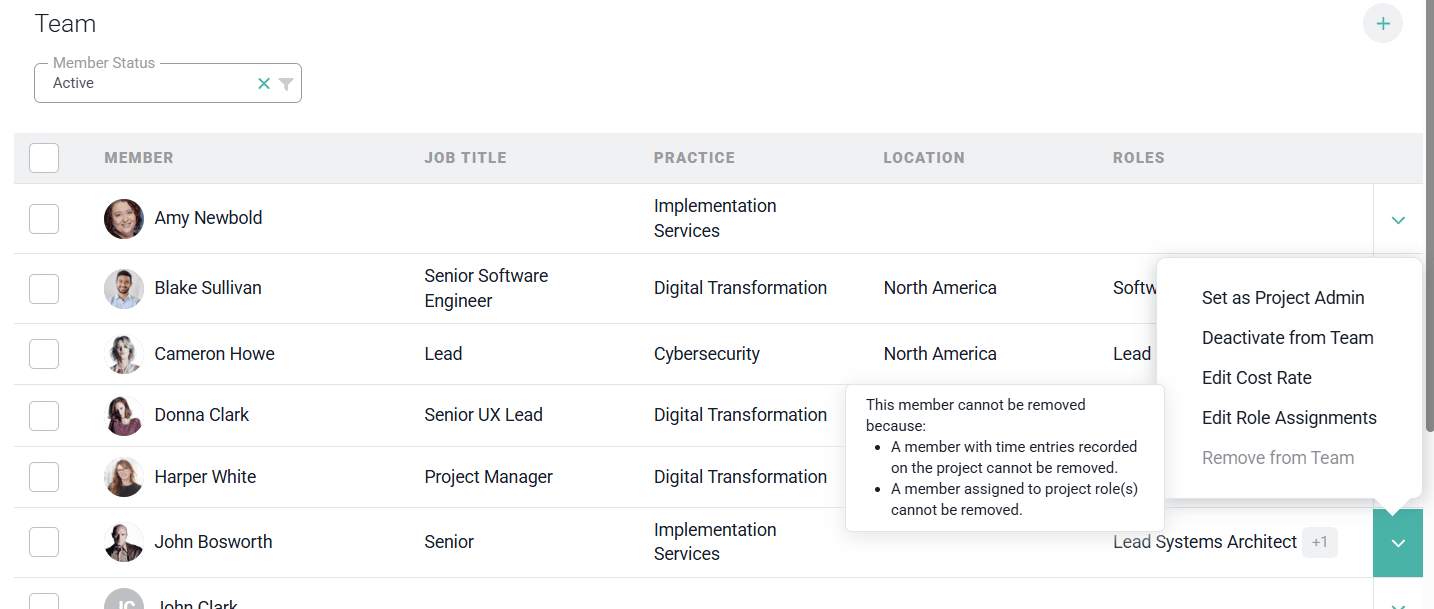
Figure 5 - Description on why the member can not be removed from the project
Deactivate a Project Team Member
If the criteria to remove a project team member cannot be met, you can deactivate the member instead. This will effectively remove the member from the project team and prohibit the member from creating or editing time or expenses for the project. But, the historical time and expense entries of that member will be preserved. To deactivate a team member, simply click on the action menu (Figure 4) at the right of the member row in the Team section (Figure 2) and choose the Deactivate from Team menu option. Ruddr will ask you to confirm before deactivating the member. Note that every project must keep at least one active Project Admin. You cannot deactivate the project’s last active administrator, and a member that is currently a Project Admin must have that role removed before being deactivated.Set a Member as Project Admin
A Project Admin is required for each project in Ruddr and must be specified upon Project creation. If you wish to change the Project Admin, access the action menu (Figure 4) at the end of the project team member row in the Team section (Figure 2) and select the Set as Project Admin menu item. Ruddr will ask you to confirm the change. To remove the role from a member, select the Remove as Project Admin menu item. An inactive project member cannot be set as a Project Admin. For more on this role, and on how to specify additional Project Admins on a project, please view The Project Admin in Ruddr Help Center.Assign a Team Member to Project Roles
On a project that uses Project Roles, you can assign a team member to one or more roles directly from the Team section. Access the action menu (Figure 4) at the end of the project team member row and select the Edit Role Assignments menu item. This opens a checklist of every role defined on the project (Figure 6); check or uncheck a role to assign or unassign the member, then click Save & Close.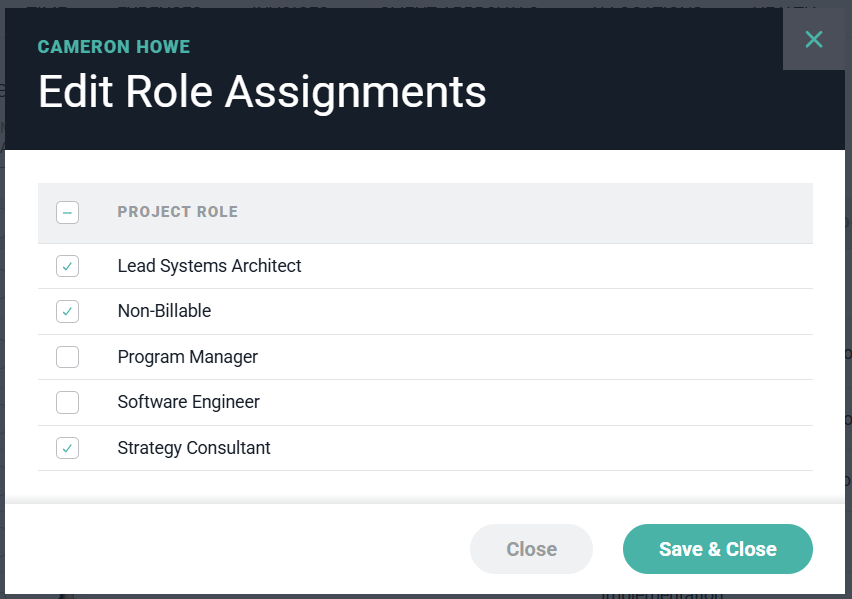
Figure 6 - Editing a Single Member's Role Assignments
Set a Member as a Billable Member and Provide a Bill Rate
In the case where Project Roles are not leveraged on a project, a project member can be added to that project as a billable project member or a non-billable project member. Additionally, a member can have a bill rate applied to them when Project Roles are not used. To specify that a member is billable / non-billable, access the action menu (Figure 4) at the end of the project team member row in the Team section (Figure 2) and select the Edit Bill Rate menu item. On the dialog (Figure 7), check the Billable checkbox to specify that the member is billable, or uncheck to set the project member as a non-billable member. Reminder that this option is only available when the project is not using Project Roles. On this same dialog (Figure 7), if the member is a billable project member, you can supply a Bill Rate for the member on the project by entering a monetary value into the Bill Rate text box on the form. Again, this option is only available when the project does not use Project Roles. If the member already has time entries on the project, Ruddr will warn you that changing the rate will re-rate those existing entries.Override a Member’s Cost Rate
There may be instances where a team member’s cost rate differs on a per project basis. Perhaps you leverage sub-contractors who bill you at a different hourly rate depending on the project they are working on. In those instances, you can override a team member’s cost rate for a particular project. To do this, access the action menu (Figure 4) at the end of the project team member row in the Team section (Figure 2). Select the Edit Cost Rate menu item. This menu item is only available to Workspace Admins.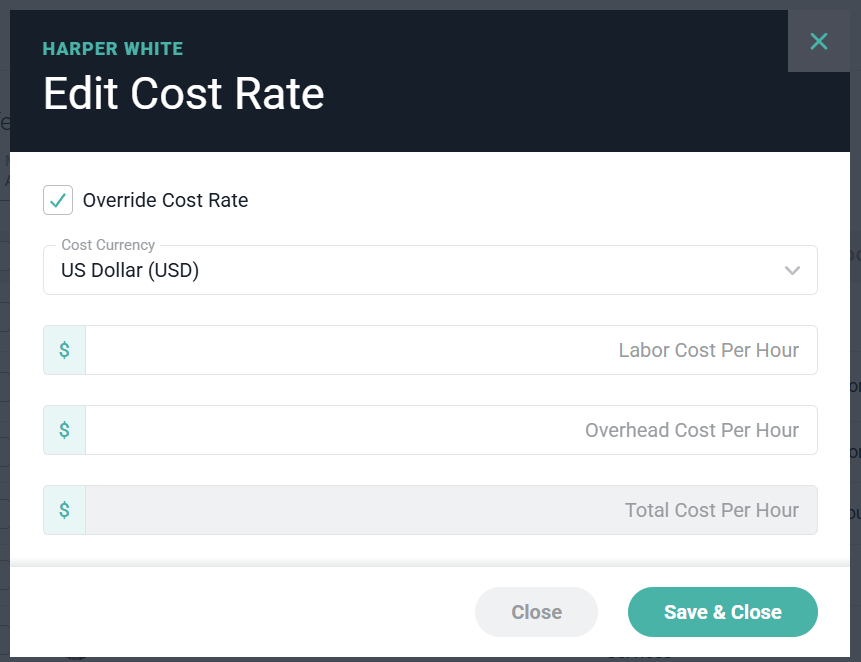
Figure 7 - Edit a Project Team Member's Rates on the Project
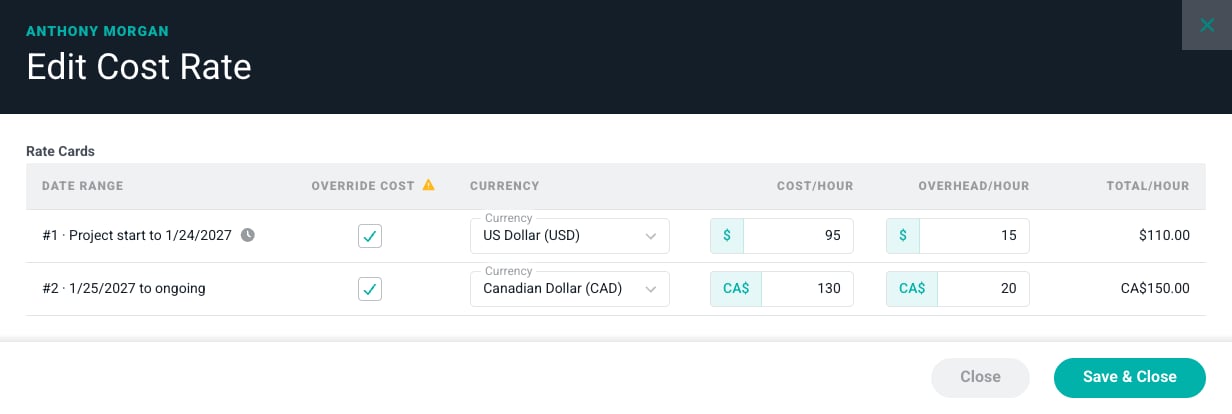
Figure 8 - Edit a Member's Cost Rate on Each Rate Card