

Turning On Project Rate Cards
Project Rate Cards is available to Ruddr customers subscribed to our Pro Plan. A Workspace Admin can turn it on or off in the Features section of Workspace Settings, where it’s listed as Project Rate Cards. The feature is on by default for new workspaces and off by default for workspaces created before it was released. With the feature on, you turn rate cards on for each project that needs them by checking Use rate cards in the Settings section of the project’s Settings tab. Every project starts with this setting off, including new projects. Behind the scenes, every project has a single rate card that covers its whole life, holding the rates you’ve already set. As long as a project has only one rate card, it works exactly as it did before: you set its rates in the Team and Roles sections of the project’s Settings tab, as described in Project Bill Rates. Use rate cards can’t be turned off while the project has more than one rate card; delete the other rate cards first. Turning the workspace feature off keeps any rate cards you’ve already created, and time continues to be valued at their rates.The Rate Cards List
When a billable project uses rate cards, it has a Rate Cards section in the project’s Settings tab (Figure 1). To see it, your security role needs the Edit and View bill rates permissions on the project; to add or change rate cards, it must also be able to edit the project’s Financial information. A non-billable project that uses rate cards also has the section, showing cost rates only, to members who can view the project’s margin.
Figure 1 - The Rate Cards Section of the Project Settings Tab
- Current marks the rate card that covers today’s date.
- Budget marks the rate card that prices the project’s budget (see Budgets below).
Create, Edit, or View a Rate Card
To add a rate card, click the + button at the top right of the list. To change one, click its row or choose Edit from the menu at the right end of the row. Either way, the rate card drawer opens on its Details tab (Figure 2).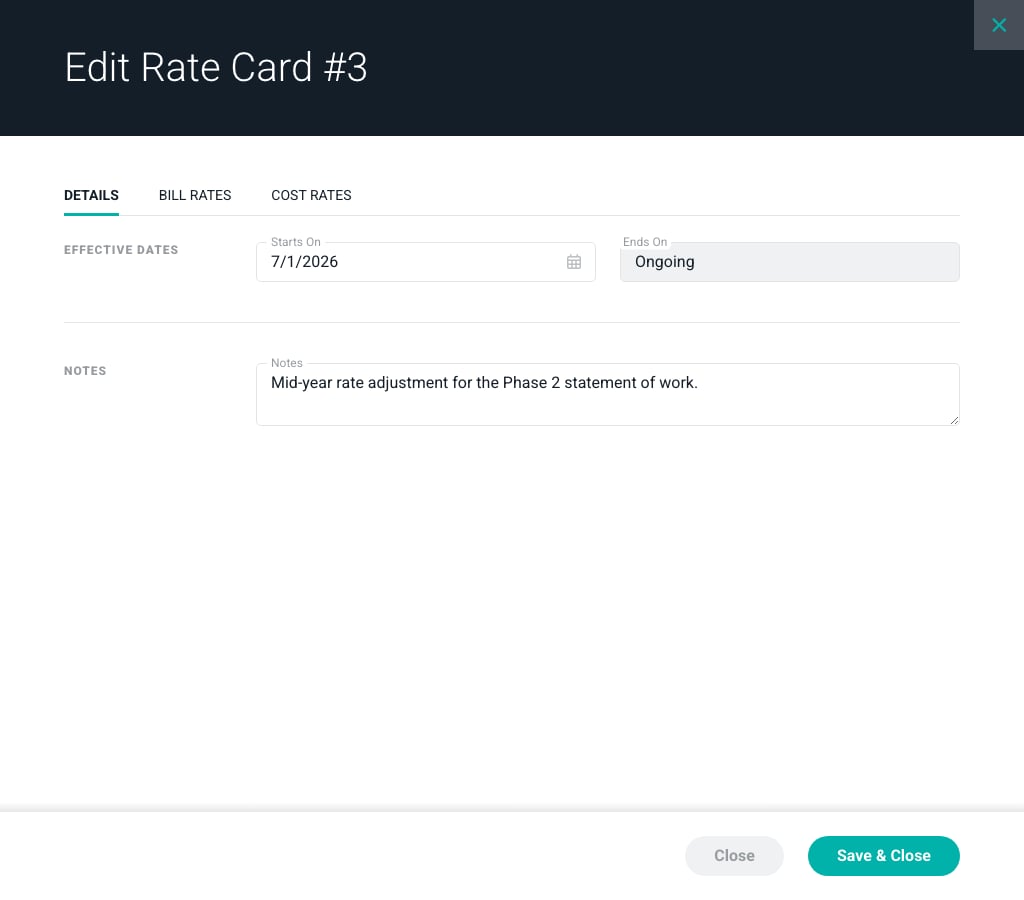
Figure 2 - The Details Tab of a Rate Card
- Starts On - The date the rate card takes effect. The first rate card always starts at Project start, so its start date can’t be changed.
- Ends On - The day before the next rate card starts, or Ongoing for the last rate card. It’s set for you and updates as you change Starts On.
- Notes - An optional note, such as the contract clause behind a rate change. The notes also appear in the Rate Cards list.
- Bill Rates - The Bill Rate of each project role on projects that use roles, or of each project team member on projects that don’t. Non-billable projects don’t have this tab.
- Cost Rates - If you can view the project’s margin, whether to override each team member’s labor cost on this project (Override Cost), and if so, the Cost/Hour and Overhead/Hour to use. Total/Hour shows their sum.
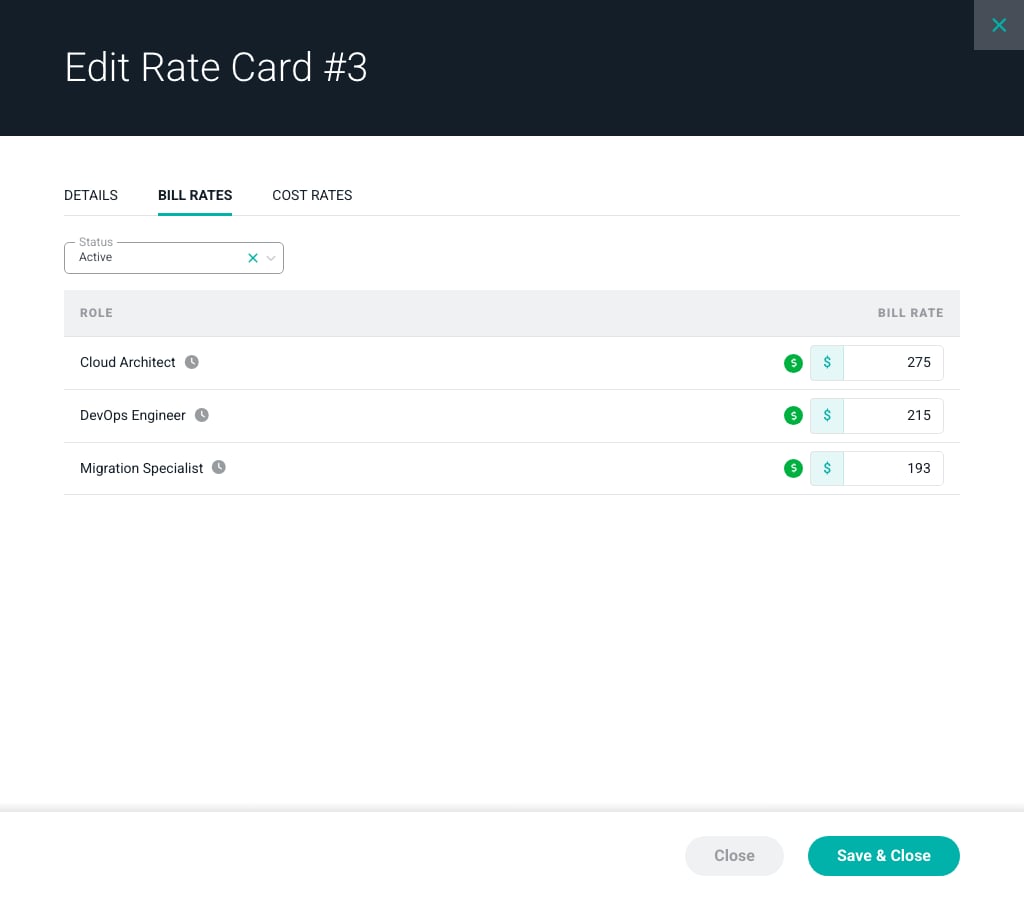
Figure 3 - The Bill Rates Tab of a Rate Card
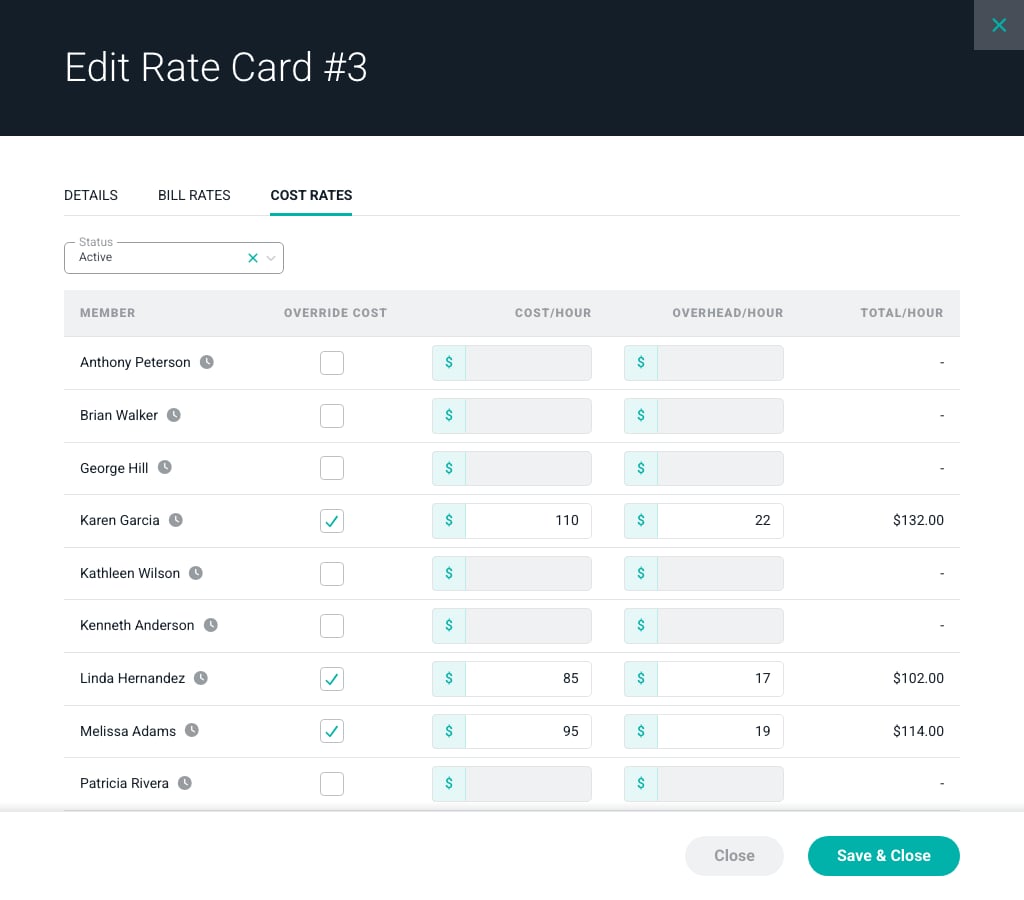
Figure 4 - The Cost Rates Tab of a Rate Card
Update Tracked Time
If a change affects time that has already been tracked, such as editing the rates on a rate card that covers existing time entries, moving a rate card’s start date across existing time entries, or adding a rate card with different rates that starts before the last time entry, Ruddr asks you to confirm first (Figure 5). Clicking Save updates the bill rate and/or labor cost rate on those time entries to match the rate card. Clicking Cancel returns you to the form without saving.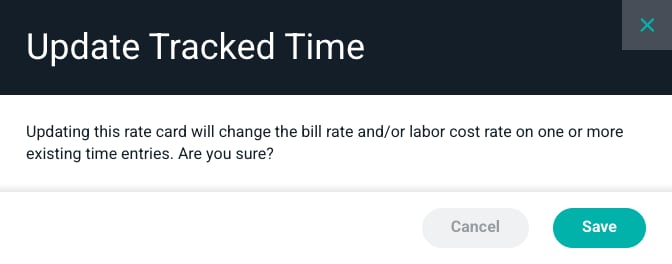
Figure 5 - The Update Tracked Time Confirmation
Delete a Rate Card
To delete a rate card, choose Delete from the menu at the right end of its row. The rate card before it is extended through the deleted rate card’s period, and time and allocations in that period are valued at that rate card’s rates. The first rate card, and the rate card used by the project budget, can’t be deleted.Editing Rates from the Team and Roles Sections
You can still set rates from the Team and Roles sections of the project’s Settings tab. When a project has more than one rate card, these forms list every rate card so you can set the rate on each one:- The Edit Bill Rate and Edit Cost Rate options in the Team section show the member’s bill rate and cost override for each rate card.
- The Edit Project Role drawer in the Roles section shows the role’s bill rate for each rate card.
Budgets
A project budget is priced with the rates from one rate card. When a billable project has more than one rate card, and you can view the project’s rates, a Detailed budget or Detailed budget aggregated from tasks includes a Rate Card selector in its Hours and Services Revenue section, or its Hours section on projects that aren’t time and materials (Figure 6). Each option shows the rate card’s number and the dates it covers. Choose the rate card whose rates should price the budget. Hover over the ? beside the selector to see the rate card’s notes, and the selected rate card is tagged Budget in the Rate Cards list. A Detailed monthly budget has the same Rate Card selector. The overall and monthly budgets share one budget rate card, so changing it in either drawer changes it for both.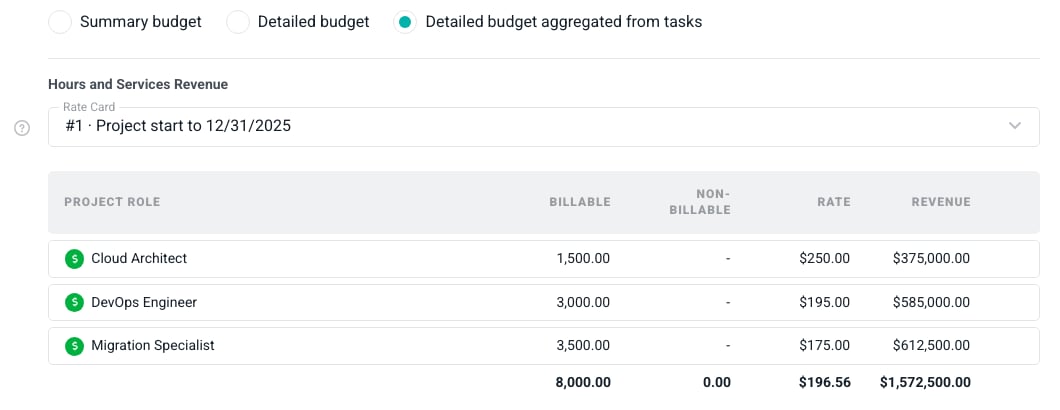
Figure 6 - Choosing the Rate Card that Prices a Detailed Budget
Fixed Fee Projects
Fixed Fee and Fixed Monthly projects generally don’t need rate cards, since their bill rates don’t set the invoice amounts. However, if rate cards are turned on for one of these projects, the budget rate card prices the budget’s time and materials services revenue. That is the total the Automated - Percentage of Time & Materials Revenue revenue recognition method measures progress against, so choosing a different budget rate card changes the revenue it recognizes.Reports
Because a role or member can bill at more than one rate over the life of a project, the Project Roles report and the Hourly Revenue by Client and Project report show an Effective Rate column instead of a single bill rate. The effective rate is the revenue divided by all hours worked in the period, billable and non-billable.Importing Rate Cards
You can bring in a project’s rate history with the Project Rate Cards import type in CSV Import. This import requires the Project Rate Cards feature to be on in your workspace; otherwise every row is skipped. Each row sets one rate and has the following columns:- Client Name and Project Name (required) - The project the rate belongs to. These must match an existing client and project exactly.
- Start Date (optional) - The date the rate card takes effect. If the project doesn’t already have a rate card starting on that date, one is created, starting from the rates in effect that day. Leave it blank to update the project’s first rate card, which works whether or not the project uses rate cards. A row that creates a rate card is skipped unless Use rate cards is checked on the project.
- Member Email or Role Name - The project team member or project role the rate is for. Provide one or the other on each row, not both.
- Rate (required) - The bill rate for the member or role on that rate card.
- Notes (optional) - Notes for the rate card. Leave it blank to keep the existing notes.