

Overview Tab
On the overview tab of the client dashboard, there are two key areas displayed: 1. Client Details: Here, on the right side of the dashboard, notes about the client are displayed and the relationship owner is identified. The relationship owner must be a workspace member. The relationship owner is likely either the sales or delivery leader who is responsible for the overall health of the client relationship. The team can also find a link to the Cloud Folder, if specified, and can read additional information such as Client Tags and the owning Practice.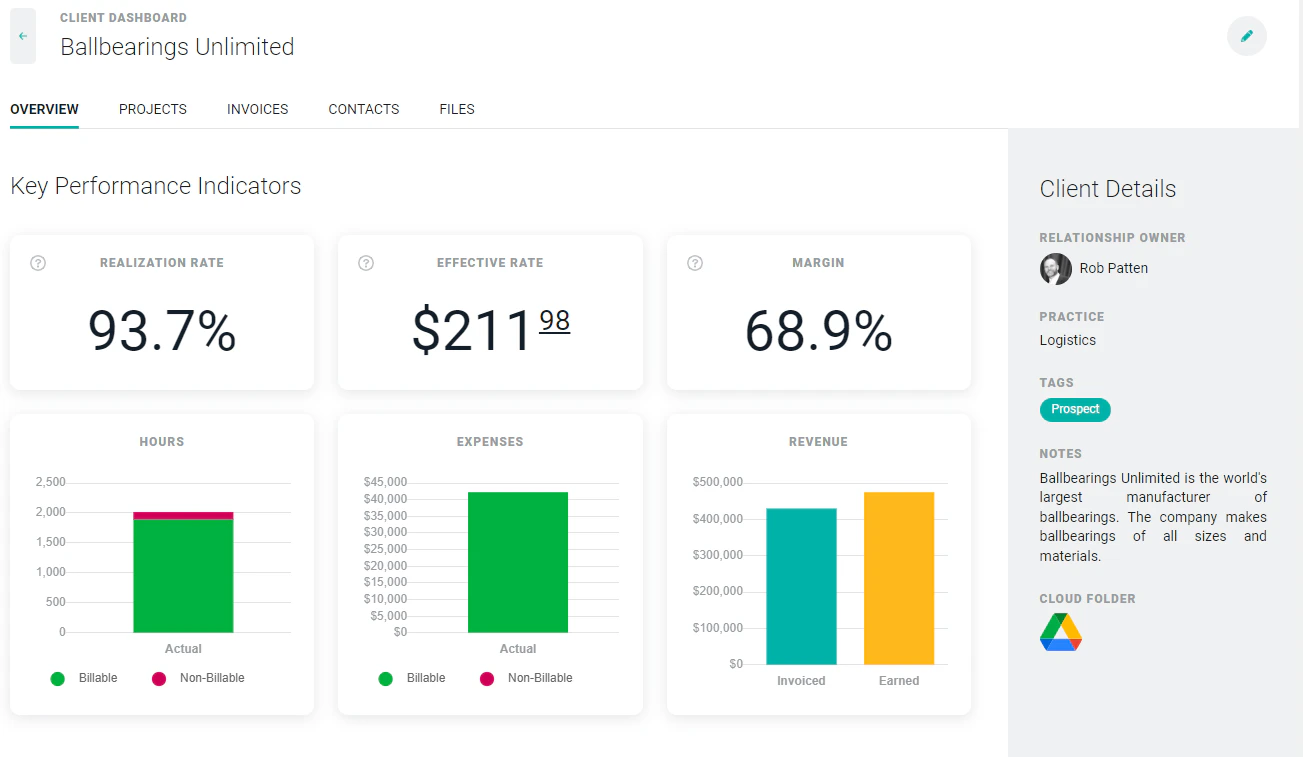
Figure 1 - Client Dashboard
- Client Key Performance Indicators: On the left side of the overview tab, client KPIs are provided (Figure 1). These KPIs reflect the aggregate performance of all projects within the client, including both active and archived projects.
- Realization Rate - The realization rate is the percentage of all hours worked toward the client’s projects that were billable. Ideally, this figure is close to 100%.
- Effective Rate - The effective rate is the sum of all earned services revenue across the client’s projects, divided by the hours (billable and non-billable) worked on those projects. The effective rate KPI is only visible if you have project-level View time and expenses and project-level View bill rates permissions.
- Services Margin - The services margin is the sum of the gross profit across the client’s projects divided by the sum of all earned revenue on those projects. The services margin is only visible if you have the project-level View profit margin permission.
- Hours - The total hours worked across all client projects including both billable and non-billable hours.
- Expenses - The total expenses across all client projects including both billable and non-billable expenses.
- Revenue - This graph displays a comparison of Invoiced vs. Earned Revenue. Revenue is only visible if you have project-level View revenue permissions.
Projects Tab
The projects tab (Figure 2) lists all of the projects within the client. The list includes the project name, project code, status, project admin, billing type (w/budget), and create date. To view the project dashboard for a particular project, simply click on the project name. Depending on your security role, you may only see projects listed where you are on the project team.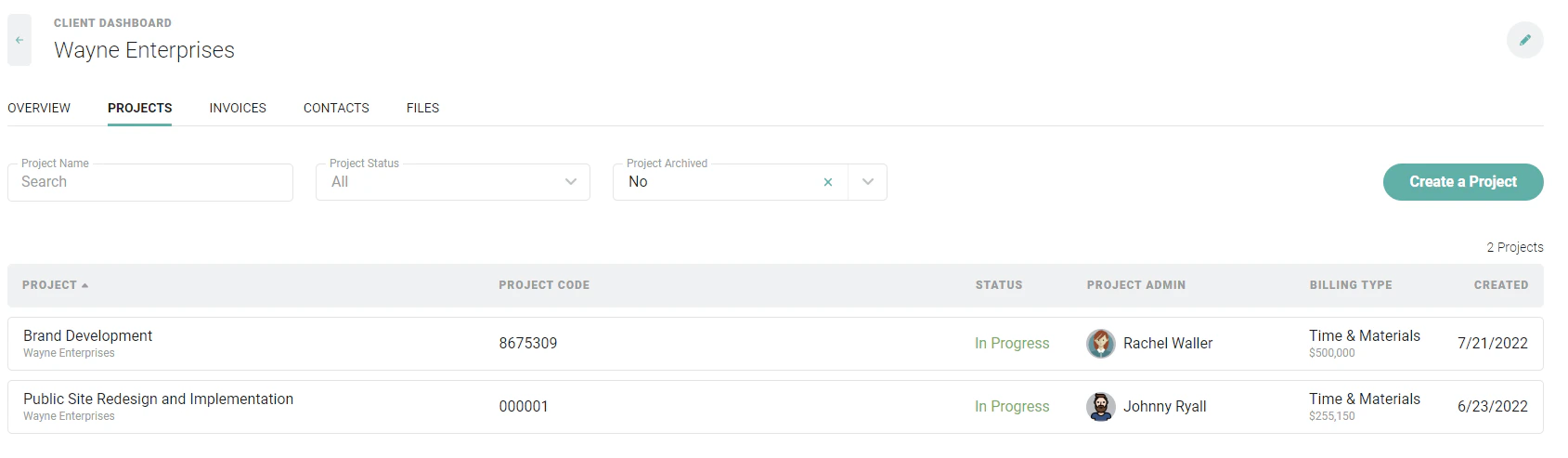
Figure 2 - The Client Project Tab
Invoices Tab
The invoices tab (Figure 3) lists all of the invoices (draft and published) within the client. Invoices are only visible if you have client-level Create and edit draft invoices permission and/or client-level View published invoices permission.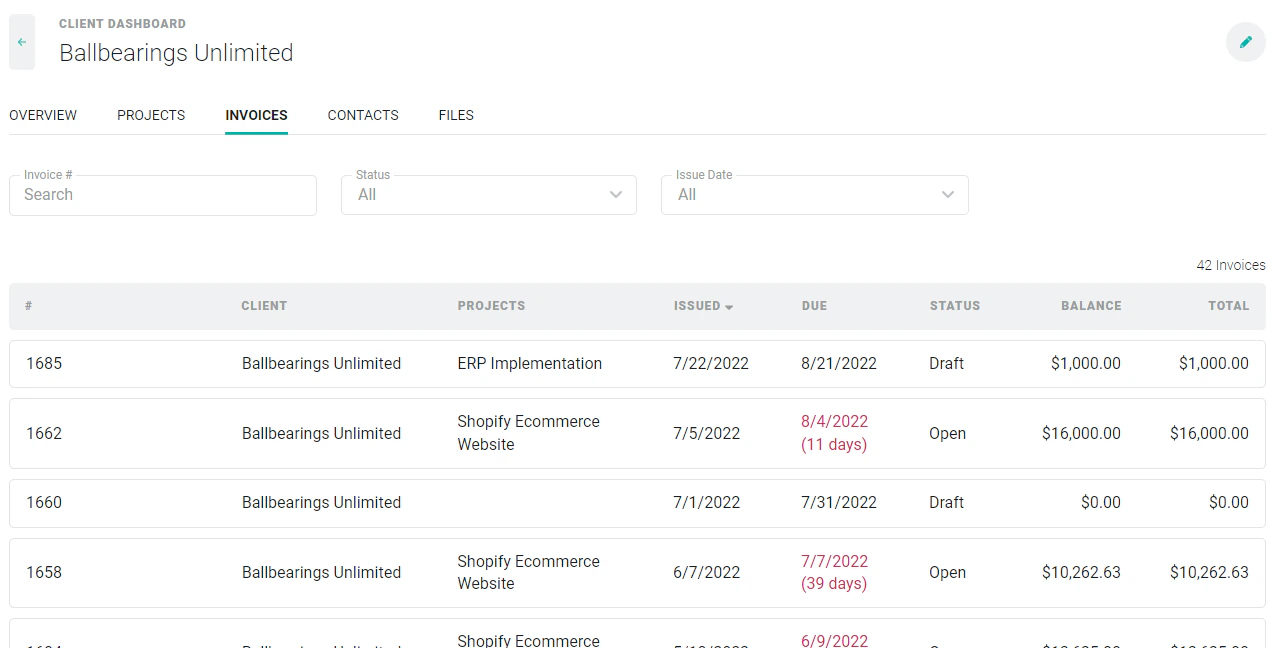
Figure 3 - View all Invoices for a Client
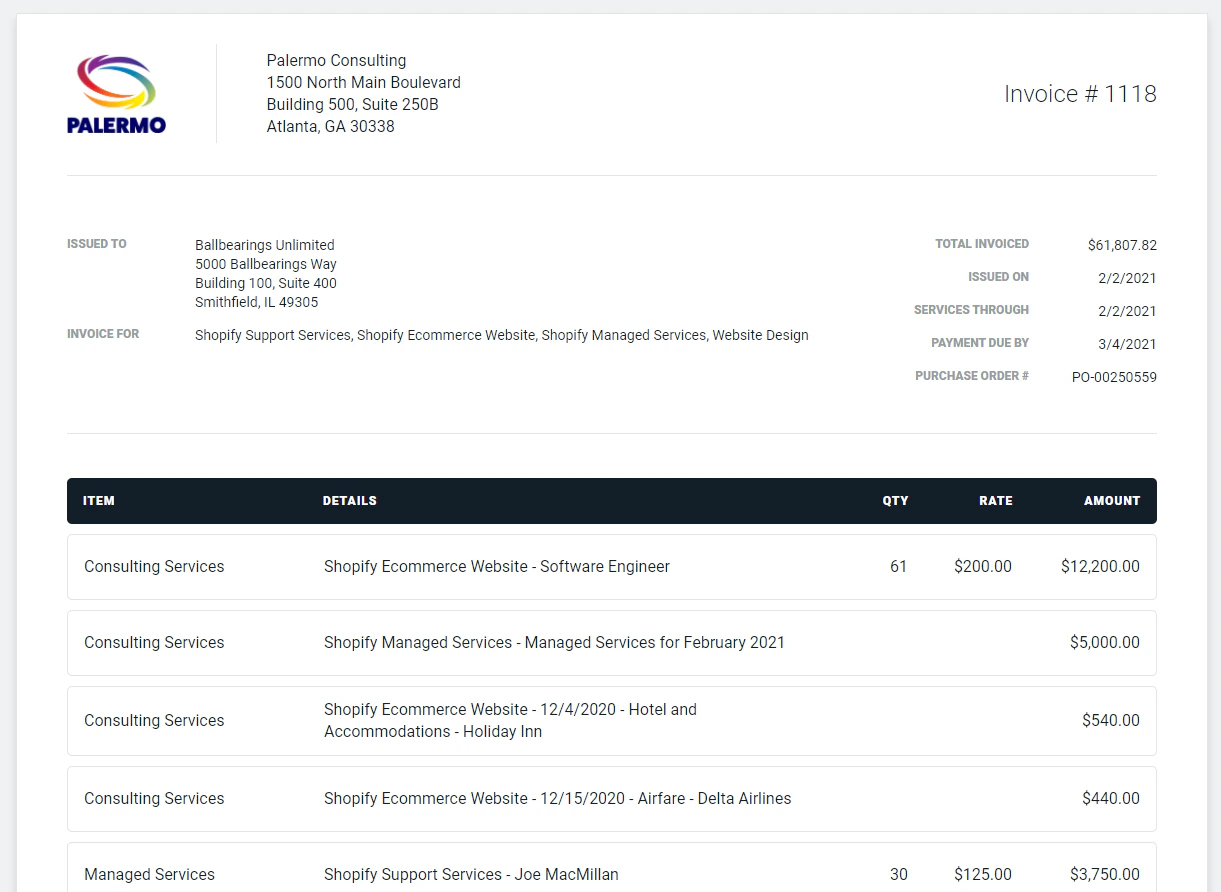
Figure 4 - Invoice Preview Accessible from Invoices Tab
Contacts Tab
The contacts tab (Figure 5) of the client dashboard allows you to keep track of all of your contacts within the client account. To add a contact, simply click the Create a Contact button and fill out the information on the New Contact drawer (Figure 6).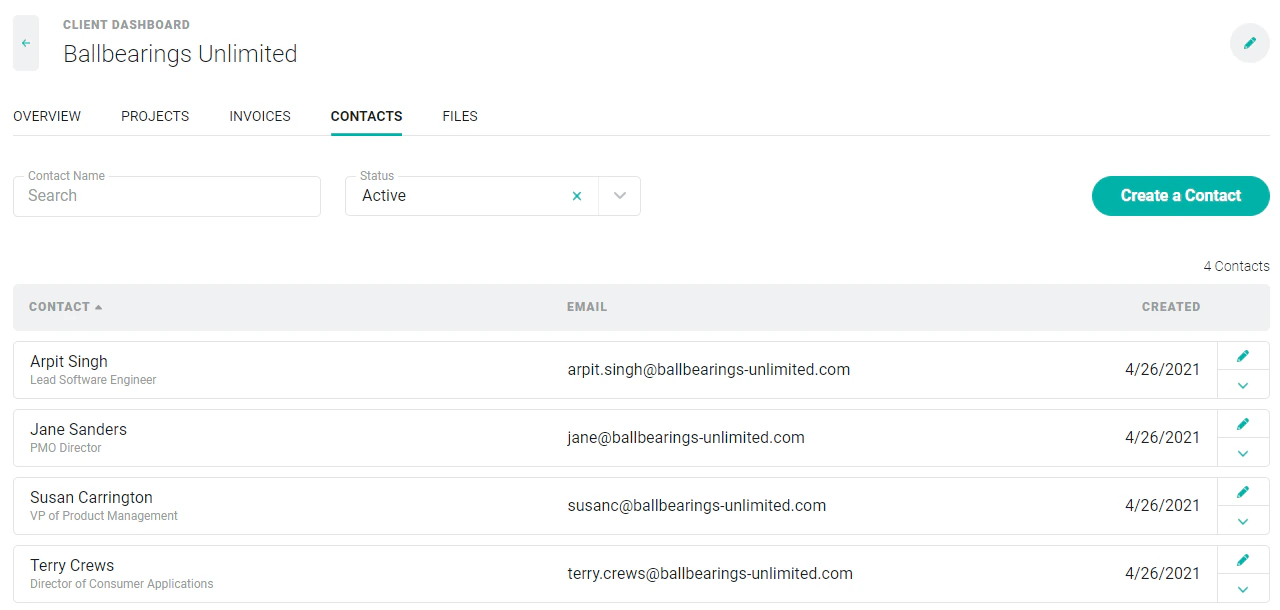
Figure 5 - Contacts Tab on Client
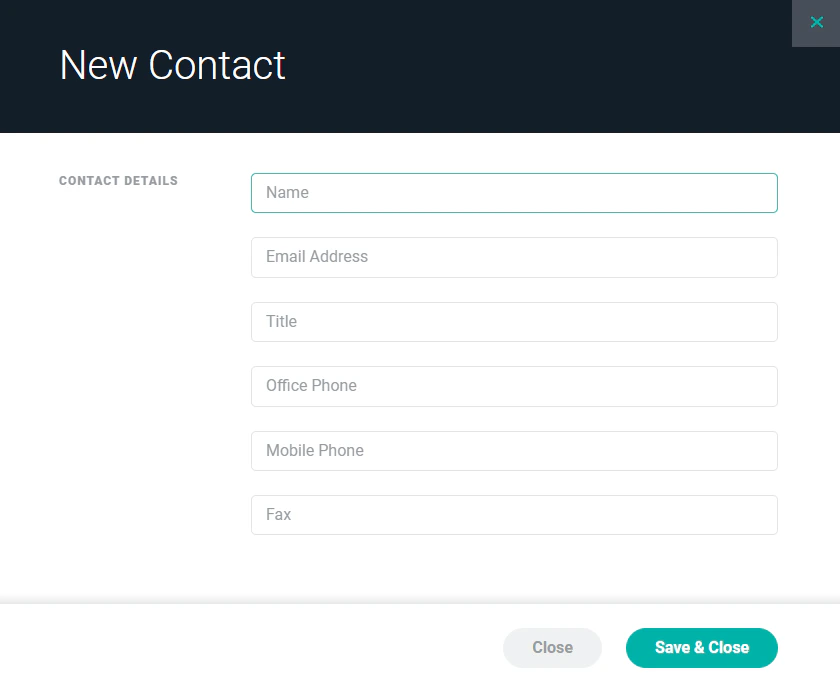
Figure 6 - Specify Contact Details in New Contact Drawer
Files Tab
The Files tab is available to those workspaces that have turned on the Client and Project Files feature in workspace settings. On the Files tab (Figure 7), a member can upload files to the client record in Ruddr and, subsequently, access those files. (Note that there is a 20MB file upload limit). There are two types of files that can be added to the client:- Administrator Files: These files are only accessible (and able to be uploaded) by members that edit the client.
- Team Files: These files can be accessed by any workspace member with access to the client. Only members that can edit the client can add Client Team files.
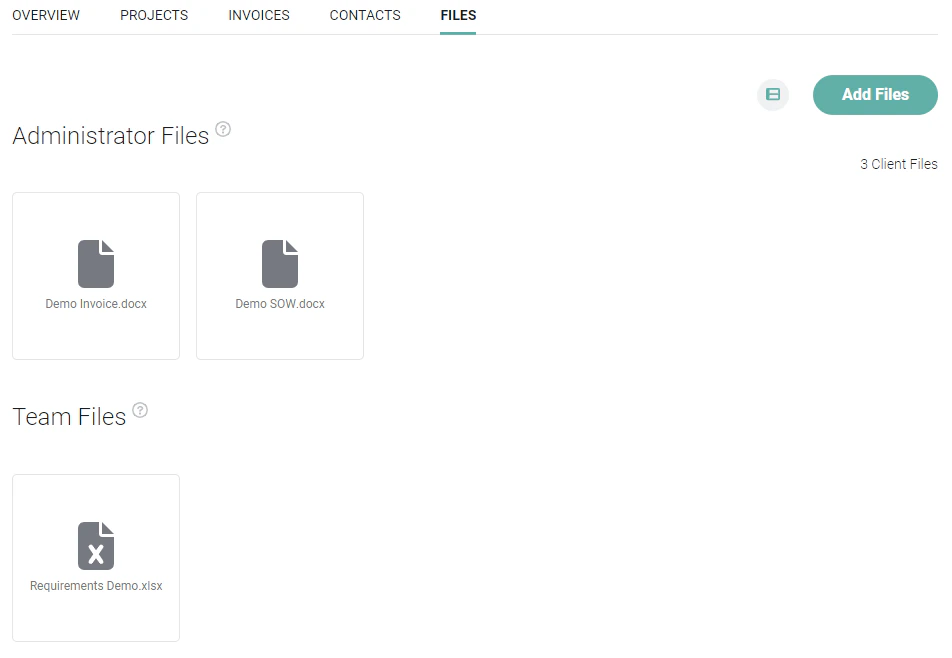
Figure 7 - Access Client-specific Files from the Files Tab
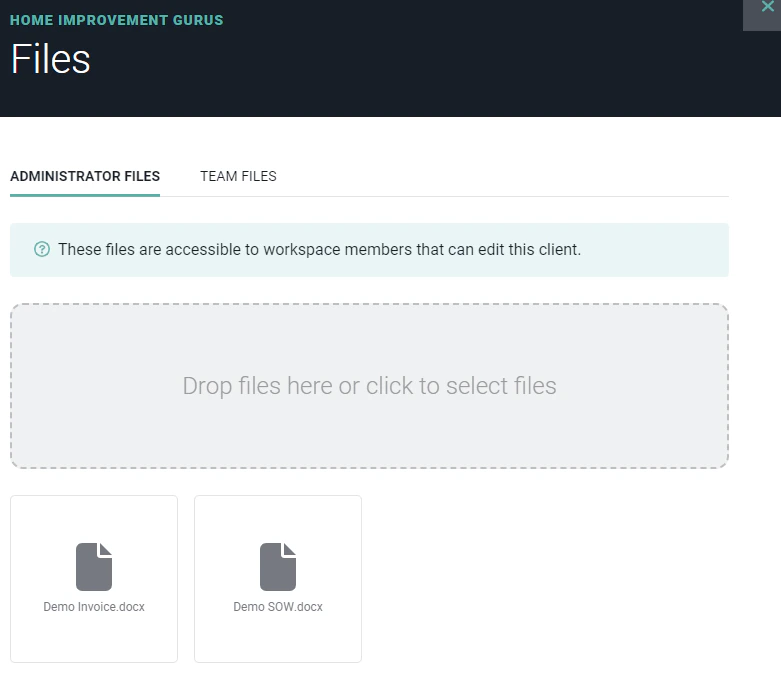
Figure 8 - Add a File by Dropping onto the Drawer or Select Multiple Files
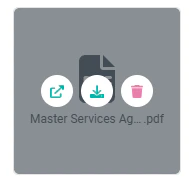
Figure 9 - Open, Download, or Delete a File from the File Management Drawer

Figure 10 - Click the Left Icon to Access the List View of Files. The Icon on the Right will Display Files in Grid View
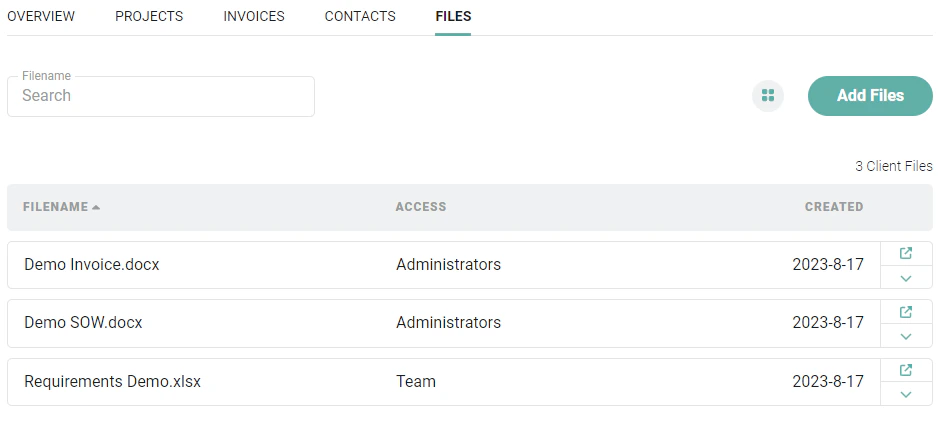
Figure 11 - View / Search Client Files in the List View
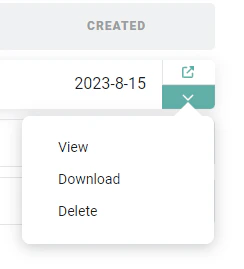
Figure 12 - Take Action on a File in the List View by Accessing the Action Menu