

Connected App Permissions
A connected application acts as you. It can only see and change data that your security role allows, so it can never retrieve data you could not access within Ruddr. Each member must connect their own AI applications to the Ruddr MCP server. In order to do this, the Ruddr Assistant feature must be enabled for the workspace and enabled on the member’s profile. Turning either setting off also ends the connections that member has already made.Setting Up Your Application
Claude lists Ruddr in its own connector directory and adds it with a single click, while other applications, such as ChatGPT, add Ruddr as a custom connector and ask for the address of the service you want to connect. For Ruddr, that address is:
- Connect Claude to Ruddr — the Claude desktop and web apps, Claude Code, and Claude Team and Enterprise organizations.
- Connect ChatGPT and Codex to Ruddr — ChatGPT Business and Enterprise workspaces, and the Codex CLI, desktop app, and IDE extension.
Connecting an Application
Once you add that address, the application will send you to Ruddr to approve the connection (Figure 1).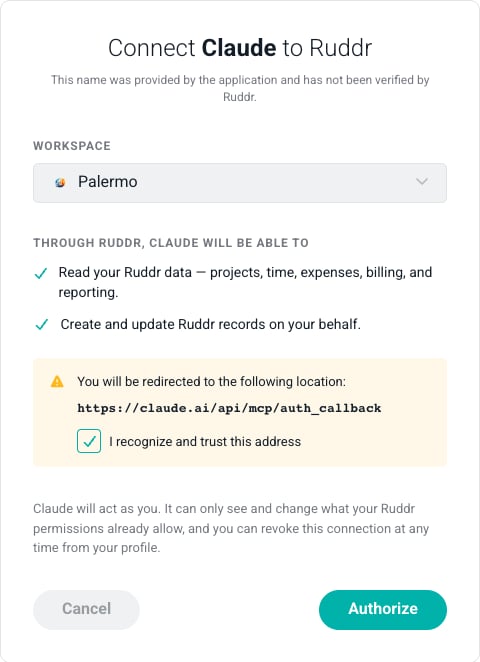
Figure 1 - Approve a Connection Request from an AI Application
- Which application is asking. The name comes from the application itself and has not been verified by Ruddr, so only continue if you just started this from an application you recognize.
- Which workspace it will connect to. If you belong to more than one workspace, choose the one you want. Only workspaces with the Ruddr Assistant enabled are listed.
- What it will be able to do. The application decides what to ask for, and you either approve all of it or cancel. See What a Connected App Can Do below.
- Where you will be sent afterward. Check that you recognize the address, then tick I recognize and trust this address. The Authorize button stays disabled until you do.
Connecting a Device or Terminal
Some applications cannot open a browser for you — a tool running over SSH, or one on a machine with no browser at all. Those show you a short code instead and ask you to enter it somewhere you can browse. Go to www.ruddr.io/device on any device where you can sign in to Ruddr, and enter the code exactly as the application displayed it (Figure 2).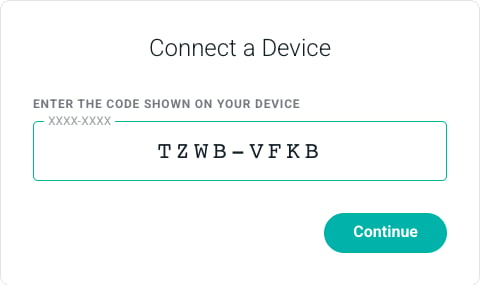
Figure 2 - Enter the Code Shown by the Application
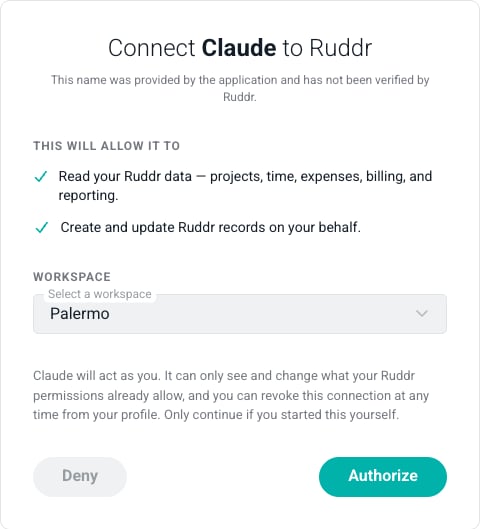
Figure 3 - Approve a Connection Started on Another Device
What a Connected App Can Do
An application asks for one or both of the following:- Read your Ruddr data — projects, time, expenses, billing, and reporting.
- Create and update Ruddr records on your behalf — such as tracking time.
How a Connected App Reaches Your Data
Ruddr does not hand a connected application a list of every report and record type it could ask for. It offers two tools — one for reading your data and one for making changes — and the application works through them in three steps:- Search for the kind of data the question needs, such as time entries, invoices, or project budgets.
- Load what it found, to learn which filters, groupings, and date ranges that data accepts.
- Run it and read the result.
Managing Your Connected Apps
Every application you have authorized is listed under Connected Apps in your Ruddr profile (Figure 4), where you can see what each one is allowed to do, when you connected it, and when it last used the connection — and disconnect any you no longer need. See Connected Apps for the full details.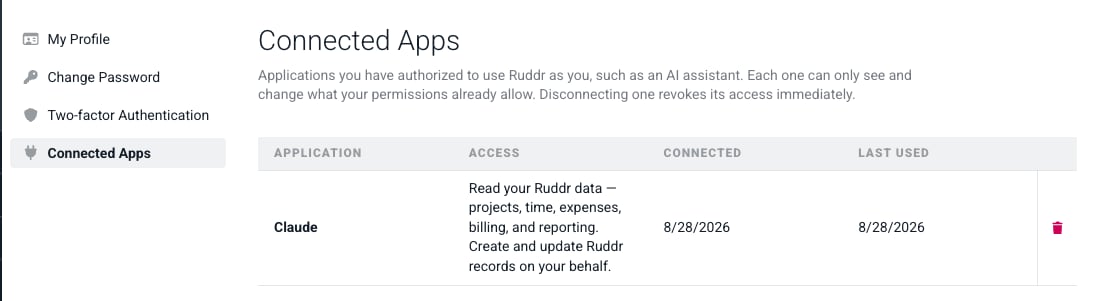
Figure 4 - Review the Applications Connected to Your Ruddr Account
If the Connection Is Refused
A few things will stop the approval screen from completing:- No workspace is listed. The Ruddr Assistant is not enabled for you in any workspace. Ask a workspace admin to turn on the feature and the Ruddr Assistant enabled setting on your member profile, then connect again.
- You are being impersonated. An application can only be connected by a member signed in to Ruddr directly, not by an administrator viewing the workspace as you. Sign in yourself and try again.
- The connection stops working later. Turning off either the workspace feature or your Ruddr Assistant enabled setting ends existing connections as well as new ones.