

Delete an Expense Report
An expense report can be deleted from the expense report list (Figure 1), accessible from the Expense Reports option (Figure 2) in the Ruddr nav bar. To delete an expense report, simply select the Delete option on the row for the report that you wish to remove.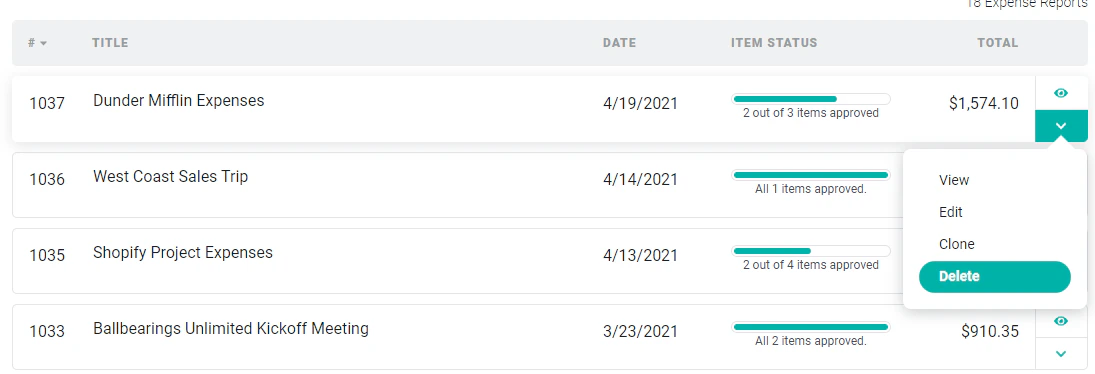
Figure 1 - Delete an Expense Report from the Expense Reports Screen
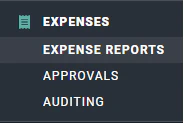
Figure 2 - Expense Reports in the Expenses Area
Bulk Delete Expense Reports
Multiple expense reports can be deleted utilizing the bulk update feature. In the Expense Report section, you can select the expense reports you want to delete (Figure 3). Once selected, you can select the Bulk Actions option in the bottom right to delete.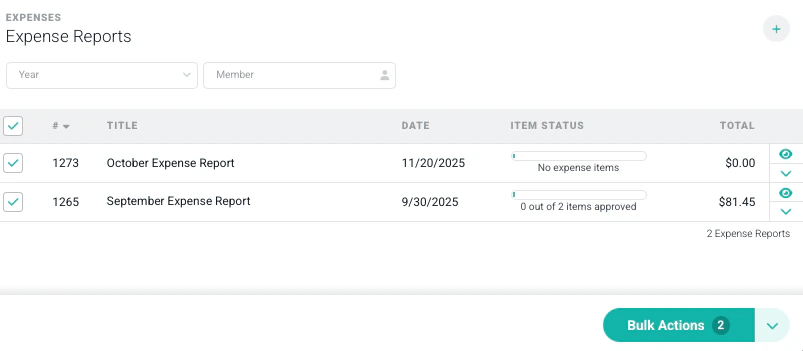
Figure 3 - Bulk Deletion of Expense Reports
Delete an Expense Item
In order for an expense item to be deleted from an expense report, the item cannot be locked. When an expense item is locked, it will be presented with a lock icon next to the amount of the expense item listed in the Expense Report details (Figure 4). To delete an unlocked expense item, simply click on the item to bring up the expense item drawer. At the bottom-left of the drawer (Figure 5), click the Delete button. You cannot undelete an expense report or expense item. All deletions are permanent and thus you should be certain that you no longer need the expense report or item before you delete it.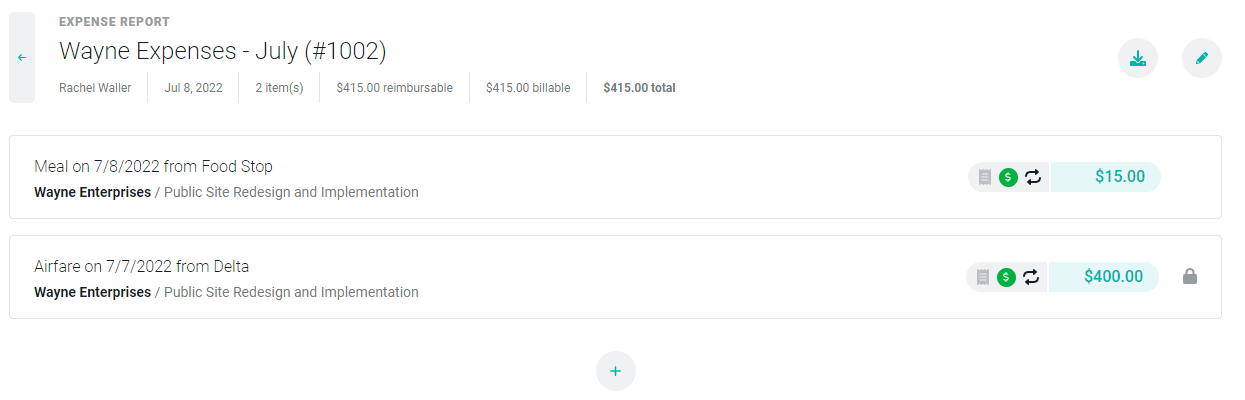
Figure 4 - One of the Expense Items in this Expense Report is Locked
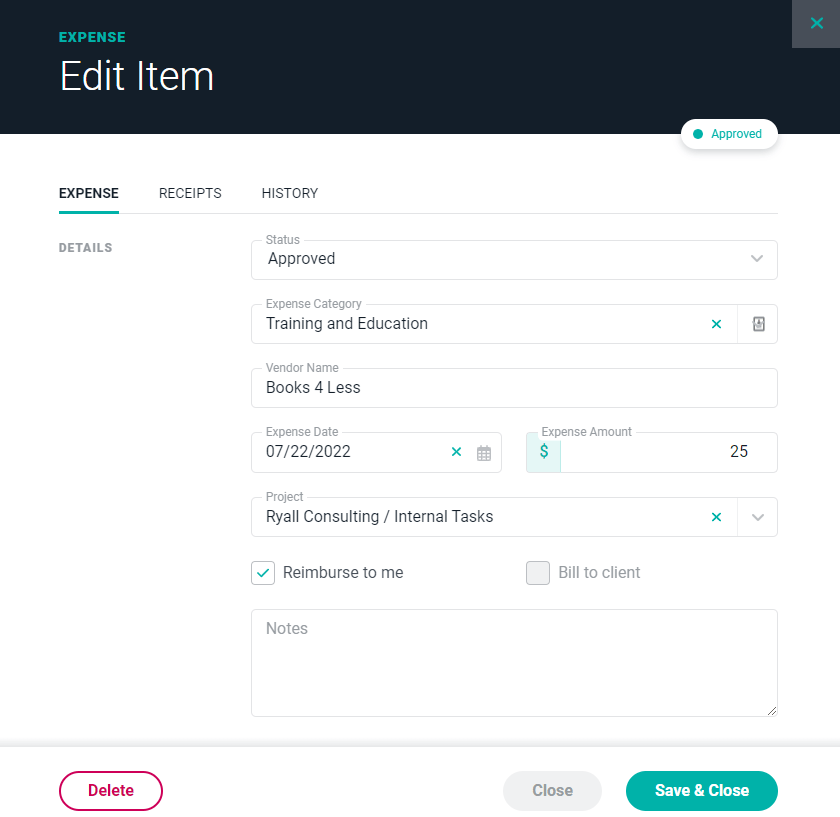
Figure 5 - Use the Delete Button on this Edit Expense Item Drawer to Permanently Delete the Item