

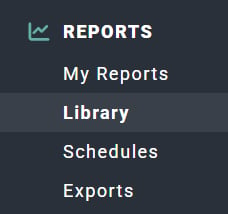
Figure 1 - Clicking on Library in the Reports Section of the Main Nav Bar to Access the Reports Library
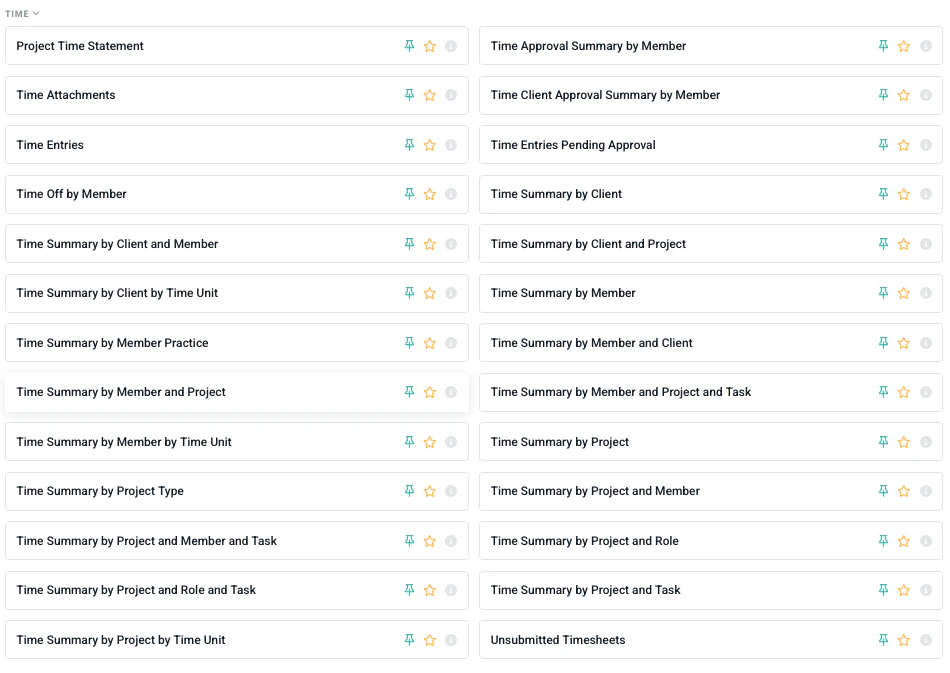
Figure 2 - Time Reports in the Report Library
Project Time Statement
The Project Time Statement report provides a view of a project’s time entries for the reporting period, along with the total sum of project hours for the project prior to the reporting period and through the reporting period.Time Approval Summary by Member
View a summary of hours by approval status for members in your workspace. The following time aggregations are included in this report:- Not Submitted
- Pending Approval
- Approved
- Rejected
Time Attachments
For workspaces that leverage the Time Attachments feature in Ruddr, the Time Attachments report provides access to files that members have been uploaded to the Week view of the Time screen. The report includes:- Member that uploaded the attachment
- Week of time entries to which the attachment applies
- The Client and Project to which the attachment applies
- A link to the file for viewing / download
Time Client Approval Summary by Member
For workspaces that leverage Client Approvals, this report presents a summary of hours by client approval status, grouped by member.Time Entries
The most detailed source of time data in Ruddr, the Time Entries report is a listing of individual time entries in Ruddr, including:- Date
- Member
- Client and Project
- Role
- Task
- Approval Status
- Hours
- Notes (available when clicking Show notes on the report)
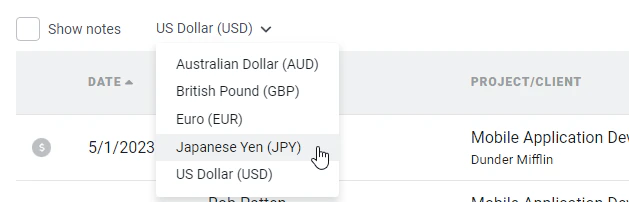
Figure 3 - Currency Selector on the Time Entries report

Figure 4 - A CSV Export with Conversion from GBP to USD
Time Entries Pending Approval
This report offers a view of all time entries that are in a “Pending Approval” status. The report also lists the name of the member(s) who need to approve each time entry. Included in this report are the following columns:- Date
- Member / Member Type
- Client and Project
- Role and Task (if applicable)
- Approver(s)
- Hours
Time Off by Member
View a summary of Time Off hours, grouped by Member and Time Off Type.Time Summary by Client
This report provides access to a breakdown of hours by Time Type for clients in your workspace. Included in this report is a summary of the following:- Client
- Client Billable Hours
- Client Non-billable Hours
- Internal Hours
- Total Hours
Time Summary by Client and Member
A similar report to Time Summary by Client, with an additional grouping of hours by member. For any client and member in your workspace, view Client Billable, Client Non-Billable, and Internal Hours.Time Summary by Client and Project
A similar report to Time Summary by Client, with an additional grouping of hours by project. For any project in your workspace, view Client Billable, Client Non-Billable, and Internal Hours.Time Summary by Client by Time Unit
This report can be used to see the hours on a client broken down by time unit:- Month
- Week
- Day
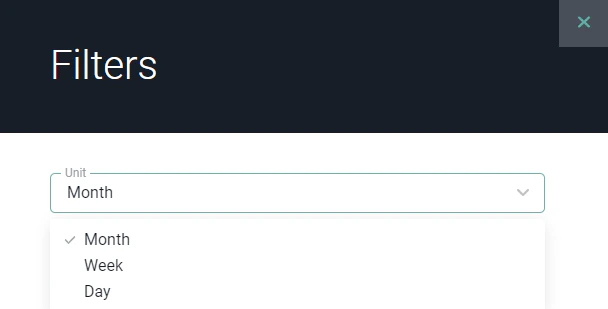
Figure 5 - Change the Unit by which you Choose to View the Time Report
- Client
- Hours per Unit
- Total Hours
Time Summary by Member
When looking for a breakdown of hours for Members in your workspace, access this report, which includes:- Member
- Member Type
- Client Billable Hours
- Client Non-billable Hours
- Internal Hours
- Time Off Hours
- Total Hours
- Capacity for the Selected Period
- Missing Time
Time Summary by Member and Client
A summary of hours for each member with an additional grouping by client. For each member and client in your workspace, see a summary of hours, including Client Billable, Client Non-Billable, and Internal hours. The following columns are included in this report:- Member
- Client
- Client Billable Hours
- Client Non-billable Hours
- Internal Hours
- Total Hours
Time Summary by Member and Project
A summary of hours for each member broken down by project. This report displays the following:- Member
- Client Billable Hours
- Client Non-billable Hours
- Internal Hours (for projects associated with the workspace’s internal client)
- Total Hours
Time Summary by Member and Project and Task
A next-level view of time by member and project broken down by task. The following columns are included in the report:- Member
- Project / Task
- Client Billable Hours
- Client Non-billable Hours
- Internal Hours (for projects associated with the workspace’s internal client)
- Total Hours
Time Summary by Member by Time Unit
This report can be used to see the hours for a member broken down by time unit:- Month
- Week
- Day
Figure 6 - Change the Unit by which you Choose to View the Time Report
- Member
- Hours per Unit
- Total Hours
Time Summary by Member Practice
Summary of hours by member practice, including the following:- Member Practice
- Client Billable Hours
- Client Non-Billable Hours
- Internal Hours
- Time Off Hours
- Total Hours
Time Summary by Project
View a breakdown of hours logged to projects in your workspace, along with each project’s Hours budget information. Hours are categorized by Time Type and budget information is included as such:- Project (and Client)
- Client Billable Hours
- Client Non-billable Hours
- Internal Hours
- Total Hours
- Project Budget Hours
- Project Budget Hours Left
- Percent Budget Hours Left
Time Summary by Project and Member
Similar to the Time Summary by Project report, with an additional grouping by member. This report also includes project hours budget information. For projects that have a Detailed project budget and are not using project roles, with hours budgets assigned to individual team members, the hours budget information will be displayed at a member level.Time Summary by Project and Member and Task
A next-level look at time by project and member, with a grouping at a project task level.Time Summary by Project and Role
For projects that use project roles, this report provides a summary hours for each project, grouped by project role. For projects that have either a Detailed project budget or a Detailed budget aggregated from tasks, this report provides hours budget insights at a role level:- Project (and Client)
- Client Billable Hours
- Client Non-billable Hours
- Internal Hours (for internal projects)
- Total Hours
- Role Budget Hours
- Role Budget Hours Left
- Percent Role Budget Hours Left
Time Summary by Project and Role and Task
A next-level look at time by project and role, with a grouping at a project task level.Time Summary by Project and Task
A summary of hours for projects that have project tasks. For tasks that have an associated task hours budget, hour budget information is available.- Project (and Client)
- Client Billable Hours
- Client Non-billable Hours
- Internal Hours (for internal projects)
- Total Hours
- Task Budget Hours
- Task Budget Hours Left
- Percent Task Budget Hours Left
Time Summary by Project by Time Unit
This report can be used to see the hours on a project broken down by time unit:- Month
- Week
- Day
Figure 7 - Change the Unit by which you Choose to View the Time Report
- Project (and Client)
- Hours per Unit
- Percentage of Monthly Budgeted Hours*****
- Total Hours
- Billable Worked
- Non-Billable Worked
- Total Worked
- Billable Budget
- Non-Billable Budget
- Total Budget
- Total Budget Used
Time Summary by Project Type
Project Types in Ruddr are defined in the Custom Data area of Workspace Settings and can be leveraged to classify projects in your workspace, enabling you to analyze the performance of specific segments of your project portfolio. This report provides a summary of hours grouped by project type.- Project Type
- Client Billable Hours
- Client Non-billable Hours
- Internal Hours
- Total Hours
Time Summary by Task and Role and Member by Time Unit
Ability to view project hours by task, role and member. You are able to switch the time unit between the below options:- Month
- Week
- Day
Timesheets
A summary of the timesheets that have been submitted in your workspace, including:- Period
- Submitted On
- Member
- Member Type
- Hours
- Capacity
Unsubmitted Timesheets
For admins looking to track down timesheets that have not been submitted, this report provides a list members, per period, and the number of hours associated with unsubmitted timesheets.- Period
- Member
- Member Type
- Hours
- Capacity