

Not Submitted
All time entries that require manual approval start in the Not Submitted state. This simply means that the item has been created but has yet to be submitted for approval. When a time entry is in the Not Submitted state, the time will be shown within a gray status oval (Figure 1).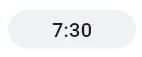
Figure 1 - Not Submitted Time Entry
Pending Approval
The pending approval state means that the time entry has been submitted for approval but the approver has not taken action yet. When a time entry is in the Pending Approval state, it will be shown within a yellow status oval (Figure 2).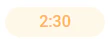
Figure 2 - Pending Approval Time Entry
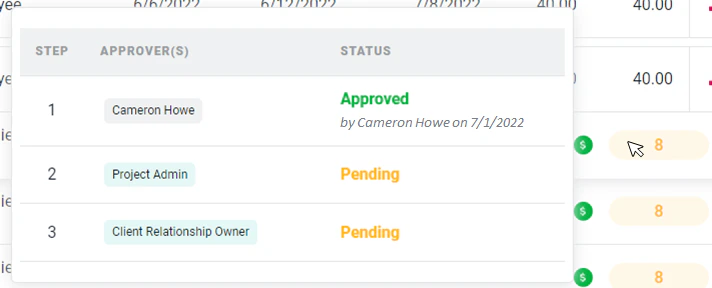
Figure 3 - Hover over a Pending Time Entry to View its Multi-Step Approval Progress
Rejected
When the approver rejects a time entry, the approver must provide an explanation as to why the time entry is being rejected. The original submitter will receive an email notification about the rejection so long as no such rejection notification has been sent to that member in the past 30 minutes. The original submitter can then make any needed adjustments to the time entry and resubmit it for approval. When a time entry is in the Rejected state, it will be shown within a red status oval (Figure 4).
Figure 4 - Rejected Time Entry
Approved
The goal is to get all time entries into an approved state before invoices are created for a given period. When a project is configured for automatic time approval, time entries for that project will be approved immediately. When a time entry is in the Approved state, it will be shown within a green status oval (Figure 5).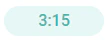
Figure 5 - Approved Time Entry