

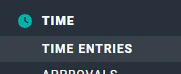
Figure 1 - Select Time Entries to View the Default Day View on the Time Entries Screen

Figure 2 - Leverage the View Selector to Toggle Time Entry Views
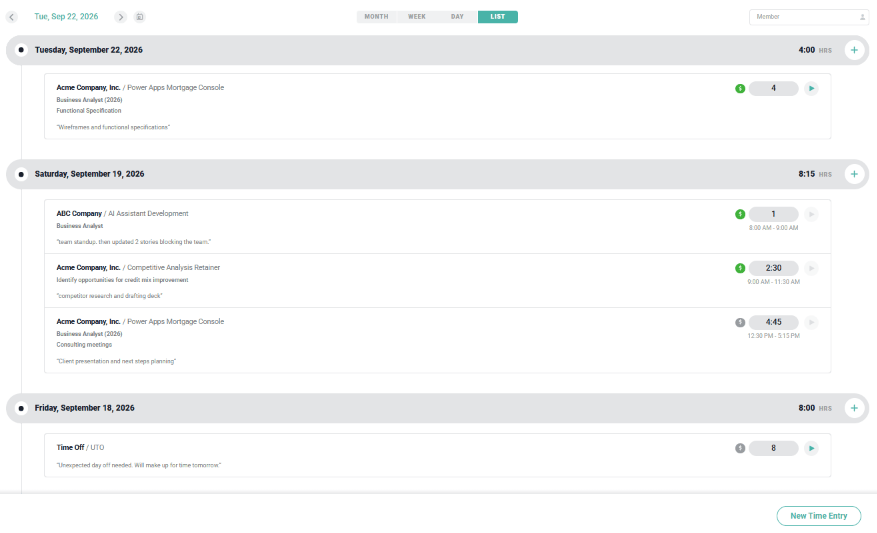
Figure 3 - Viewing Time Entries in List View
Select a Starting Date for the List
When you bring up the list view, it will show the most recent day with time entries at the top of the list. If you would like to switch to a specific date in the past, you can use the date selector (Figure 4) at the top-left of the screen to select a new date. With just a few clicks of the mouse, you can go back several months or several years.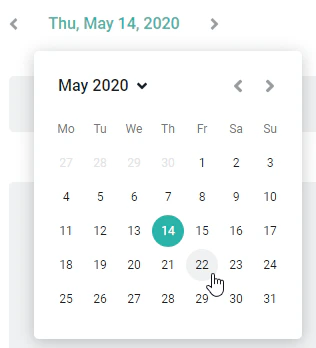
Figure 4 - Select a Date for the List View
Create a time entry
To create a new time entry from the list view, simply click New Time Entry button (Figure 5) in the bar at the bottom of the screen.
Figure 5 - You can Create a New Time Entry from the List View
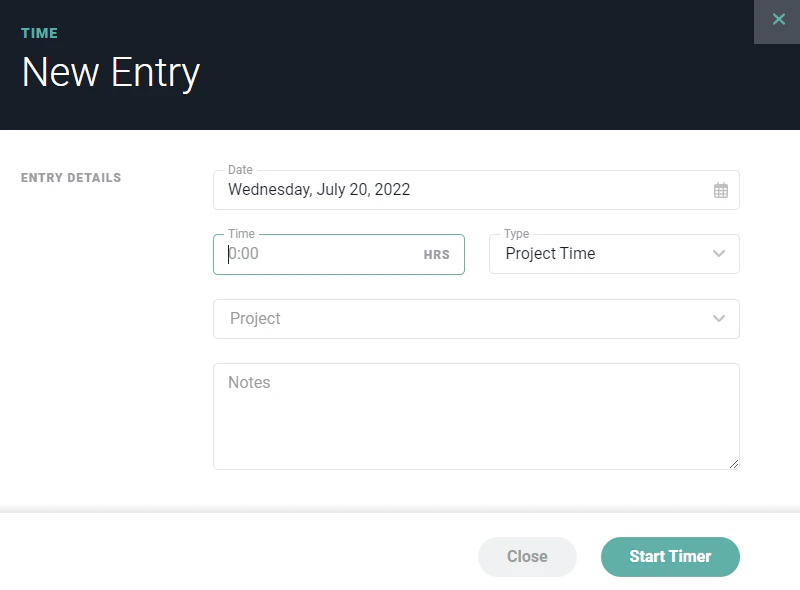
Figure 6 - Time Entry Drawer Available from List View
Start a Timer
On the list view you can start a timer for a new time entry from the time entry drawer (Figure 6). This works identically to the day view. Instead of typing in an amount of time on the time entry drawer, you just leave the Duration field blank and click the Start Timer button at the bottom of the drawer (Figure 6). Clicking that button will save the information on the drawer, close the drawer, and begin a timer. You can pause and start timers from the time entry drawer or from the list view. To start a timer from the list, simply click the small play button (Figure 7) next to an entry’s current time value. Any time you start a timer, Ruddr will automatically pause any existing timer that you had running. When a timer is running, you will see seconds incrementing on the time entry in the list. Also, a pause button will be shown to the right of the running entry. At any point, you can pause the timer by clicking the pause button.
Figure 7 - Pause/Start Timer for a Time Entry
Delete a Time Entry
If a time entry was created by mistake, you can delete that entry from the edit time entry drawer. To bring up the drawer (Figure 8), simply click on the time entry in the list view. If the time entry is not locked, you will see a Delete button at the bottom-left of the drawer.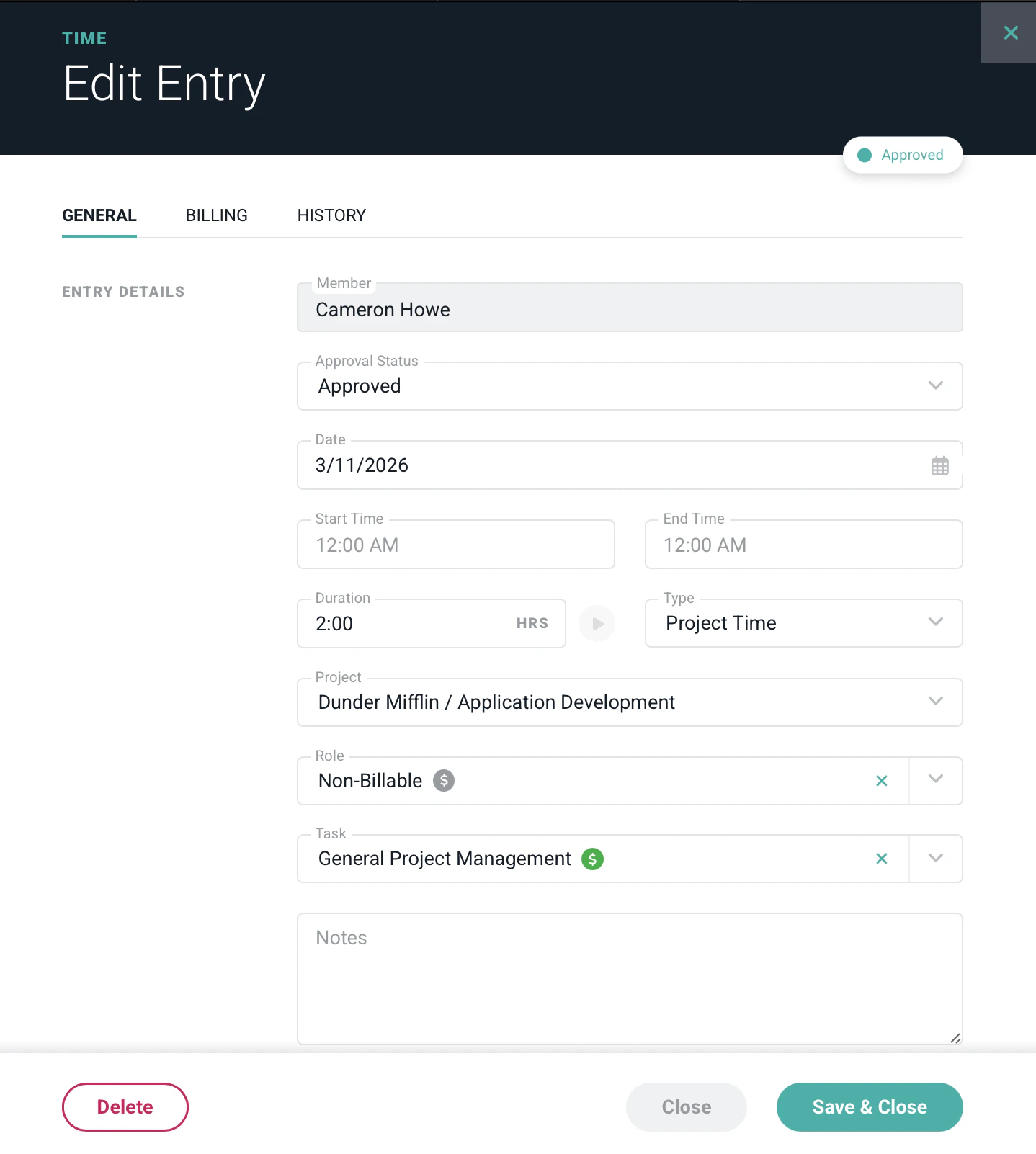
Figure 8 - Edit / Delete a Time Entry
Locked Time Entries
Time entries can become locked under certain circumstances. Locked time entries are shown with a lock icon. When a time entry is locked, it cannot be edited or deleted by the current member. Two important rules to understand about time locking are:- Time entries are not individually locked or unlocked. When time entries are locked, it is because they are locked for the entire project or task or because conditions exist that require Ruddr to lock the time entry for the current workspace member. For example, the time entry might be associated with a published invoice.
- A time entry could be locked for one workspace member but unlocked for another member who has a different security role (with greater privileges).