

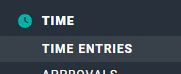
Figure 1 - Select Time Entries to View the Default Day View on the Time Entries Screen

Figure 2 - Leverage the View Selector to Toggle Time Entry Views
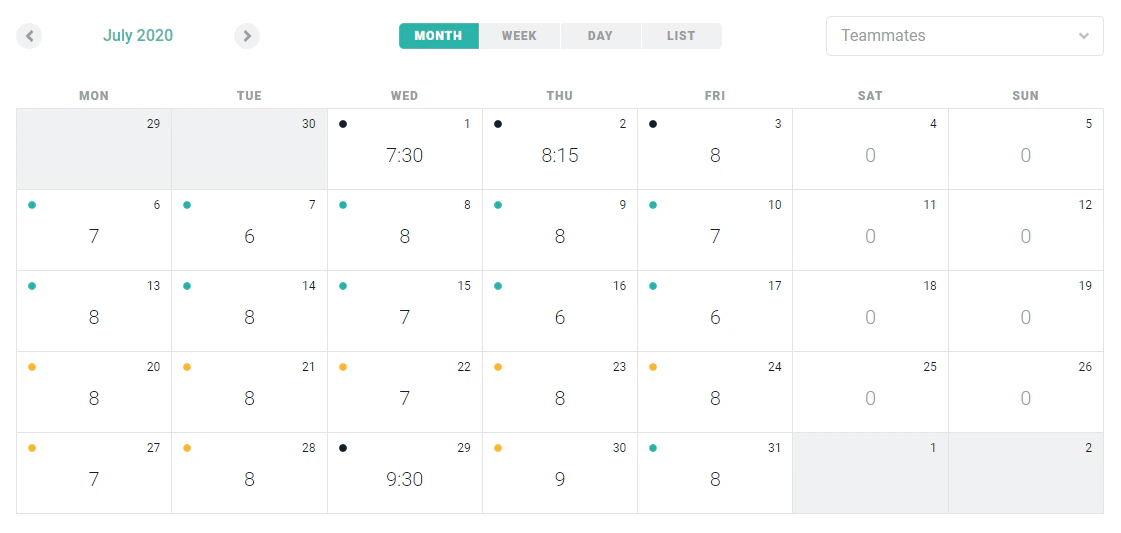
Figure 3 - Viewing Time Entries in the Month View
- If all of the time entries for that day are approved, the dot will be green
- If there is at least one time entry that has been rejected, the dot will be red
- If there are no rejected entries but at least one time entry is pending approval, the dot will be yellow
- If none of the time entries have been submitted for approval yet, the dot will be dark gray
View Time Entries for a Calendar Day
To get more detail on the time entries that comprise the total for any given day, simply click on that day on the calendar. This will take you to the day view which includes all of the individual time entries for that day. From this view, you can edit or delete unlocked time entries or add a new time entry.Submit the Month’s Time for Approval
When not using timesheets, and all of the time entries for a month have been entered and reviewed, you can easily submit them for approval with a single button click on the month view. The Submit for Approval button (Figure 4) at the bottom of the screen will submit any entries for that month that aren’t already in a Pending Approval or Approved state. The button’s label will include the number of time entries that will be submitted. If there are no time entries that need to be submitted, the button will not be shown. Note that any time entry with a running timer will not be submitted for approval. The timer must be stopped in order for the time entry to be submitted for approval.
Figure 4 - Submit Outstanding Time Entries
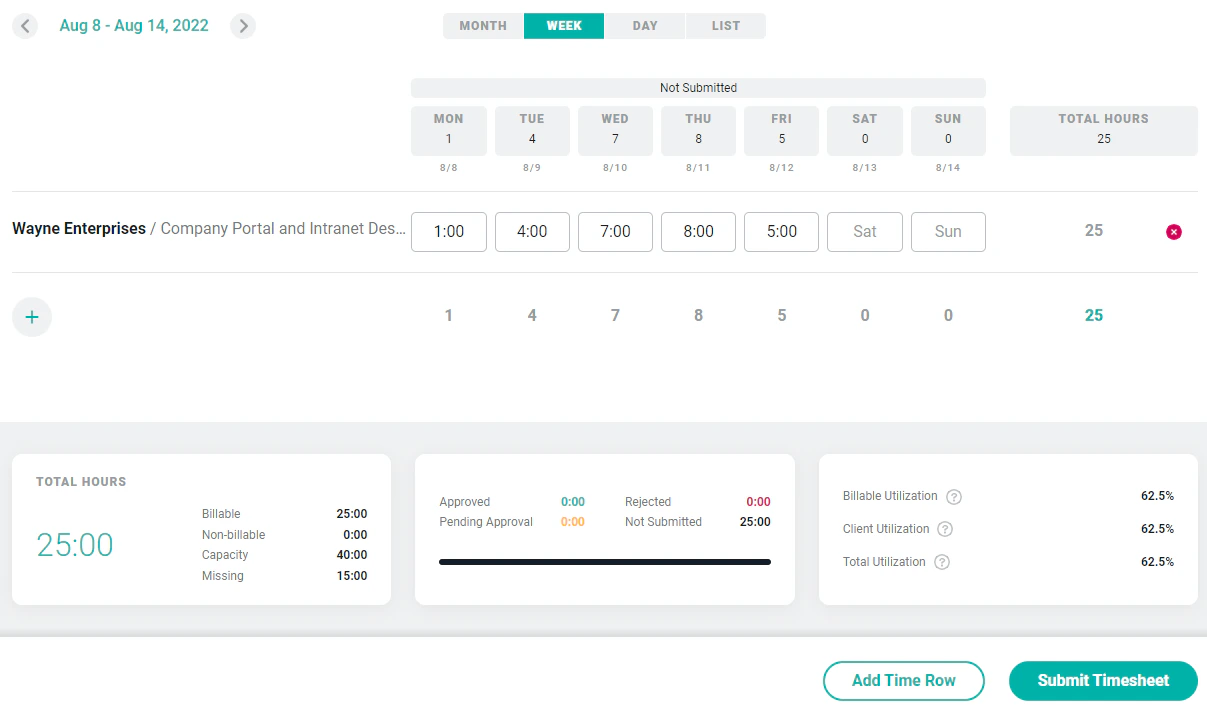
Figure 5 - Submitting Timesheet in Week View
Time Statistics
At the bottom of the month view, you will see statistics that summarize the time entries for that month (Figure 6).
Figure 6 - The Time Statistics are Shown on the Time Entries Screen for the Current Period
- Hours Summary - Toward the left of the screen is the total tracked time broken down into billable and non-billable hours. Also, your capacity and any missing hours are shown in this area. Your capacity of hours per day is set by your Workspace Admin. Most full-time employees will have 8 available hours of capacity per day from Monday through Friday.
- Time Summarized by Status - In the middle section of the time statistics, your time is summarized by its current status and represented in a bar. Time entries have one of the following status values: Not Submitted, Pending Approval, Approved, or Rejected. These status settings are color-coded, as mentioned earlier.
- Billable Utilization Figures - On the right side of the statistics area, you will see your billable utilization figures. These show your billable utilization, target billable percentage, and target attainment percentage for the period. These utilization figures are discussed in more detail in the personal dashboard help article.