

Expense Reports
All expenses in Ruddr must be contained within an expense report. An expense report is a logical grouping of expense items. You can group expenses and name expense reports in a manner that best suits your organization. Clicking on the Expenses option (Figure 1) in the nav bar will show your list of expense reports (Figure 2). You can adjust the results by selecting a specific year in the Year filter.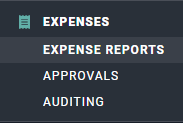
Figure 1 - Expense Reports in the Expenses Area
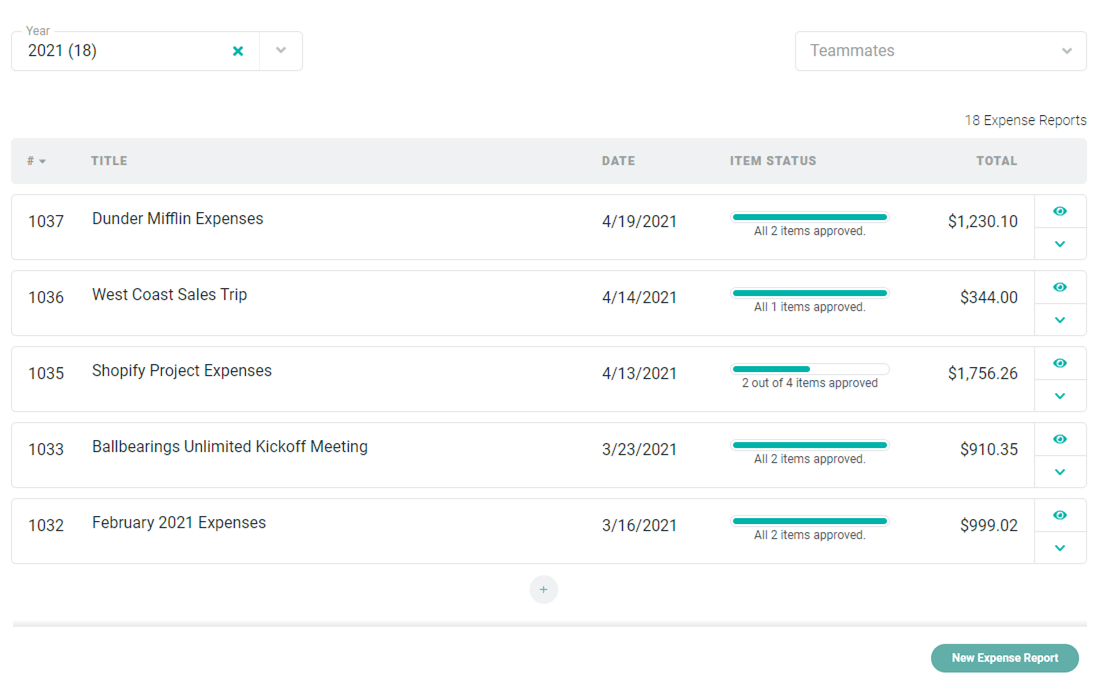
Figure 2 - Expense Reports
Expense Items
When you click on an expense report, you will be shown a report summary at the top and then the list of individual expense items (Figure 3). The summary will include the amount reimbursable to the member, the amount billable to the client, and the total amount of the expense report.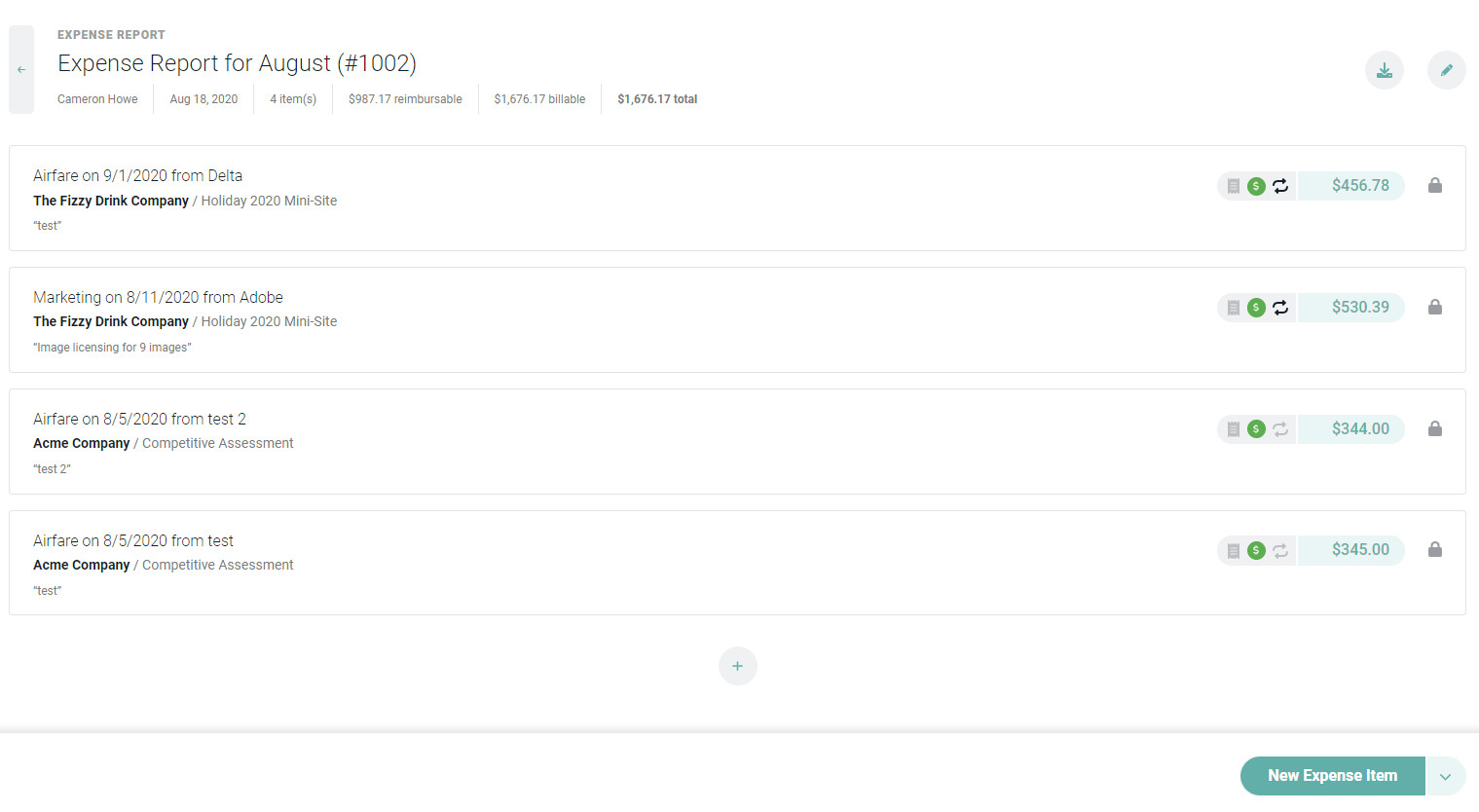
Figure 3 - Details of the Expense Report Include a Report Summary and the Individual Expense Items
Expense Approval
Each project in Ruddr can have expense approvals set to automatic or manual. For projects with manual approval, once all of your expenses are entered, you can click the Submit for Approval button (Figure 4) at the bottom of the screen. The button label will show the number of expense items that will be submitted for approval.
Figure 4 - The Number of Expense Items being Submitted with this Report Displays on the Submit Button
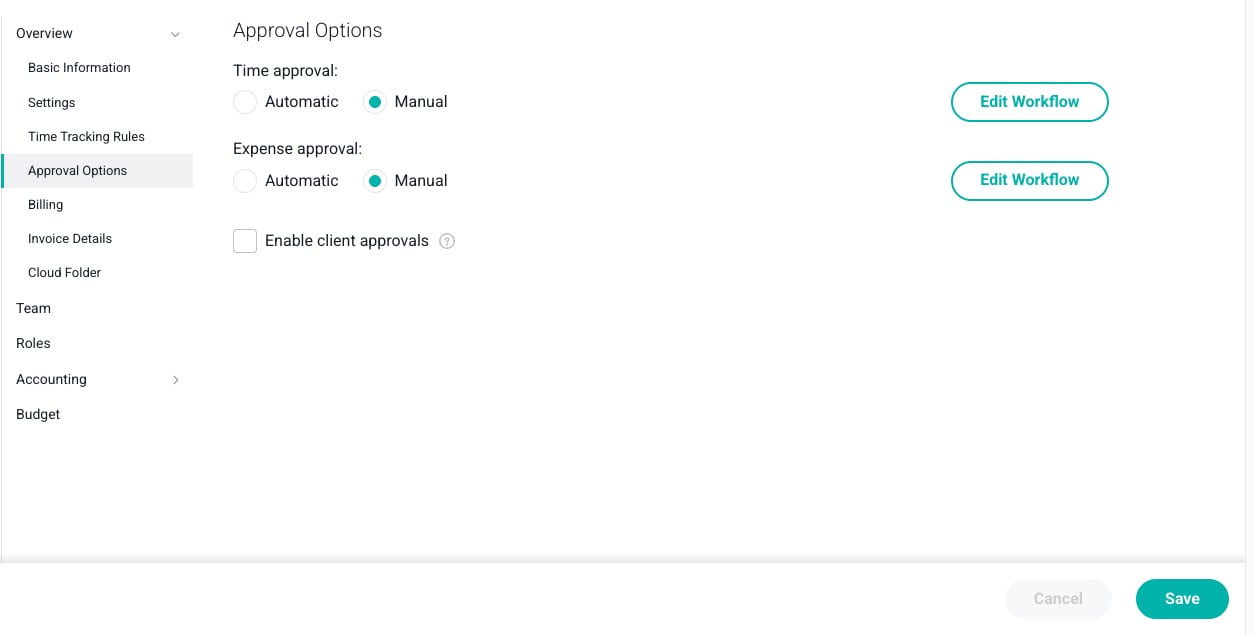
Figure 5 - Project Approval Options without Multi-Step Approval Workflow Feature Enabled
Member Selector
If your security role has the Administer time and expenses for member permission, you will see a Member selector (Figure 6) at the top-right of the expense report list. This allows you to select and impersonate any member of the workspace to which you have access.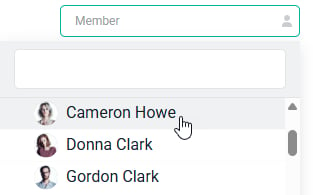
Figure 6 - Leverage the Member Selector to View/Manage Expense Items for other Members in your Workspace
Exporting Expense Reports
Often times, members and/or expense auditors may need to export the information related to an expense report. Ruddr provides the ability to export an expense report, including data for each of the expense items in that report. By clicking the export button at the top right of the Expense Report Detail screen (Figure 7), users can specify a format and download a copy of the expense report. Exporting an expense report to ZIP will create a compressed file (.zip) containing a PDF copy of the report and all receipts uploaded with the expenses.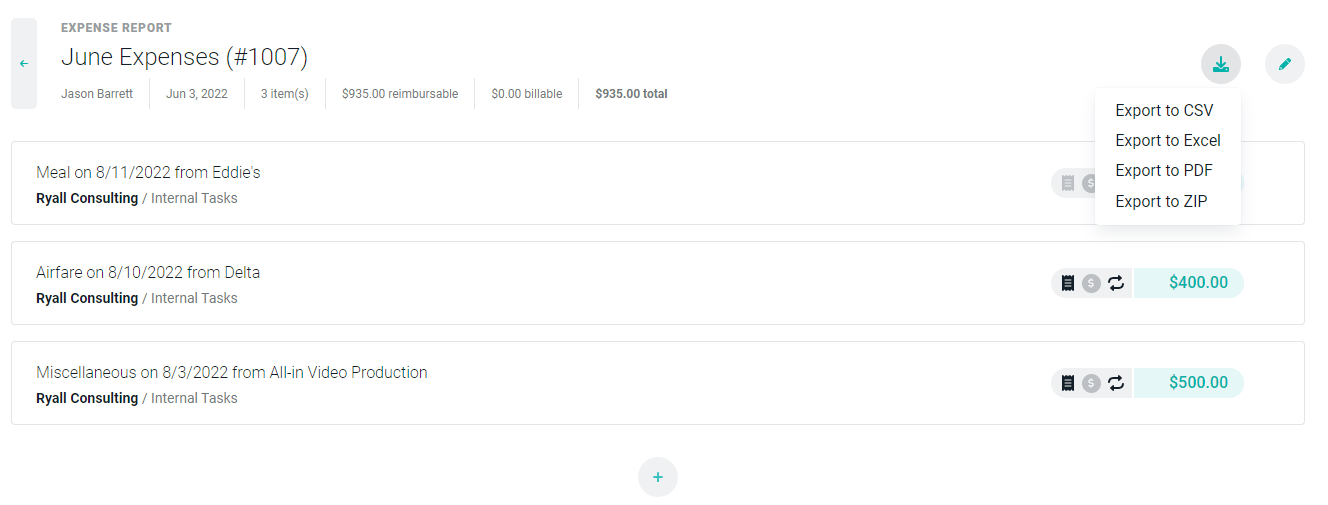
Figure 7 - Export an Expense Report