

Time Entry Format
Each Ruddr workspace has a default time entry format option that is set by the Workspace Admin (Figure 1). This option provides a choice between clock format (1:30) and decimal format (1.5). Note that this format only affects time entry screens — all other areas of Ruddr, such as reports and invoices, will always use the decimal format.
Figure 1 - Workspace Admin Settings for Displaying Time Formats in Time Entry
Timers
With Ruddr you can manually type (Figure 2) in the amount of time you worked on a project or you can run a timer (Figure 4). With manual time entry, you simply key in the amount of time that you worked. You can enter this time in either clock format (1:30) or decimal format (1.5) and Ruddr will automatically convert to your workspace’s preferred format (Figure 1).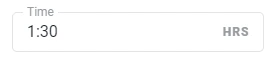
Figure 2 - Manually Type in your Time Entry

Figure 3 - Access the Timer from the Header Bar

Figure 4 - Utilizing the Integrated Timer to Track Time
Time Entry Options
Since there are many types of professional services companies and projects, Ruddr offers multiple ways to track your time. If you work on several projects and tasks throughout the day, you will likely prefer to track time via the day view. But, if you tend to track a fixed 8 hours per day to a single client (such as with a staff augmentation assignment), you’ll find it more efficient to track time via the week view. Ruddr provides the following options for tracking your time:- Day View - The day view screen allows you to navigate to a specific day and track all of your time entries for that day. The day view offers the most granular approach to time tracking.
- Week View - The week view allows you to supply a total number of hours per day for a project (or project/task) for each day of a given week.
- Month View - The month view shows a comprehensive summary of a month’s time entries. You are provided with a total number of hours per day and can click on any day to navigate to that day’s entries.
- List View - The list view shows a scrollable list of all of your time entries. You can scroll backward and forward through all of the time entries you have ever entered into Ruddr. Clicking on an entry in the list view brings up the same time entry drawer as is shown on the day view.
- Overlay screen - From any screen within Ruddr, you have quick access to your time entries via the time overlay screen. This allows you to access your time entries without leaving the area of Ruddr you are currently working in. You bring up this overlay screen by clicking on the timer area (with the Ruddr logo) in the header bar (Figure 3).
- Ruddr Apps - You can create and manage your time entries directly within Slack or our MacOS app. To record time via Slack, you must have the Slack integration enabled for your workspace and your Ruddr workspace member must be connected to your Slack user. This can be done by your Workspace Admin.
Time View Controls
When you bring up any of the time view screens, you will have three selector controls at the top of the screen (Figure 5). These are your date selector, view selector, and member selector.
Figure 5 - Time Selector Controls at the top of Time View Screens

Figure 6 - Date Selector
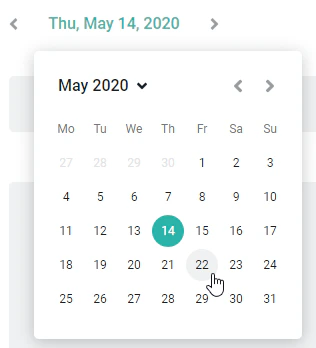
Figure 7 - Specify a Date or Date Range for Viewing / Editing Time Entries

Figure 8 - Leverage the View Selector to Toggle Time Entry Views
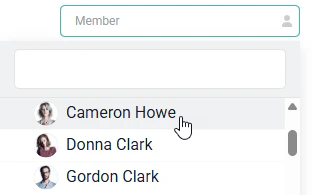
Figure 9 - Administer Time Entries for Other Members in your Workspace