

- General project settings - the project’s general information, such as its name, dates, status, team, tasks, and notes.
- Financial - anything that drives the revenue or cost of the project, including bill rates, the invoice details, and the accounting ledgers.
- Budget - the project’s overall and monthly budgets.
Grant Editable Information
Click on Settings in the nav bar, select the Security Roles option, and then click the name of the role you want to change. In the Project Permissions section of the role, choose the projects the role can edit under Edit these projects, and then choose the sections it can edit under Editable information (Figure 1).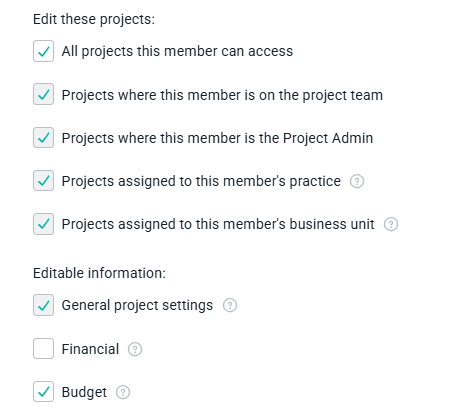
Figure 1 - The Editable information options for a role that can edit budgets but not financial information
- General project settings is checked automatically as soon as the role can edit any projects, and it cannot be unchecked. A role that can edit a project can always edit its general information.
- Financial and Budget are optional, and you can grant either one or both.
- The Editable information options are unavailable until you grant the role at least one project edit permission under Edit these projects. Sections have nothing to apply to until the role can edit a project.
- The built-in Workspace Admin role has all three sections, and like the rest of that role, they cannot be changed.
What Each Section Covers
The sections apply to the Settings tab of a project. Each part of that tab belongs to exactly one section.General Project Settings
The General project settings section covers the general information about the project:- The Basic Information, Settings, Time Tracking Rules, Approval Options, and Cloud Folder sections of the Overview tab, including the project name, practice, business unit, sales representative, project status, project type, start and end dates, project code, tags, and notes.
- The project team, including who is on it and who the Project Admin is.
- Project tasks and project roles, apart from their billing settings and rates.
Financial
The Financial section covers anything that affects the revenue or cost of the project:- The Billing section of the Overview tab, including the currency, billing type, PO number, purchase order, revenue recognition method, revenue attribution method, and accounting notes.
- The Invoice Details section of the Overview tab, including the invoice recipients, street address, payment terms, tax rate, taxable items, and the invoice and email templates.
- Bill rates on project roles and project team members, and whether a project role or task is billable.
- The ledgers on the Accounting tab: the products ledger, additional services ledger, other items ledger, project expenses ledger, revenue recognition ledger, earned revenue adjustment ledger, and the fixed fee billing schedule.
Budget
The Budget section covers the project budget and the monthly budget:- Whether the project tracks an overall budget and a monthly budget, and the budget type.
- The services revenue, billable and non-billable hours, expense budgets, products, additional services, and other items budgets.
- The revenue, hours, and expense caps.
- The target services gross margin and the markup settings.
- The budget hours and revenue alert thresholds.
- The hours budgeted for individual team members and tasks.
How Read-Only Sections Look
These sections control editing only. A member who can edit a project can still view every field on the Settings tab, including the fields in sections their role cannot edit. Where an entire section is read-only, its fields are greyed out and the Save button is removed (Figure 2). The values are still there to read.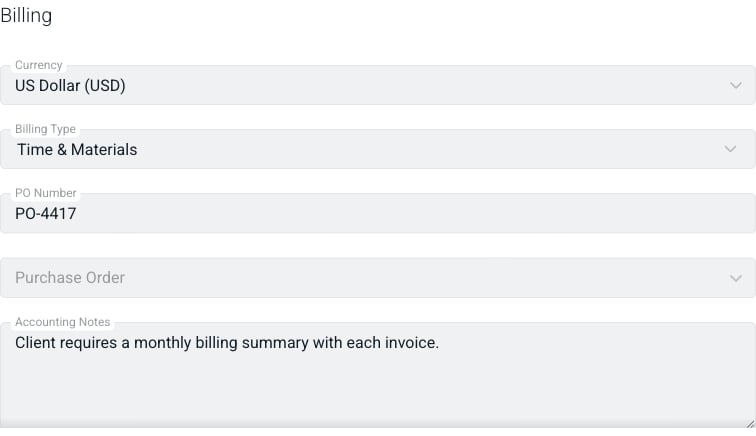
Figure 2 - The Billing section for a member whose role does not include Financial
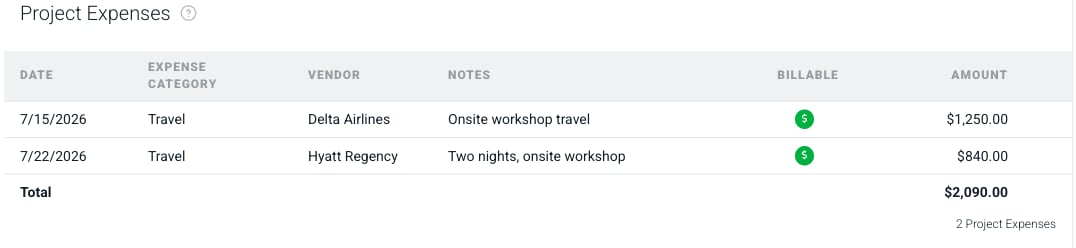
Figure 3 - The project expenses ledger for a member whose role does not include Financial
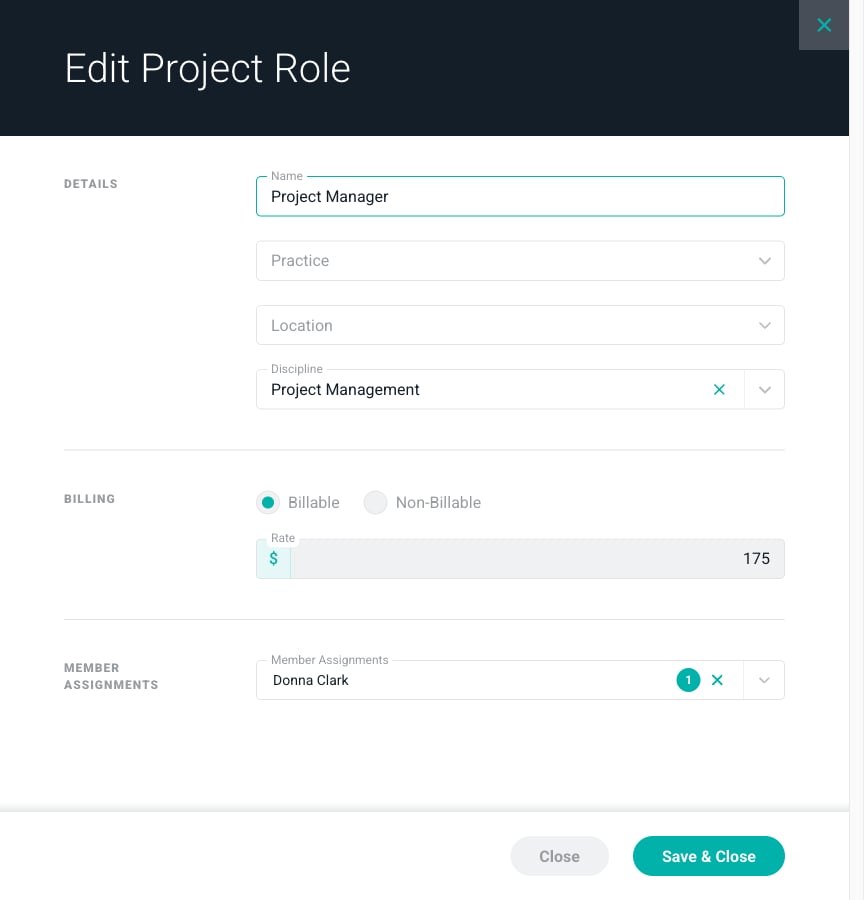
Figure 4 - The bill rate on a project role is read-only while the rest of the role can still be edited
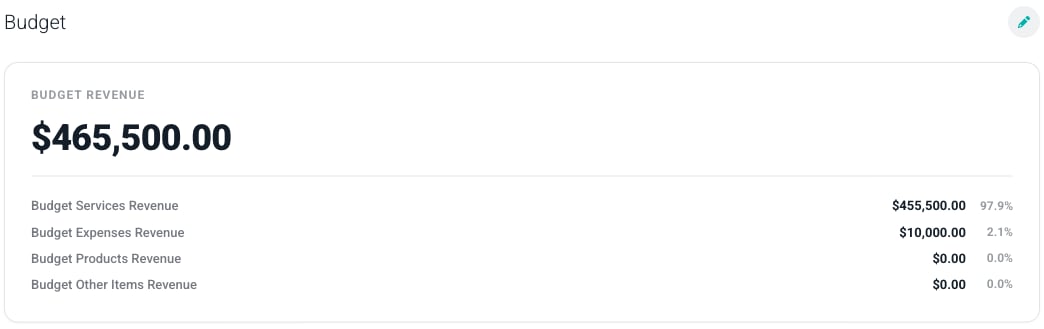
Figure 5 - The Budget tab for a member whose role includes the Budget section
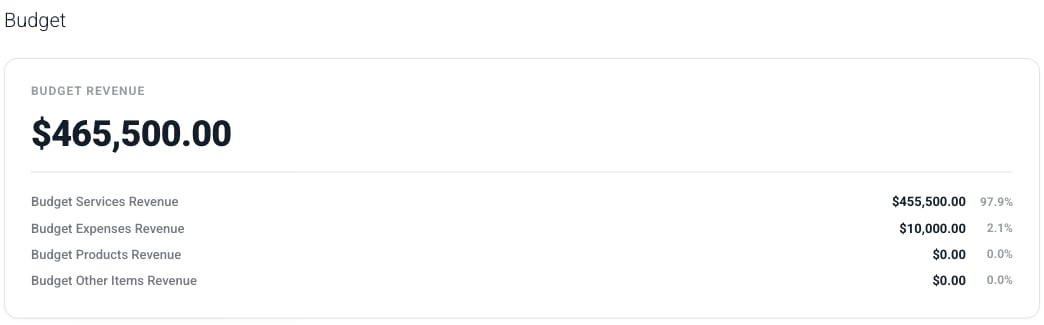
Figure 6 - The same Budget tab for a member whose role does not include the Budget section