

Header Bar
At the top of every screen in Ruddr is the header bar (Figure 1). No matter what area of the application you are working in, the header bar remains the same.
Figure 1 - Header Bar
Workspace Search
The Search button (Figure 2) in the header bar allows you to quickly find clients, projects, and tasks. Simply type in a few letters of the item you are looking for and Ruddr will bring back a categorized list of results.
Figure 2 - Searching for Clients, Projects, and/or Tasks from the Header Bar
- Cmd+K or Ctrl+K — Toggle the search modal open/closed
- Escape (with query) — Clears the search query text
- Escape (empty query) — Closes the modal
- Arrow Down / Up — Navigate through search results
- Enter — Navigate to the selected client / project / task
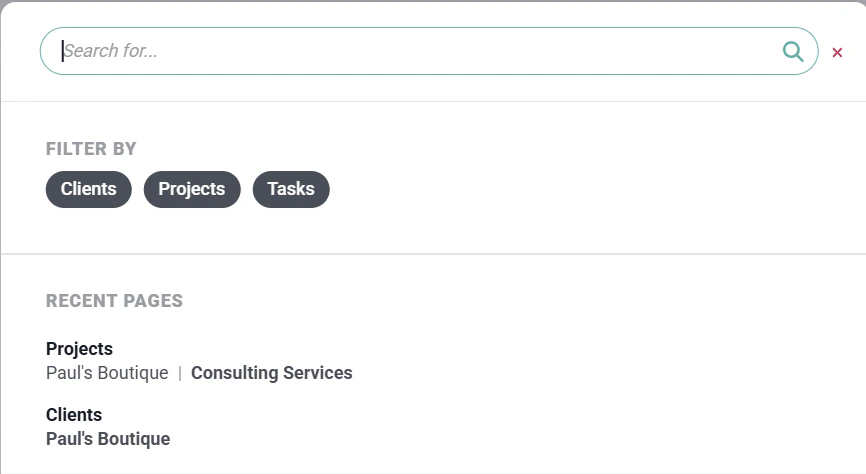
Figure 3 - Specifying the Scope of Your Search and Accessing Recent Search Results
Help and Support
To the right of the Search button is the Help & Support button (Figure 4).
Figure 4 - Access Ruddr Help and Contact Support
Help Center
The Ruddr Help Center is a Knowledge Base, containing information and direction on all things Ruddr.Submit Support Request
If you have a need to contact the Ruddr support team, you can submit a support request. Clicking this link under Help & Support will present you with a form (Figure 5), where you can provide details about your support need. Submitting this form will create a support ticket and our team will immediately be notified.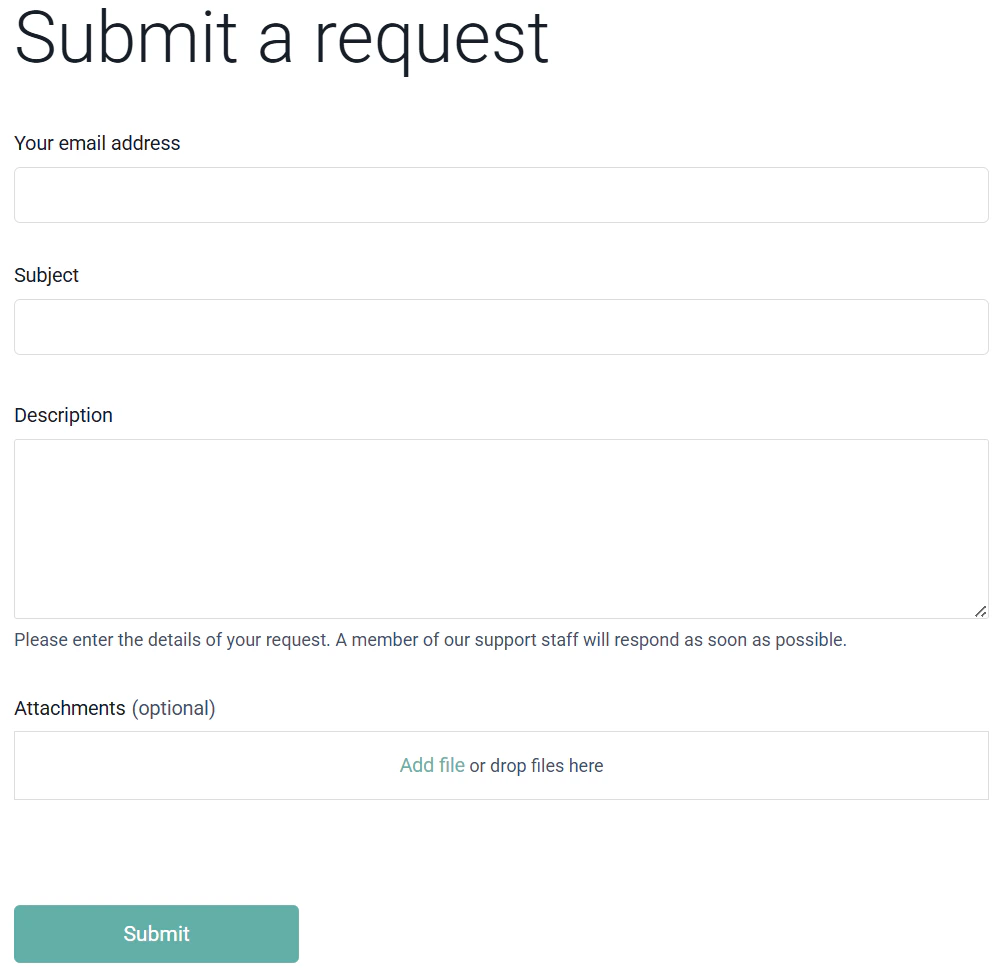
Figure 5 - Create a Support Ticket with the Ruddr Support Team
Submit Feedback
Clicking the Submit Feedback option under Help & Support brings up a dialog (Figure 6) through which you can submit a feature that you would like to see in Ruddr. Once submitted, the team will review and reach out if further discussion is needed.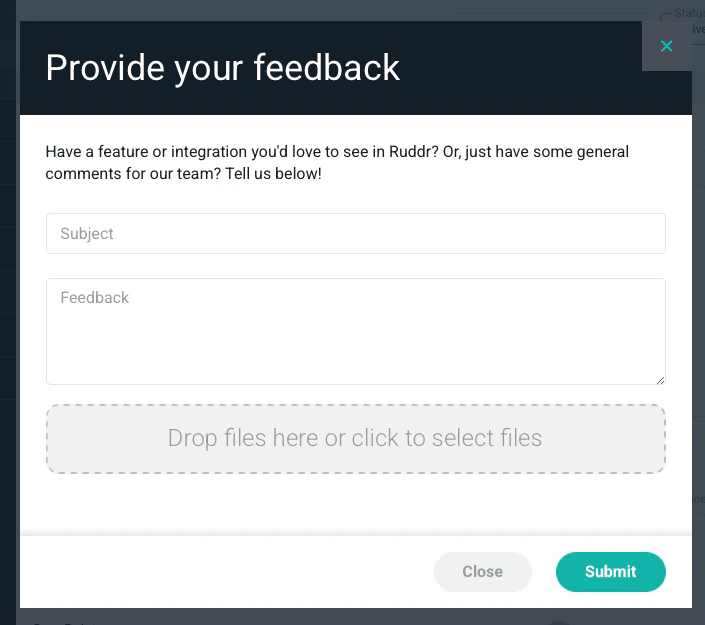
Figure 6 - Submit a Feature Request to the Ruddr Product Team
What’s New
Clicking the What’s New button (Figure 7) in the header bar will direct you to a list of enhancements / features that have been released in Ruddr.
Figure 7 - Access a List of the Latest Enhancements to Ruddr
Ask Ruddr
The Ask Ruddr button (Figure 8) will launch the Ruddr Assistant, an AI-powered chatbot that helps you find answers, explore workspace data, and understand Ruddr features faster. Note that the Ruddr Assistant feature must be enabled in the workspace in order to leverage the assistant.
Figure 8 - Use Ruddr's AI-powered Assistant
Timer
Towards the right of the header bar is the timer indicator. The timer indicator shows whether or not a timer is currently running. When a timer is not running, the timer is in an inactive state. This inactive state shows a gray Ruddr logo followed by a gray, zeroed-out timer (Figure 9).
Figure 9 - Inactive Timer

Figure 10 - Active / Running Timer
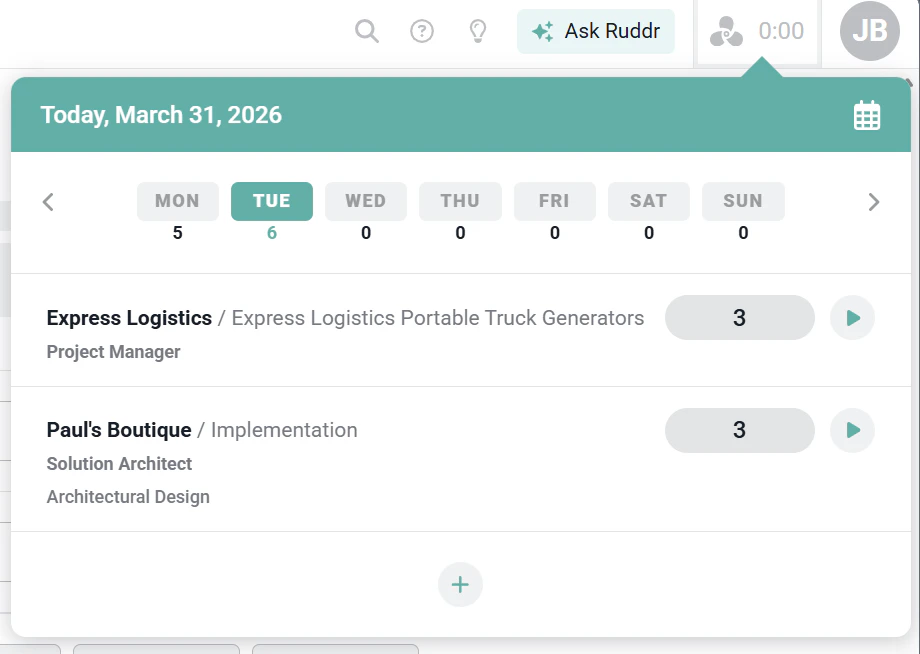
Figure 11 - Viewing Time Entries via the Time Overlay Window
User Profile Menu
The final element of the header bar is the user profile menu (Figure 12). Click your avatar to open the menu, which shows your name and the current workspace. From here, you can:- Click My Profile to edit your profile information.
- Click the current workspace to switch to a different workspace, if you are a member of more than one.
- Click Go to Ruddr.com to open the Ruddr website.
- Click Log in to Another Workspace to log in to a workspace that isn’t listed.
- Click Log Out to log out of Ruddr.
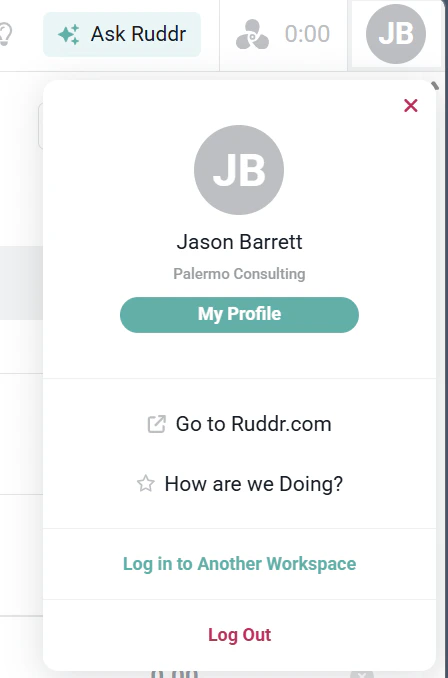
Figure 12 - Access Your User Profile Menu
Nav Bar
On the left side of every screen in Ruddr is the nav bar. When expanded (Figure 13), the nav bar allows you to easily move between areas of the application, and also see and access related work functions. The current area will be highlighted in green as shown below. NOTE: Your nav bar will be limited to the functional areas of Ruddr that your security role will allow you to access.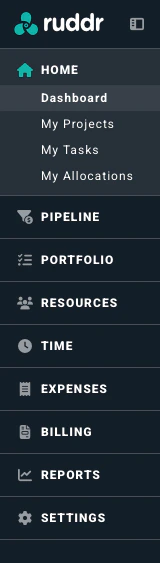
Figure 13 - Expanded Nav Bar

Figure 14 - Collapsed Nav Bar
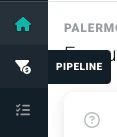
Figure 15 - Hover to view navigation
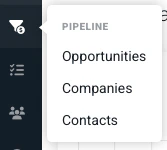
Figure 16 - View a Sub-menu when the Ruddr Nav Bar is Collapsed