

Figure 1 - Click on Home to View Your Personal Dashboard
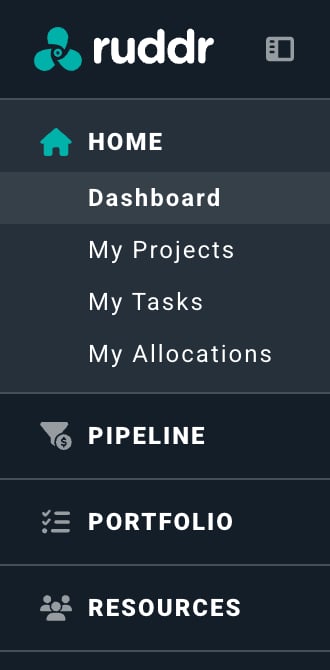
Figure 2 - Home Area Sub-navigation
Executive Dashboard
For those members with permissions listed below (Table 1), the Executive Dashboard (Figure 3) will be displayed as the default view when visiting the Home area. Note that the permissions for each available graph on the dashboard are validated on a per-graph basis. If a member has permission to any of the graphs, as noted below, they will have access to those graphs on the Executive Dashboard.| Graph | Permissions |
| Services Revenue | View time, allocations, rates, and revenue |
| Services Gross Profit | View time, allocations, rates, and revenue |
| Services Gross Margin | View time, allocations, rates, revenue, and cost and profit |
| Billable Utilization | View time and allocations |
| Top Clients by Services Revenue | View time, allocations, rates, and revenue |
| Top Clients by Billable Hours | View time and allocations |
| Services Effective Bill Rate | View time, allocations, rates, and revenue |
| Services Realization Rate | View time and allocations |
| Client Billable Hours | View time and allocations |
| Client Non-Billable Hours | View time and allocations |
| Most Healthy Projects | Edit projects |
| Least Healthy Projects | Edit projects |
| Pipeline By Expected Close Date | View pipeline |
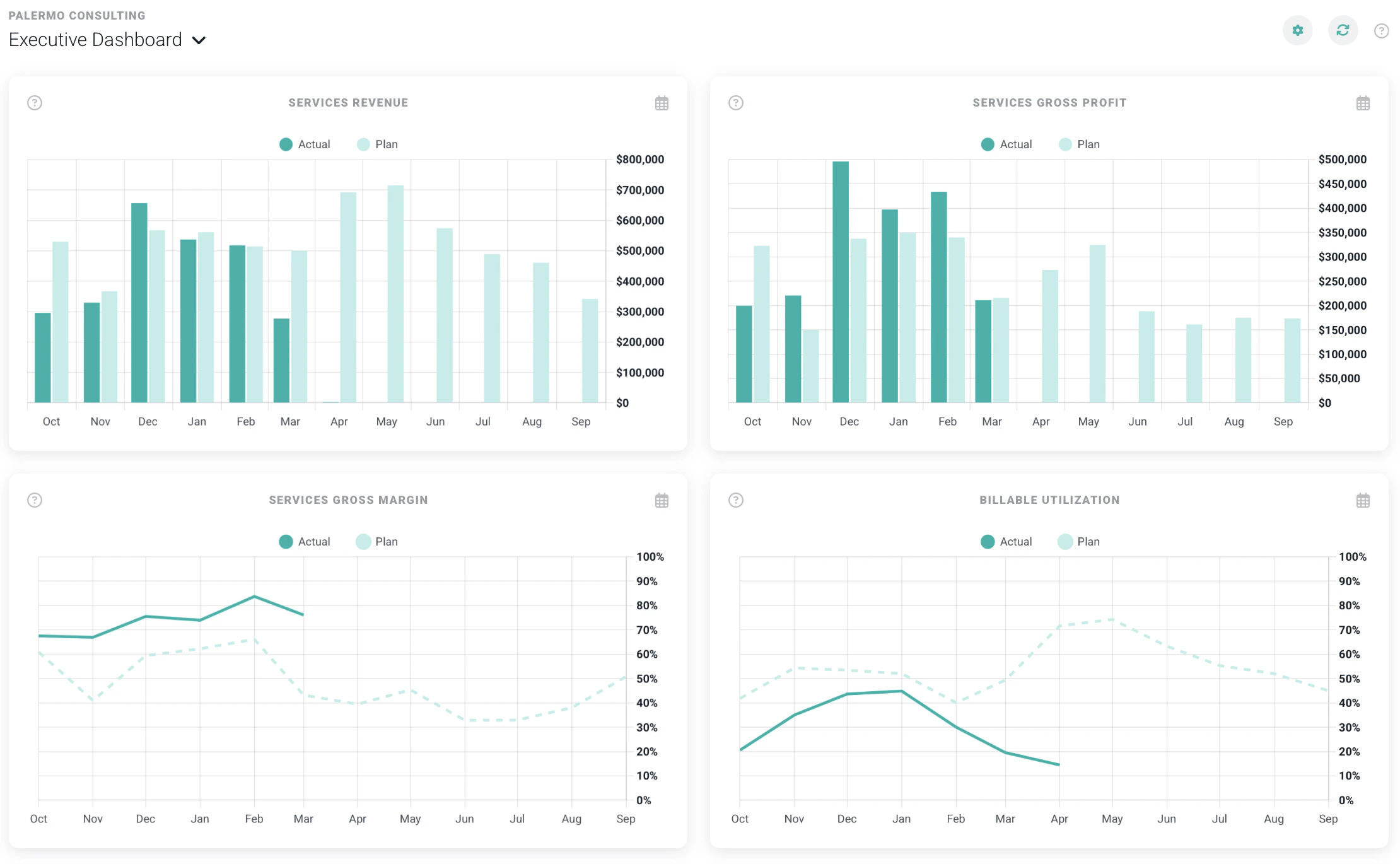
Figure 3 - Executive Dashboard

Figure 4 - Click this Gear Icon to Personalize the Dashboard
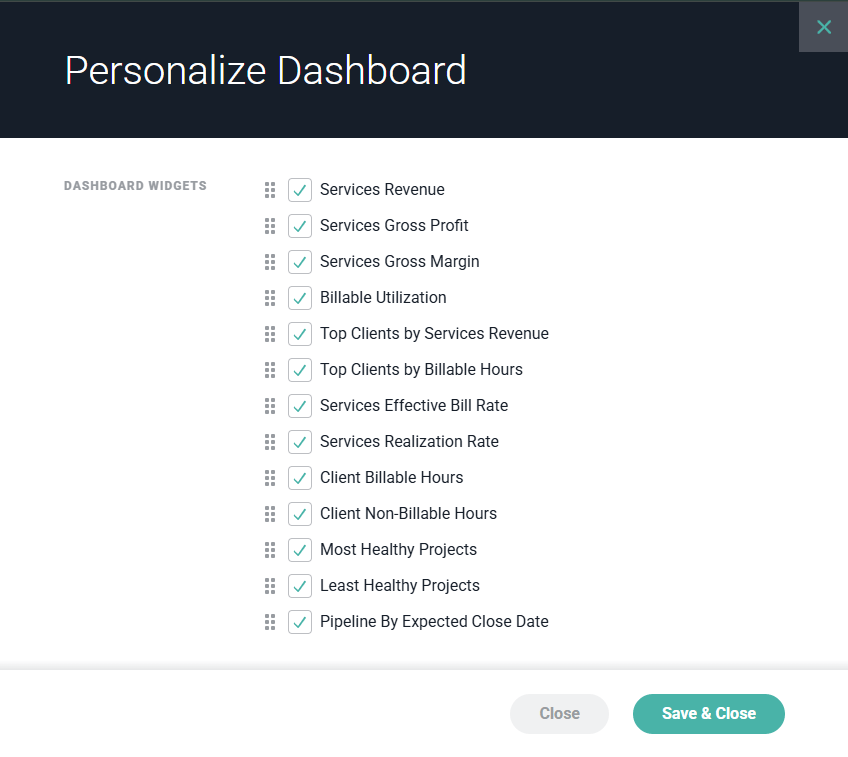
Figure 5 - Select and Reorder the Dashboard Metrics you Wish Displayed
Personal Dashboard
For members without permissions to see the Executive Dashboard, the first section of the Home area will display the Personal Dashboard (Figure 6). This dashboard shows you the time you have entered for the selected period as well as your billable utilization for the period. The time frame at the top-right of this screen defaults to This Week to Date, but you can change that to report on the current or past week, month, quarter, or year. Ruddr will remember the most recent view that you have specified and present that to you upon your next visit to the Personal Dashboard.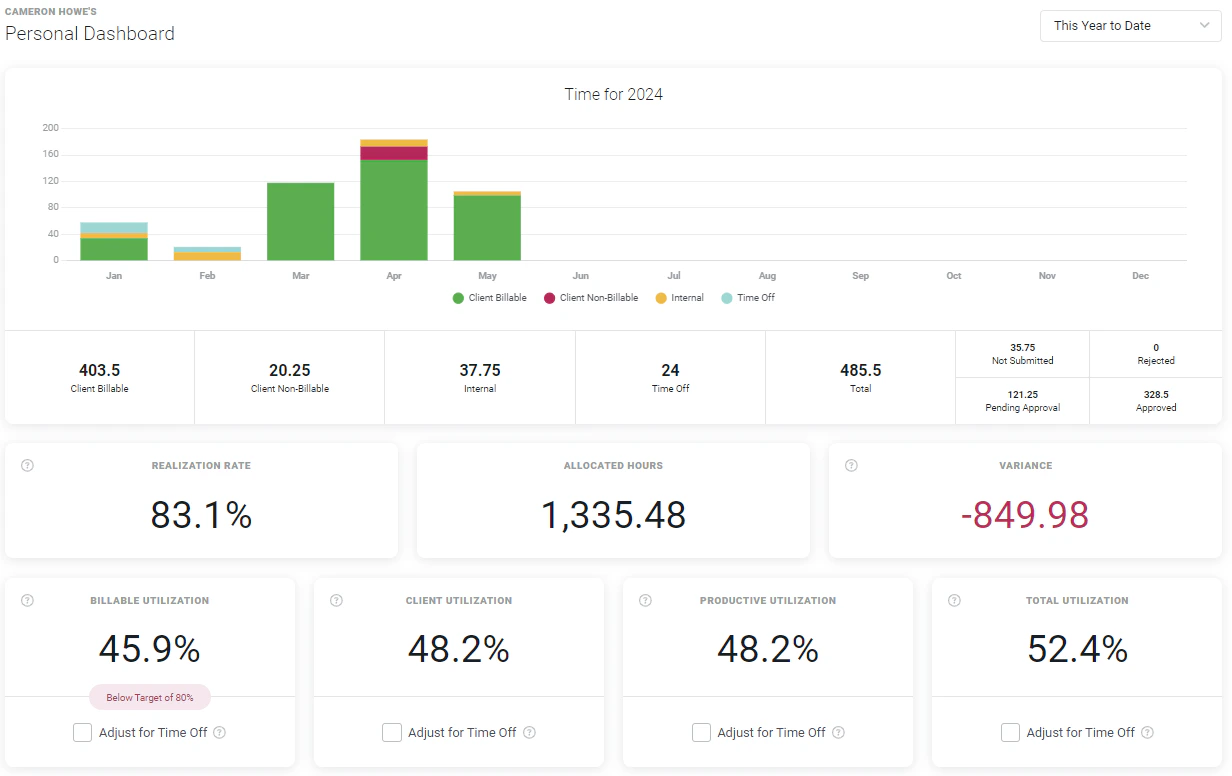
Figure 6 - View Your Time and Utilization Metrics via the Personal Dashboard
- Client Billable Hours - billable hours worked on client projects
- Client Non-Billable Hours - non-billable hours worked on client projects
- Internal Hours - hours worked on non-billable internal projects
- Time Off Hours - hours for time off categories such as sick leave or vacation
- Green for Client Billable Hours
- Red for Client Non-Billable Hours
- Yellow for Internal Hours
- Blue for Time Off Hours
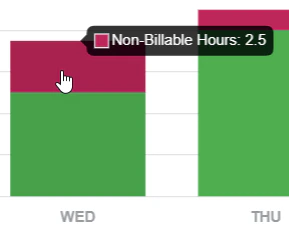
Figure 7 - View the Total Hours for a Specific Time Category
- Realization rate - the percentage of the total hours that were billable in the period, or the amount of client billable hours in the period divided by total number of hours for the period.
- Allocated hours - the total number of allocation hours for the member in the period.
- Variance - the total variance from the allocated number of hours.
- Billable utilization - Billable utilization is the utilization metric that is most commonly used in the professional services industry. Billable utilization is calculated by taking the total billable hours in the time frame divided by the utilization capacity in the time frame.
- Client utilization - Client utilization considers all hours worked on client projects, not just billable hours. Client utilization is the billable and non-billable hours worked on client projects divided by the member’s utilization capacity.
- Productive utilization - Productive Utilization considers all hours worked on client projects and any internal projects that are considered to be “productive”. Internal projects have a This internal project counts toward productive utilization setting that, when checked, includes any hours logged to that project as part of this utilization calculation.
- Total utilization - Total utilization measures all worked hours, and only excludes time off hours. Total utilization includes all hours worked on client projects or on internal projects. Total utilization is calculated by dividing all hours worked by utilization capacity.

Figure 8 - View Your Personal Utilization Metrics

Figure 9 - View PTO-Adjusted Utilization Metrics
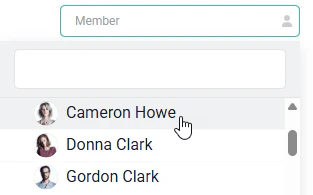
Figure 10 - Member Dropdown for Viewing the Personal Dashboard of Other Workspace Members
My Projects
The My Projects section (Figure 11) of the Home area shows all of the projects that are assigned to the workspace member. The member can click on any project to get to the project dashboard.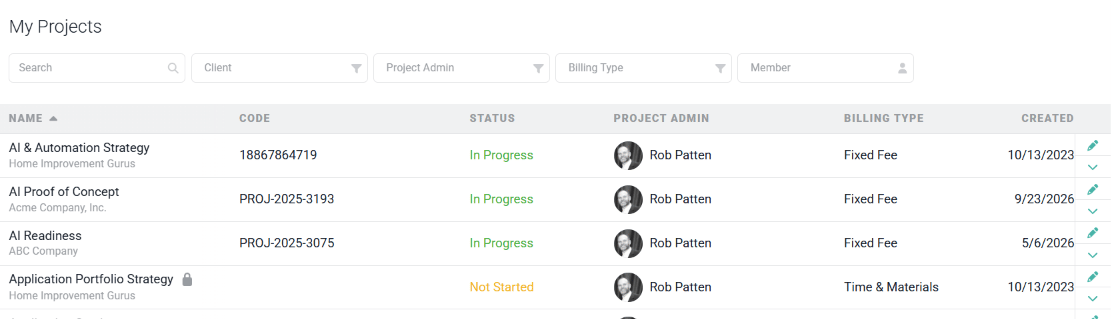
Figure 11 - List of Projects for a Workspace Member
My Tasks
Similar to the My Projects section, the My Tasks section (Figure 12) shows all of the tasks that are assigned to the workspace member. The member can click on any task to open the Task Details drawer.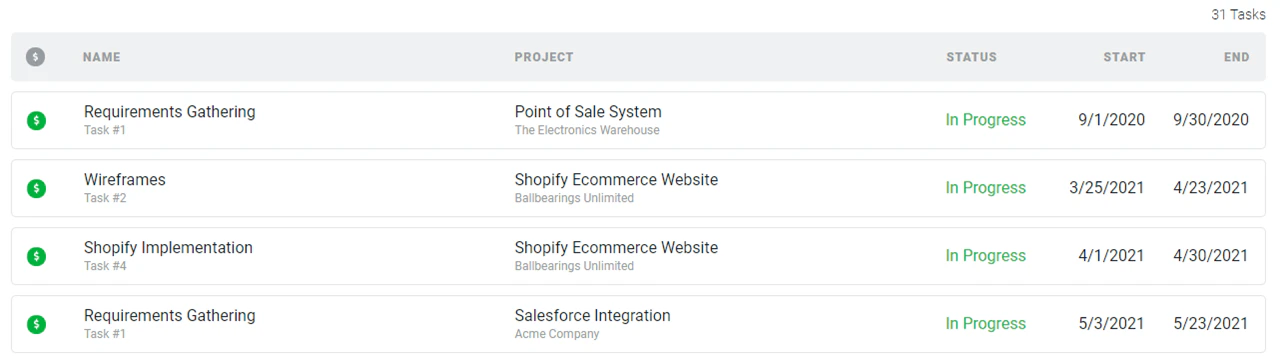
Figure 12 - List of Tasks Assigned to Workspace Member
My Allocations
The My Allocations section (Figure 13) shows all of the resource allocations that have been made for the workspace member. This helps the member understand the current and future projects that the member will be working on.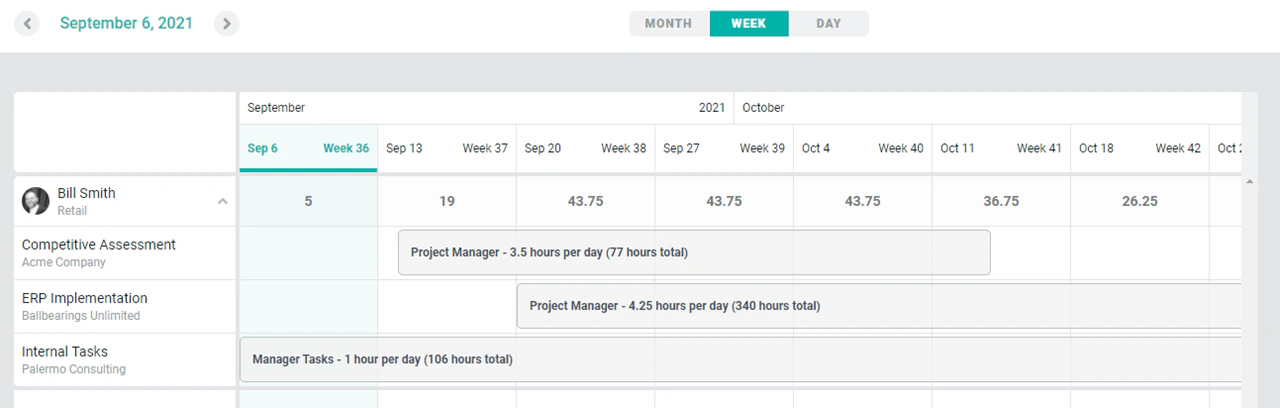
Figure 13 - Resource Allocations Made for Workspace Member