- Client names - Your client names in Ruddr should use the exact same spelling as your contact names in Xero. If the spelling is identical, the Xero integration will automatically map Ruddr clients to Xero contact during the integration setup process. If the spelling is not identical, you will be able to manually map Ruddr clients to Xero contacts.
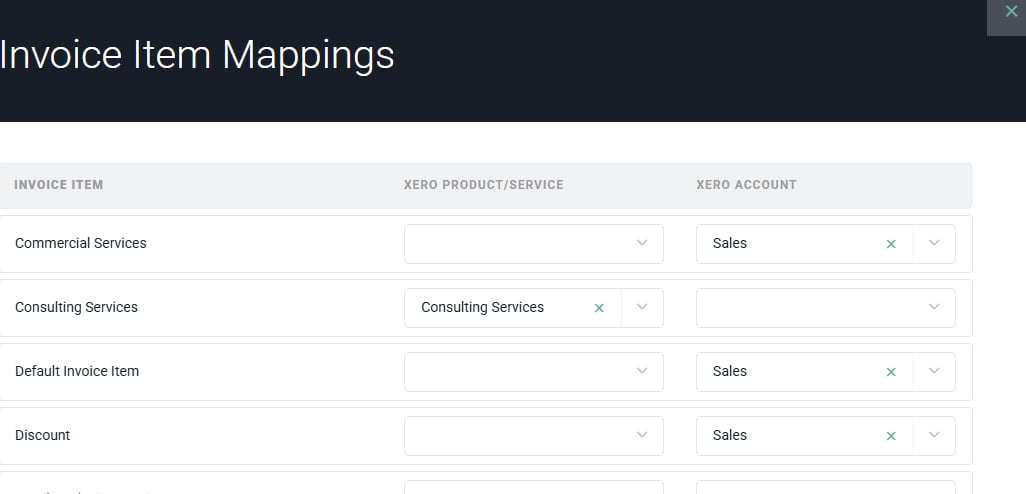
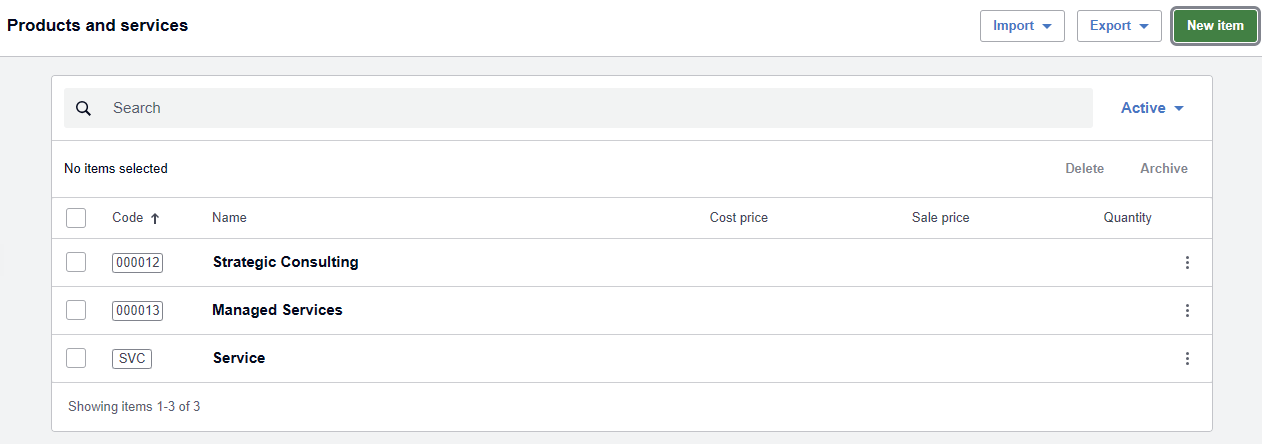
- Invoice items - Your Invoice Items in Ruddr can be mapped to either Xero Product / Service Types or Xero accounts. However you plan to use them, Invoice Items should use the exact same spelling as your Product/Service types or accounts in Xero. You can manage your Invoice Items in Ruddr by clicking on Settings in the main nav bar, selecting the Lookups tab, and choosing Invoice Items from the drop-down list on the right side of the screen.
- Tax rates - Your Tax Rates in Ruddr should use the exact same spelling as your custom Tax Codes in Xero. If you do not charge sales tax or do not use custom tax rates, then you do not need to configure this area. You can manage your Tax Rates in Ruddr by clicking on Settings in the main nav bar, selecting the Lookups tab, and choosing Tax Rates from the drop-down list on the right side of the screen.
| Ruddr Entity | Xero Entity |
| Clients | Contacts |
| Invoice Items | Product/Service or Account |
| Tax Rate | Tax Code |
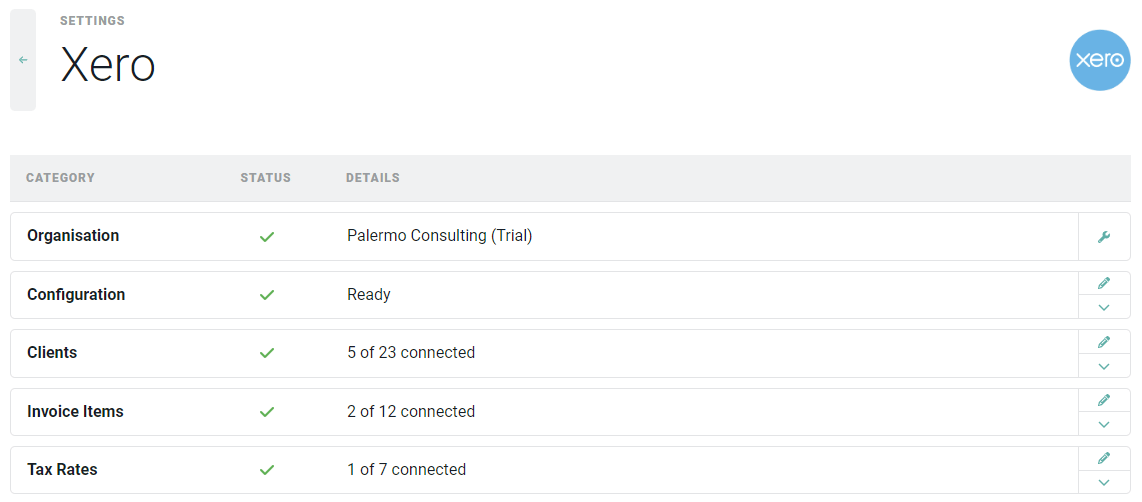
- Authorised
- Submitted
- Draft
- Reimbursable Expenses Sync - When this is enabled, approved reimbursable expenses will be synced to Xero as bills. Once per hour, Ruddr will check for new approved reimbursable expenses. If a member has one or more approved reimbursable expenses, those will be added to a single bill in Xero for that member.
- Reimbursable Expenses Sync Start Date - If the reimbursable expenses sync is enabled, Ruddr will only sync reimbursable expenses with a date on or after this date. A sync start date is required when the sync is enabled.
- Default Xero Expense Account - When adding a reimbursable expense item to a bill, Ruddr will use this Xero expense account if the expense category for the item is not mapped to a specific expense account.
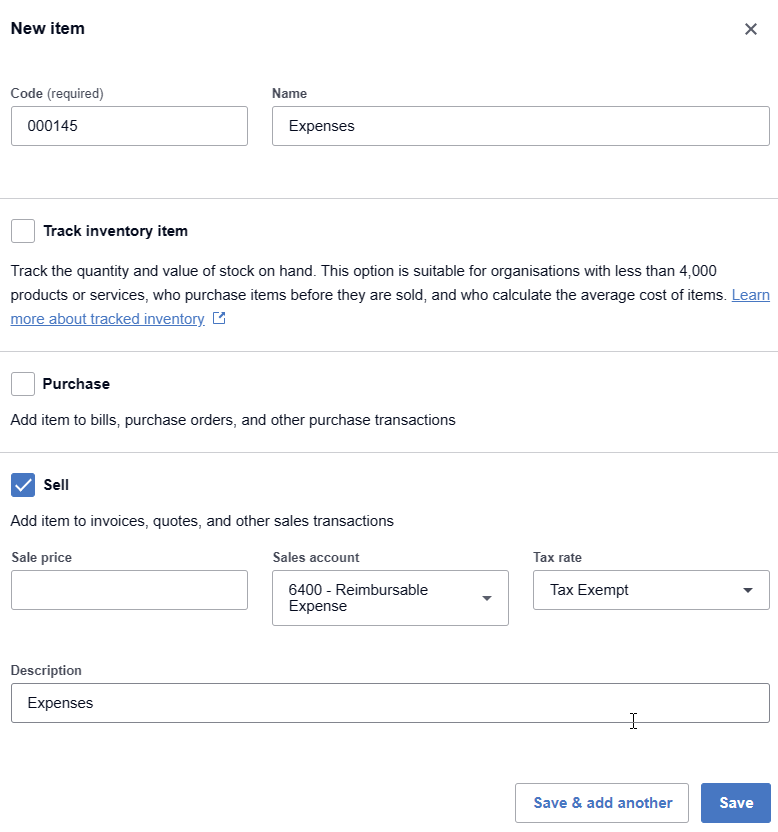
Figure 7 - Create a Product/Service for Expenses in Xero
Note that for proper gross profit calculation, billable expenses should be captured as revenue and offset with a corresponding Cost of Goods Sold (or Cost of Services Sold) account.
Step 8: Set the Invoice Item for each Project Type
Ruddr allows you to set an Invoice Item for each Project Type within your workspace. This allows you to group different types of revenue on your income statement in Xero. For example, if your company has consulting revenue and managed services revenue, you can associate each project type in Ruddr to one of those two Invoice Items. Then, those Invoice Items can map to a correlating Product/Service in Xero which will have an associated income account from the Xero chart of accounts.
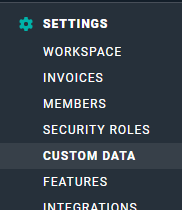
To set the Invoice Item for each Project Type, click on the Settings main nav bar option and select the Custom Data menu option (Figure 8). Select Project Types from the list of custom data in Ruddr (for more information, view the Custom Data help article). The current Invoice Item for each project type will be shown in the list (Figure 9). You can change the invoice item by clicking on the Edit button on the given row.
Figure 8 - Custom Data in the Settings Area
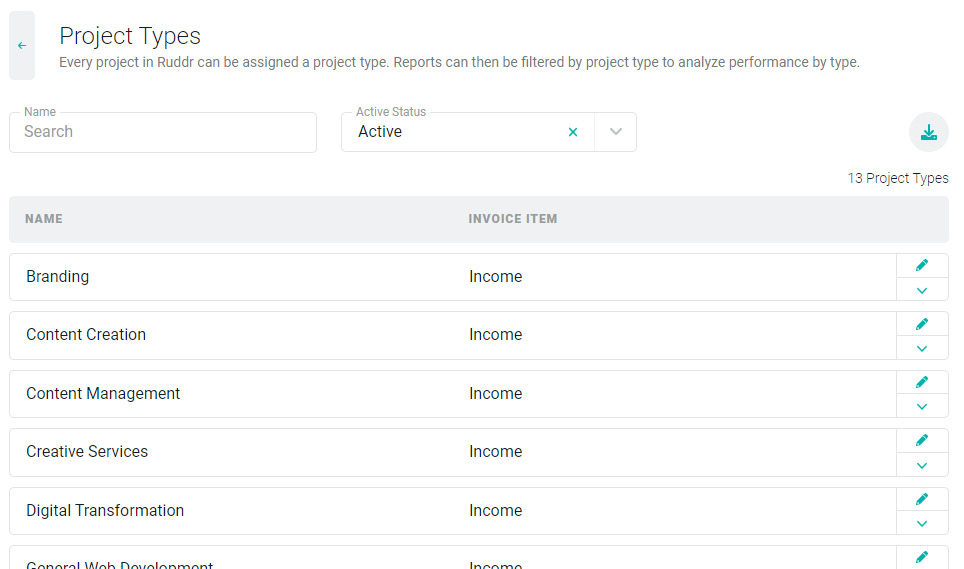
Figure 9 - Managing Project Types and Associating to Invoice Items
Note that it is common to have multiple Project Types mapped to the same Invoice Item. If you only have one type of revenue (such as “Consulting”), you may choose to map all Project Types to that single Invoice Item.
Step 9: Set the Invoice Item for each Expense Category
Similar to how you mapped an Invoice Item to each Project Type, you can also map an Invoice Item to each Expense Category. By default, each Expense Category is mapped to the built-in “Expenses” Invoice Item in Ruddr. This is likely sufficient for most companies but if you need to break out billable expenses into separate income accounts on your income statement, you will need to map your Expense Categories in Ruddr to specific Invoice Items.
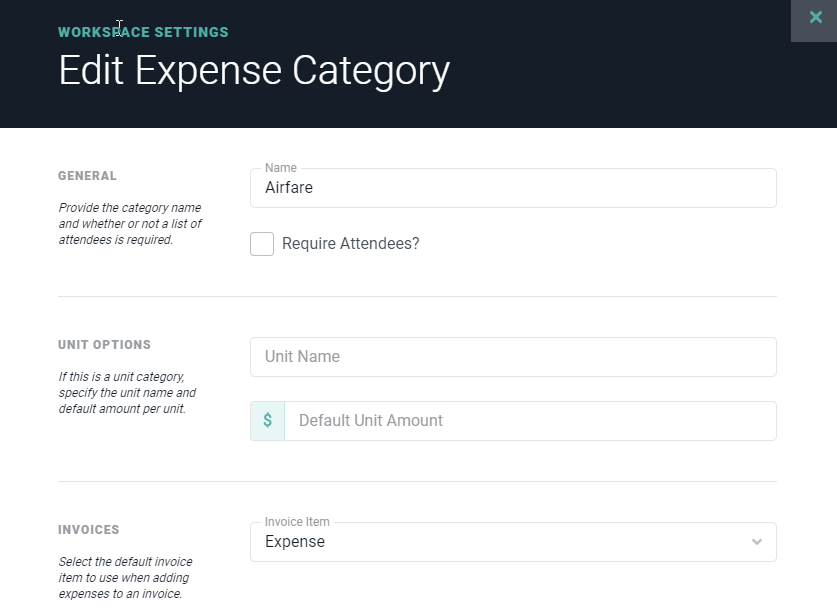
To map an Expense Category to an Invoice Item, click on the Settings main nav bar option and select the Custom Data menu option (Figure 8). From this screen, select Expense Categories from the list of custom data in Ruddr. This will bring up the list of expense categories within the workspace. To edit the Invoice Item associated with a given Expense Category, simply click the edit button on the category and set the Invoice Item drop-down (Figure 10).
Figure 10 - Associate an Invoice Item with a Ruddr Expense Category
Step 10: Map Members
If you have enabled the Reimbursable Expenses Sync option within the Configuration area of the Xero integration, you should map Ruddr members to Xero contacts. This is done by clicking the Edit button on the Members row within the Xero integration in Ruddr.
Ruddr will attempt to automatically map each member to a Xero contact with an exact name match. Any members that are not automatically mapped can be mapped manually within this drawer. After you initially map members to contacts when configuring the Xero integration, you will not need to manually map members in the future.
Step 11: Map Expense Categories
Each line item in a Xero bill must have an associated expense account. Ruddr allows you to easily map Expense Categories in Ruddr to expense accounts in Xero. This is done by clicking the Edit button on the Expense Categories row within the Xero integration in Ruddr. Any expense category that is not mapped to a specific expense account will use the Default Xero Expense Account from the Configuration drawer.