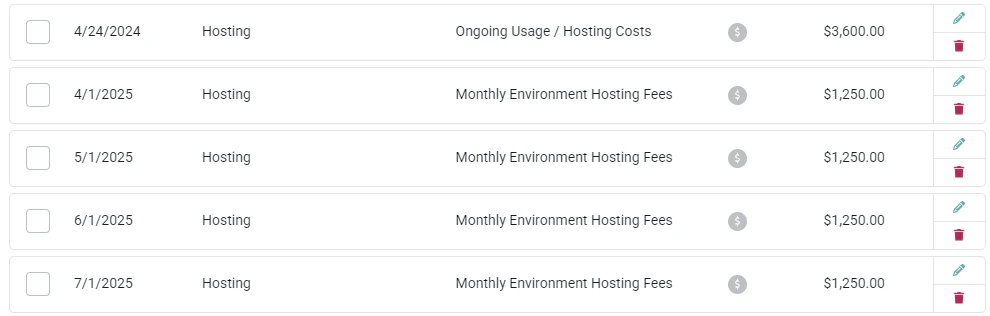
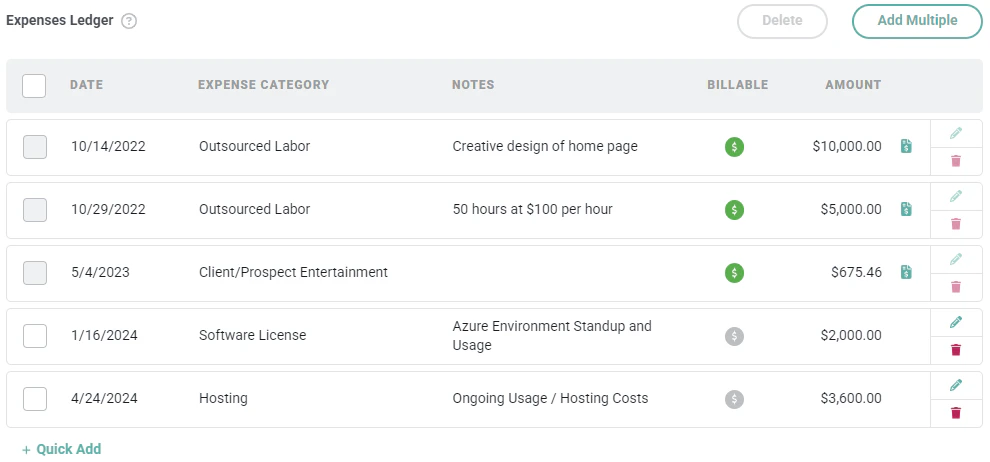
The Accounting tab (Figure 1) of the Edit Project drawer allows you to account for project expenses that are either billable or non-billable. In order to edit a project you must have access to the project and also have the Edit project permission set on your security profile. A project expense is any bill that would typically come through your Accounts Payable and would need to be accounted for on a project. For example, if your company outsources creative services on a project, the bill for that outsourced labor would be logged as a project expense. If you are passing that cost through to your client, you would create that as a billable expense, which can be invoiced. If you are not passing that cost through, it would be created as a non-billable expense. When a project expense has been invoiced, it will no longer be editable and can no longer be removed from the Expenses Ledger. The edit and delete icons will be disabled as shown on the first three rows below (Figure 1).Documentation Index
Fetch the complete documentation index at: https://help.ruddr.io/llms.txt
Use this file to discover all available pages before exploring further.
Create Expense Ledger Items
There are two way to add expenses to a project’s Expenses Ledger:Single Expense Ledger Item
To add an item to the ledger, simply click on the + Quick Add button at the bottom of the list (Figure 1). This will open a modal window (Figure 2) where you can define the item.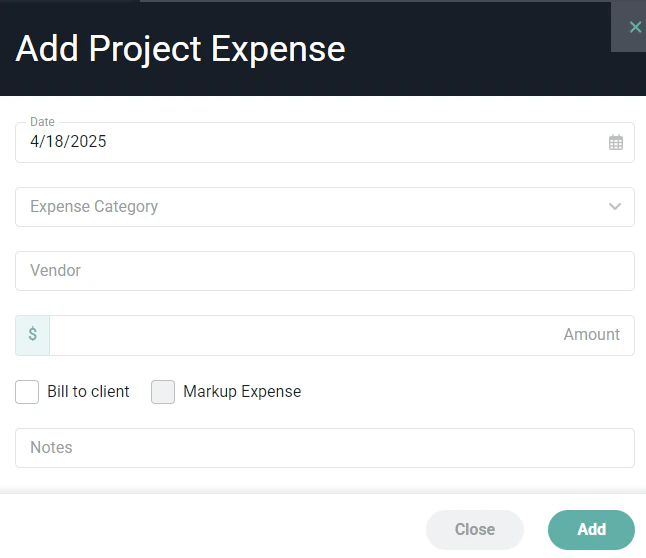
- Date - The date of the expense. For billable expenses, this will also serve as the date that you want this item to be picked up on the Ready to Bill screen for invoicing.
- Expense Category - The Expense Category that you want to use on the invoice for this item. Your Workspace Admin can define as many Expense Categories as needed for your company in Custom Data.
- Vendor- This vendor will be placed on the expense item.
- Amount - This is the amount of the expense and the amount you will charge the customer for this item if the expense is not marked up.
- Bill to client - Specify whether this is a billable expense that will be charged to the customer or if the expense is non-billable and will not have revenue associated with it.
- Markup Expense - For use when marking up an expense.
Expense Markup
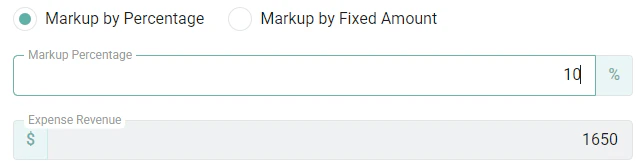
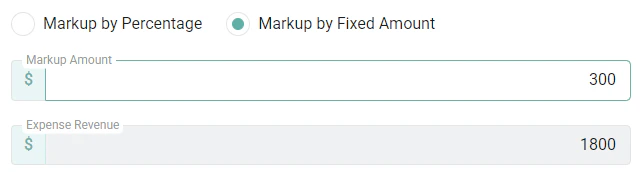
When marking up expenses in Ruddr, you will have an Expense Amount, which represents the cost outlay associated with purchasing the item(s). As such, the Expense Amount will be tracked as Expense Cost on a project. Additionally, Ruddr will calculate a Total to Bill, which represents the amount that you will bill the client when invoicing the expense. As such, the Total to Bill will be tracked as Expense Revenue on a project. When the Expense Markup feature is enabled, a Markup Expense field (Figure 2) will be available on the New Item modal if the Bill to Client fields is selected and an Expense Amount has been specified. When the Markup Expense field is selected, an Expense Markup section (Figure 3) will be presented on the New Item modal. Here, you will have the ability to specify whether you want to markup the expense by a percentage of the original expense amount or if you want to markup the expense by a fixed dollar amount.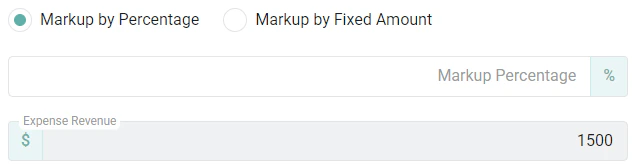
Multiple Expense Ledger Items
In some cases, you may need to account for recurring expense item against a project, such as subscription fees, hosting fees, or some other, recurring charge. To set up multiple expense ledger items on the project, click the Add Multiple button at the top of the list (Figure 1), which will present a window (Figure 6) much like the modal for a single item (Figure 2), but with the additional fields to specify the dates for which the item should span.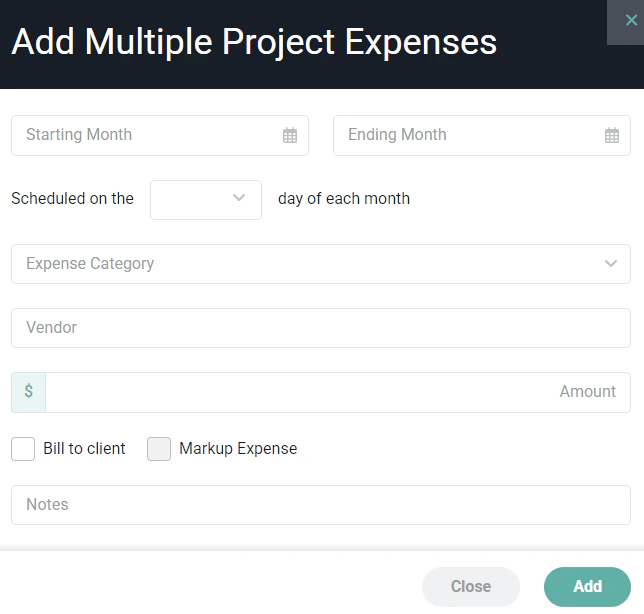
- Starting Month - Specify the beginning month in which you want this recurring item to be invoiced.
- Ending Month - The final month in which you want this recurring item to be invoiced.
- Scheduled on Day of Each Month - Providing this value allows you to specify the exact day of the month that you want these monthly recurring items to be tracked on the project and / or available for billing.