Documentation Index

Fetch the complete documentation index at: https://help.ruddr.io/llms.txt

Use this file to discover all available pages before exploring further.

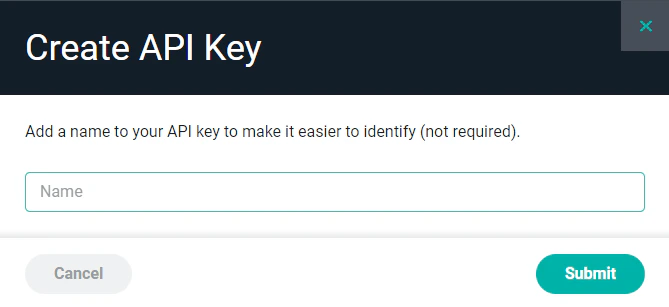
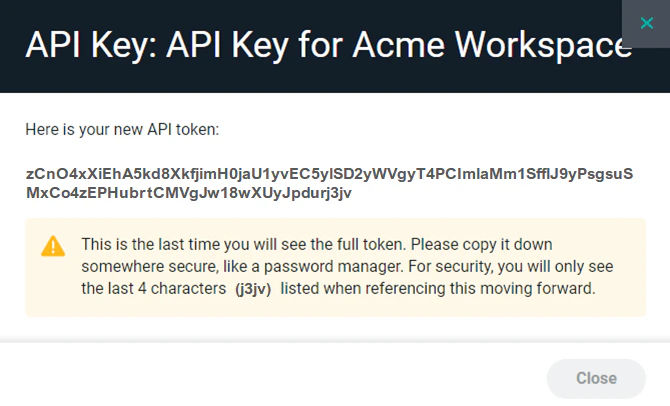
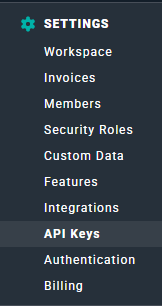
The eighth menu option within the Settings area (Figure 1) is called API Keys. As a Ruddr customer, you have access to the Ruddr API. The Ruddr API is a tool to access your workspace data. For additional information on the Ruddr API, refer to the Ruddr API Reference Guide. Figure 1 - API Keys is the Eighth Option in the Settings Area In order to authenticate to the Ruddr API, you need to generate authentication keys to be stored with your workspace. In the API Keys section (Figure 2), you will need start by clicking Create an API Key button. Figure 2 - API Keys for Your Workspace will be Created and Accessed in the API Keys Section Upon clicking the Create an API Key button, you will be prompted to enter a Name for the key (Figure 3). Specify a name and click the Submit button. Figure 3 - Provide a Name for the Key You Wish to Create Once submitted, you will be presented with an API Key (Figure 4). As specified in the notification, it is best to save a copy of this key in secure location. You will use this key in connecting / authenticating to the Ruddr API. Figure 4 - API Key for Your Records For additional information, please be sure to refer to our Ruddr API Reference Guide.