

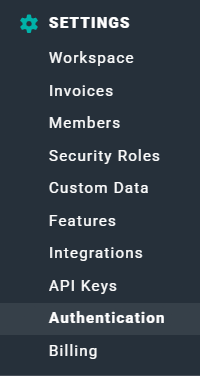
Figure 1 - Authentication is the Ninth Option in Workspace Settings
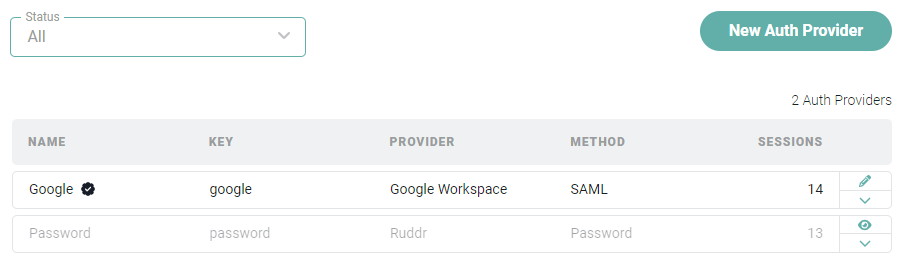
Figure 2 - The Authentication Screen Displays Configured Providers, Which can be Activate / Inactive
- Setting up a New Authentication Provider
- Establish Identity Provider
- Set Default Authentication Provider for the Workspace
Setting up a New Authentication Provider
Setting up an Authentication Provider in Ruddr requires the configuration of an Identity Provider and configuring Ruddr as a Service Provider. To do this, you will:- Create a New Auth Provider in Ruddr as the first step in setting up Ruddr as a Service Provider.
- Configure your Identity Provider, using the Entity ID created with the auth provider.
- Finalize the setup by providing Identity Provider details to Ruddr.
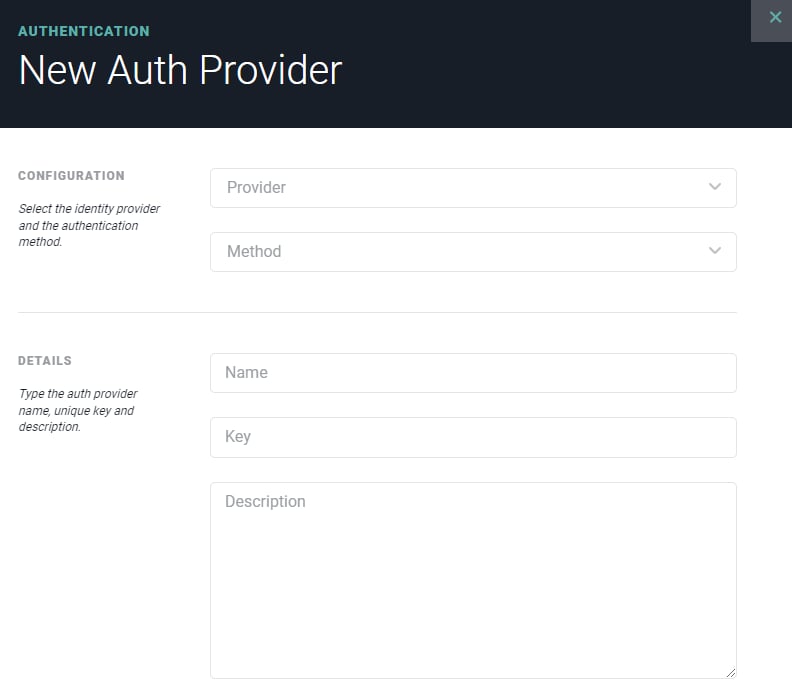
Figure 3 - The New Auth Provider Drawer is Where you Configure Ruddr as a Service Provider
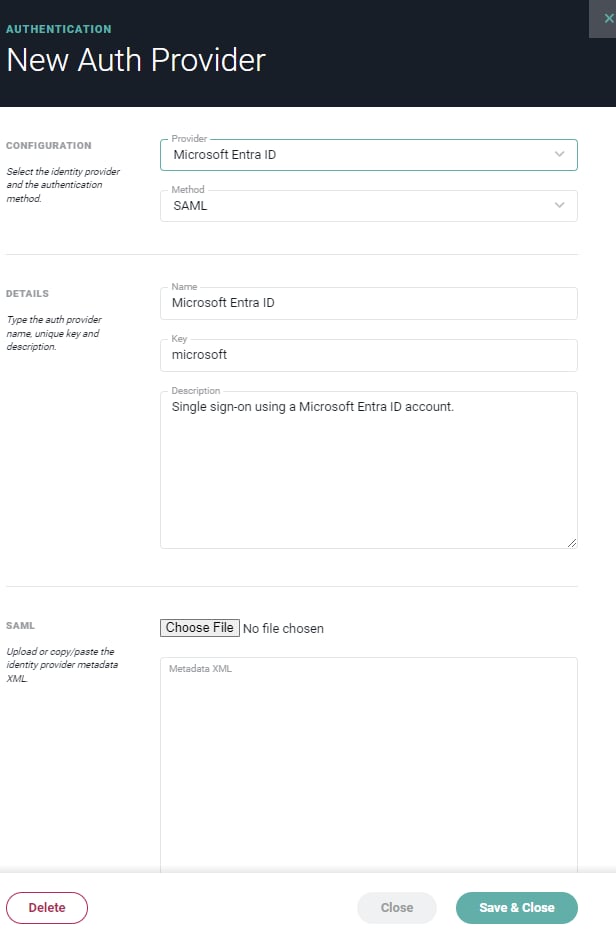
Figure 4 - Once the Provider has been Specified, Configure the Identity Provider and Upload the SAML to Ruddr
SAML Settings and Entity ID / ACS URL
In some cases, you may need to provide the Ruddr Entity ID and / or Assertion Consumer Service URL (ACS URL) to the identity provider. Assuming you have created the authentication provider using the steps above, you can access the Entity ID and ACS URL by viewing the auth provider’s SAML settings (Figure 6). These are accessible from the auth provider’s action menu (Figure 5) on the Authentication screen (Figure 2).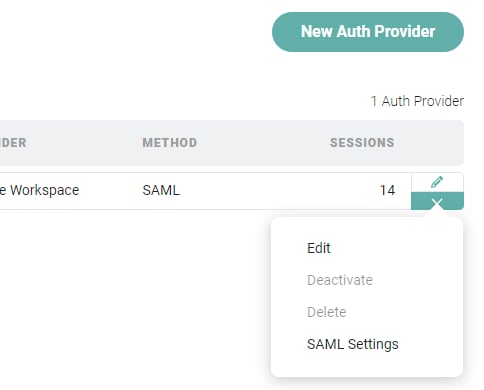
Figure 5 - Access the Authentication Provider's Action Menu
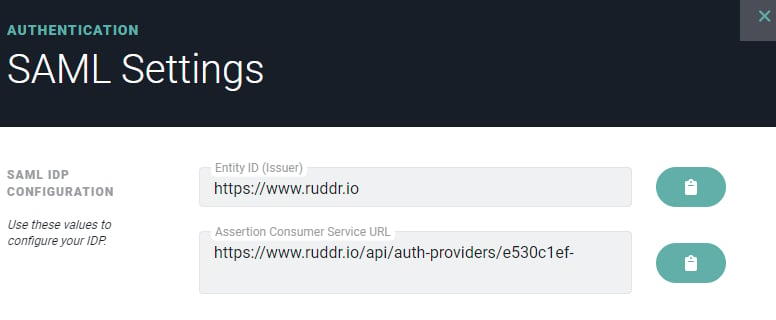
Figure 6 - The Auth Provider SAML Settings are Available for the Identity Provider Setup
Set Default Authentication Provider for the Workspace
Once the Service and Identity Providers have been configured, you will want to set the new authentication provider as the default for the workspace. To do this, access the action menu for the provider and select the Set to default menu option (Figure 7).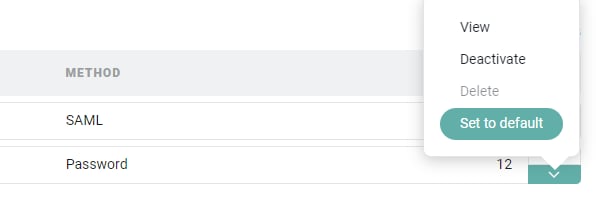
Figure 7 - Set the New Authentication Method as the Default for the Workspace