

Step 1: Install Ruddr from Microsoft Marketplace
A Microsoft 365 administrator installs Ruddr for the organization. The Microsoft 365 widget in the Integrations area under Settings in Ruddr has an Install button that opens the listing (Figure 1), but the installation itself happens in Microsoft Marketplace and the Microsoft 365 admin center:- Sign in to Microsoft 365 as an administrator, open the Ruddr listing in Microsoft Marketplace, and select Get it now (Figure 2).
- Confirm your details and select Get it now in the dialog (Figure 3). Marketplace takes you to the Microsoft 365 admin center, where the Deploy New App panel opens with Ruddr in it.
- Select Next, then choose who gets Ruddr under Assign users: Just me, All users, or Specific users or groups (Figure 4). Start with a few users if you want to try it before rolling it out to everyone.
- Select Next, review the settings, and select Finish deployment. The panel reports Deployment completed (Figure 5).
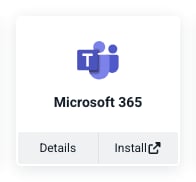
Figure 1 - The Microsoft 365 Widget in Available Integrations
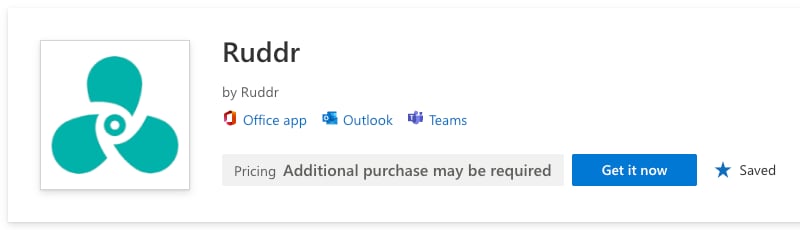
Figure 2 - Get Ruddr from Microsoft Marketplace
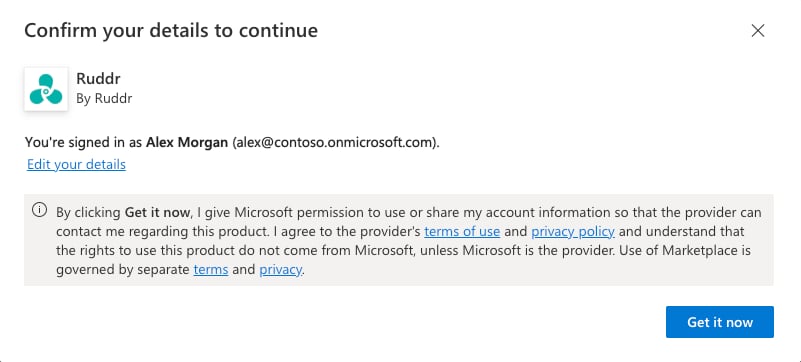
Figure 3 - Confirm Your Details to Continue
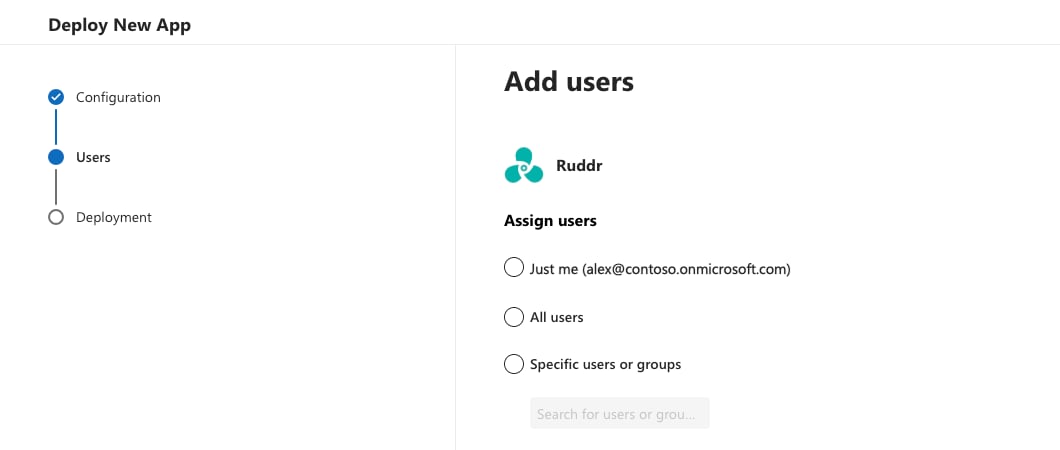
Figure 4 - Choose Who Gets Ruddr
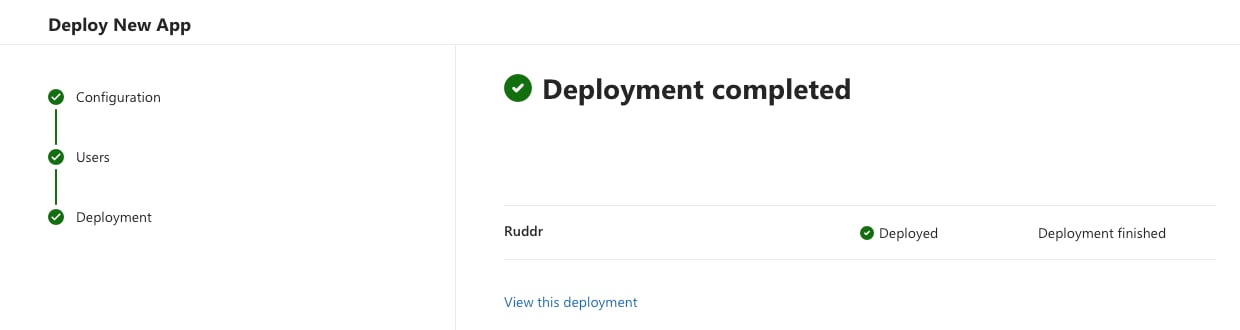
Figure 5 - The Ruddr Deployment Completed
Step 2: Connect Your Organization to a Workspace
A Ruddr Workspace Admin connects your Microsoft 365 organization to a Ruddr workspace once. The connection is created from the Ruddr app in Microsoft Teams, using a one-time link:- In Microsoft Teams, send the Ruddr app a message in your personal chat. Because your organization isn’t connected yet, the app replies with a Welcome to Ruddr card. Click Connect Ruddr to your organization (Figure 6). The link works once and expires after 15 minutes.
- The link opens Ruddr, where you sign in if you aren’t already. Choose the workspace to connect in the Workspace box and click Connect (Figure 7). This connects your organization to the workspace and links your own Microsoft Teams account at the same time.
- Ruddr confirms that the organization is connected to the workspace (Figure 8). Click Go to Ruddr to open the workspace, or close the tab and continue in Microsoft Teams.
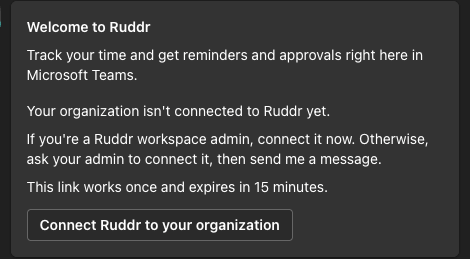
Figure 6 - The Connect Ruddr to your organization Card in Microsoft Teams
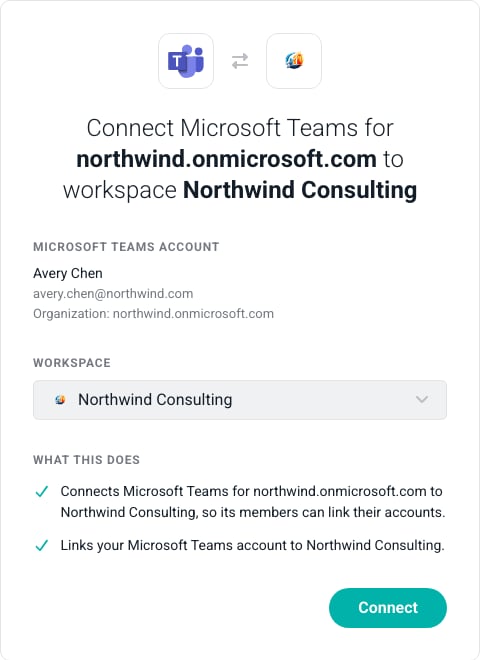
Figure 7 - Connect your Microsoft 365 Organization to a Ruddr Workspace
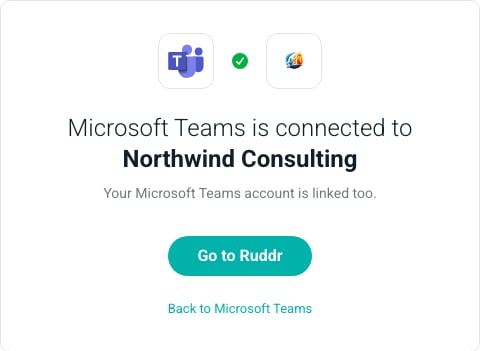
Figure 8 - The Organization is Connected to the Workspace
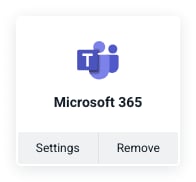
Figure 9 - The Microsoft 365 Integration in Active Integrations
What Each Offering Needs
Removing the Integration
To disconnect your organization, click the Remove button on the Microsoft 365 integration widget (Figure 9) and confirm (Figure 10). Removing the integration disconnects your Microsoft 365 organization and removes the Microsoft Teams settings, project channels, every member’s Microsoft Teams link, and every member’s calendar connection. Time entries are not affected. Members aren’t notified; the next time a member messages the Ruddr app, it replies with the Welcome to Ruddr card so the organization can be connected again. Copilot connections are separate and are not affected.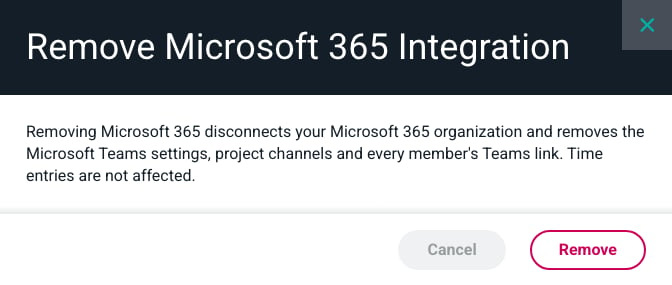
Figure 10 - Remove the Microsoft 365 Integration