

Key integration benefits
Track Time from Your Meetings When you create a time entry, Ruddr lists the events from your Outlook calendar for that day. Pick one, and Ruddr fills in the duration or time range, the notes, and often the project, role, and task. Avoid Duplicate Time Ruddr remembers which events you have already logged. Events you logged that day are greyed out, and Ruddr won’t save the same event twice on the same day. Time Off from Your Calendar Out-of-office and all-day events are offered as time off and fill in the hours for you. Read-Only Access Ruddr reads your default calendar only and never writes to it. It stores just the event’s ID and date with the time entry.Connect your calendar
Each member connects their own calendar:- In Ruddr, navigate to Home > My Profile and open the Calendar tab.
- On the Outlook card, click Connect (Figure 1).
- Microsoft asks you to sign in. Choose your work account. It must belong to the same Microsoft 365 organization the workspace is connected to.
- The first time, Microsoft may show a consent screen for the calendar permission, which you accept. If your organization restricts user consent, Microsoft shows Approval required instead, and a Microsoft 365 administrator grants consent before you try again.
- Back in Ruddr, the Outlook card shows your account and the date you connected it (Figure 2).
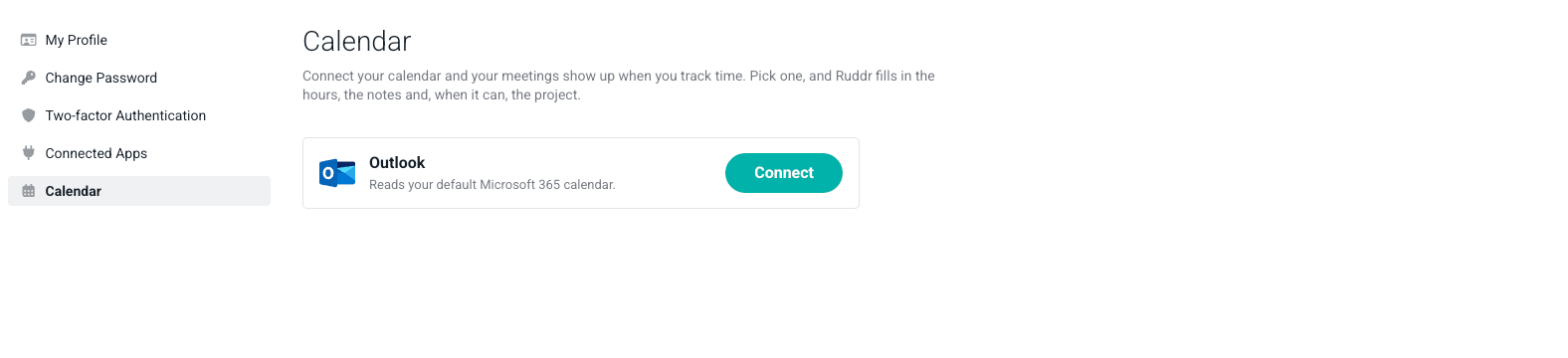
Figure 1 - Connect an Outlook calendar from My Profile
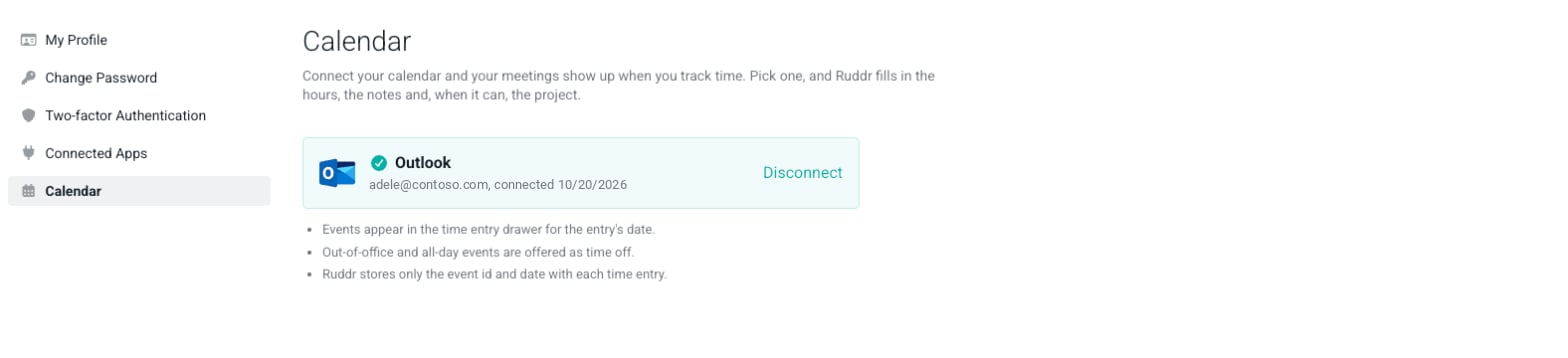
Figure 2 - The connected Outlook calendar
Log time from a calendar event
When you create a new time entry, or edit one of your own, the time entry drawer includes a Calendar Event box (Figure 3). It lists the events in your default Outlook calendar for the entry’s date. Each event shows its subject, its time range or All day, a repeat icon for recurring events, and its duration.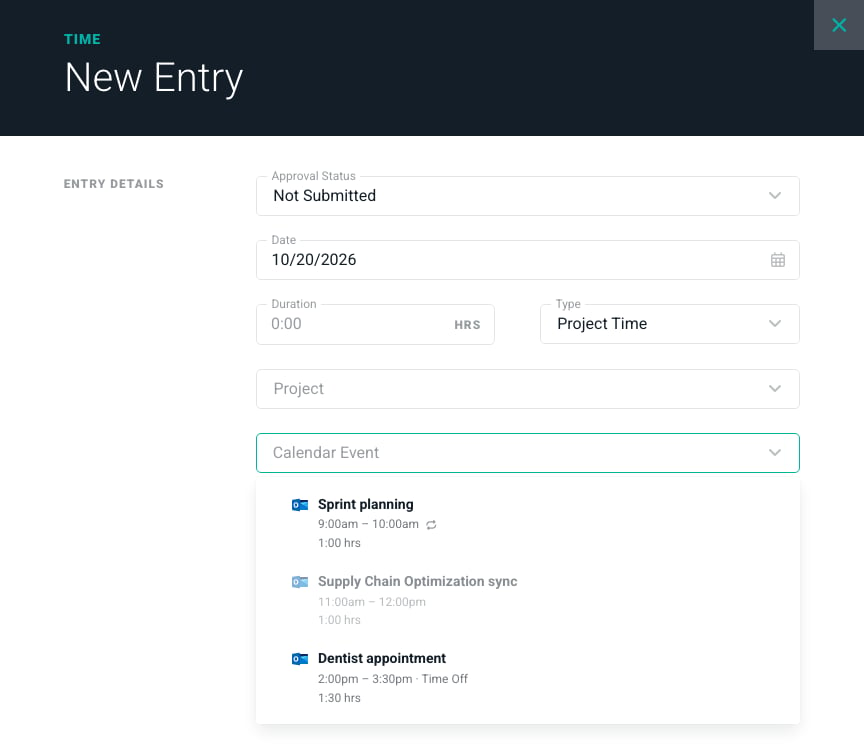
Figure 3 - The Calendar Event Box in the Time Entry Drawer
- The type of time entry
- The notes, from the event body, unless the event is private or confidential
- The minutes, or the start and end time if you track time by range
- The project, role, and task, when Ruddr can suggest them. Ruddr suggests the project you used the last time you logged the same meeting, or a project whose name matches the event subject.
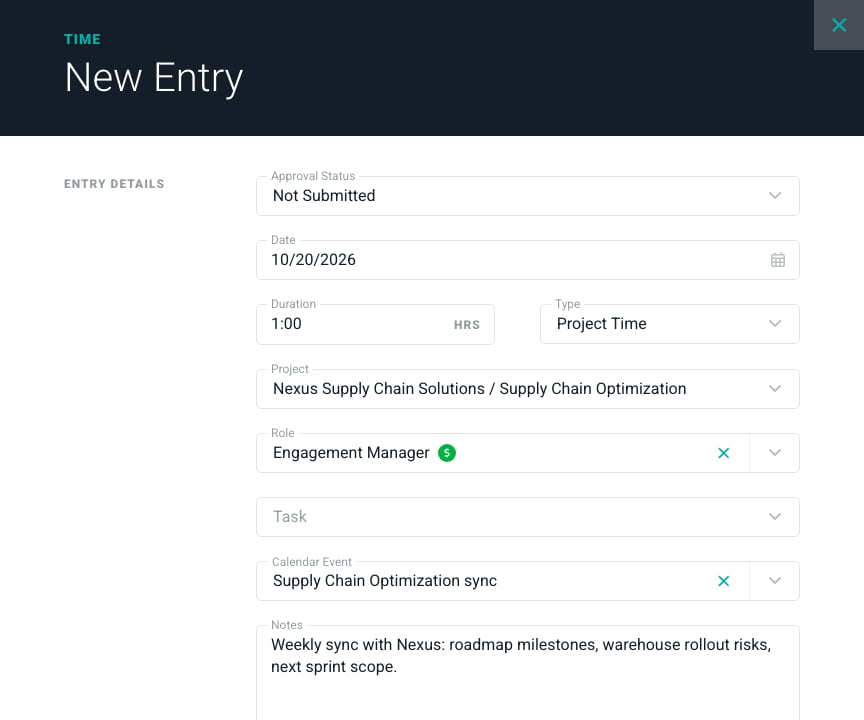
Figure 4 - A Time Entry Filled from a Calendar Event
Time off from calendar events
Out-of-office and all-day events are offered as time off (Figure 5). Ruddr caps the hours at your capacity for that day, or at the workspace’s working day. The time off type is filled in only when the workspace has exactly one; otherwise, choose it before you save.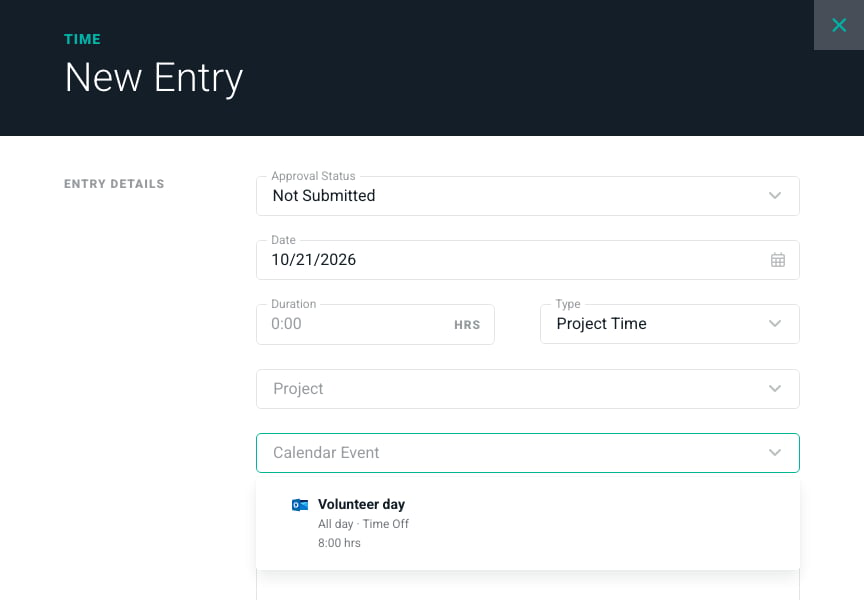
Figure 5 - An All-Day Event Offered as Time Off
Disconnect or reconnect
Disconnect Your Calendar To disconnect your calendar, open Home > My Profile > Calendar, click Disconnect on the Outlook card, and click Disconnect to confirm (Figure 6). Ruddr stops reading your calendar. Time entries you already tracked keep their link to the event.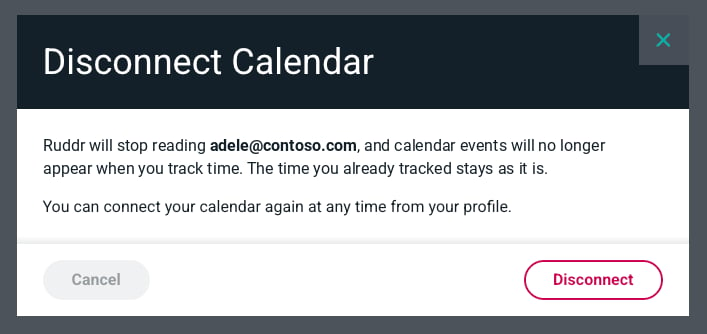
Figure 6 - Disconnect an Outlook calendar