Sage Intacct is a cloud financial management and accounting platform. With Sage Intacct, companies can manage their general ledger, accounts receivable, accounts payable, cash management, and multi-entity consolidation. To learn more about the features of Sage Intacct, visit https://www.sage.com/en-us/sage-business-cloud/intacct/.

Key integration benefits

The Ruddr integration for Sage Intacct allows companies to seamlessly connect their accounting and professional services platforms. Below is an overview of the main features of the Sage Intacct integration. During setup you will choose whether Ruddr posts to Sage Intacct as Accounts Receivable (AR) and Accounts Payable (AP) transactions or as Order Entry and Purchasing documents, so that the integration matches how your accounting team works. The features below work the same way with either choice. Save Ruddr Invoices to Sage Intacct When a draft invoice in Ruddr is published, the confirmation window (Figure 1) will include a Save to Sage Intacct checkbox that is checked by default. If this checkbox is checked, the invoice will be published in Ruddr and immediately saved to Sage Intacct. If the checkbox is not checked, the invoice will only be published in Ruddr.
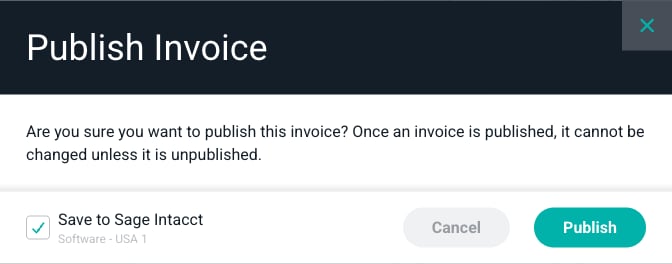
Figure 1 - Publish an Invoice and Choose to Save it to Sage Intacct
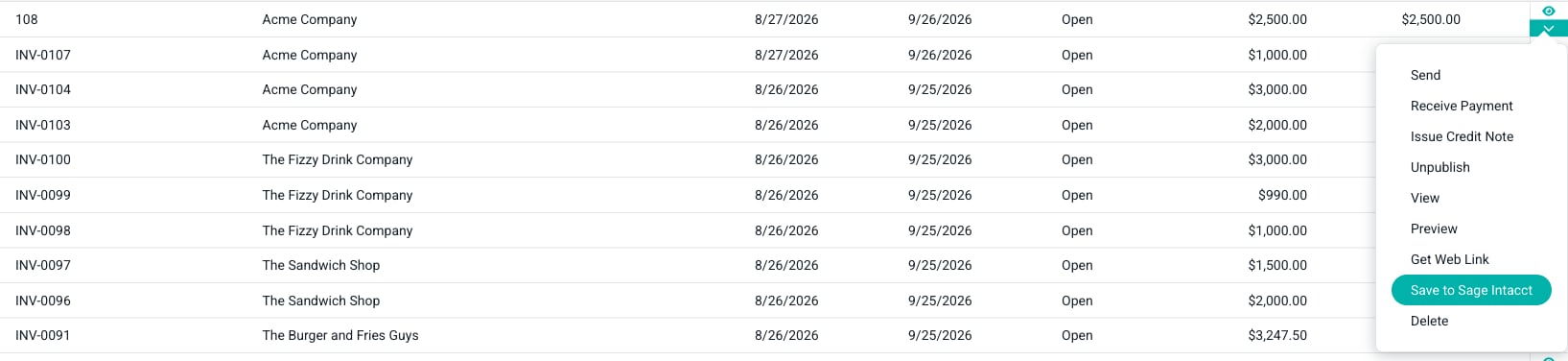
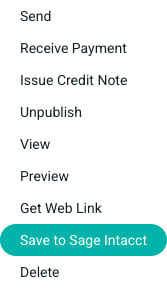
If an invoice was not saved to Sage Intacct upon publishing, you can later save it via the menu (Figure 3) on the invoice row in the invoices list (Figure 2).

Figure 2 - Invoice Section of Ruddr

Simply click the Save to Sage Intacct option on a published invoice to save that invoice. Note that this menu option will only exist for published invoices that are not currently saved to Sage Intacct.

Figure 3 - Detailed Menu on Invoice Row for Published Invoice
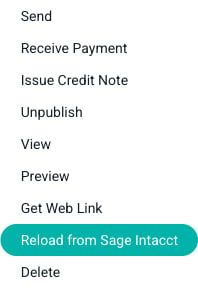
Synchronize Invoices between Sage Intacct and Ruddr It is not uncommon for an invoice to be manually adjusted once it is in Sage Intacct. Your company’s accountant might prefer to adjust the invoice directly in Sage Intacct rather than unpublish the invoice in Ruddr. When an invoice is updated in Sage Intacct, Ruddr is notified of the change through the integration and Ruddr updates its version of the invoice. This ensures that both Ruddr and Sage Intacct have the same invoice information at all times. Note that once an invoice is published in Ruddr, it can no longer be manually edited within Ruddr unless it is first unpublished. This helps ensure that a published invoice isn’t inadvertently changed after it has been presented to the client. Since invoices can always be edited in Sage Intacct, a published invoice in Ruddr will be updated automatically if the invoice is changed in Sage Intacct. When a published invoice has been saved to Sage Intacct, it can also be manually reloaded by clicking the Reload from Sage Intacct menu option (Figure 4) on the invoice row. This reload option is only needed if the Ruddr version of the invoice becomes out of sync with the Sage Intacct version, and it will only exist on invoices that have previously been saved to Sage Intacct.

Figure 4 - Detailed Menu on Invoice Row for Invoice that is Saved to Sage Intacct
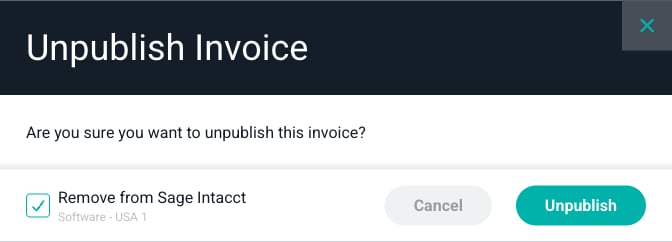
Deleting and Unpublishing Invoices When an invoice is unpublished in Ruddr, it is recommended that it also be removed from Sage Intacct. On the confirmation window for the unpublish action (Figure 5), there will be a Remove from Sage Intacct checkbox. With this option checked, Ruddr will automatically delete the invoice from Sage Intacct. Whether the checkbox is checked by default is controlled by the Delete/Unpublish Default Behavior setting in the integration Configuration.

Figure 5 - Confirm Unpublishing an Invoice and Removing it from Sage Intacct
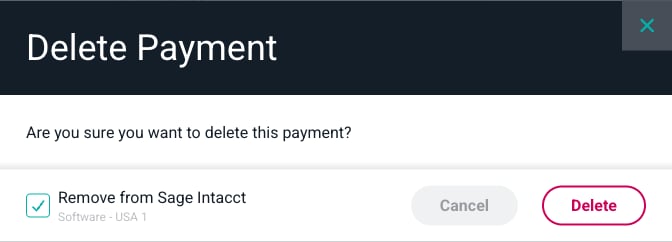
When a published invoice is unpublished in Ruddr, it returns to its draft invoice state. The draft invoice can then be edited and republished when it is ready, and saved to Sage Intacct again at that time. If a published invoice is deleted in Sage Intacct, that invoice will remain in Ruddr but will no longer be linked to a Sage Intacct invoice. If you want to delete the invoice from Ruddr as well, you can do that from the invoice menu options within Ruddr. Record Payments in Sage Intacct or Ruddr With the Sage Intacct integration installed, you can record client payments in either Sage Intacct or Ruddr. If a payment is entered in Sage Intacct, it will be automatically saved to Ruddr through the webhook. If a payment is entered in Ruddr, it will be saved to Sage Intacct unless you uncheck the Save to Sage Intacct checkbox on the Receive Payment screen. This checkbox is checked by default. Once a payment has been saved to Sage Intacct, any updates to that payment in Sage Intacct will be automatically synchronized to the payment in Ruddr. Delete Payments A payment can be deleted in either Sage Intacct or Ruddr. If the payment is deleted in Ruddr, the delete payment confirmation window (Figure 6) will include a Remove from Sage Intacct checkbox. If this checkbox is checked, the payment will be deleted from both Sage Intacct and Ruddr. If the checkbox is not checked, the payment will only be deleted in Ruddr. As with unpublishing an invoice, the default state of this checkbox comes from the Delete/Unpublish Default Behavior setting in the integration Configuration.

Figure 6 - Choose to Delete a Payment and Remove it from Sage Intacct
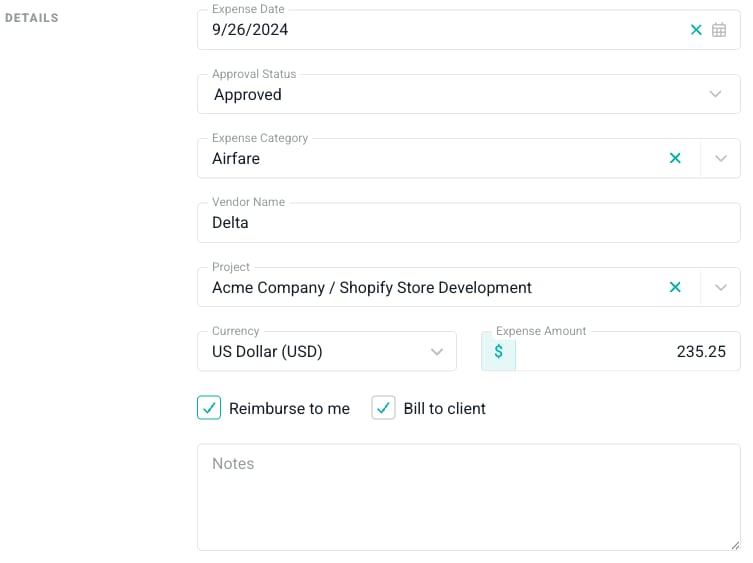
If a payment is deleted in Sage Intacct, it will not be automatically deleted in Ruddr. You can manually delete the payment in Ruddr via the row option menu on the payments list screen. Apply Credit Notes in Sage Intacct When you issue a credit note against a client in Ruddr, it will be posted to Sage Intacct and applied to the client’s outstanding balance. This keeps the client’s AR balance in Sage Intacct aligned with the credits issued in Ruddr. Create Vendor Bills for Reimbursable Expenses The Sage Intacct integration optionally creates an AP bill in Sage Intacct any time a member in Ruddr has approved reimbursable expenses. Workspace members simply create an expense report and check the “Reimburse to me” option as needed on individual expense items (Figure 7).

Figure 7 - Set an Expense Item as Reimbursable

Once per hour, Ruddr checks for newly approved reimbursable expenses. If a member has approved reimbursable expenses, Ruddr will create a bill in Sage Intacct for that member and add each of those reimbursable expenses as a line item on the bill. When the bill is paid within Sage Intacct, the bill payment will be reconciled back to Ruddr through the webhook and the expense items will show as reimbursed. If a bill payment is later reversed in Sage Intacct, that reversal will be reconciled back to Ruddr as well. Support for Multi-Entity and Multi-Currency Companies When you connect Ruddr to a Sage Intacct company, you select the specific entity to associate with your workspace during setup. For companies that use the Sage Intacct multi-currency module, Ruddr will post both the base currency and transaction currency amounts on invoices, payments, and bills so that your financials remain accurate across currencies.

Setting up the Integration

For step-by-step instructions on setting up the Ruddr integration for Sage Intacct, see the Sage Intacct Integration Setup article. For more information, see the invoicing section of the Ruddr help center.