Microsoft Teams is the chat and collaboration hub of Microsoft 365. People chat one-on-one or in groups, work together in team channels, hold meetings, and share files, all within the Microsoft 365 environment their organization already uses. To learn more about the features of Microsoft Teams, visit https://www.microsoft.com/microsoft-teams.

Key integration benefits

The Ruddr app for Microsoft Teams brings time tracking and Ruddr notifications into the place where your team already works. Below is an overview of the main features of the integration. Track Time Directly within Microsoft Teams With the integration connected, workspace members can track time in Ruddr without leaving Microsoft Teams. Open a personal chat with the Ruddr app and type one of the following commands:
  • time or time list - show your time entries for today
  • time week - show your totals for the current week
  • time new - create a new time entry
  • help - show the list of available commands
  • link - link another Ruddr workspace
  • switch - use another Ruddr workspace, when your account is linked to more than one
  • unlink (or signout) - unlink your Microsoft Teams account from Ruddr
The list of today’s time entries shows each entry’s project, role, task, notes, and hours, with buttons to create a new entry, change the date, refresh the list, and view the day in Ruddr. Each entry has its own Edit and Delete buttons. When you create a time entry, you can choose Project time or, if you are allowed to track time off, Time off, and then track time by duration or by time range. Time entries that you create in Microsoft Teams follow the same rules as time entries you create in Ruddr. For example, if a project requires notes or a task, the Ruddr app asks for them too. Locked time entries can’t be edited or deleted from Microsoft Teams. If your Microsoft Teams account is linked to more than one Ruddr workspace, the Ruddr app asks which workspace to use. You can type switch at any time to choose a different one. The Ruddr app answers in personal chats only; in a team channel it points to the setup guide, and it does not reply in group chats. Member Notifications Ruddr sends a direct message in Microsoft Teams to remind members about work that needs their attention. A Workspace Admin chooses which notifications are sent for the workspace. Members receive direct messages for:
  • Missing time and unsubmitted time
  • Unsubmitted timesheets
  • Time and expenses waiting for their approval
  • Time and expenses that have been rejected
  • Client approvals that have been submitted
  • Being added to a project team
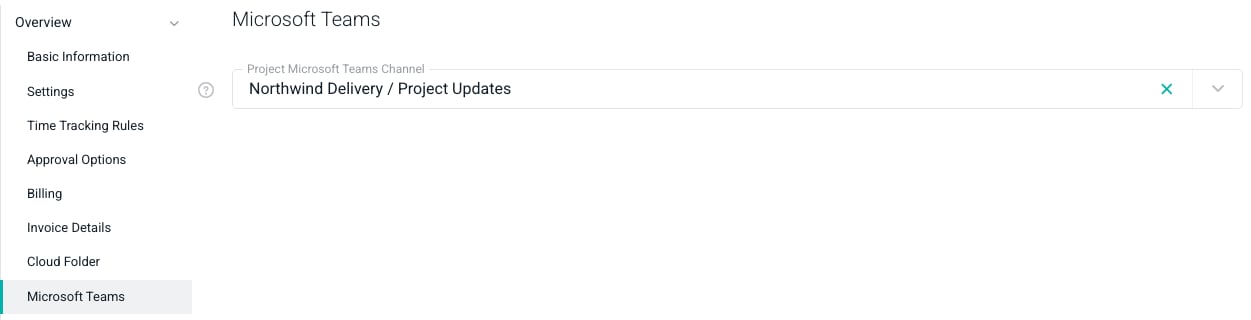
Project Channel Alerts To deliver a project successfully, it is important to keep the project team on the same page. The Ruddr app helps keep the team informed by posting updates to a channel in Microsoft Teams that you choose for each project. When Microsoft Teams is connected, the project’s Settings tab includes a Microsoft Teams section under Overview. Select a channel in the Project Microsoft Teams Channel box (Figure 1) and click Save. Until the Ruddr app has been added to a team, the box reads Add Ruddr to a team in Microsoft Teams first.

Figure 1 - Choose the Microsoft Teams Channel for a Project

Once a channel is selected, Ruddr posts a message to the channel any time an important event related to the project occurs, including:
  • A new member has been added to the project team
  • The status of the project has changed
  • The status of a project task has changed
  • The project or a project task has reached 80% or 100% of its budgeted hours
  • An invoice has been published for the project
The channel list only includes channels in teams where the Ruddr app has been added. Ruddr can post to standard channels only, so private and shared channels are not supported. Ruddr does not create channels or manage channel membership. Microsoft 365 Copilot The Ruddr app for Microsoft Teams does not include the Ruddr Assistant. To ask questions about your Ruddr data in Microsoft 365 Copilot, see Connect Microsoft 365 Copilot to Ruddr.

Setting up the integration

For step-by-step instructions on setting up the Ruddr app for Microsoft Teams, see the Microsoft Teams Integration Setup article.