

Key integration benefits
The Ruddr integration for QuickBooks allows companies to seamlessly connect their accounting and professional services platforms.- Save Ruddr invoices to QuickBooks
- Synchronize invoice changes from QuickBooks to Ruddr
- Deleting and unpublishing invoices
- Create and synchronize invoice payments
- Delete payments
- Create and synchronize credit notes
- Create vendor bills for reimbursable expenses
Save Ruddr Invoices to QuickBooks
When a draft invoice in Ruddr is published, the confirmation window (Figure 1) will include a Save to QuickBooks checkbox that will be checked by default. If this checkbox is checked, the invoice will be published in Ruddr and immediately saved to QuickBooks. If the checkbox is not checked, the invoice will only be published in Ruddr.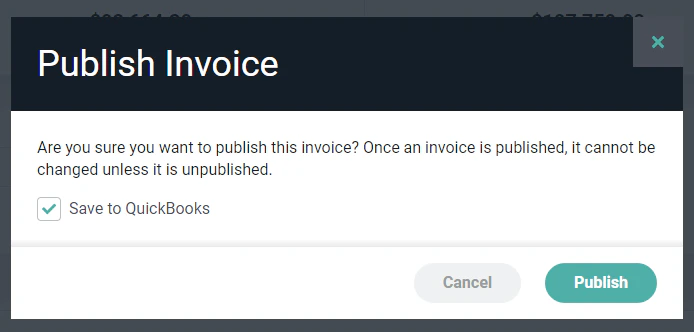
Figure 1 - Publish Invoice and Specify to Publish to QuickBooks
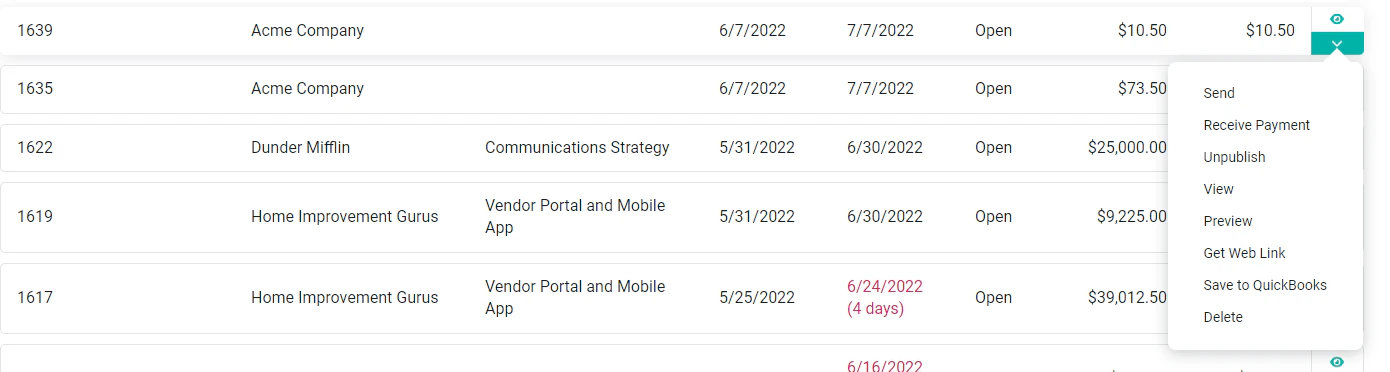
Figure 2 - Invoice Section of Ruddr
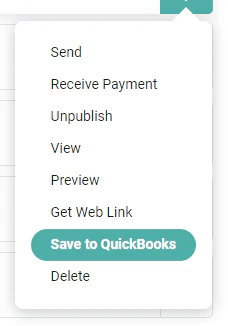
Figure 3 - Menu on Invoice Row for a Published Invoice
Synchronize Invoices between QuickBooks and Ruddr
It is not uncommon for an invoice to be manually adjusted once it is in QuickBooks. Your company’s accountant might prefer to adjust the invoice directly in QuickBooks rather than unpublish the invoice in Ruddr to edit the draft invoice. Any time an invoice gets updated in QuickBooks, Ruddr gets notified of the invoice changes by QuickBooks. Ruddr will then update its version of the invoice to match the QuickBooks version. This ensures that both Ruddr and QuickBooks have the same invoice information at all times. Note that once an invoice is published in Ruddr, it can no longer be manually edited within Ruddr unless it is first unpublished. This helps ensure that a published invoice isn’t inadvertently changed after it has been presented to the client. Since invoices can always be edited in QuickBooks, a published invoice in Ruddr will be updated automatically if the invoice is changed in QuickBooks. When a published invoice has been saved to QuickBooks, it can be manually reloaded from QuickBooks by clicking on the Reload from QuickBooks menu option (Figure 4) on the invoice row (Figure 2). This reload option is only needed if the Ruddr version of the invoice becomes out of sync with the QuickBooks version. This menu option will only exist on invoices that have previously been saved to QuickBooks.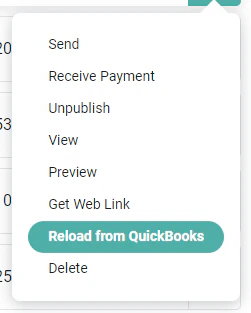
Figure 4 - Menu on Invoice Row for Invoice that is out of Sync with QuickBooks
Deleting and Unpublishing Invoices
When an invoice is unpublished in Ruddr, it is recommended that it also be deleted from QuickBooks. On the confirmation window for the unpublish action (Figure 5), there will be a Remove from QuickBooks checkbox that will be unchecked by default. With this option checked, Ruddr will automatically delete the invoice from QuickBooks.
Figure 5 - Confirm the Unpublishing an Invoice and Removal from QuickBooks
Record Payments in QuickBooks or Ruddr
With the QuickBooks integration installed, you can record client payments in either QuickBooks or Ruddr. If a payment is entered in QuickBooks, it will be automatically saved to Ruddr. If a payment is entered in Ruddr, it will be saved to QuickBooks unless you uncheck the Save to QuickBooks checkbox on the confirmation window. This checkbox is checked by default. Once a payment has been saved to QuickBooks, it can only be updated within QuickBooks. Any updates to a payment in QuickBooks will be automatically synchronized to the payment in Ruddr.Delete Payments
A payment can be deleted in either QuickBooks or Ruddr. If the payment is deleted in Ruddr, the delete payment confirmation window (Figure 6) will include a Remove from QuickBooks checkbox that will be checked by default. If this checkbox is checked, the payment will be deleted from both QuickBooks and Ruddr. If the checkbox is not checked, the payment will only be deleted in Ruddr.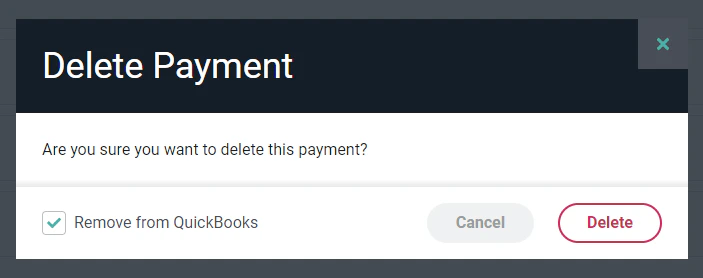
Figure 6 - Choose to Delete a Payment and Remove from QuickBooks
Create Vendor Bills for Reimbursable Expenses
The QuickBooks integration optionally allows creating a Vendor Bill in QuickBooks any time a member in Ruddr has approved reimbursable expenses. Workspace members simply create an expense report and check the Reimburse to me checkbox as needed when adding individual expense items (Figure 7).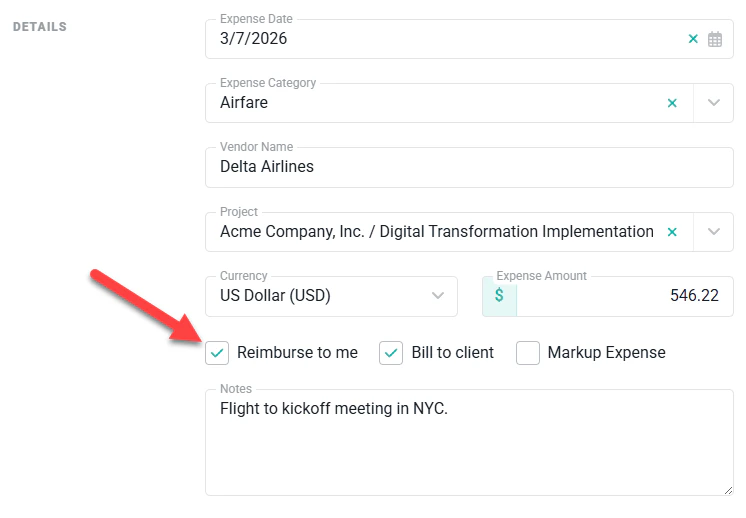
Figure 7 - Set the Expense Item as Reimbursable

Figure 8 - Expense Item Marked as Reimbursed after the Vendor Bill is Paid in QuickBooks