
To sign up for Ruddr, you must go to the Ruddr website at www.ruddr.io. From the home page (Figure 1), click on the Start Trial button at the top-right of the screen.
Ruddr.io Home Page

Figure 1 - Ruddr.io Home Page
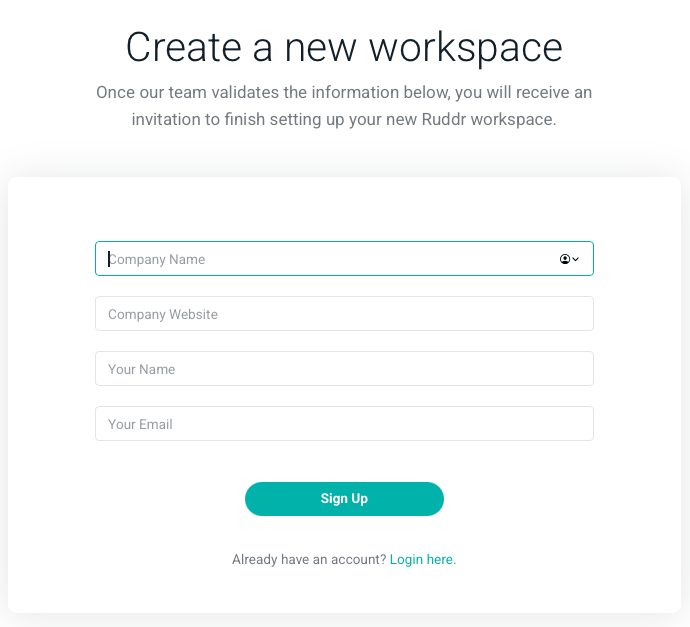
The first step in the sign up process is to request a new workspace (Figure 2). Provide your company name, company website, your name, and your email address, then click the Sign Up button.
Create a New Workspace

Figure 2 - Create a New Workspace

Ruddr will confirm that it received your request. Once our team validates the information you provided, you will receive an email titled Finalize your Ruddr workspace. Click the Finalize workspace link in that email to continue. The link opens the Launch your workspace! page, where you provide the final workspace and account details:
  • Workspace Details - your company name, professional service type, workspace name, Workspace URL ID, country, currency, regional format, and time zone. Ruddr suggests a workspace name and Workspace URL ID based on your company name. The Workspace URL ID must be unique.
  • Account Details - your name and a password for your account.
Read Ruddr’s terms, check the box indicating that you agree to them, and click Launch Workspace!. Ruddr loads your new workspace with sample data to help you get a feel for its capabilities. You can remove the sample data at any time from the Workspace Settings. If your company is already using Ruddr, you don’t need to sign up. Ask your Workspace Admin to send you an invitation instead (see Accepting Workspace Invitations).