

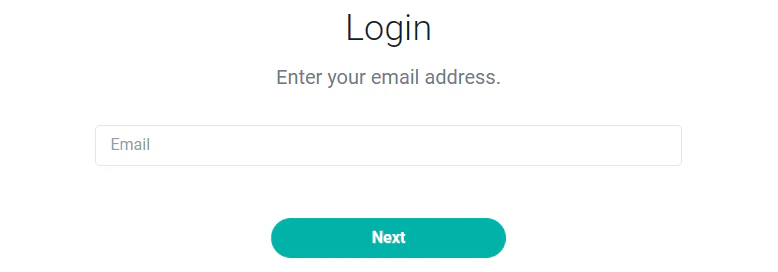
Figure 1 - Ruddr Login Screen
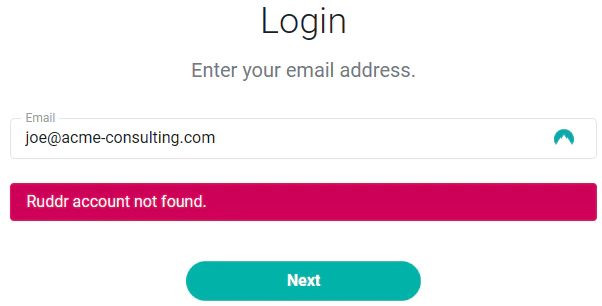
Figure 2 - Ruddr will Alert You if an Account is not Found with the Provided Email Address
Associated with a Single Workspace
If you are associated with a single workspace, you will see a prompt to enter your password (Figure 3).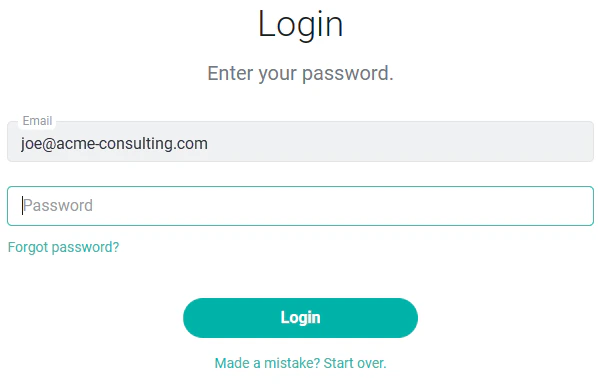
Figure 3 - Enter a Valid Password to Login or Click Forgot password? to Begin the Reset Password Process
Associated with Multiple Workspaces
If you are associated with multiple workspaces, you will be required to provide a workspace key for the workspace you are logging into. This workspace key is also the Workspace URL ID that is managed in workspace settings. Once you have entered your email address on the Login screen (Figure 1), click the Next button and you will then be prompted to provide the Workspace URL ID (Figure 4) for the workspace you are logging into. If you do not know the key for the workspace, you can request the Workspace URL ID from Ruddr.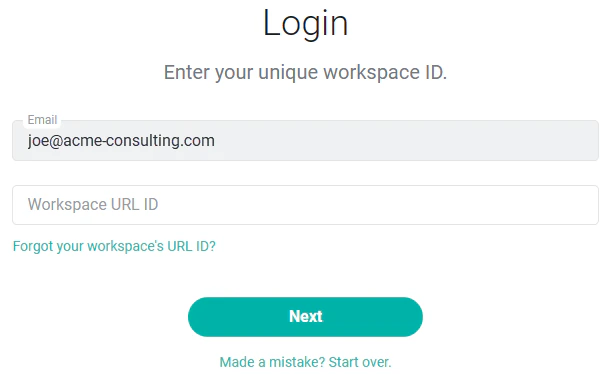
Figure 4 - Provide the Workspace URL ID for the Workspace You are Logging Into
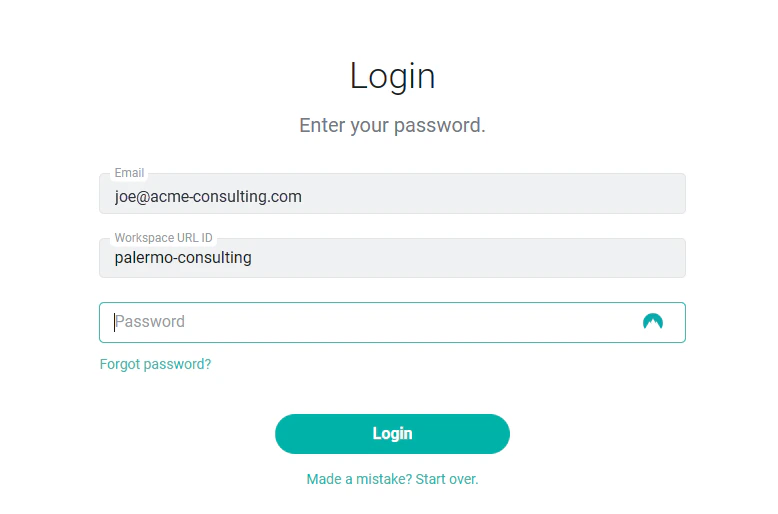
Figure 5 - Once Your Email Address and Workspace Key have been Accepted, Submit the Password for that Workspace
Retrieving the Workspace URL ID
If you are a member of multiple workspaces and have forgotten the Workspace URL ID needed to log into Ruddr, you may request the Workspace URL ID(s) associated with your email address. To do this, click on the Forgot your workspace’s URL ID? link under the Workspace URL ID field on the login screen (Figure 4) where you are asked to provide the workspace key. Upon clicking that link, you will be prompted (Figure 6) to enter your email address. Click the Get Workspace Links button on the form.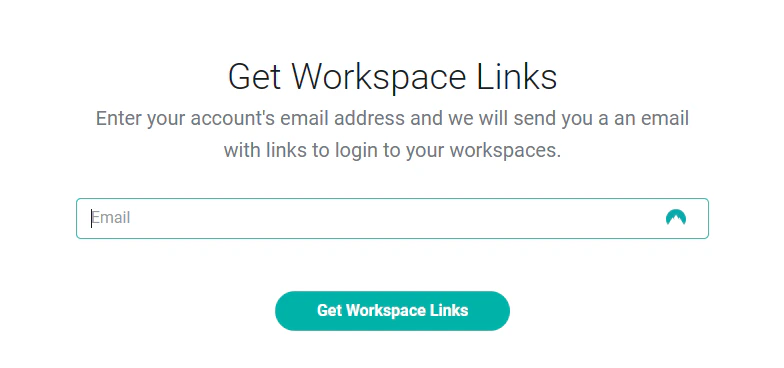
Figure 6 - Request that Workspace Links are Sent to Your Email Address
Reset Your Ruddr Password
On the Reset Password screen (Figure 7), enter your email address and click Reset Password. Ruddr will let you know it sent a password reset email (Figure 8). In that email (Figure 9), click Choose a New Password to open the Password Reset screen (Figure 10), where you can enter and verify your new password.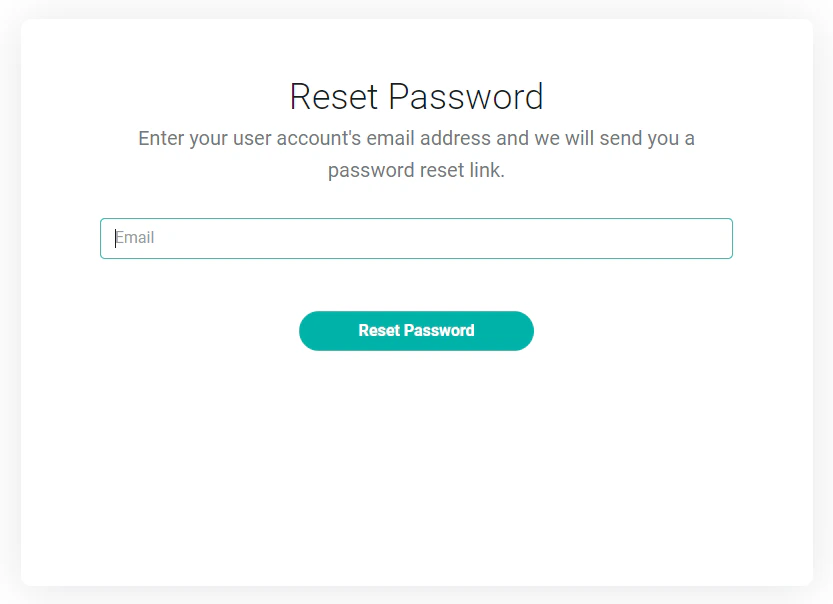
Figure 7 - Reset Password Screen
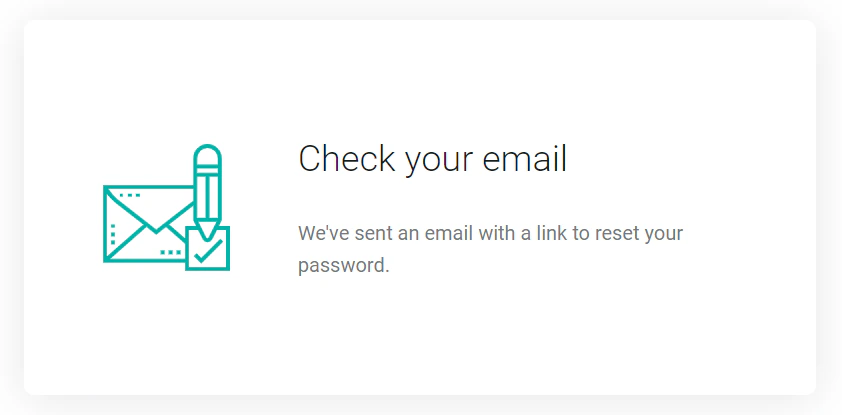
Figure 8 - Password Email Reset Notification
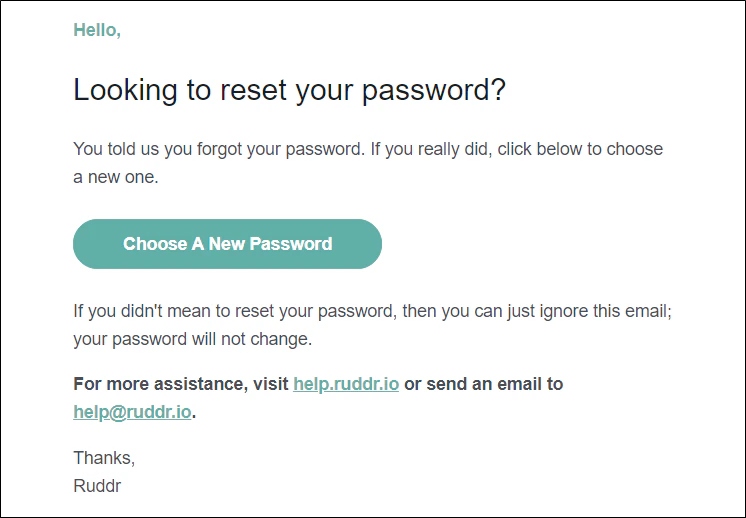
Figure 9 - Password Reset Email
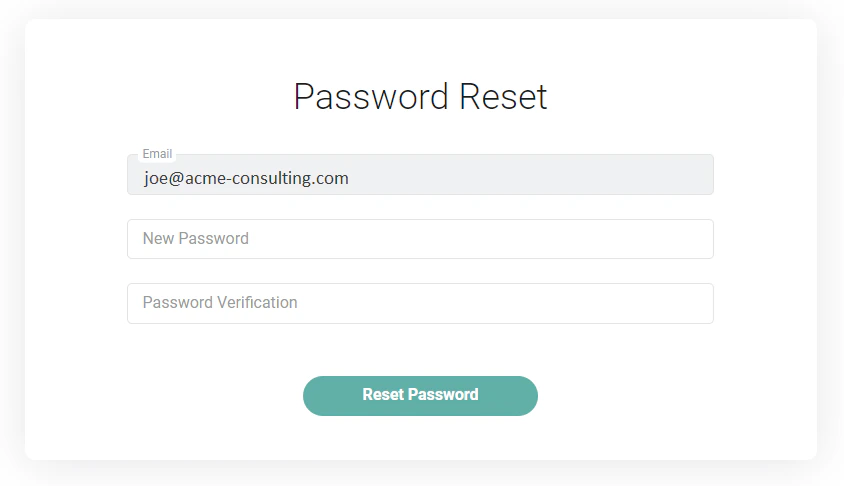
Figure 10 - Password Reset Screen