

Time-Based Locking of Time Entries and Expense Items
Workspaces can specify that time entries and expense items are to be locked based on either the age of the entries / items or if a certain date has passed in the month following the entries / items. These settings ensure that members cannot edit their time entries or expense items after a certain amount of time has elapsed. When this type of “time lock” has been applied, “Pending Approval” time entries / expense items will not be available for approval via the Approvals screen unless the approver has member-level time and expense administrative permissions to those entries / items. Members that have project-level time and expense administrative privileges will no longer be able to approve items locked in this manner. To view these items on the Approvals screen, you can leverage the Include Locked Items filter (Figure 1). When this filter is set to “Yes”, Ruddr will display any locked items that are unavailable for approval.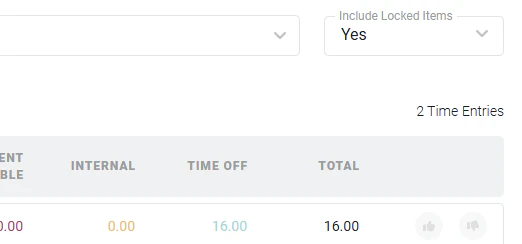
Figure 1 - Set the Include Locked Items filter to "Yes" to View a List of Locked Items on the Approvals Screen
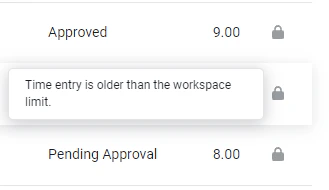
Figure 2 - Locking Information for a Time Entry on the Time Detail Report
Projects / Project Tasks are Locked
A Lock time and expenses setting is available on projects, and a Lock time for this task setting is available on individual project tasks. When this setting is applied and it affects time entries on the project / project task, those time entries are locked and will not be available in the approval queue for anyone other than workspace administrators. Members that have member-level or project-level time and expense administrative privileges will no longer be able to approve items locked in this manner. To view these items on the Approvals screen, you can leverage the Include Locked Items filter (Figure 1). When this filter is set to “Yes”, Ruddr will display any locked items that are unavailable for approval. When viewing a time entry in the Time Detail report (or expense item in the Expense Detail report), you will see a lock icon to the right of the time entry (Figure 3). Hovering over this icon will inform you as to the nature of why the time entry is locked.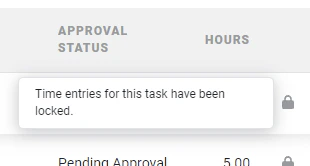
Figure 3 - A Project's Task has had the Lock Time for This Task Setting Applied