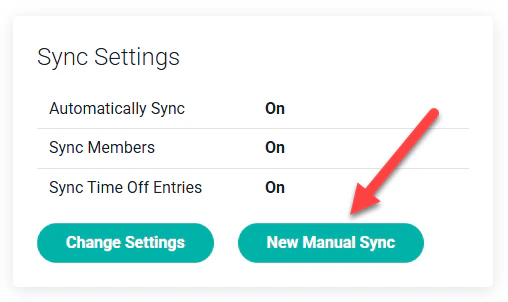
If your Ruddr workspace is integrated with an HRIS platform, such as BambooHR or Rippling, you can configure the integration to synchronize time off entries to Ruddr. These time off entries will be synchronized to Ruddr and locked such that they can’t be edited within Ruddr. If some or all of the time off entries in the HRIS system are not being synchronized, it is recommended that you run a manual sync by clicking on the New Manual Sync button within the HRIS integration in Ruddr (Figure 1).
Initiating a Manual Sync

Figure 1 - Initiating a Manual Sync
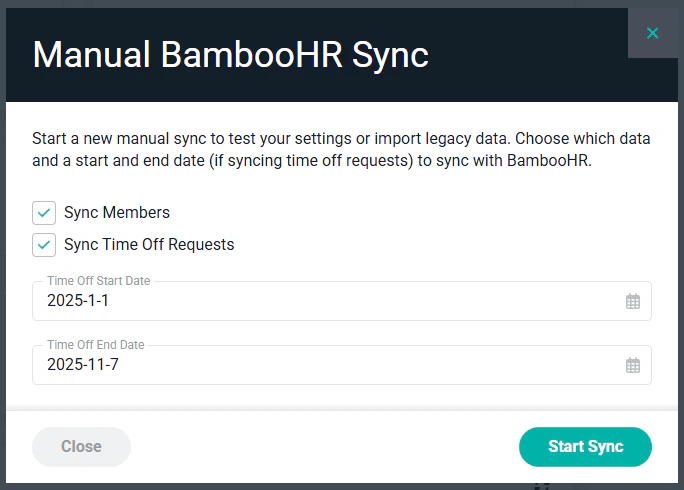
This will bring up a window that will allow you to set the entities to sync as well as the start and end date for the time off entries. Just click on the Start Sync button to initiate the process. It may take several minutes for the sync to complete (Figure 2).
New Manual Sync Settings

Figure 2 - New Manual Sync Settings

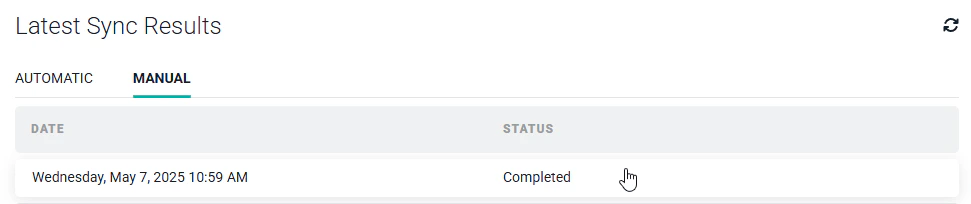
Once the manual sync process has completed, click on the sync results row to bring up the sync results log file (Figure 3).
Sync Results List

Figure 3 - Sync Results List

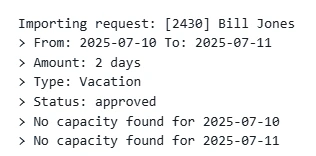
If a specific member’s time off entries are not being synchronized, scroll through the sync results log until you locate that member. If Ruddr is not importing the time off entries, there should be a reason shown. For example, these two days of vacation for Bill Jones (Figure 4) are not being imported because Bill’s member account in Ruddr is not configured with capacity on the given days.
Sync Results Log File

Figure 4 - Sync Results Log File

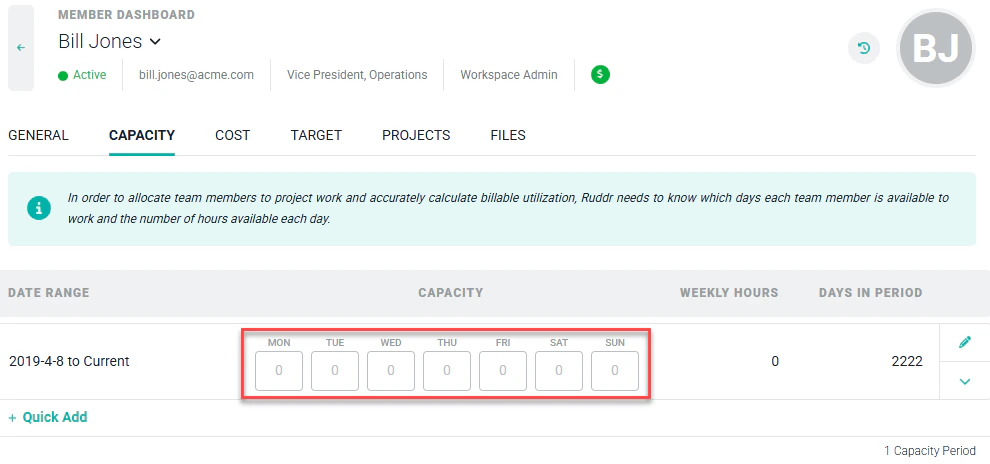
For this particular situation, simply navigate to Bill’s member dashboard (you must be a Workspace Admin to access this area of Ruddr) and click on the Capacity tab. Ensure that Bill has the proper amount of capacity configured for each day of the week (Figure 5).
Member Capacity Configuration

Figure 5 - Member Capacity Configuration

Once the capacity is corrected, simply re-run the manual sync process and ensure that the time off entries are being properly synchronized.