> ## Documentation Index
> Fetch the complete documentation index at: https://help.ruddr.io/llms.txt
> Use this file to discover all available pages before exploring further.
# Managing Your Workspace
### Who Can Manage Your Workspace
To access the Settings area of Ruddr, your [security role](/workspace-administration/security-roles) must have the **Administer all workspace settings and members** permission. *Only the built-in Workspace Admin role has this permission*. To get to the Settings area, simply click on the **Settings** menu option in the main nav bar (Figure 1).
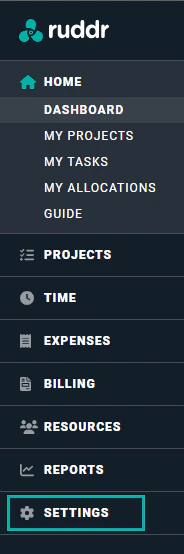 Figure 1 - Click Settings to Manage Various Aspects of Your Workspace
### Aspects of Your Workspace that You Can Manage
Accessing the Settings area of Ruddr will provide Workspace Administrators with the ability to manage various aspects of the system as it pertains to the current Workspace. Once in the Settings area, these aspects are available via the sub-navigation menu of the nav bar (Figure 2). You can read more about these settings throughout this section of the User Guide.
Figure 1 - Click Settings to Manage Various Aspects of Your Workspace
### Aspects of Your Workspace that You Can Manage
Accessing the Settings area of Ruddr will provide Workspace Administrators with the ability to manage various aspects of the system as it pertains to the current Workspace. Once in the Settings area, these aspects are available via the sub-navigation menu of the nav bar (Figure 2). You can read more about these settings throughout this section of the User Guide.
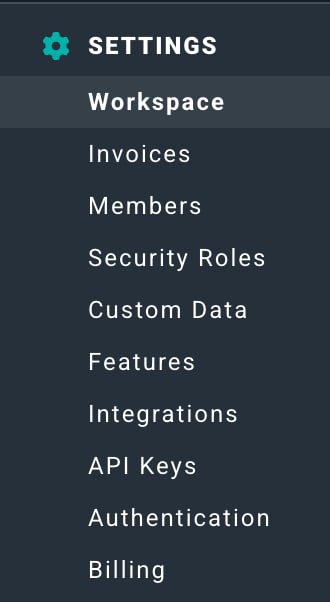 Figure 2 - Accessible Settings for Workspace Admins