> ## Documentation Index
> Fetch the complete documentation index at: https://help.ruddr.io/llms.txt
> Use this file to discover all available pages before exploring further.
# CSV Import
> Workspace admins can use Ruddr's CSV import tool to load members, clients, projects, time entries, and other data into their workspace.
Ruddr provides Workspace Admins with a CSV import tool that lets you load data into your workspace in bulk, rather than entering each record by hand. This is especially useful when you are first setting up your workspace and need to bring across data from an existing system.
The CSV import tool lives in the **Integrations** section of the Settings area (Figure 1). For an overview of everything found in that section, see the [Integrations](/workspace-administration/integrations) article.
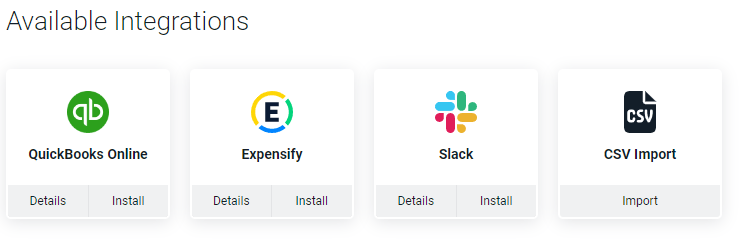 Figure 1 - The Integrations Section of the Settings Area
## Supported Data Entities
The CSV import tool can populate the following Ruddr data entities:
* Workspace Members
* Clients
* Contacts
* Projects
* Purchase Orders
* Time Entries
* Expenses
* Project Roles
* Project Tasks
* Project Member Assignments
* Project Ledgers
* Fixed Fee Billing Schedule
* Fixed Fee Revenue Recognition Ledger
* Project Expenses
* Products
* Additional Services
* Other Items to Bill
* Allocations
* Member Costs
* Member Skill Assignments
***NOTE**: Entities must be imported in the sequence above (Members > Clients > Contacts > Projects > Time Entries). This is because:*
* *Members are required for fields in Clients / Projects / Time Entries*
* *Clients are required for Contacts / Projects / Time Entries*
* *Projects are required for Time Entries*
*For example, attempting to import Projects before Clients are created will result in -0- Projects being imported.*
## Importing a CSV File
In the Integrations section (Figure 1), click on the **CSV Import** tile to navigate to the CSV Import admin screen (Figure 2).
Figure 1 - The Integrations Section of the Settings Area
## Supported Data Entities
The CSV import tool can populate the following Ruddr data entities:
* Workspace Members
* Clients
* Contacts
* Projects
* Purchase Orders
* Time Entries
* Expenses
* Project Roles
* Project Tasks
* Project Member Assignments
* Project Ledgers
* Fixed Fee Billing Schedule
* Fixed Fee Revenue Recognition Ledger
* Project Expenses
* Products
* Additional Services
* Other Items to Bill
* Allocations
* Member Costs
* Member Skill Assignments
***NOTE**: Entities must be imported in the sequence above (Members > Clients > Contacts > Projects > Time Entries). This is because:*
* *Members are required for fields in Clients / Projects / Time Entries*
* *Clients are required for Contacts / Projects / Time Entries*
* *Projects are required for Time Entries*
*For example, attempting to import Projects before Clients are created will result in -0- Projects being imported.*
## Importing a CSV File
In the Integrations section (Figure 1), click on the **CSV Import** tile to navigate to the CSV Import admin screen (Figure 2).
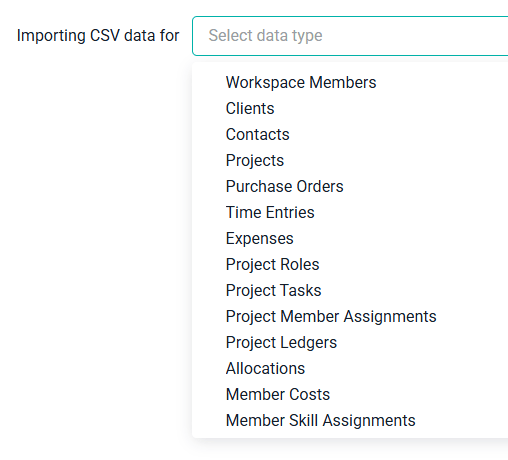 Figure 2 - Importing CSV Data for a Selected Data Type / Entity
As a first step, specify the type of data you would like to import, using the supplied drop-down. Once you select a data type, you will see a second step, where you can upload a CSV file with your data.
Note that Ruddr supplies you with a sample CSV file for each data type. Click on the link to open the sample file and use it as a starting point for creating your CSV.
***NOTE**: Your CSV must adhere to the format provided on the screen and all required data must be provided. Please be sure to review the requirements for each field.*
Once your CSV file has been created, click the **Choose File** button to upload your CSV to Ruddr. Once uploaded, you will see the name of the file listed. Click **Submit for Import** (Figure 3) to initiate the import.
Figure 2 - Importing CSV Data for a Selected Data Type / Entity
As a first step, specify the type of data you would like to import, using the supplied drop-down. Once you select a data type, you will see a second step, where you can upload a CSV file with your data.
Note that Ruddr supplies you with a sample CSV file for each data type. Click on the link to open the sample file and use it as a starting point for creating your CSV.
***NOTE**: Your CSV must adhere to the format provided on the screen and all required data must be provided. Please be sure to review the requirements for each field.*
Once your CSV file has been created, click the **Choose File** button to upload your CSV to Ruddr. Once uploaded, you will see the name of the file listed. Click **Submit for Import** (Figure 3) to initiate the import.
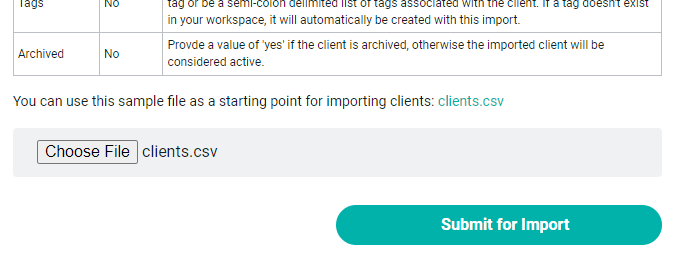 Figure 3 - Upload Your CSV File and Submit for Import
Once uploaded, you will see a confirmation of records added (Figure 4).
Figure 3 - Upload Your CSV File and Submit for Import
Once uploaded, you will see a confirmation of records added (Figure 4).
 Figure 4 - Import Confirmation
## Onboarding Migration Services
As part of Ruddr's onboarding services, our team can assist you with the migration of data from your current system. If you can access your current data, we can work with you to import it into your workspace. For more on preparing your data, see [Importing Your Data into Ruddr](/setup-guide/importing-your-data-into-ruddr).
Figure 4 - Import Confirmation
## Onboarding Migration Services
As part of Ruddr's onboarding services, our team can assist you with the migration of data from your current system. If you can access your current data, we can work with you to import it into your workspace. For more on preparing your data, see [Importing Your Data into Ruddr](/setup-guide/importing-your-data-into-ruddr).