> ## Documentation Index
> Fetch the complete documentation index at: https://help.ruddr.io/llms.txt
> Use this file to discover all available pages before exploring further.
# Timesheet Attestation
Timesheet attestation is a formal acknowledgment by a workspace member that the hours recorded on their timesheet are true, accurate, and complete to the best of their knowledge. By attesting, the employee confirms they have reported all hours worked (and, where applicable, all required meal and rest breaks) in accordance with company policy and applicable law.
## Enabling Timesheet Attestation
The Timesheet Attestation feature (Figure 1) is available to Ruddr customers subscribed to our Pro Plan. The feature is disabled by default in every workspace and thus must first be enabled from the [Features](/workspace-administration/features) screen within **Settings**. Note that the [Timesheets](/time/timesheets-overview) feature must be enabled to turn on the Timesheet Attestation feature.
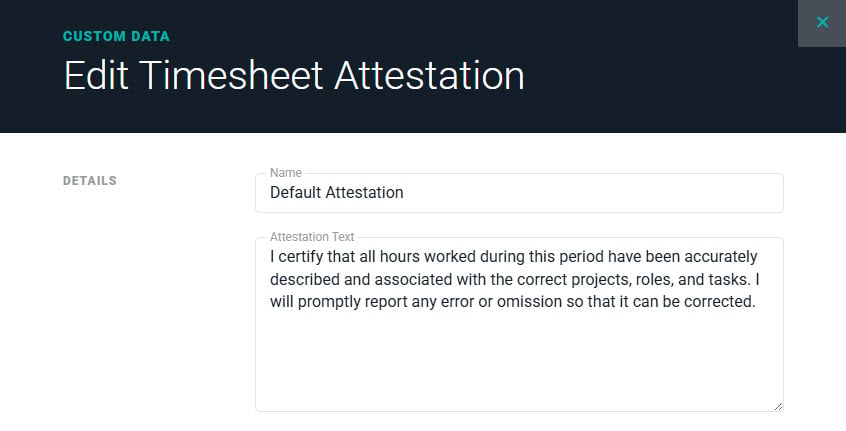
 Once the Timesheet Attestation feature has been enabled, the next step is for the Workspace Admin to create the applicable attestation text within the [Custom Data](/workspace-administration/custom-data) area of Workspace Settings. This can be done using the **Timesheet Attestations** custom data entity (Figure 2) within the Members section of Custom Data.
 The Workspace Admin can create as many attestations as needed. For example, the text may need to vary based on the laws of the given jurisdiction (country, province, or state).
## Configuring Attestation for Workspace Members
Once the attestation text has been created, the Workspace Admin can then edit the Time Tracking settings for each member that will be required to attest upon timesheet submission (Figure 3). The **Timesheets require attestation** checkbox should be checked and then the specific attestation text can be selected from the dropdown.
The Workspace Admin can create as many attestations as needed. For example, the text may need to vary based on the laws of the given jurisdiction (country, province, or state).
## Configuring Attestation for Workspace Members
Once the attestation text has been created, the Workspace Admin can then edit the Time Tracking settings for each member that will be required to attest upon timesheet submission (Figure 3). The **Timesheets require attestation** checkbox should be checked and then the specific attestation text can be selected from the dropdown.
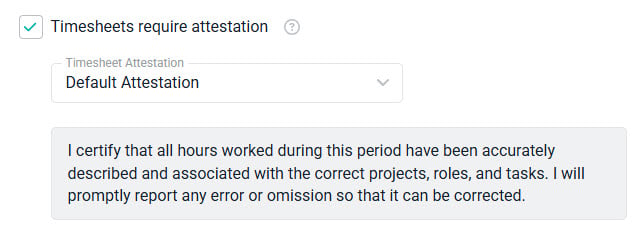 The attestation text displays below the dropdown so you can confirm exactly what the member will see when submitting their timesheet. The text cannot be overridden for an individual member; to present different wording, create a separate attestation statement in Custom Data and assign that statement to the member.
## Assigning Attestation in Bulk
To configure attestation for multiple members at once, you can use [bulk updates](/workspace-administration/members#applying-bulk-updates) on the members list (Figure 4). The Timesheet Attestation field is available in the bulk edit options when the feature is enabled; setting a value assigns that statement to all of the selected members, while clearing the field removes the attestation requirement.
The attestation text displays below the dropdown so you can confirm exactly what the member will see when submitting their timesheet. The text cannot be overridden for an individual member; to present different wording, create a separate attestation statement in Custom Data and assign that statement to the member.
## Assigning Attestation in Bulk
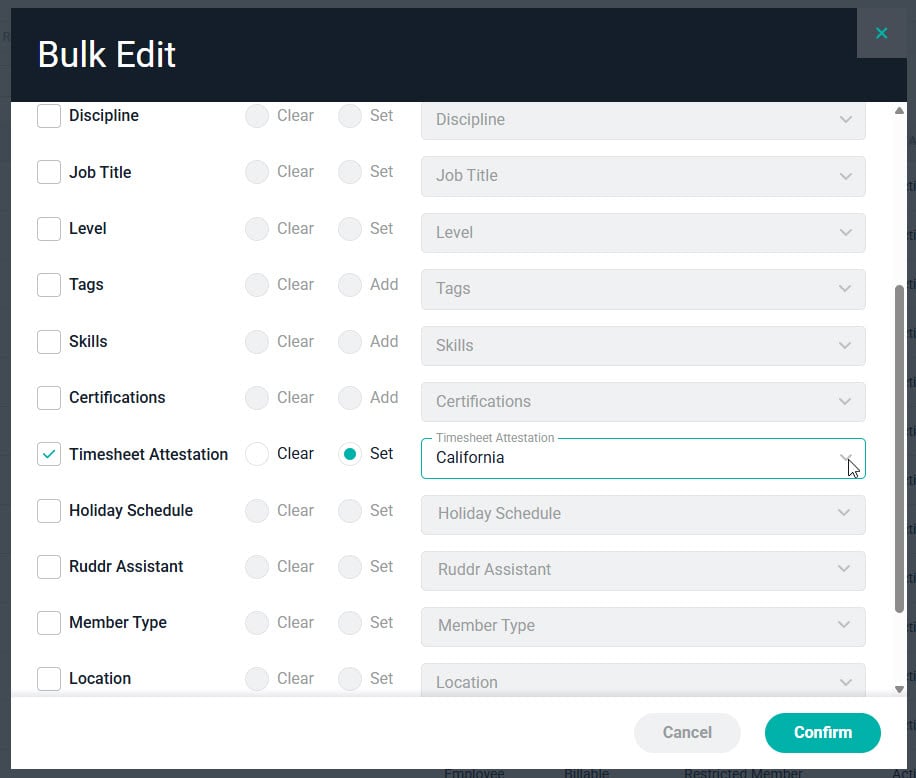
To configure attestation for multiple members at once, you can use [bulk updates](/workspace-administration/members#applying-bulk-updates) on the members list (Figure 4). The Timesheet Attestation field is available in the bulk edit options when the feature is enabled; setting a value assigns that statement to all of the selected members, while clearing the field removes the attestation requirement.
 ## Timesheet Submission
When a member that is required to attest submits their timesheet, they will be shown the attestation text on the **Submit Timesheet** window (Figure 5). To submit the timesheet, the member is required to digitally attest by typing in their name into the **Signature** textbox. The member must type their name or initials (at least three characters are required) into the Signature textbox before the Submit Timesheet button is enabled.
## Timesheet Submission
When a member that is required to attest submits their timesheet, they will be shown the attestation text on the **Submit Timesheet** window (Figure 5). To submit the timesheet, the member is required to digitally attest by typing in their name into the **Signature** textbox. The member must type their name or initials (at least three characters are required) into the Signature textbox before the Submit Timesheet button is enabled.
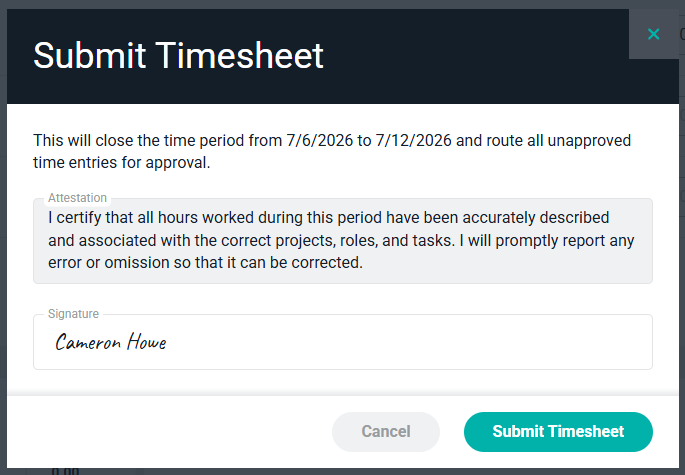 Upon submission, Ruddr stores the attestation text and signature with the timesheet, and the timesheet's submission timestamp serves as the attestation date. Each timesheet preserves exactly what the member agreed to, even if the attestation statement is edited in Custom Data later. If a timesheet is unsubmitted, its attestation and signature are cleared, and the member will attest again when the timesheet is resubmitted.
Members with permission to [administer time for other members](https://help.ruddr.io/time/view-and-manage-time-entries-of-other-members) can still submit a timesheet on behalf of a member that requires attestation. In that case, the administrator signs the attestation on the member's behalf, and Ruddr records which member actually submitted the timesheet.
## Timesheets Report
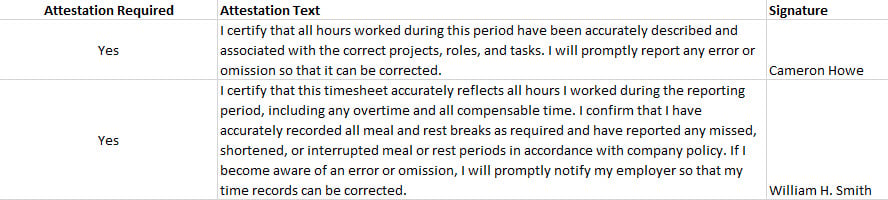
The Timesheets report shows all of the submitted timesheets for a given period of time. In the CSV or Excel exports of the report, there will be several columns related to timesheet attestation (Figure 6). These will include fields related to whether or not the timesheet required attestation, the attestation text, and the signature text provided by the member.
Upon submission, Ruddr stores the attestation text and signature with the timesheet, and the timesheet's submission timestamp serves as the attestation date. Each timesheet preserves exactly what the member agreed to, even if the attestation statement is edited in Custom Data later. If a timesheet is unsubmitted, its attestation and signature are cleared, and the member will attest again when the timesheet is resubmitted.
Members with permission to [administer time for other members](https://help.ruddr.io/time/view-and-manage-time-entries-of-other-members) can still submit a timesheet on behalf of a member that requires attestation. In that case, the administrator signs the attestation on the member's behalf, and Ruddr records which member actually submitted the timesheet.
## Timesheets Report
The Timesheets report shows all of the submitted timesheets for a given period of time. In the CSV or Excel exports of the report, there will be several columns related to timesheet attestation (Figure 6). These will include fields related to whether or not the timesheet required attestation, the attestation text, and the signature text provided by the member.