> ## Documentation Index
> Fetch the complete documentation index at: https://help.ruddr.io/llms.txt
> Use this file to discover all available pages before exploring further.
# Resource Placeholders
Resource placeholders are leveraged to allocate project hours when you have yet to identify a specific member for that work. Placeholders can help you account for hours on a tentative project, adjust to a sudden change in project resources, or signify a need for a project extension.
## Creating a Resource Placeholder
You can create placeholders in [Custom Data](/workspace-administration/custom-data) in the Settings section (Figure 1) or from within the Allocations screen (Figure 2).
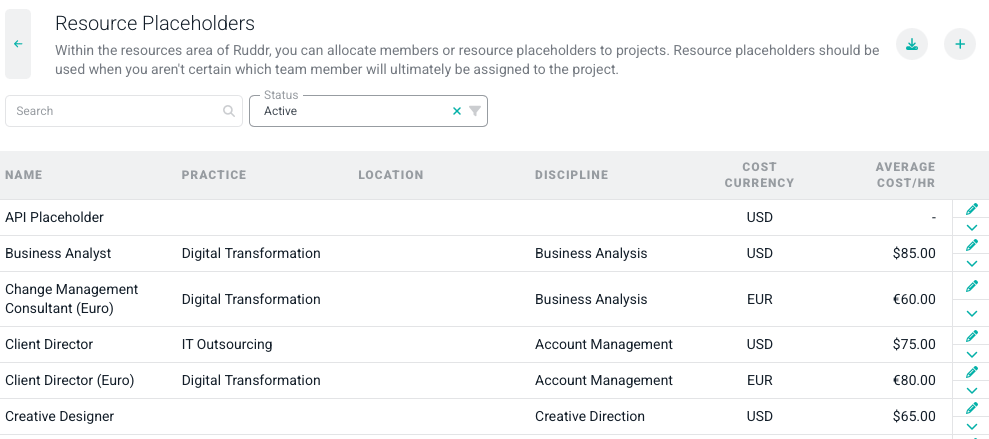 Figure 1 - Resource Placeholder list where you can edit and adjust
You can create Placeholder options under the Allocation tab by clicking the "+" sign next to the Placeholder header. (Figure 2) A drawer will open for you to input the Placeholder information (Figure 3).
Figure 1 - Resource Placeholder list where you can edit and adjust
You can create Placeholder options under the Allocation tab by clicking the "+" sign next to the Placeholder header. (Figure 2) A drawer will open for you to input the Placeholder information (Figure 3).
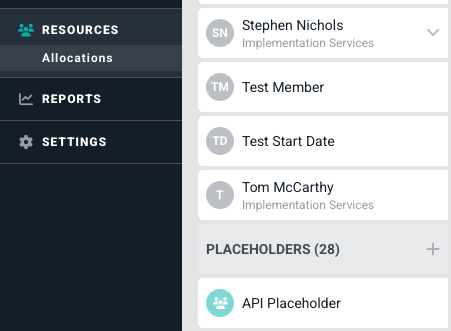 Figure 2 - Where you can create a new Placeholder under allocations
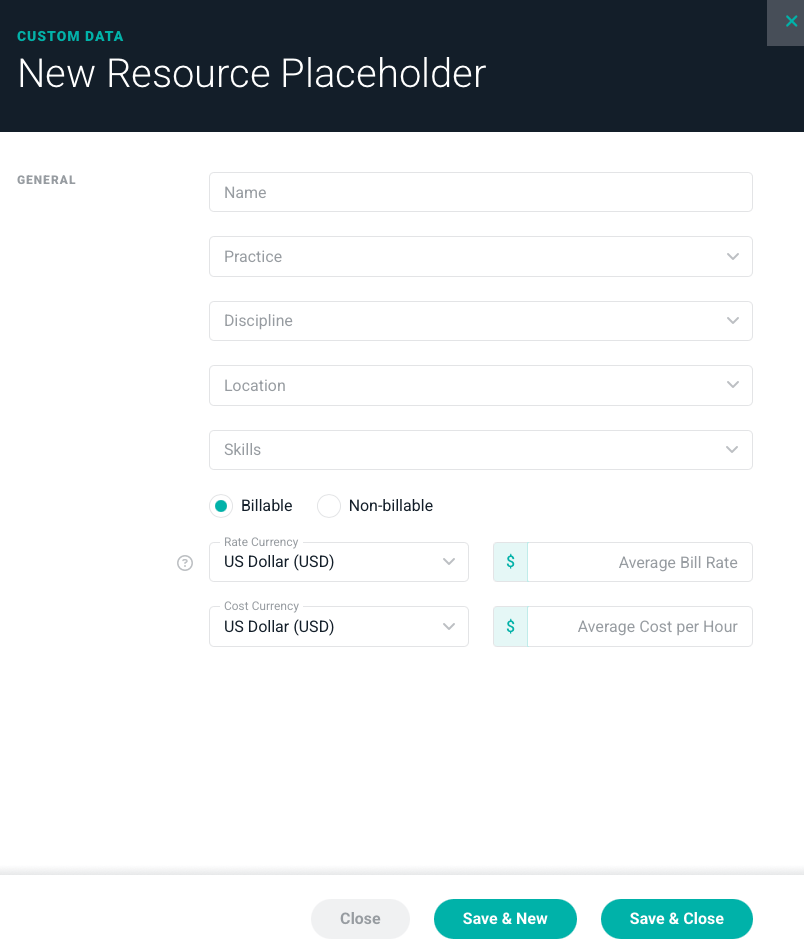 Figure 3 - Drawer to input new Placeholder information
### Rates and Costs for Resource Placeholders
When creating resource placeholders, you can provide an Average Bill Rate and / or an Average Cost per Hour.
When Ruddr calculates planned services cost on a project, it will include resource placeholder allocations when an Average Cost per Hour has been provided.
Likewise, when considering planned Time and Materials Revenue, Ruddr can leverage the placeholders' Average Bill Rate in cases where the allocation itself is not already associated with a bill rate. This would most often be the case on projects that do not use [project roles](/projects/project-roles).
## Creating Allocations for a Placeholder
Allocating a placeholder on a project is as easy as creating a regular allocation and selecting "Placeholder" as the Resource Type. (Figure 4)
Figure 3 - Drawer to input new Placeholder information
### Rates and Costs for Resource Placeholders
When creating resource placeholders, you can provide an Average Bill Rate and / or an Average Cost per Hour.
When Ruddr calculates planned services cost on a project, it will include resource placeholder allocations when an Average Cost per Hour has been provided.
Likewise, when considering planned Time and Materials Revenue, Ruddr can leverage the placeholders' Average Bill Rate in cases where the allocation itself is not already associated with a bill rate. This would most often be the case on projects that do not use [project roles](/projects/project-roles).
## Creating Allocations for a Placeholder
Allocating a placeholder on a project is as easy as creating a regular allocation and selecting "Placeholder" as the Resource Type. (Figure 4)
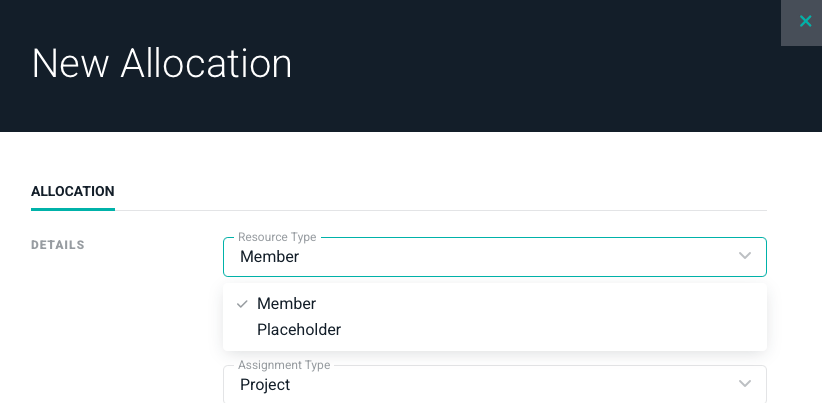 Figure 4 - Assigning an allocation to a Placeholder type
Once the type is set to Placeholder, you will be able to view that allocation under the assigned project as a placeholder. (Figure 6)
Figure 4 - Assigning an allocation to a Placeholder type
Once the type is set to Placeholder, you will be able to view that allocation under the assigned project as a placeholder. (Figure 6)
 Figure 6 - Place Allocation on a project
## Reassigning Placeholder Allocations to a Member
Once you are ready to assign a Placeholder to a project, you can do that in 2 places.
You can select the three dots next to the placeholder allocation and an option will appear to **Reassign Allocations.** (Figure 7)
Figure 6 - Place Allocation on a project
## Reassigning Placeholder Allocations to a Member
Once you are ready to assign a Placeholder to a project, you can do that in 2 places.
You can select the three dots next to the placeholder allocation and an option will appear to **Reassign Allocations.** (Figure 7)
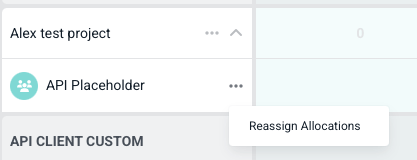 Figure 7 - Reassign the selected allocation
You can either reassign to a member or if needed, assign to a different Placeholder Type at the bottom of the options. (Figure 8)
Figure 7 - Reassign the selected allocation
You can either reassign to a member or if needed, assign to a different Placeholder Type at the bottom of the options. (Figure 8)
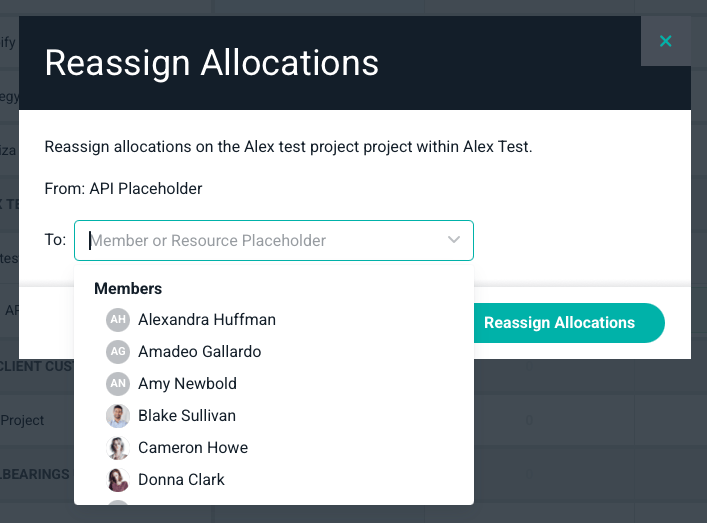 Figure 8 - Select which type you want the allocation to move to
Additionally, you can edit the Placeholder by right clicking on the allocation and selecting edit. (Figure 9)
Figure 8 - Select which type you want the allocation to move to
Additionally, you can edit the Placeholder by right clicking on the allocation and selecting edit. (Figure 9)
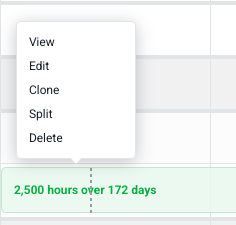 Figure 9 - Select the Placeholder you want to adjust
Here you can change the type to Member or you can change the Placeholder type if you need to adjust. (Figure 10)
Figure 9 - Select the Placeholder you want to adjust
Here you can change the type to Member or you can change the Placeholder type if you need to adjust. (Figure 10)
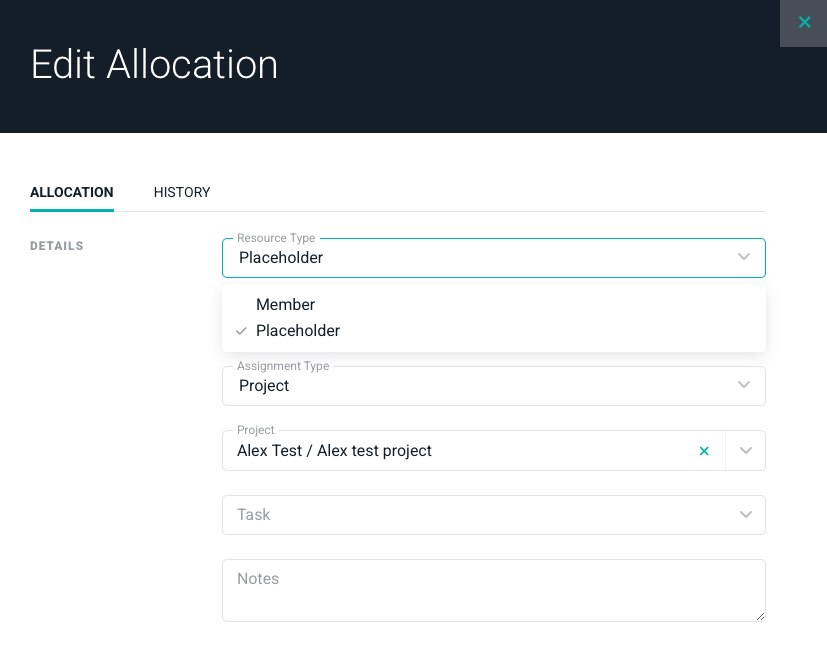 Figure 10 - Edit a Placeholder Allocation