> ## Documentation Index
> Fetch the complete documentation index at: https://help.ruddr.io/llms.txt
> Use this file to discover all available pages before exploring further.
# Allocations List
> Browse, filter, sort, export, and bulk-edit every resource allocation from a single flat list under Resources.
The **Allocations** list, found under **Resources** in the nav bar, shows every member and placeholder allocation — including time off — as one row per allocation. It's a flat, filterable alternative to the [Schedule](/resourcing/schedule)'s calendar-style grid, useful when you want to search, sort, or act across allocations regardless of which member or project they belong to.
This screen is only available to workspace members whose [security role](/workspace-administration/security-roles) has the **View resource allocations** permission. By default it shows the next 12 months of allocations, soonest first, and it only lists the allocations your security role and project-level permissions allow you to see.
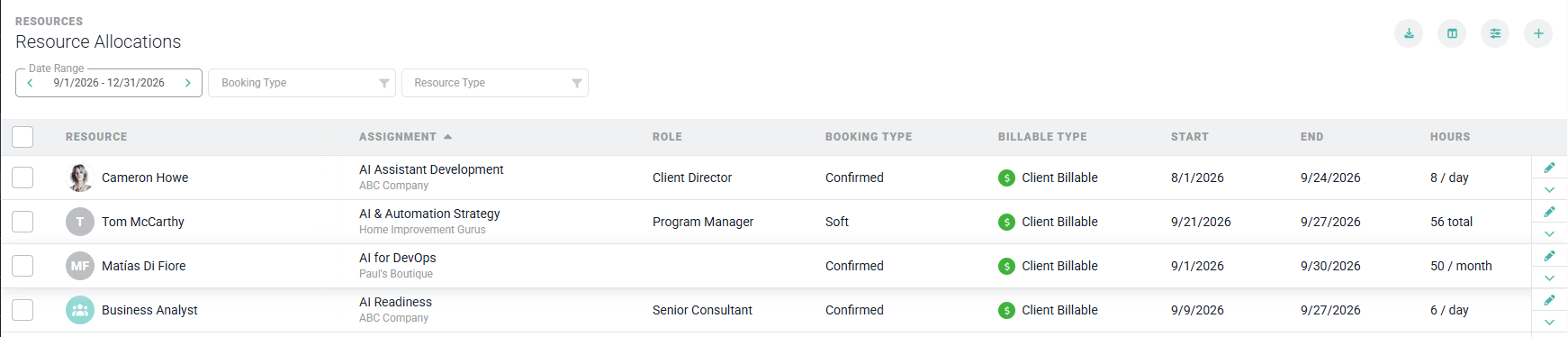 Figure 1 - The Allocations List, with the Export, Columns, Filter, and **+** Buttons at the Top-Right
## Filtering the List
Click the filters button at the top-right of the screen to open the filters drawer. You can filter by:
* **Date Range** - All Dates, a rolling window (Next 3 / 6 / 9 / 12 Months), or a custom range.
* **Client** and **Project**
* **Member** and resource attributes such as **Resource Type**
* **Booking Type** - see [Confirmed and Soft Bookings](/resourcing/confirmed-and-soft-bookings)
* **Billable Type**
Figure 1 - The Allocations List, with the Export, Columns, Filter, and **+** Buttons at the Top-Right
## Filtering the List
Click the filters button at the top-right of the screen to open the filters drawer. You can filter by:
* **Date Range** - All Dates, a rolling window (Next 3 / 6 / 9 / 12 Months), or a custom range.
* **Client** and **Project**
* **Member** and resource attributes such as **Resource Type**
* **Booking Type** - see [Confirmed and Soft Bookings](/resourcing/confirmed-and-soft-bookings)
* **Billable Type**
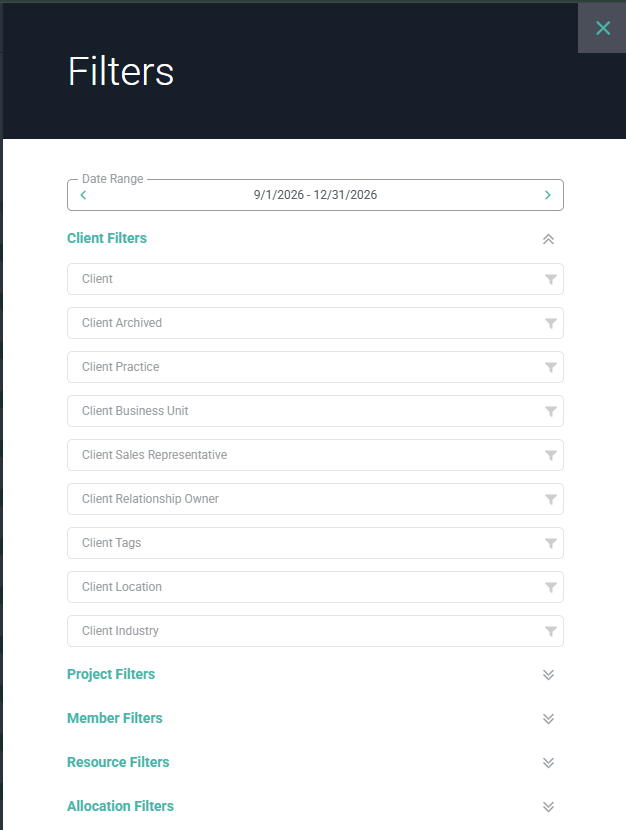 Figure 2 - The Filters Drawer, Including the Client, Project, Member, Resource, and Allocation Filter Groups
The active date range and a few of the most commonly used filters also appear as quick-access controls above the list, so you don't need to open the drawer to change them. Your filter and sort selections are remembered the next time you return to the screen.
## Sorting and Columns
Click a sortable column header to sort the list by that column; click again to reverse the direction. Use the columns button to choose which columns are shown — **Resource** and **Assignment** are always shown, and you can add or remove columns such as **Role**, **Task**, **Booking Type**, **Billable Type**, **Start**, **End**, **Hours**, and **Total Allocated**. Your column selection is remembered per workspace the next time you visit the list.
Figure 2 - The Filters Drawer, Including the Client, Project, Member, Resource, and Allocation Filter Groups
The active date range and a few of the most commonly used filters also appear as quick-access controls above the list, so you don't need to open the drawer to change them. Your filter and sort selections are remembered the next time you return to the screen.
## Sorting and Columns
Click a sortable column header to sort the list by that column; click again to reverse the direction. Use the columns button to choose which columns are shown — **Resource** and **Assignment** are always shown, and you can add or remove columns such as **Role**, **Task**, **Booking Type**, **Billable Type**, **Start**, **End**, **Hours**, and **Total Allocated**. Your column selection is remembered per workspace the next time you visit the list.
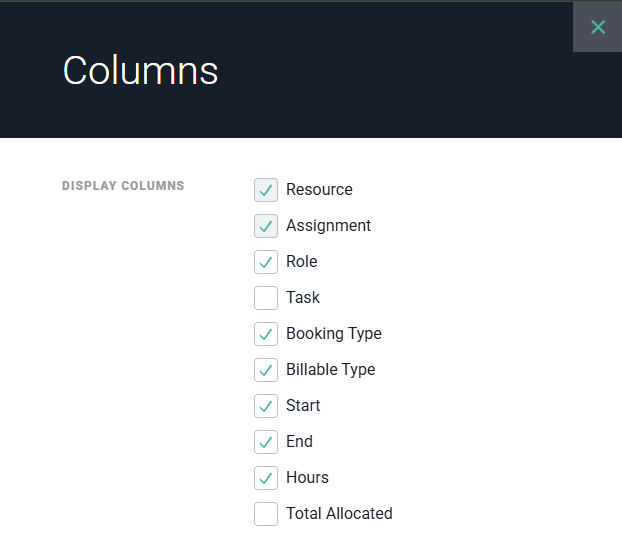 Figure 3 - The Columns Picker Controls which Columns Appear in the List
## Opening, Creating, and Editing Allocations
Click any row to open that allocation. If your security role has the **Administer resource allocations** permission, this opens the allocation for editing; otherwise it opens in view-only mode. To create a new allocation, click the **+** button at the top-right of the screen — this requires the same **Administer resource allocations** permission and opens the same drawer used to [create a resource allocation](/resourcing/create-a-resource-allocation) from the Schedule.
## Bulk Actions
Members with the **Administer resource allocations** permission can select multiple rows using the checkboxes on the left of the list, then use the bulk actions bar to act on all of them at once:
* **Set Booking Type** - Set the selected allocations to Confirmed or Soft. Allocations already at the target booking type are skipped.
* **Reassign Resource** - Move the selected allocations to a different member or placeholder.
* **Shift Dates** - Move the selected allocations' start and end dates forward or backward. Allocations whose dates wouldn't change as a result are skipped.
* **Delete** - Delete the selected allocations.
Figure 3 - The Columns Picker Controls which Columns Appear in the List
## Opening, Creating, and Editing Allocations
Click any row to open that allocation. If your security role has the **Administer resource allocations** permission, this opens the allocation for editing; otherwise it opens in view-only mode. To create a new allocation, click the **+** button at the top-right of the screen — this requires the same **Administer resource allocations** permission and opens the same drawer used to [create a resource allocation](/resourcing/create-a-resource-allocation) from the Schedule.
## Bulk Actions
Members with the **Administer resource allocations** permission can select multiple rows using the checkboxes on the left of the list, then use the bulk actions bar to act on all of them at once:
* **Set Booking Type** - Set the selected allocations to Confirmed or Soft. Allocations already at the target booking type are skipped.
* **Reassign Resource** - Move the selected allocations to a different member or placeholder.
* **Shift Dates** - Move the selected allocations' start and end dates forward or backward. Allocations whose dates wouldn't change as a result are skipped.
* **Delete** - Delete the selected allocations.
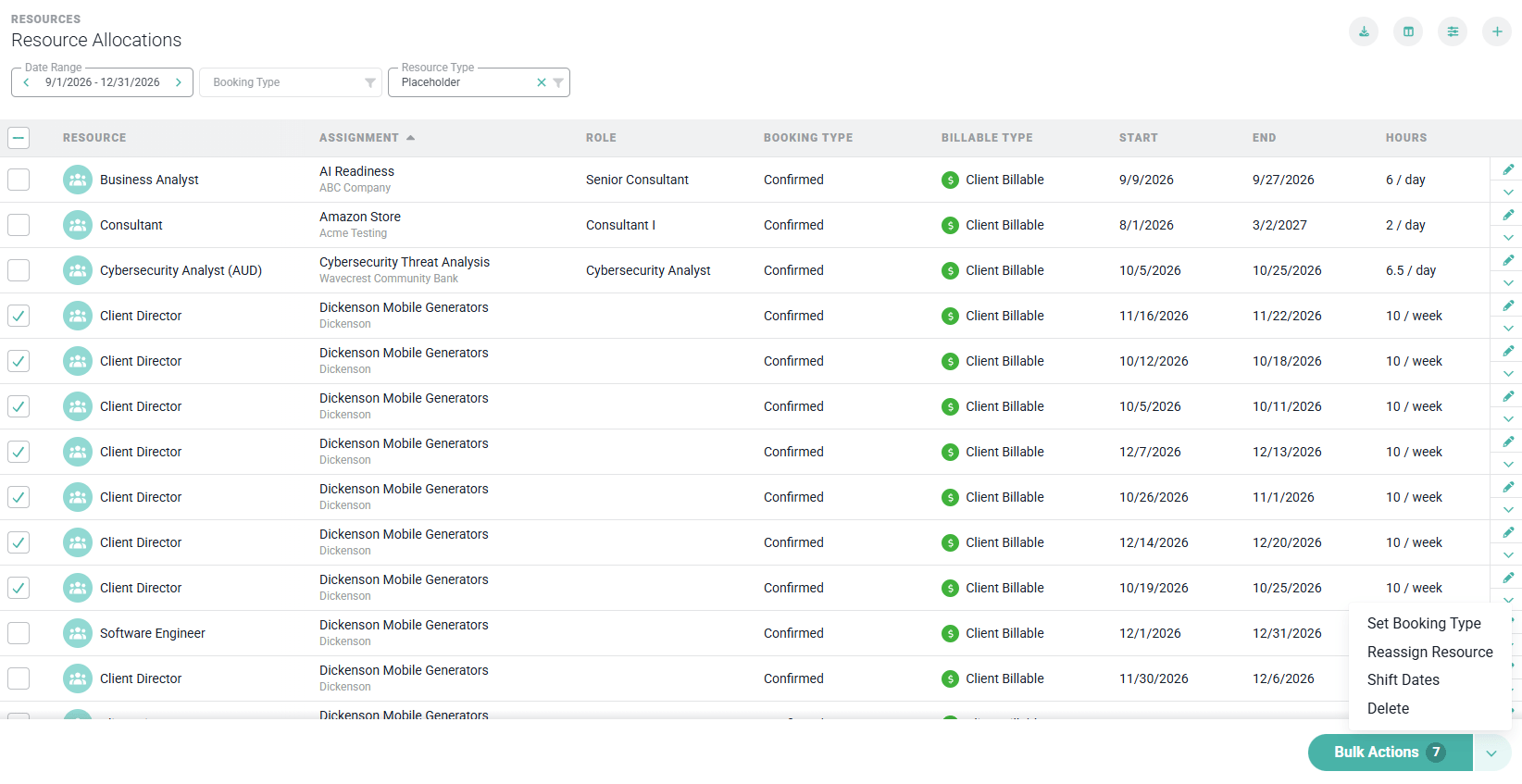 Figure 4 - Selecting Rows Opens the Bulk Actions Bar, with the Set Booking Type, Reassign Resource, Shift Dates, and Delete Actions
Unlike the equivalent actions on the Schedule, bulk actions from the Allocations list aren't limited to a single project — you can select and act on allocations across different members, placeholders, and projects in one pass. Each bulk action reports how many allocations succeeded, were skipped, or failed, and the change is recorded in each allocation's history.
## Exporting the List
Click the export button to download the current filtered list as CSV or Excel. The export includes every allocation that matches your active filters (not just the rows currently loaded on screen) plus a few columns not shown in the list itself, such as project and client codes, resource location, notes, and created and modified timestamps. If your security role doesn't include visibility into project bill rates, bill-rate columns are omitted from your export.
Figure 4 - Selecting Rows Opens the Bulk Actions Bar, with the Set Booking Type, Reassign Resource, Shift Dates, and Delete Actions
Unlike the equivalent actions on the Schedule, bulk actions from the Allocations list aren't limited to a single project — you can select and act on allocations across different members, placeholders, and projects in one pass. Each bulk action reports how many allocations succeeded, were skipped, or failed, and the change is recorded in each allocation's history.
## Exporting the List
Click the export button to download the current filtered list as CSV or Excel. The export includes every allocation that matches your active filters (not just the rows currently loaded on screen) plus a few columns not shown in the list itself, such as project and client codes, resource location, notes, and created and modified timestamps. If your security role doesn't include visibility into project bill rates, bill-rate columns are omitted from your export.
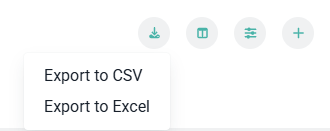 Figure 5 - Export the Current Filtered List to CSV or Excel