> ## Documentation Index
> Fetch the complete documentation index at: https://help.ruddr.io/llms.txt
> Use this file to discover all available pages before exploring further.
# Project Settings
The **Settings** tab of the [project dashboard](/projects/project-dashboard) is where you edit everything about a project. This includes the project's basic information, configuration options, team, roles, accounting ledgers, and budgets. Project editing previously happened in the **Edit Project** drawer; that drawer has been retired, and all of its functionality now lives on the Settings tab.
To see the Settings tab, you must have the **Edit project** permission on your [security role](/workspace-administration/security-roles) and access to the project. Members without that permission will not see the tab, and any direct links to the settings screens will redirect them back to the project dashboard.
 ### Navigating Project Settings
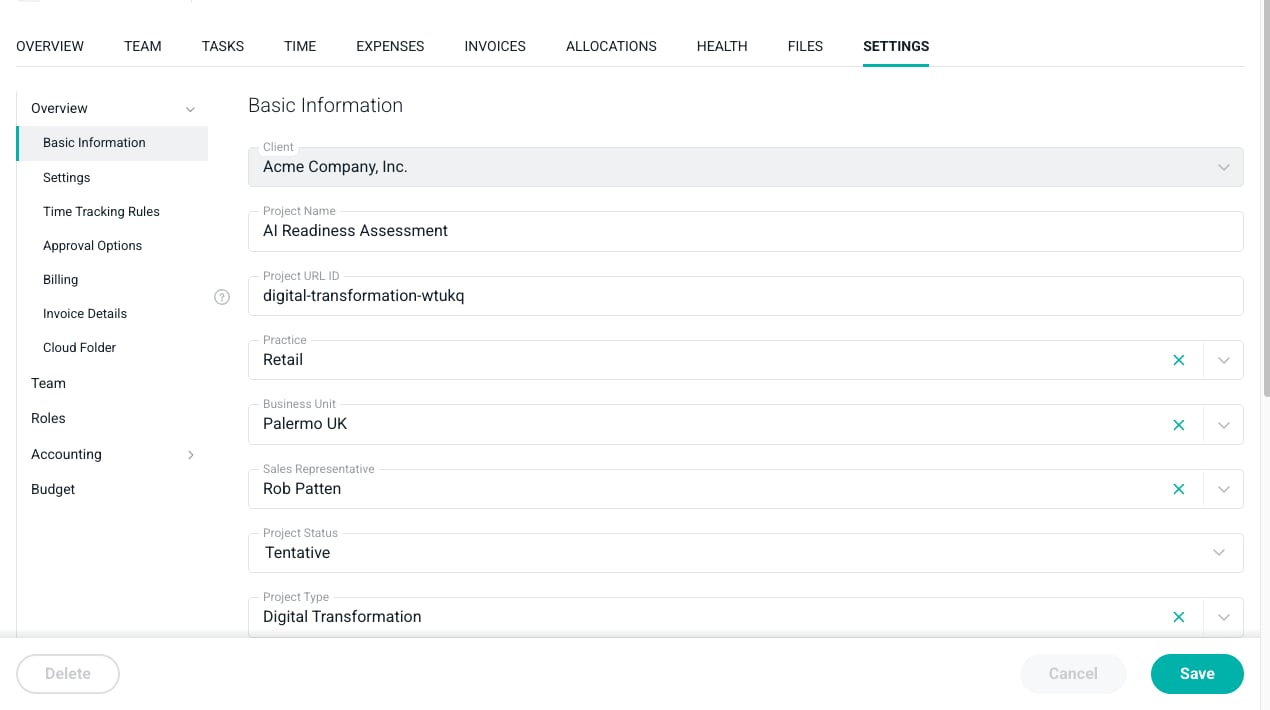
Clicking on the **Settings** tab takes you to the **Basic Information** section of the project overview. On the left side of the screen is a navigation menu with the following sections:
* **Overview** - The project's basic information and configuration options. This section contains the anchored sections **Basic Information**, **Settings**, **Time Tracking Rules**, **Approval Options**, **Billing**, **Invoice Details**, and **Cloud Folder**. As you scroll, the menu highlights the section currently in view. Each of these sections is described in detail in the [Create a New Project](/projects/create-a-new-project) article.
* **Team** - Manage the project team members. See the [Project Team](/projects/project-team) article.
* **Roles** - Manage project roles and rates. This section is only shown when the project uses roles. See the [Project Roles](/projects/project-roles) article.
* **Accounting** - The project's accounting ledgers. Clicking on **Accounting** expands the group and takes you to the first available ledger.
* **Budget** - A read-only summary of the project's overall budget. This section is only shown when the project tracks an overall budget.
* **Monthly Budget** - A read-only summary of the project's monthly budget. This section is only shown when the project tracks a monthly budget.
Some sections may not be shown depending on the project's configuration. For example, a Time & Materials project that does not use roles and has no budget will only show the **Overview**, **Team**, and **Accounting** sections.
### Overview
The **Overview** section (Figure 1) contains the same fields that are captured when you [create a new project](/projects/create-a-new-project). Make any edits and click the **Save** button at the bottom-right of the screen. The **Cancel** button becomes available once you have unsaved changes, and if you navigate away with unsaved changes, Ruddr will warn you before discarding them.
The **Delete** button at the bottom-left of the screen deletes the project. This button is disabled when the project has associated invoices, credit notes, or opportunities. For more, see [Archive or Delete a Project](/projects/archive-or-delete-a-project).
Note that a few fields become locked once the project has an associated invoice or credit note. The **Client**, **Billing Type**, **Billable**, **Use roles**, and **Currency** settings cannot be changed on a project that has been invoiced.
Also note that changing the project's **Client** will change the project's URL, since the URL contains the client's key. The project's own URL ID does not change.
#### Completing a Project
When you change the **Project Status** to **Completed** and save, Ruddr stamps the project's **Completed On** date with the completion date. On fixed fee projects that use the Manual or an Automated [revenue recognition method](/projects/fixed-fee-revenue-recognition), if there is still unrecognized revenue on the project, Ruddr will ask whether you would like an entry added to the project's revenue recognition ledger to recognize the remaining revenue. Choosing **Yes** saves the project and adds the entry, dated on the completion date. Choosing **No** saves the project without adding an entry.
### Team
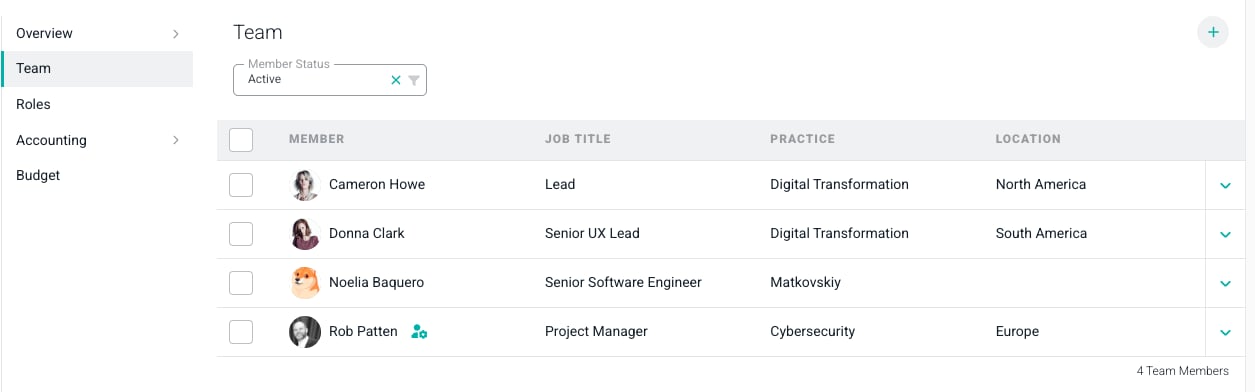
The **Team** section (Figure 2) lists the project team members along with their job title, practice, and location. From here you can add members, set a member as Project Admin, edit bill rates and cost rates, and deactivate or remove members from the team. For detailed information, see the [Project Team](/projects/project-team) article.
### Navigating Project Settings
Clicking on the **Settings** tab takes you to the **Basic Information** section of the project overview. On the left side of the screen is a navigation menu with the following sections:
* **Overview** - The project's basic information and configuration options. This section contains the anchored sections **Basic Information**, **Settings**, **Time Tracking Rules**, **Approval Options**, **Billing**, **Invoice Details**, and **Cloud Folder**. As you scroll, the menu highlights the section currently in view. Each of these sections is described in detail in the [Create a New Project](/projects/create-a-new-project) article.
* **Team** - Manage the project team members. See the [Project Team](/projects/project-team) article.
* **Roles** - Manage project roles and rates. This section is only shown when the project uses roles. See the [Project Roles](/projects/project-roles) article.
* **Accounting** - The project's accounting ledgers. Clicking on **Accounting** expands the group and takes you to the first available ledger.
* **Budget** - A read-only summary of the project's overall budget. This section is only shown when the project tracks an overall budget.
* **Monthly Budget** - A read-only summary of the project's monthly budget. This section is only shown when the project tracks a monthly budget.
Some sections may not be shown depending on the project's configuration. For example, a Time & Materials project that does not use roles and has no budget will only show the **Overview**, **Team**, and **Accounting** sections.
### Overview
The **Overview** section (Figure 1) contains the same fields that are captured when you [create a new project](/projects/create-a-new-project). Make any edits and click the **Save** button at the bottom-right of the screen. The **Cancel** button becomes available once you have unsaved changes, and if you navigate away with unsaved changes, Ruddr will warn you before discarding them.
The **Delete** button at the bottom-left of the screen deletes the project. This button is disabled when the project has associated invoices, credit notes, or opportunities. For more, see [Archive or Delete a Project](/projects/archive-or-delete-a-project).
Note that a few fields become locked once the project has an associated invoice or credit note. The **Client**, **Billing Type**, **Billable**, **Use roles**, and **Currency** settings cannot be changed on a project that has been invoiced.
Also note that changing the project's **Client** will change the project's URL, since the URL contains the client's key. The project's own URL ID does not change.
#### Completing a Project
When you change the **Project Status** to **Completed** and save, Ruddr stamps the project's **Completed On** date with the completion date. On fixed fee projects that use the Manual or an Automated [revenue recognition method](/projects/fixed-fee-revenue-recognition), if there is still unrecognized revenue on the project, Ruddr will ask whether you would like an entry added to the project's revenue recognition ledger to recognize the remaining revenue. Choosing **Yes** saves the project and adds the entry, dated on the completion date. Choosing **No** saves the project without adding an entry.
### Team
The **Team** section (Figure 2) lists the project team members along with their job title, practice, and location. From here you can add members, set a member as Project Admin, edit bill rates and cost rates, and deactivate or remove members from the team. For detailed information, see the [Project Team](/projects/project-team) article.
 ### Roles
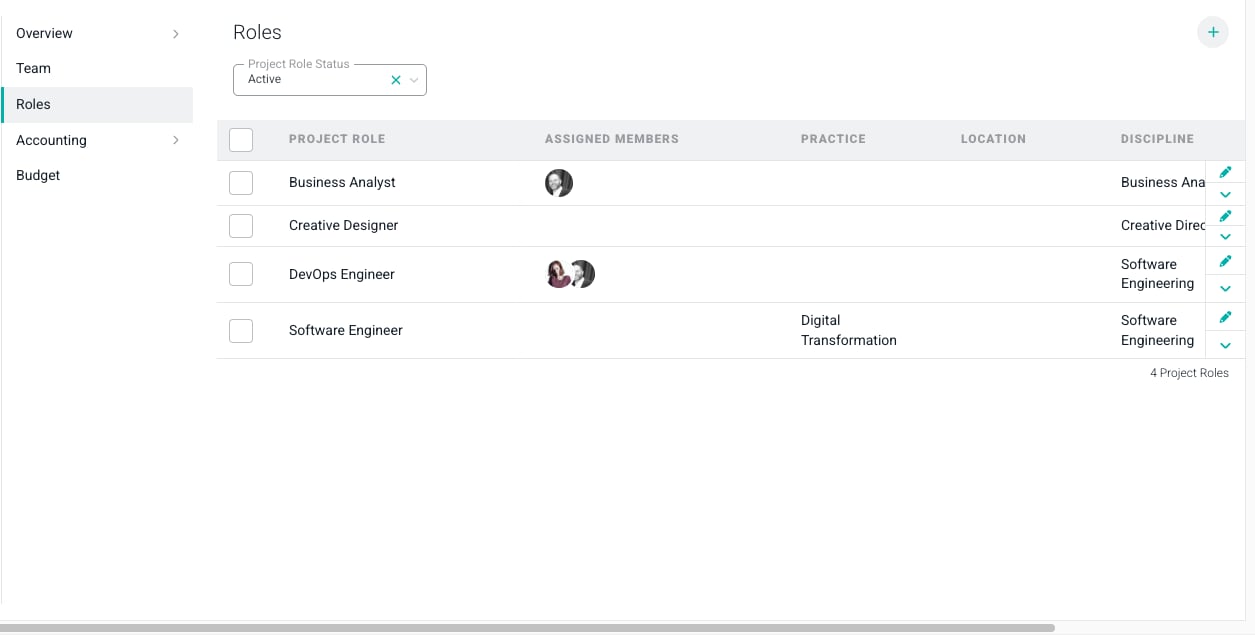
For projects that use roles, the **Roles** section (Figure 3) allows you to manage the project's roles and rates. Each role row shows the assigned members as a stack of avatars, along with the role's practice, location, discipline, and bill rate. For detailed information, see the [Project Roles](/projects/project-roles) article.
### Roles
For projects that use roles, the **Roles** section (Figure 3) allows you to manage the project's roles and rates. Each role row shows the assigned members as a stack of avatars, along with the role's practice, location, discipline, and bill rate. For detailed information, see the [Project Roles](/projects/project-roles) article.
 ### Accounting
The **Accounting** section (Figure 4) groups the project's accounting ledgers. The ledgers shown depend on the project's billing type, billability, and revenue recognition method:
* [**Fixed Fee Billing Schedule**](/projects/fixed-fee-billing-schedule) - The invoice milestones for fixed fee and fixed monthly projects.
* [**Revenue Recognition Ledger**](/projects/the-revenue-recognition-ledger) - The entries that tell Ruddr when to recognize revenue and how much revenue to recognize.
* [**Products**](/projects/products-ledger) - Products to be billed to the client.
* [**Additional Services**](/projects/additional-services-ledger) - Services delivered outside of the project's primary services.
* [**Other Items**](/projects/other-items-ledger) - Any other billable items for the project.
* [**Project Expenses**](/projects/project-expenses-ledger) - Billable and non-billable expenses scheduled at the project level.
* [**Earned Revenue Adjustment Ledger**](/projects/earned-revenue-adjustment-ledger) - Positive or negative adjustments to the project's earned revenue.
### Accounting
The **Accounting** section (Figure 4) groups the project's accounting ledgers. The ledgers shown depend on the project's billing type, billability, and revenue recognition method:
* [**Fixed Fee Billing Schedule**](/projects/fixed-fee-billing-schedule) - The invoice milestones for fixed fee and fixed monthly projects.
* [**Revenue Recognition Ledger**](/projects/the-revenue-recognition-ledger) - The entries that tell Ruddr when to recognize revenue and how much revenue to recognize.
* [**Products**](/projects/products-ledger) - Products to be billed to the client.
* [**Additional Services**](/projects/additional-services-ledger) - Services delivered outside of the project's primary services.
* [**Other Items**](/projects/other-items-ledger) - Any other billable items for the project.
* [**Project Expenses**](/projects/project-expenses-ledger) - Billable and non-billable expenses scheduled at the project level.
* [**Earned Revenue Adjustment Ledger**](/projects/earned-revenue-adjustment-ledger) - Positive or negative adjustments to the project's earned revenue.
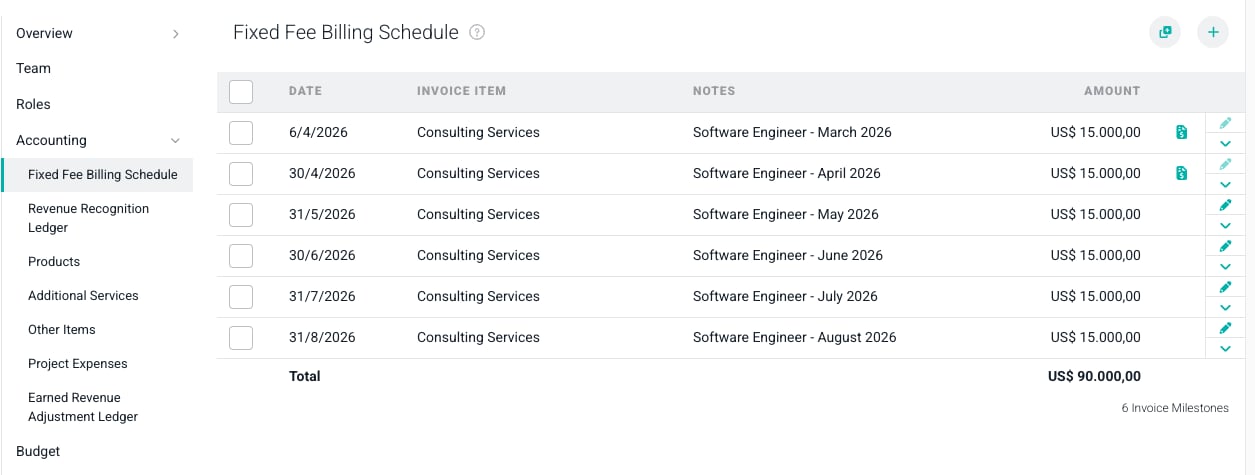 Each ledger works the same way. Use the **+** button at the top-right of the ledger to add a single entry, or the **Add Multiple** button to add several entries in one save. Each row has an action menu with **Edit** and **Delete** options, and you can select multiple rows to delete them in bulk. Rows that have been included on a published invoice cannot be edited or deleted; a bulk delete will skip any invoiced rows and report them as skipped.
### Budget and Monthly Budget
The **Budget** and **Monthly Budget** sections (Figure 5) present a read-only summary of the project's budgets, including budget revenue, hours, cost, gross profit and margin, effective bill rate, and realization rate. To make changes, click the pencil button at the top-right of the section to open the **Edit Overall Budget** or **Edit Monthly Budget** drawer. For detailed information about creating budgets, see the [Create a Project Budget](/projects/create-a-project-budget) article.
Each ledger works the same way. Use the **+** button at the top-right of the ledger to add a single entry, or the **Add Multiple** button to add several entries in one save. Each row has an action menu with **Edit** and **Delete** options, and you can select multiple rows to delete them in bulk. Rows that have been included on a published invoice cannot be edited or deleted; a bulk delete will skip any invoiced rows and report them as skipped.
### Budget and Monthly Budget
The **Budget** and **Monthly Budget** sections (Figure 5) present a read-only summary of the project's budgets, including budget revenue, hours, cost, gross profit and margin, effective bill rate, and realization rate. To make changes, click the pencil button at the top-right of the section to open the **Edit Overall Budget** or **Edit Monthly Budget** drawer. For detailed information about creating budgets, see the [Create a Project Budget](/projects/create-a-project-budget) article.
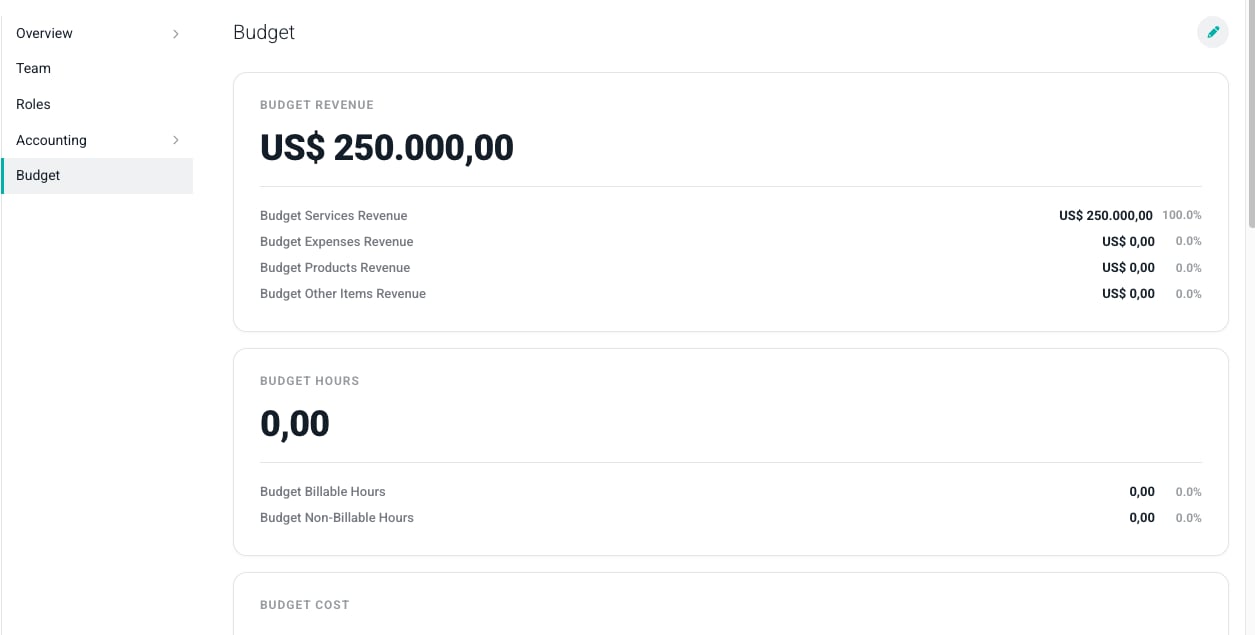 The cost, gross profit, and margin figures are only visible if you have the **View project margin** permission on your security role.
### Permissions
Access to the Settings tab is controlled by a few independent permissions:
* **Edit project** - Required to see the Settings tab and edit any section. Any member that can edit the project can also see the project's bill rates and revenue figures.
* **View project margin** - Required to see cost, gross profit, and margin figures, including the budget cost cards and member cost rates. This permission is independent of the ability to edit the project.
* **Workspace Admin** - Required to override a team member's [cost rate](/projects/project-team#override-a-members-cost-rate) for the project.
The cost, gross profit, and margin figures are only visible if you have the **View project margin** permission on your security role.
### Permissions
Access to the Settings tab is controlled by a few independent permissions:
* **Edit project** - Required to see the Settings tab and edit any section. Any member that can edit the project can also see the project's bill rates and revenue figures.
* **View project margin** - Required to see cost, gross profit, and margin figures, including the budget cost cards and member cost rates. This permission is independent of the ability to edit the project.
* **Workspace Admin** - Required to override a team member's [cost rate](/projects/project-team#override-a-members-cost-rate) for the project.