> ## Documentation Index
> Fetch the complete documentation index at: https://help.ruddr.io/llms.txt
> Use this file to discover all available pages before exploring further.
# Project Health Reporting
In addition to tracking objective metrics, project teams often have a need to provide and report on more subjective measures related to project performance. Ruddr's Project Health Reporting [feature](/workspace-administration/features) provides a mechanism for entering and communicating such information.
Members that have **Edit project** permissions in their security role have the ability to view, create, and edit project health reports for a project.
When the Project Health Report feature is enabled in the workspace, a **Health** tab (Figure 1) will be added to the Project Dashboard for each project in the workspace.
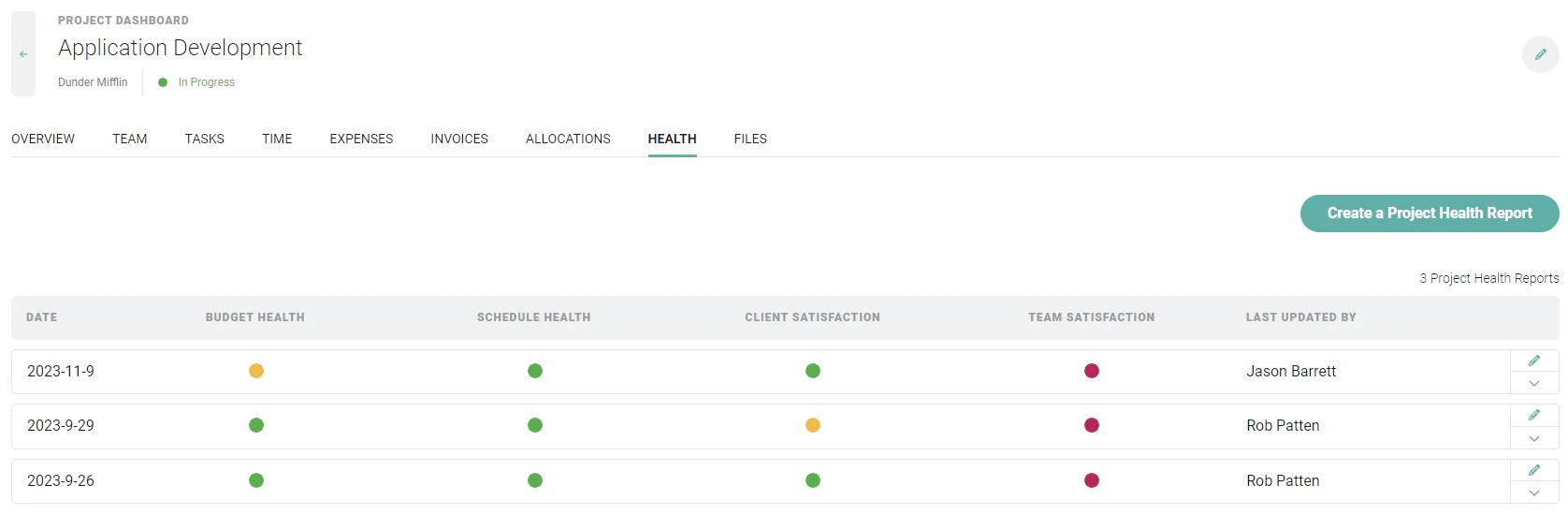 Figure 1 - A Health Tab Appears on the Project Dashboard when the Project Health Reporting Feature is Enabled
Individual reports are displayed on the Health tab (Figure 1), with the date of the report and the following values displayed:
* Project Health Report Date
* Budget Health Rating
* Schedule Health Rating
* Client Satisfaction Rating
* Team Satisfaction Rating
* Report Last Updated By
The Budget Health, Schedule Health, Client Satisfaction, and Team Satisfaction columns are represented by color-coded icons that indicate the rating of the metric:
* **Green** - indicates an assigned value of **Excellent**
* **Yellow** - indicates an assigned value of **Fair**
* **Red** - indicates an assigned value of **Poor**
Each of these ratings correspond to a numeric score of 3, 2, and 1, respectively. In producing a total Project Health Score, Ruddr sums the total scores across all four metrics, with a maximum possible Project Health Score of 12.
This Project Health Score is used to illustrate (Figure 2) the overall project health of a project throughout Ruddr.
Figure 1 - A Health Tab Appears on the Project Dashboard when the Project Health Reporting Feature is Enabled
Individual reports are displayed on the Health tab (Figure 1), with the date of the report and the following values displayed:
* Project Health Report Date
* Budget Health Rating
* Schedule Health Rating
* Client Satisfaction Rating
* Team Satisfaction Rating
* Report Last Updated By
The Budget Health, Schedule Health, Client Satisfaction, and Team Satisfaction columns are represented by color-coded icons that indicate the rating of the metric:
* **Green** - indicates an assigned value of **Excellent**
* **Yellow** - indicates an assigned value of **Fair**
* **Red** - indicates an assigned value of **Poor**
Each of these ratings correspond to a numeric score of 3, 2, and 1, respectively. In producing a total Project Health Score, Ruddr sums the total scores across all four metrics, with a maximum possible Project Health Score of 12.
This Project Health Score is used to illustrate (Figure 2) the overall project health of a project throughout Ruddr.
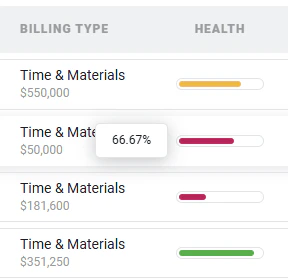 Figure 2 - A Project Health Score is Illustrated Throughout Ruddr in Reports and the Projects List
Note that project health report ratings are also visible to members with adequate permissions on the [Project List](/projects/project-list) screen.
Clicking on a report will open the **Edit Project Health Report** drawer (Figure 3), which will display the details of the report.
Figure 2 - A Project Health Score is Illustrated Throughout Ruddr in Reports and the Projects List
Note that project health report ratings are also visible to members with adequate permissions on the [Project List](/projects/project-list) screen.
Clicking on a report will open the **Edit Project Health Report** drawer (Figure 3), which will display the details of the report.
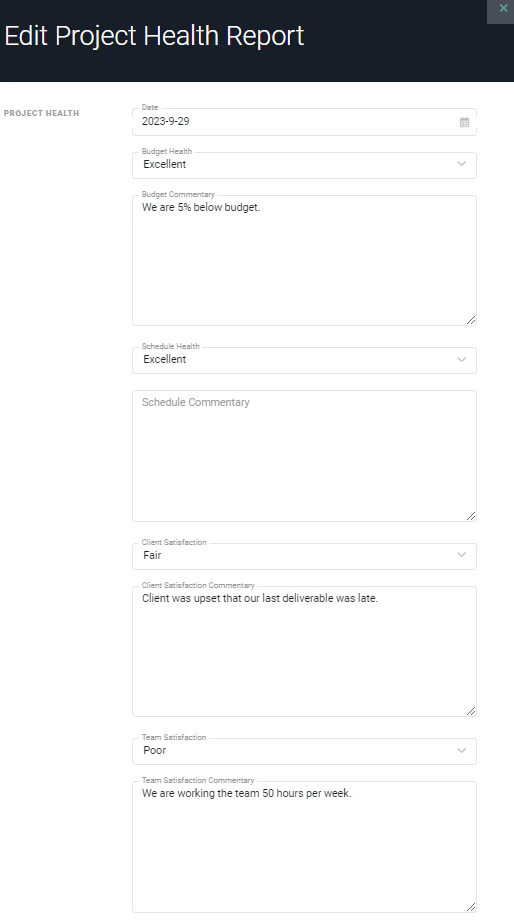 Figure 3 - View Details of the Project Health Report
### Create a Project Health Report
To create a project health report, click on the **Create a Project Health Report** button on the Health tab (Figure 1). This will open the **New Project Health Report** drawer (Figure 4).
Within the drawer, you can specify the report Date and can then specify the health level of the four metrics as described above. Additionally, you can provide written commentary for each metric. In addition to the metrics, you can provide a **General Commentary** to enter comments that may / may not relate to the four metrics.
Once you have provided the details of the report, click the **Save & Close** button to save the report and return the **Health** tab (Figure 1).
Figure 3 - View Details of the Project Health Report
### Create a Project Health Report
To create a project health report, click on the **Create a Project Health Report** button on the Health tab (Figure 1). This will open the **New Project Health Report** drawer (Figure 4).
Within the drawer, you can specify the report Date and can then specify the health level of the four metrics as described above. Additionally, you can provide written commentary for each metric. In addition to the metrics, you can provide a **General Commentary** to enter comments that may / may not relate to the four metrics.
Once you have provided the details of the report, click the **Save & Close** button to save the report and return the **Health** tab (Figure 1).
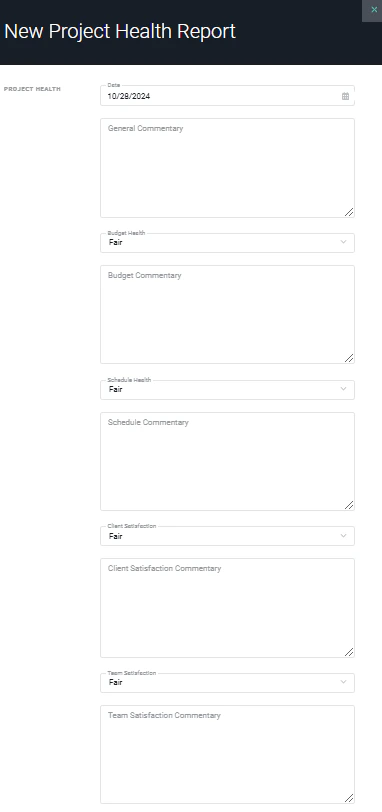 Figure 4 - Create a Project Health Report
When a Project Health Report is created, Ruddr will "stamp" the project's current metrics onto the project health report (Figure 5). This will provide historical context to prior project health reports and insight into the state of the project's objective measurements in comparison to the subjective ratings and commentary provided in the health report.
Figure 4 - Create a Project Health Report
When a Project Health Report is created, Ruddr will "stamp" the project's current metrics onto the project health report (Figure 5). This will provide historical context to prior project health reports and insight into the state of the project's objective measurements in comparison to the subjective ratings and commentary provided in the health report.
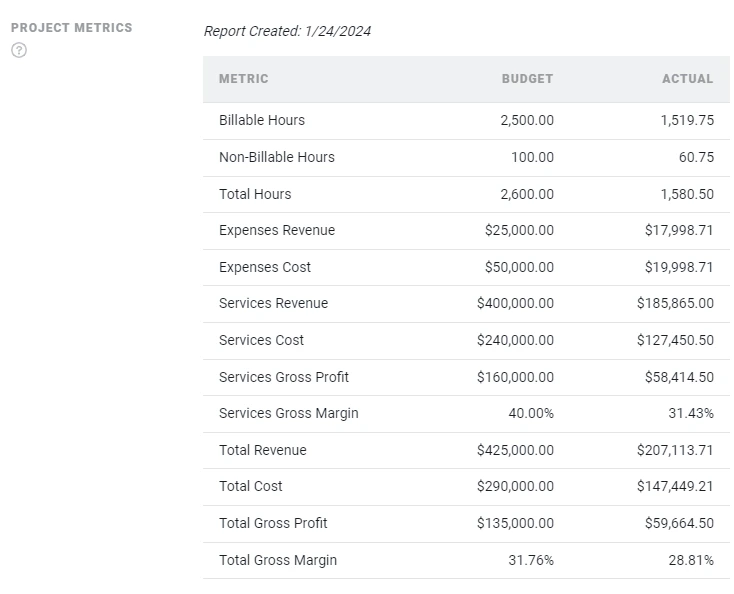 Figure 5 - Project Metrics are "Stamped" on a Project Health Report as the Health Report is Created
### Manage a Project Health Report
#### Edit a Project Health Report
Those members with Edit project permissions to the current project can edit project health reports by either clicking on the pencil icon on the report row, or by selecting the **Edit** menu item (Figure 6) from the action menu on the row in the **Health** tab (Figure 1). This will open the Edit Project Health Report drawer (Figure 3), allowing the member to update details of the report.
Figure 5 - Project Metrics are "Stamped" on a Project Health Report as the Health Report is Created
### Manage a Project Health Report
#### Edit a Project Health Report
Those members with Edit project permissions to the current project can edit project health reports by either clicking on the pencil icon on the report row, or by selecting the **Edit** menu item (Figure 6) from the action menu on the row in the **Health** tab (Figure 1). This will open the Edit Project Health Report drawer (Figure 3), allowing the member to update details of the report.
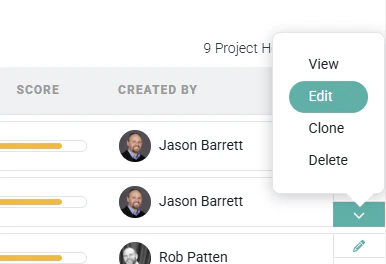 Figure 6 - Access the Edit Project Health Report Drawer
#### Delete a Project Health Report
Members with **Edit project** permissions to the project can delete a project health report by selecting **Delete** from the report row's action menu (Figure 6). The user will then be prompted to confirm the deletion of the project health report. Clicking the **Delete** button will delete the report.
Figure 6 - Access the Edit Project Health Report Drawer
#### Delete a Project Health Report
Members with **Edit project** permissions to the project can delete a project health report by selecting **Delete** from the report row's action menu (Figure 6). The user will then be prompted to confirm the deletion of the project health report. Clicking the **Delete** button will delete the report.
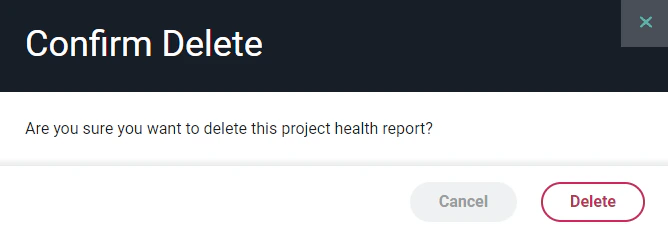 Figure 7 - Confirm the Deletion of a Project Health Report
#### Clone a Project Health Report
Members with **Edit project** permissions to the project can clone a project health report by select **Clone** from the report row's action menu (Figure 6). The user will then be prompted (Figure 8) to specify a report date for the new project health report.
Figure 7 - Confirm the Deletion of a Project Health Report
#### Clone a Project Health Report
Members with **Edit project** permissions to the project can clone a project health report by select **Clone** from the report row's action menu (Figure 6). The user will then be prompted (Figure 8) to specify a report date for the new project health report.
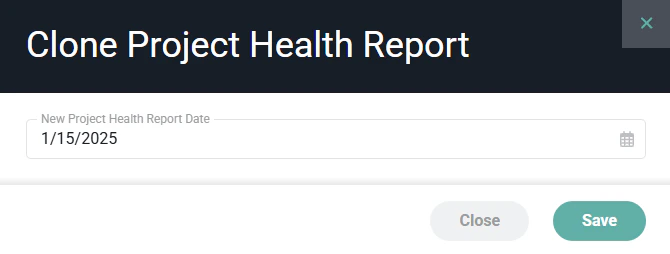 Figure 8 - Specify a Report Date for the Clone Project Health Report
When a project health report is cloned, the new report is an exact replica of the original report. Ratings and commentary will be copied.
Figure 8 - Specify a Report Date for the Clone Project Health Report
When a project health report is cloned, the new report is an exact replica of the original report. Ratings and commentary will be copied.