> ## Documentation Index
> Fetch the complete documentation index at: https://help.ruddr.io/llms.txt
> Use this file to discover all available pages before exploring further.
# Project Expenses Ledger
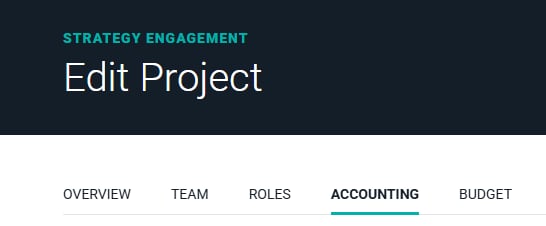
The **Accounting** tab (Figure 1) of the **Edit Project** drawer allows you to schedule billable and non-billable project expenses. Project expenses are expenses that are not included on a team member's expense report but that likely came into the accounts payable team within the company. For a project expense to be configured as billable, the project itself must be billable.
To edit a project you must have access to the project and must have the **Edit Project** permission for that project based on your Ruddr [security role](workspace-administration/security-roles).
 ### Scheduling the Billing and Revenue Recognition of Project Expenses
The **Project Expenses** ledger on the **Accounting** tab has two purposes. First, it allows for a project expense to be incurred and then optionally invoiced via the [**Ready to Bill**](/billing/ready-to-bill) screen as of the date of the line item in the ledger. Second, it enables revenue recognition for the billable project expense on that same date. Non-billable expenses will only have cost recognition.
There are two ways to add expenses to the **Project Expenses** ledger on the **Edit Project** drawer:
* [Add a Single Expense to the Project Expenses Ledger](/projects/project-expenses-ledger#add-a-single-expense-to-the-project-expenses-ledger)
* [Add a Recurring Expense to the Project Expenses Ledger](/projects/project-expenses-ledger#add-a-recurring-expense-to-the-project-expenses-ledger)
#### Add a Single Expense to the Project Expenses Ledger
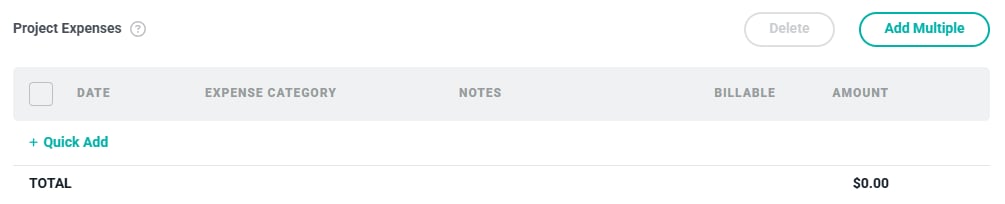
To bill for a project expense, simply click on the **+ Quick Add** button at the bottom of the **Project Expenses** ledger (Figure 2).
### Scheduling the Billing and Revenue Recognition of Project Expenses
The **Project Expenses** ledger on the **Accounting** tab has two purposes. First, it allows for a project expense to be incurred and then optionally invoiced via the [**Ready to Bill**](/billing/ready-to-bill) screen as of the date of the line item in the ledger. Second, it enables revenue recognition for the billable project expense on that same date. Non-billable expenses will only have cost recognition.
There are two ways to add expenses to the **Project Expenses** ledger on the **Edit Project** drawer:
* [Add a Single Expense to the Project Expenses Ledger](/projects/project-expenses-ledger#add-a-single-expense-to-the-project-expenses-ledger)
* [Add a Recurring Expense to the Project Expenses Ledger](/projects/project-expenses-ledger#add-a-recurring-expense-to-the-project-expenses-ledger)
#### Add a Single Expense to the Project Expenses Ledger
To bill for a project expense, simply click on the **+ Quick Add** button at the bottom of the **Project Expenses** ledger (Figure 2).
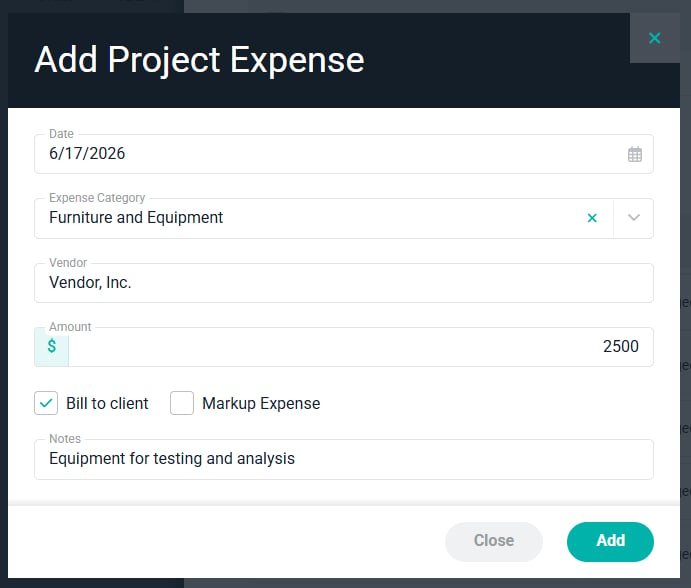
 This will open the **Add Project Expense** window (Figure 3) where you can supply the information about the expense.
You can provide the following fields:
* **Date** - The date that you want the project expense to be incurred. For billable expenses, this is also the date that the expense will be picked up on the [Ready to Bill](/billing/ready-to-bill) screen for invoicing.
* **Expense Category** - The expense category that is suitable for this type of expense. Note that Workspace Admins can create as many expense categories as needed within the **Custom Data** section of [Workspace Settings](/workspace-administration/custom-data).
* **Vendor** - The vendor that was paid for this project expense.
* **Amount** - The amount of this project expense.
* **Bill to client** - A checkbox that denotes whether the client should be invoiced for this project expense.
* **Markup Expense** - A checkbox that denotes whether the project expense should be marked up for invoicing. Note that this checkbox is only available if the Expense Markup [feature](/workspace-administration/features) is enabled.
* **Notes** - The description of the project expense that will show on the invoice line item.
This will open the **Add Project Expense** window (Figure 3) where you can supply the information about the expense.
You can provide the following fields:
* **Date** - The date that you want the project expense to be incurred. For billable expenses, this is also the date that the expense will be picked up on the [Ready to Bill](/billing/ready-to-bill) screen for invoicing.
* **Expense Category** - The expense category that is suitable for this type of expense. Note that Workspace Admins can create as many expense categories as needed within the **Custom Data** section of [Workspace Settings](/workspace-administration/custom-data).
* **Vendor** - The vendor that was paid for this project expense.
* **Amount** - The amount of this project expense.
* **Bill to client** - A checkbox that denotes whether the client should be invoiced for this project expense.
* **Markup Expense** - A checkbox that denotes whether the project expense should be marked up for invoicing. Note that this checkbox is only available if the Expense Markup [feature](/workspace-administration/features) is enabled.
* **Notes** - The description of the project expense that will show on the invoice line item.
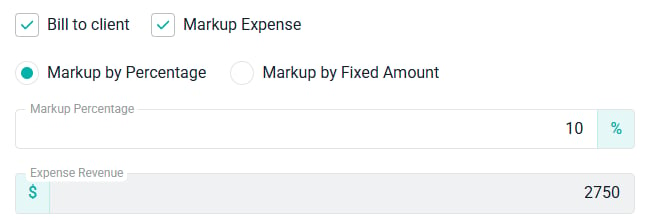
 If you choose to markup the expense by clicking the **Markup Expense** checkbox, you can mark up the expense by either a percentage or a fixed amount (Figure 4). When a billable expense is marked up, the expense revenue will be higher than the expense cost by the amount of the markup.
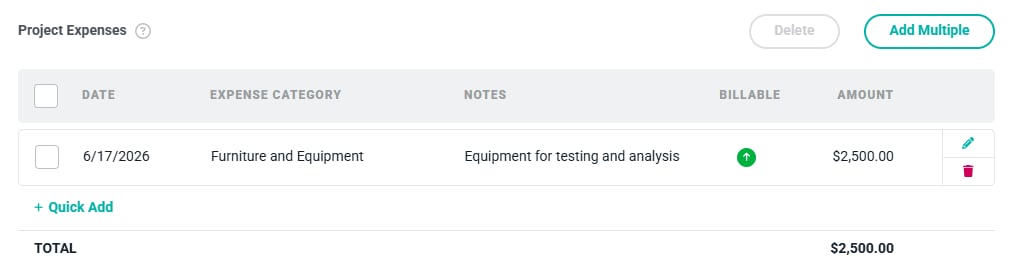
 Clicking the **Add** button on the **Add Project Expense** window will close the form and add the expense to the **Project Expenses** ledger (Figure 5). Note that when a billable project expense has been marked up, the dollar sign icon in the green circle will be replaced with an up arrow icon. Hovering your mouse over this icon will show the marked up amount of the expense.
 #### Add a Recurring Expense to the Project Expenses Ledger
Some Ruddr customers need to incur expenses, and possibly invoice clients for them, in a monthly recurring manner. To set up a recurring schedule of expenses, click the **Add Multiple** button at the top of the **Project Expenses** ledger (Figure 2). This will open the **Add Multiple Project Expenses** window (Figure 6).
#### Add a Recurring Expense to the Project Expenses Ledger
Some Ruddr customers need to incur expenses, and possibly invoice clients for them, in a monthly recurring manner. To set up a recurring schedule of expenses, click the **Add Multiple** button at the top of the **Project Expenses** ledger (Figure 2). This will open the **Add Multiple Project Expenses** window (Figure 6).
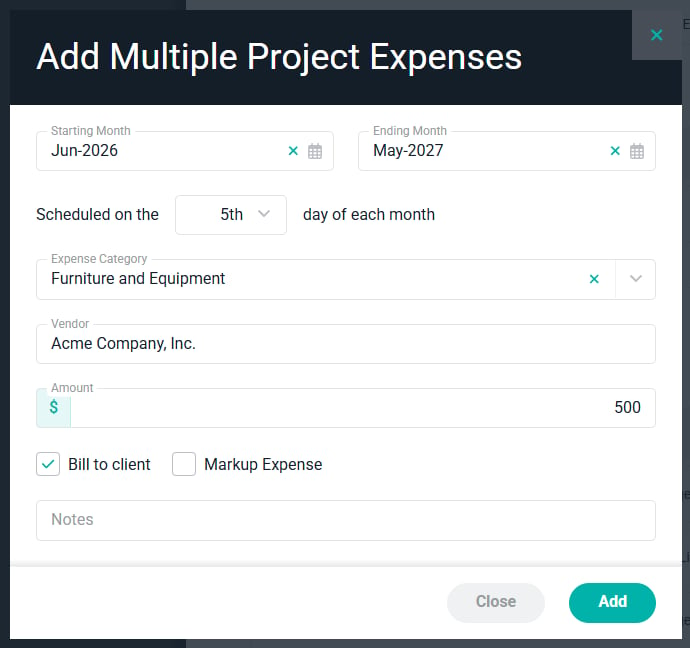 On this window, the fields are identical to the single **Add Project Expense** window (Figure 3), with the exception of the following:
* **Starting Month** - The first month that you want this monthly recurring project expense to be incurred and optionally invoiced (if the **Bill to client** checkbox is checked).
* **Ending Month** - The final month that you want this monthly recurring project expense to be incurred and optionally invoiced (if the **Bill to client** checkbox is checked).
* **Scheduled on the X Day of Each Month** - The exact day of the month that you want this monthly recurring project expense to be incurred and optionally picked up on the Ready to Bill screen (if the **Bill to client** checkbox is checked). This is also the date that the associated cost and revenue will be recognized.
Once you have provided the information for the recurring project expense, click the **Add** button at the bottom of the **Add Multiple Project Expenses** window (Figure 6). This will close the window and add the full project expense schedule to the **Project Expenses** ledger (Figure 7).
On this window, the fields are identical to the single **Add Project Expense** window (Figure 3), with the exception of the following:
* **Starting Month** - The first month that you want this monthly recurring project expense to be incurred and optionally invoiced (if the **Bill to client** checkbox is checked).
* **Ending Month** - The final month that you want this monthly recurring project expense to be incurred and optionally invoiced (if the **Bill to client** checkbox is checked).
* **Scheduled on the X Day of Each Month** - The exact day of the month that you want this monthly recurring project expense to be incurred and optionally picked up on the Ready to Bill screen (if the **Bill to client** checkbox is checked). This is also the date that the associated cost and revenue will be recognized.
Once you have provided the information for the recurring project expense, click the **Add** button at the bottom of the **Add Multiple Project Expenses** window (Figure 6). This will close the window and add the full project expense schedule to the **Project Expenses** ledger (Figure 7).
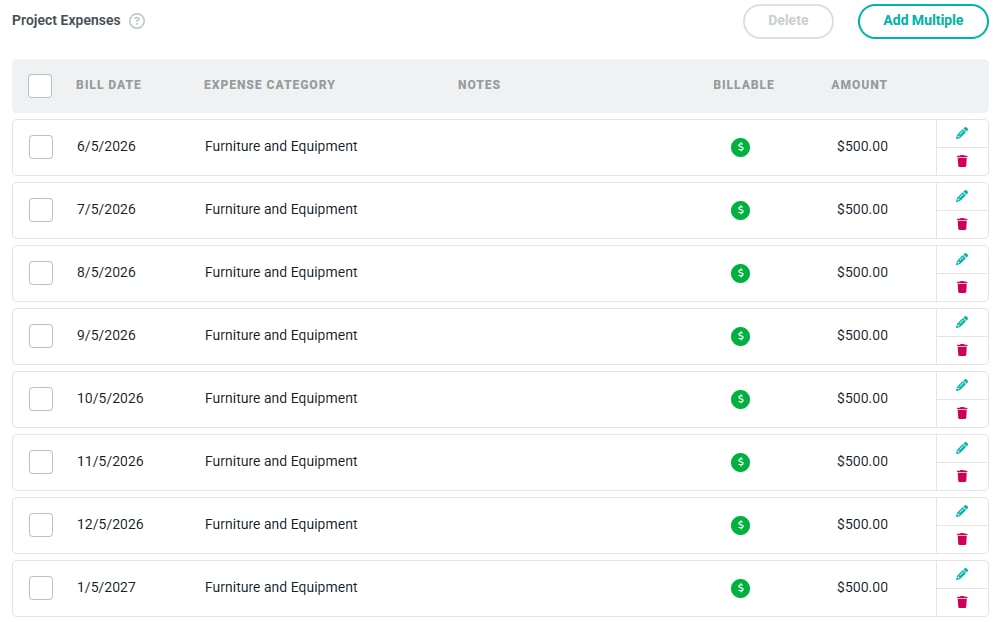 The individual rows can be edited or deleted via the buttons on the right side of each row.
### Invoicing for Project Expenses
The [Ready to Bill](/billing/ready-to-bill) screen will automatically pick up all project expense billing that is scheduled within the date range at the top of that screen. When a draft invoice is created for a project on the **Ready to Bill** screen, the project expense line items within the date range will be added to the invoice.
When a project expense in the ledger has been invoiced, it will no longer be editable and can't be removed from the **Project Expenses** ledger. The edit and delete icons on the ledger row will be disabled once that line item is associated with an invoice.
### Revenue Recognition for Expenses in the Project Expenses Ledger
Revenue associated with expenses will be recognized as of the date in the Project Expenses ledger. Project Expenses do not have to be invoiced in order for the revenue to be recognized.
The individual rows can be edited or deleted via the buttons on the right side of each row.
### Invoicing for Project Expenses
The [Ready to Bill](/billing/ready-to-bill) screen will automatically pick up all project expense billing that is scheduled within the date range at the top of that screen. When a draft invoice is created for a project on the **Ready to Bill** screen, the project expense line items within the date range will be added to the invoice.
When a project expense in the ledger has been invoiced, it will no longer be editable and can't be removed from the **Project Expenses** ledger. The edit and delete icons on the ledger row will be disabled once that line item is associated with an invoice.
### Revenue Recognition for Expenses in the Project Expenses Ledger
Revenue associated with expenses will be recognized as of the date in the Project Expenses ledger. Project Expenses do not have to be invoiced in order for the revenue to be recognized.