> ## Documentation Index
> Fetch the complete documentation index at: https://help.ruddr.io/llms.txt
> Use this file to discover all available pages before exploring further.
# Client Currency
When the multicurrency feature is on in Ruddr, every client must have a designated currency. A **Currency** dropdown is shown on the **New Client** window (Figure 1) which will include the currencies made available by the Workspace Admin. This dropdown will default to the workspace's home currency, as set in the workspace settings. For more on configuring the available workspace currencies, see the [Multicurrency Overview](/multicurrency/multicurrency-overview) help center article.
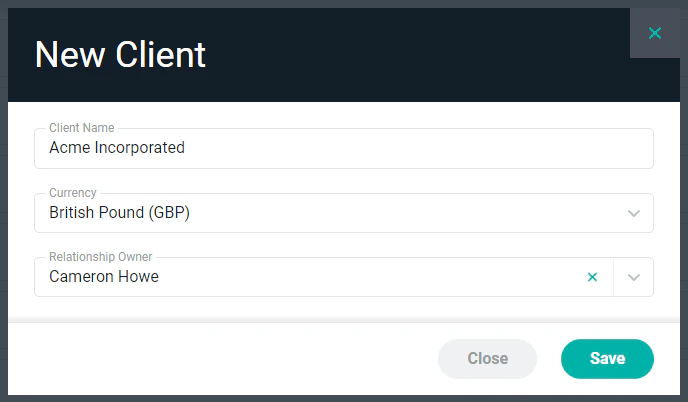 Figure 1 - New Client Window
The currency for a given client can be changed at any time. This can be done from the **Regional Settings** section (Figure 2) of the **Overview** tab of the **Edit Client** drawer. Also, the individual projects within the client can be in any currency.
Figure 1 - New Client Window
The currency for a given client can be changed at any time. This can be done from the **Regional Settings** section (Figure 2) of the **Overview** tab of the **Edit Client** drawer. Also, the individual projects within the client can be in any currency.
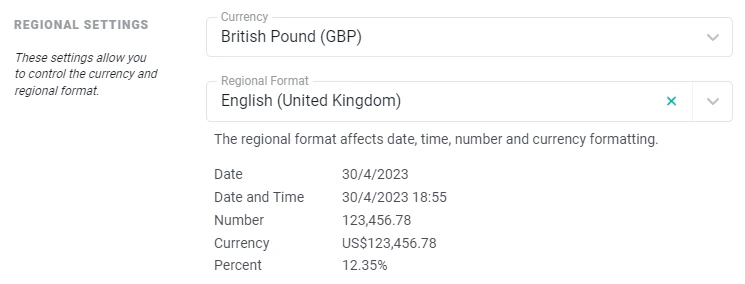 Figure 2 - Client Regional Settings
The client currency is used for two distinct purposes in Ruddr. First, the financial metrics on the **Client Dashboard** (Figure 3) will be shown in the selected client currency. These metrics are aggregated from all of the projects within the client (and those projects could be in different currencies).
Figure 2 - Client Regional Settings
The client currency is used for two distinct purposes in Ruddr. First, the financial metrics on the **Client Dashboard** (Figure 3) will be shown in the selected client currency. These metrics are aggregated from all of the projects within the client (and those projects could be in different currencies).
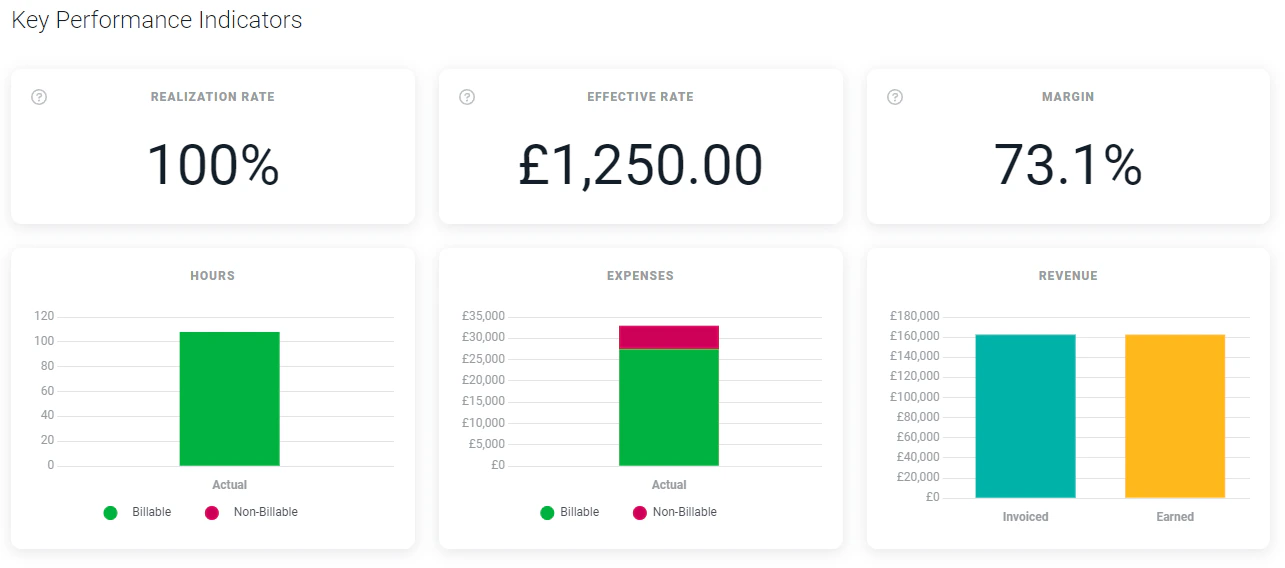 Figure 3 - Client Dashboard Key Performance Indicators
Second, any time a new project is created for the client, the New Project window (Figure 4) will default the project's currency to the client currency. The project's currency can be changed as needed.
Figure 3 - Client Dashboard Key Performance Indicators
Second, any time a new project is created for the client, the New Project window (Figure 4) will default the project's currency to the client currency. The project's currency can be changed as needed.
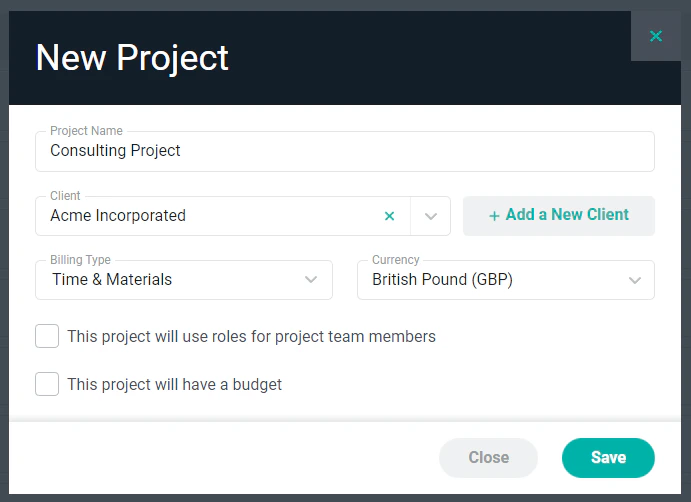 Figure 4 - New Project Window
### Client Roles and Rates
The **Roles** tab (Figure 5) of the **Edit Client** drawer allows you to set up predefined roles and rates for a client. This can be helpful when different rates are negotiated with each client. In the event that projects will be delivered in multiple currencies within a single client, separate roles and rates can be created per currency. The example below shows the Roles tab on the Edit Client drawer for a client with projects in both United States Dollars and Japanese Yen. The Roles tab on the **Edit Project** drawer will only show roles and rates that are in that project's currency.
For more on client roles and rates, please refer to the [Client Roles](/clients/client-roles) article in the Ruddr Help Center.
Figure 4 - New Project Window
### Client Roles and Rates
The **Roles** tab (Figure 5) of the **Edit Client** drawer allows you to set up predefined roles and rates for a client. This can be helpful when different rates are negotiated with each client. In the event that projects will be delivered in multiple currencies within a single client, separate roles and rates can be created per currency. The example below shows the Roles tab on the Edit Client drawer for a client with projects in both United States Dollars and Japanese Yen. The Roles tab on the **Edit Project** drawer will only show roles and rates that are in that project's currency.
For more on client roles and rates, please refer to the [Client Roles](/clients/client-roles) article in the Ruddr Help Center.
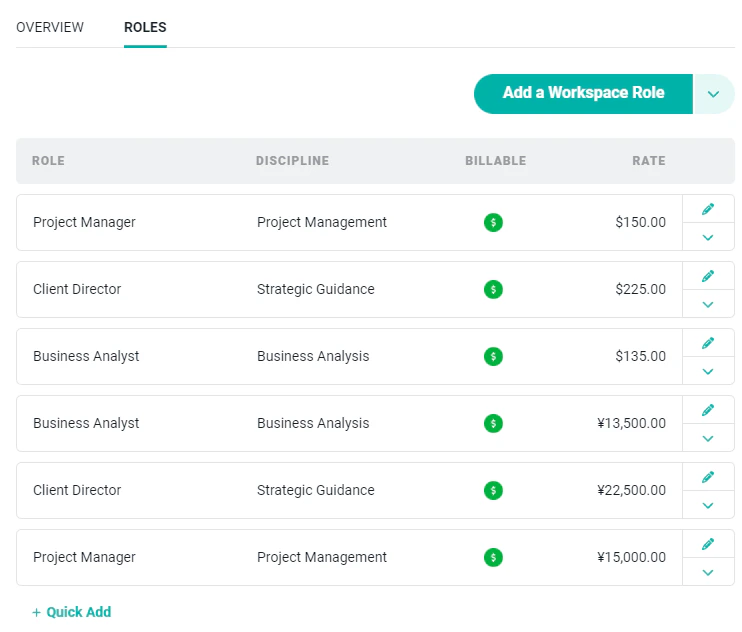 Figure 5 - Roles/Rates in US Dollars and Japanese Yen
Once you have the client currency set, you are ready to create a project and set the [Project Currency](/multicurrency/project-currency).
Figure 5 - Roles/Rates in US Dollars and Japanese Yen
Once you have the client currency set, you are ready to create a project and set the [Project Currency](/multicurrency/project-currency).